DAM RDS Manual Integration for MySQL / PostgreSQL
Last updated: July 29, 2026
1. Overview
To allow Matters DAM to monitor RDS database activity, your AWS environment must be configured to:
Generate RDS audit logs
Stream audit logs to CloudWatch Logs
Grant Matters DAM read-only IAM access to CloudWatch Logs
Register each database within the Matters DAM
Integrate Cloudtrail logs for RDS audit level DAM Logs
2. Configure Audit Logs → CloudWatch Logs
Perform the following steps for each RDS instance you want to monitor.
2.1 Enable the RDS Audit Plugin or Extension
MySQL / MariaDB
Go to AWS Console → RDS → Parameter groups
Create or select an existing custom parameter group
Click Edit parameters
Set the following parameters:
server_audit_logging→ ONserver_audit_events→CONNECT,QUERY,QUERY_DDL,QUERY_DML,QUERY_DCLserver_audit_output_type→ FILEConfigure any additional
server_audit_*parameters your compliance requires
Click Save changes
PostgreSQL
Go to AWS Console → RDS → Parameter groups
Create or select a PostgreSQL custom parameter group
Click Edit parameters
Update:
shared_preload_libraries→ include pgauditpgaudit.log→ read,ddl,role,misc, writepgaudit.log_level should be set to log
pgaudit.log_parameter should be set to 1
pgaudit.log_statement should be set to 1
Save the changes
After applying the parameter group (see next section), connect to the DB and run:
CREATE EXTENSION IF NOT EXISTS pgaudit;
2.2 Attach the Audit-Enabled Parameter Group
Go to AWS Console → RDS → Databases, select your instance
Click Modify
Scroll to DB parameter group
Select your custom audit-enabled parameter group
Click Continue
Choose:
Apply immediately (non-production)
Apply during maintenance window (production)
Click Modify DB instance
Note: PostgreSQL requires a reboot for shared_preload_libraries changes.
2.3 Enable Log Exports to CloudWatch
Go to AWS Console → RDS → Databases, open your instance
Click Modify
Scroll to Log exports
Enable the required log types:
MySQL / MariaDB → Enable audit log export
PostgreSQL → Enable postgresql or audit log export (depending on version)
Continue → Apply changes
Reboot if AWS prompts you
2.4 Verify Logs in CloudWatch Logs
Go to AWS Console → CloudWatch → Logs → Log groups
Search for your RDS log group. Common patterns:
/aws/rds/instance/<db_identifier>/audit
/aws/rds/instance/<db_identifier>/postgresql
Confirm:
Log streams are being created
Events (connections, queries, etc.) are visible inside the streams
Once events appear, the RDS instance is ready to be registered in DAM.
3. Create IAM Role for DAM (One-Time Setup)
DAM requires a read-only IAM Role in your AWS account.
You will create:
An IAM Role with a trust policy allowing DAM to assume it
IAM Role trust policy:
{
    "Version": "2012-10-17",
    "Statement": [
        {
            "Effect": "Allow",
            "Principal": {
                "AWS": "arn:aws:iam::471112501839:root"
            },
            "Action": "sts:AssumeRole"
        }
    ]
}
An IAM permissions policy granting read-only access to CloudWatch Logs
IAM Role:{ "Version": "2012-10-17", "Statement": [ { "Sid": "ListLogGroups", "Effect": "Allow", "Action": "logs:DescribeLogGroups", "Resource": "*" }, { "Sid": "DescribeStreamsInAllRDSLogGroups", "Effect": "Allow", "Action": "logs:DescribeLogStreams", "Resource": [ "arn:aws:logs:*:*:log-group:/aws/rds/instance/*", "arn:aws:logs:*:*:log-group:/aws/rds/instance/*:*", "arn:aws:logs:*:*:log-group:/aws/rds/cluster/*", "arn:aws:logs:*:*:log-group:/aws/rds/cluster/*:*" ] }, { "Sid": "ReadEventsFromAllRDSLogGroups", "Effect": "Allow", "Action": [ "logs:GetLogEvents", "logs:FilterLogEvents" ], "Resource": [ "arn:aws:logs:*:*:log-group:/aws/rds/instance/*:log-stream:*", "arn:aws:logs:*:*:log-group:/aws/rds/cluster/*:log-stream:*" ] } ] }(Optional) A KMS policy, if your CloudWatch log groups use encryption
4. Connect RDS for DAM (Manual Integration Flow)
After completing the AWS-side pre-requisites, add your RDS instance to DAM using the manual onboarding screen.
You can open the integration page here:
https://app.matters.ai/data-security/integrations?tab=DAM
4.1 “Connect RDS for DAM” Screen
The following fields must be completed to register your RDS instance.
Required fields are marked with an asterisk (*).
Fields Explained
Integration Name*
A friendly name for this integration. Example:
prod-mysql-auditDatabase Type*
Choose the engine type (MySQL, PostgreSQL, etc.)
RDS Identifier*
Your RDS DB Instance ID exactly as shown in AWS. Example:
prod-mysql-1CloudWatch Log Group*
Enter the name of the CloudWatch Log Group where audit logs are flowing.
Example:
/aws/rds/instance/prod-mysql-1/auditAWS Region*
The region where the RDS instance is running. Example:
ap-south-1IAM Role ARN*
The ARN of the IAM role you created in Step 3.
Example:
arn:aws:iam::<account-id>:role/DAM-CloudWatch-ReadRoleAWS KMS Key (Optional)
Provide a KMS Key ARN if your CloudWatch Log Group uses customer-managed encryption.
After filling the form, click Proceed to connect.
On success, DAM Integration will be verified and Success status will be shown upon successful integration.
[Optional] Integrate CloudTrail logs for RDS Risks
In the Matters console, go to:https://app.dev.matters.ai/data-security/integrations?tab=DDR_LOGS_INGEST
Click on Connect to integrate the Cloudtrail logs.
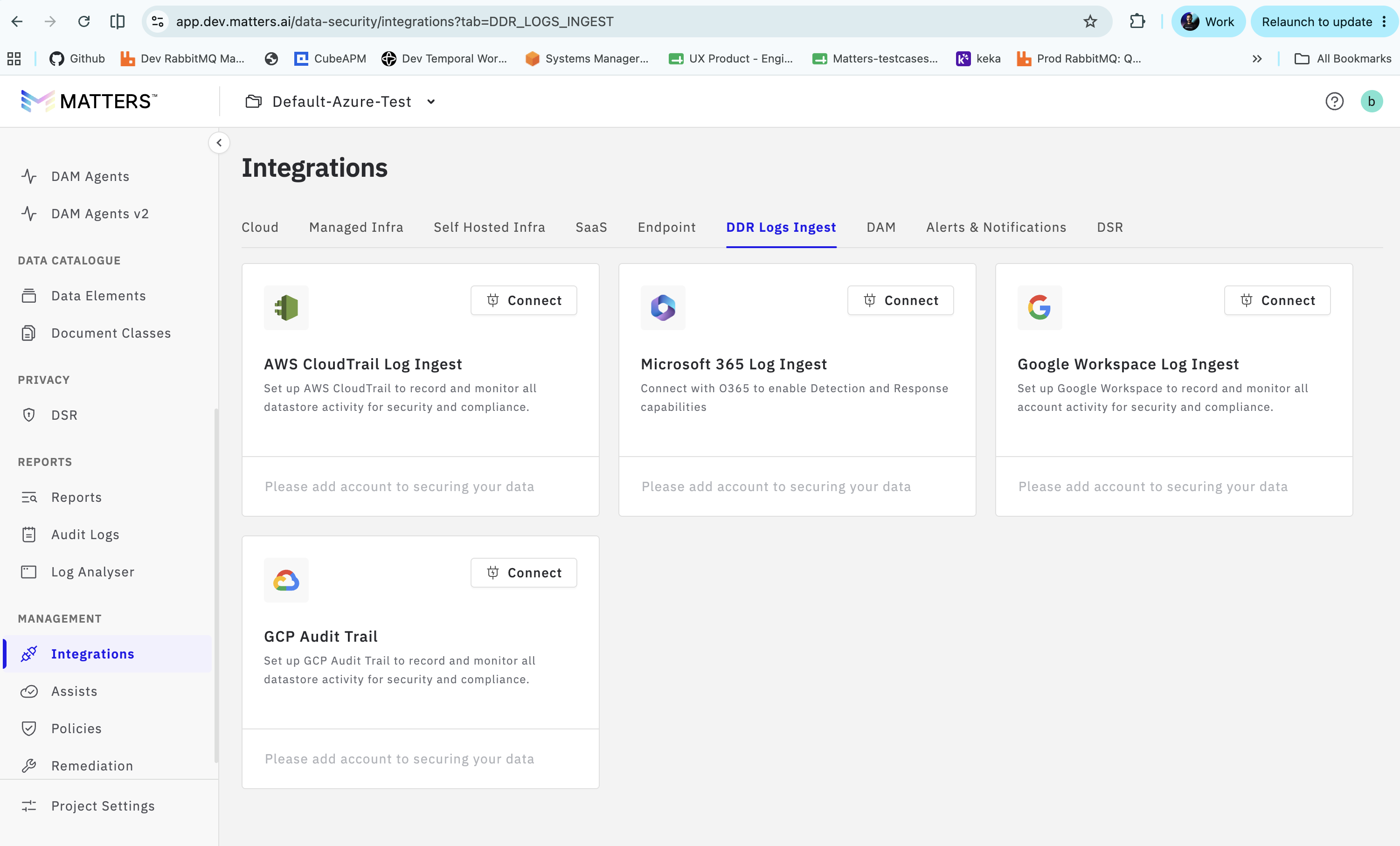
Click on Select AWS account, choose the pre-created DSPM role on Matters.
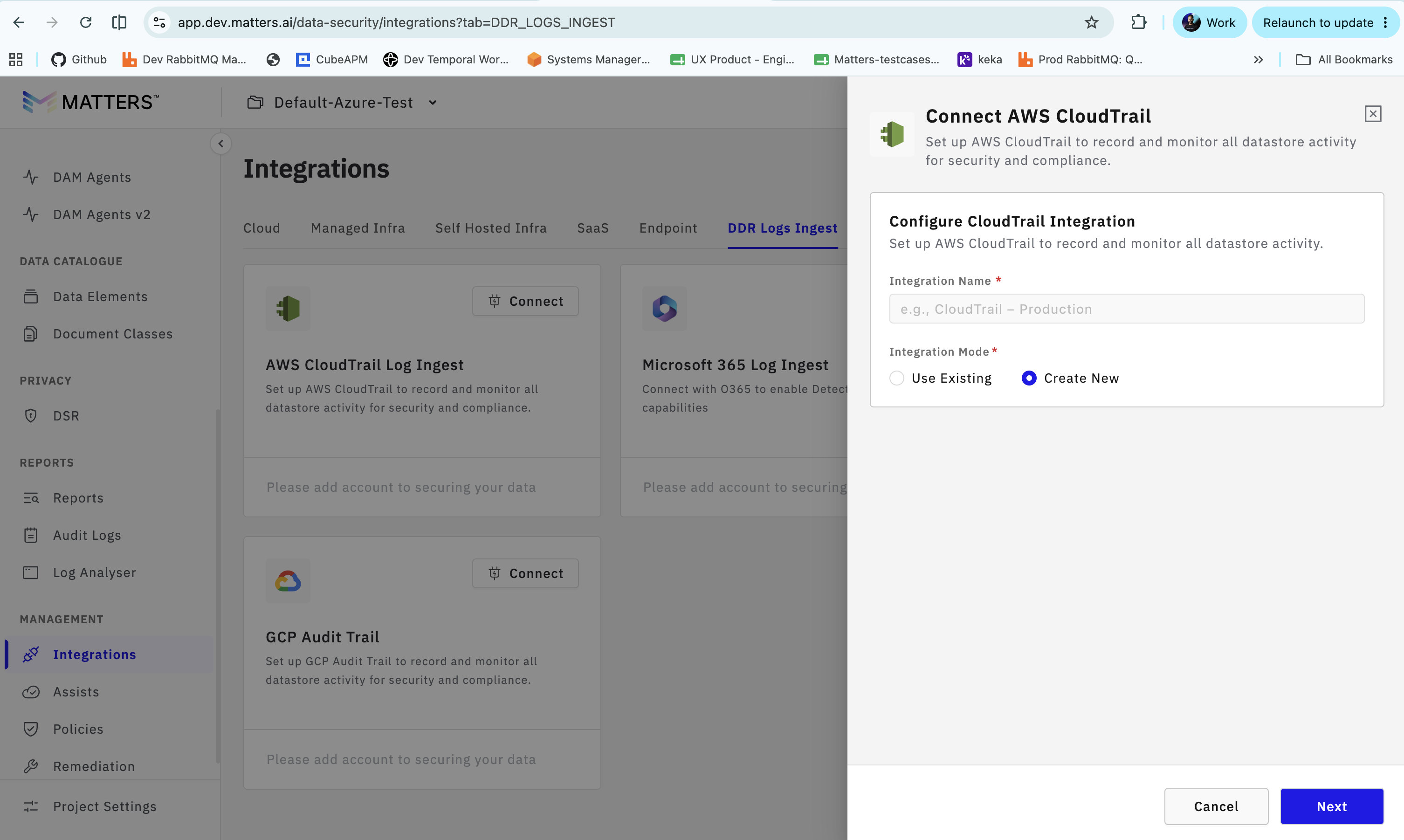
Enter the Integration Name.
Enter the S3 bucket details such as Name, region and prefix of the S3 bucket where cloudtrail is stored and Click on Next.
Once the cloudtrail is integration is tested, it will return successful integration message on the UI.