Endpoint Agent deployment guide for Mac
Last updated: April 30, 2026
All the packages and config files will be shared by Matters team which we will be requiring for MDM deployment. It contains an upload_config.sh , fill_client_name.sh , mobileconfig file and the pkg
First we will have to do some configurations on the dashboard side:
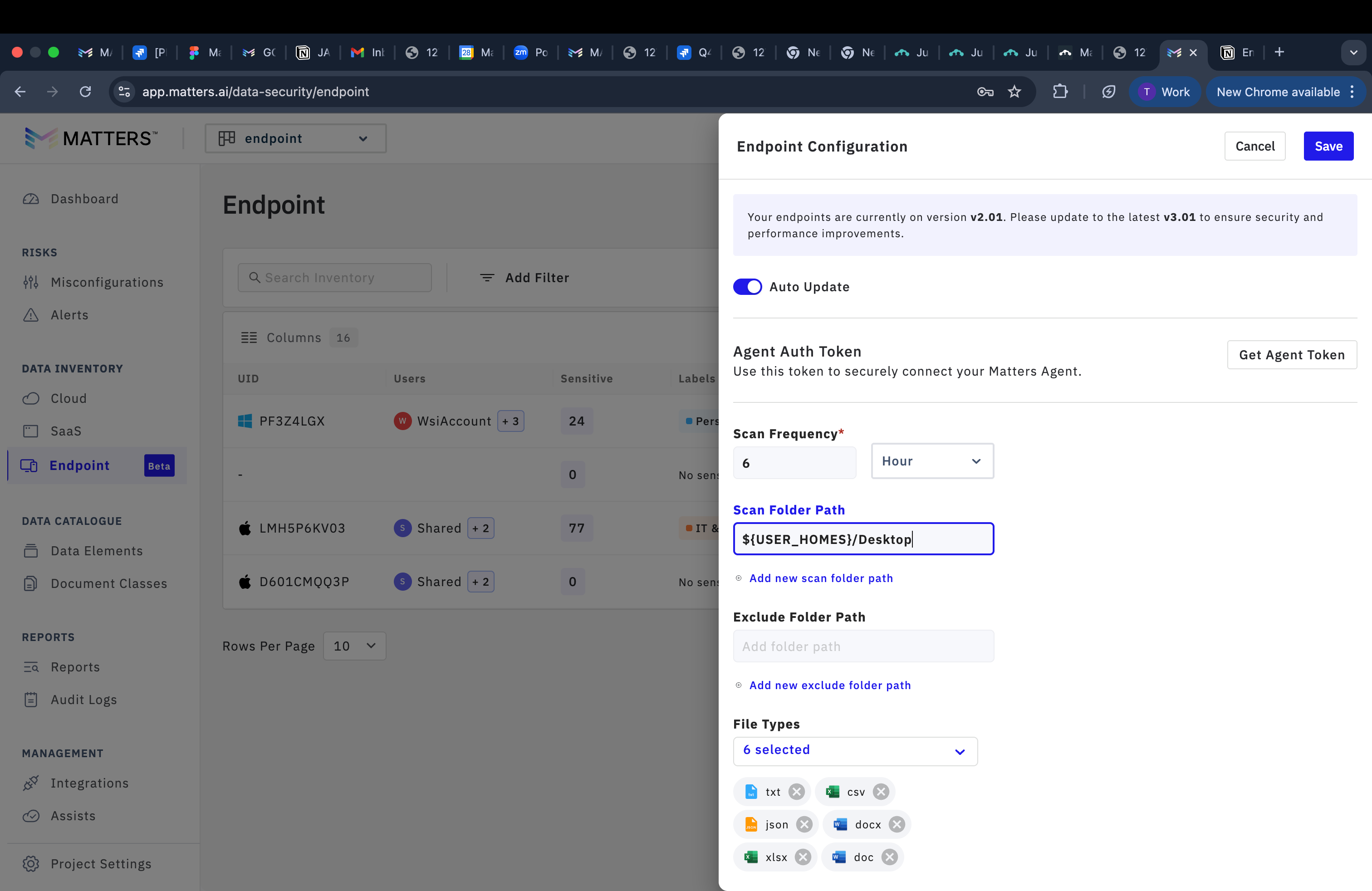
Fill the configuration page as shown below. Keep the Scan Folder Path as shown:
${USER_HOMES}/Desktopwould mean that it would scan all the files inside the desktop folder.
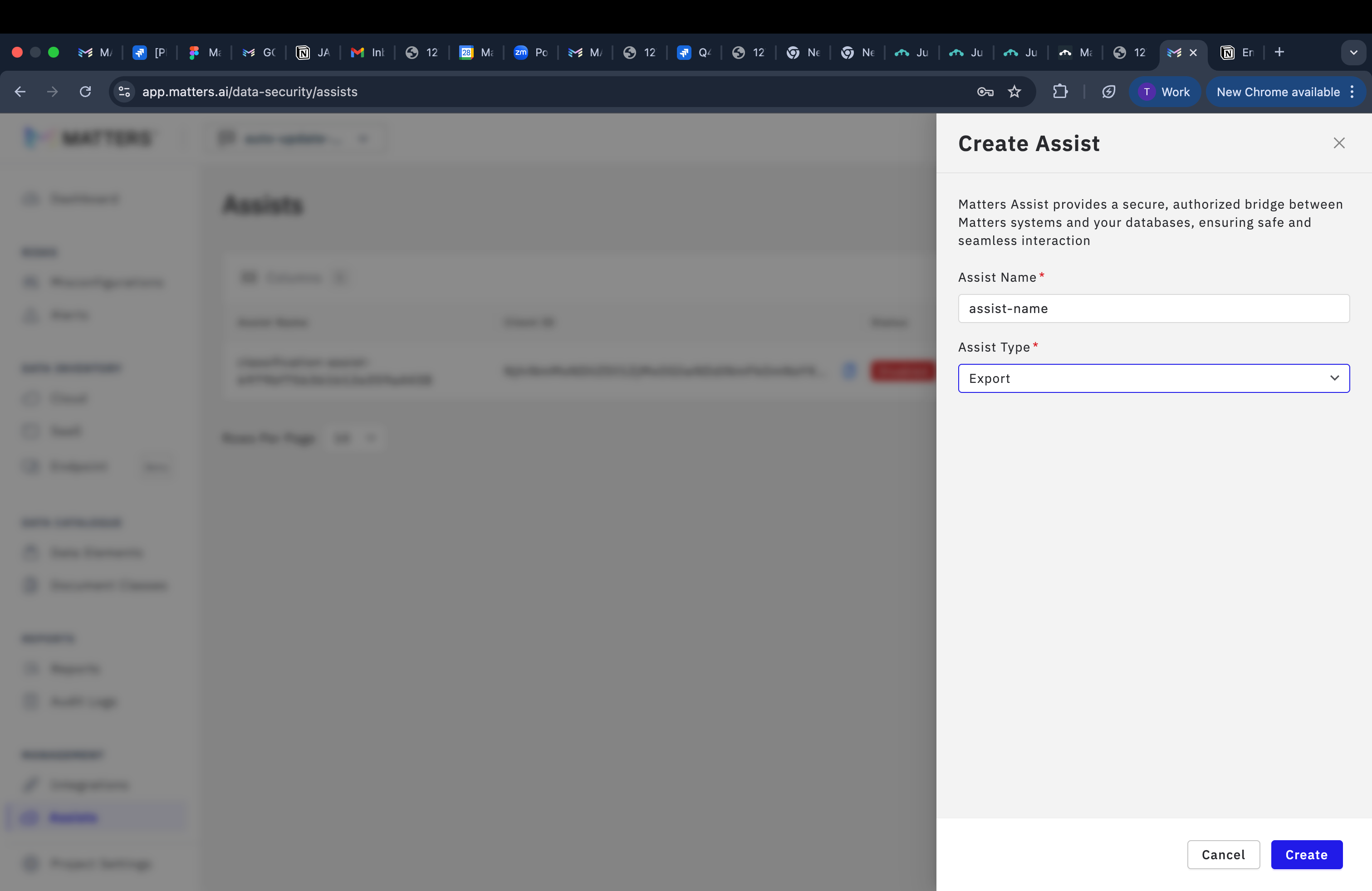
Go to the assist page and create an assist. Keep the type as
Export.
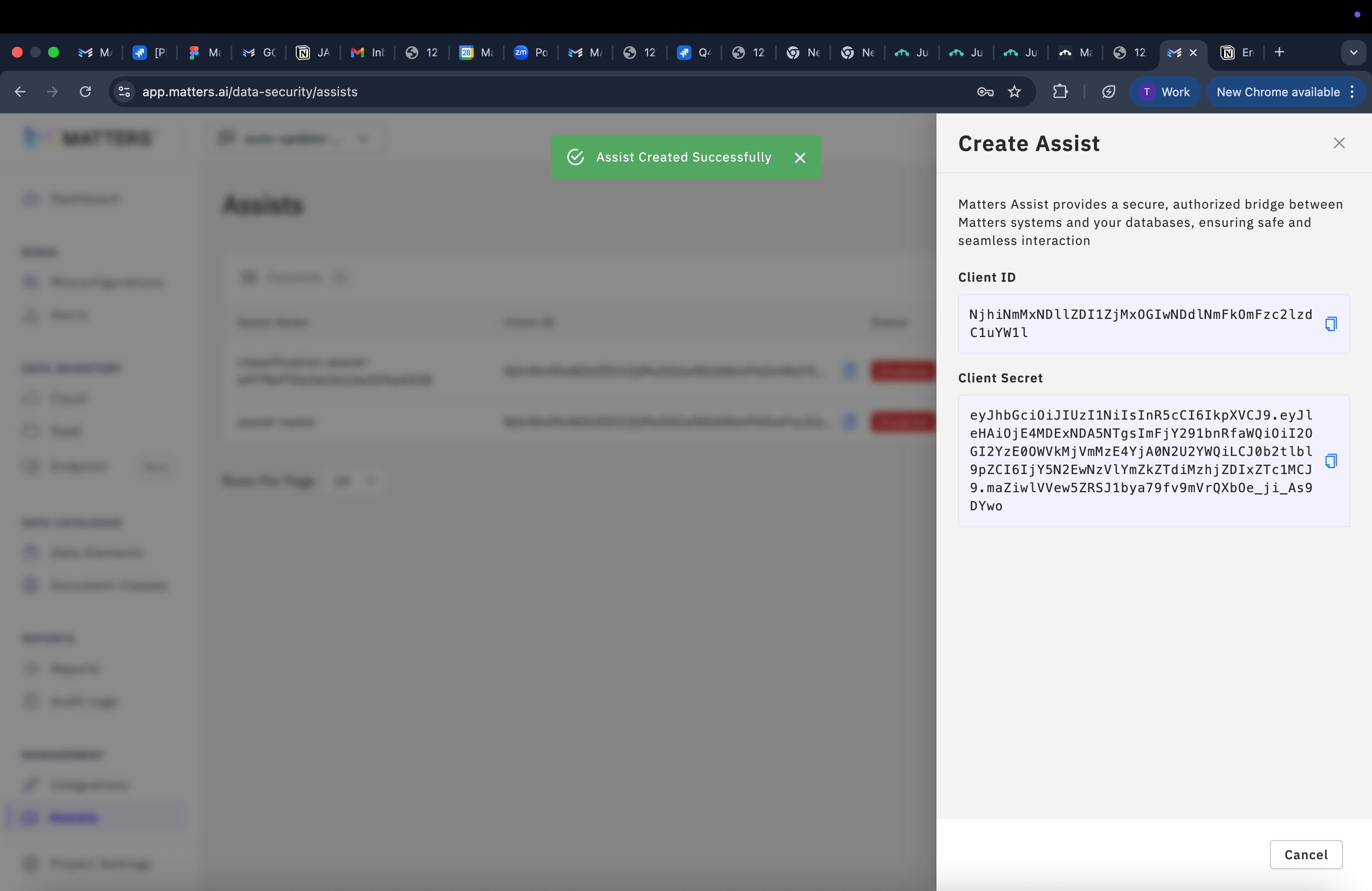
Once you create an assist a pop up will appear with the
client_idandclient_secret. Copy these in a secured place.
That’s all on the dashboard side!
Changes in the script:
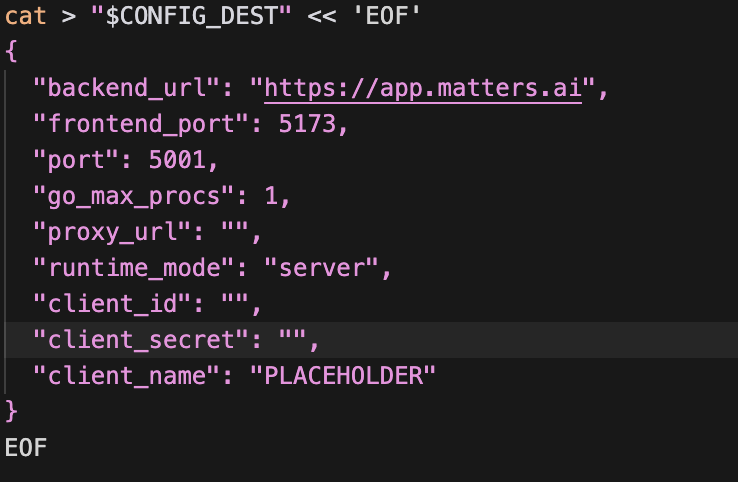
Copy paste the
client_idandclient_secretthat we just created in theupload_config.shin line 23-24.
MDM side steps:
All of these steps should be done in order.
First we need to apply the
mobileconfigpolicy file. This will ensure that our agent once installed is granted full disk access which is required for scanning the files.
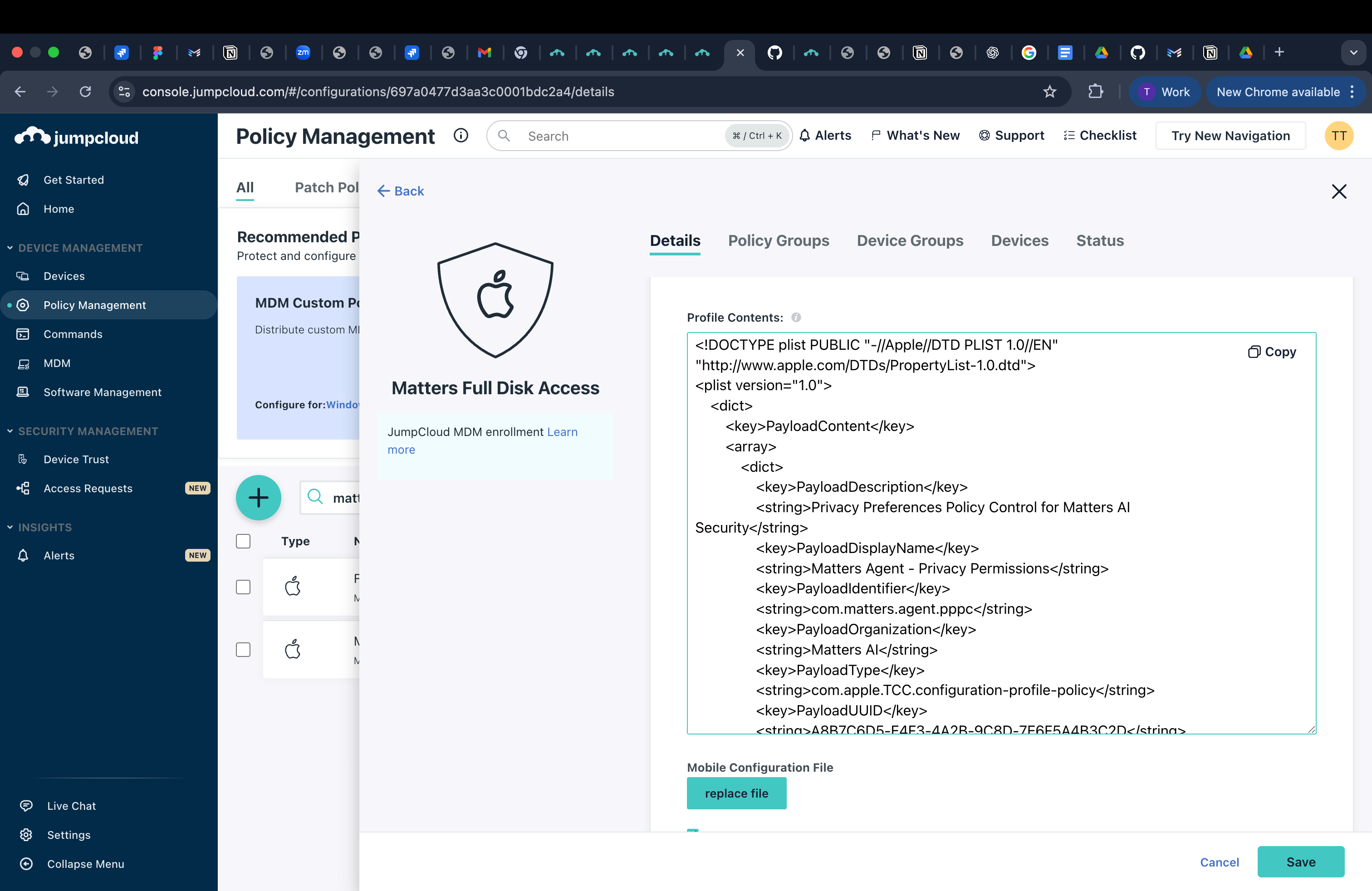
Second we will have to run the
upload_config.shshell script which will contain the config file for the agent. Note to run it as a root user.
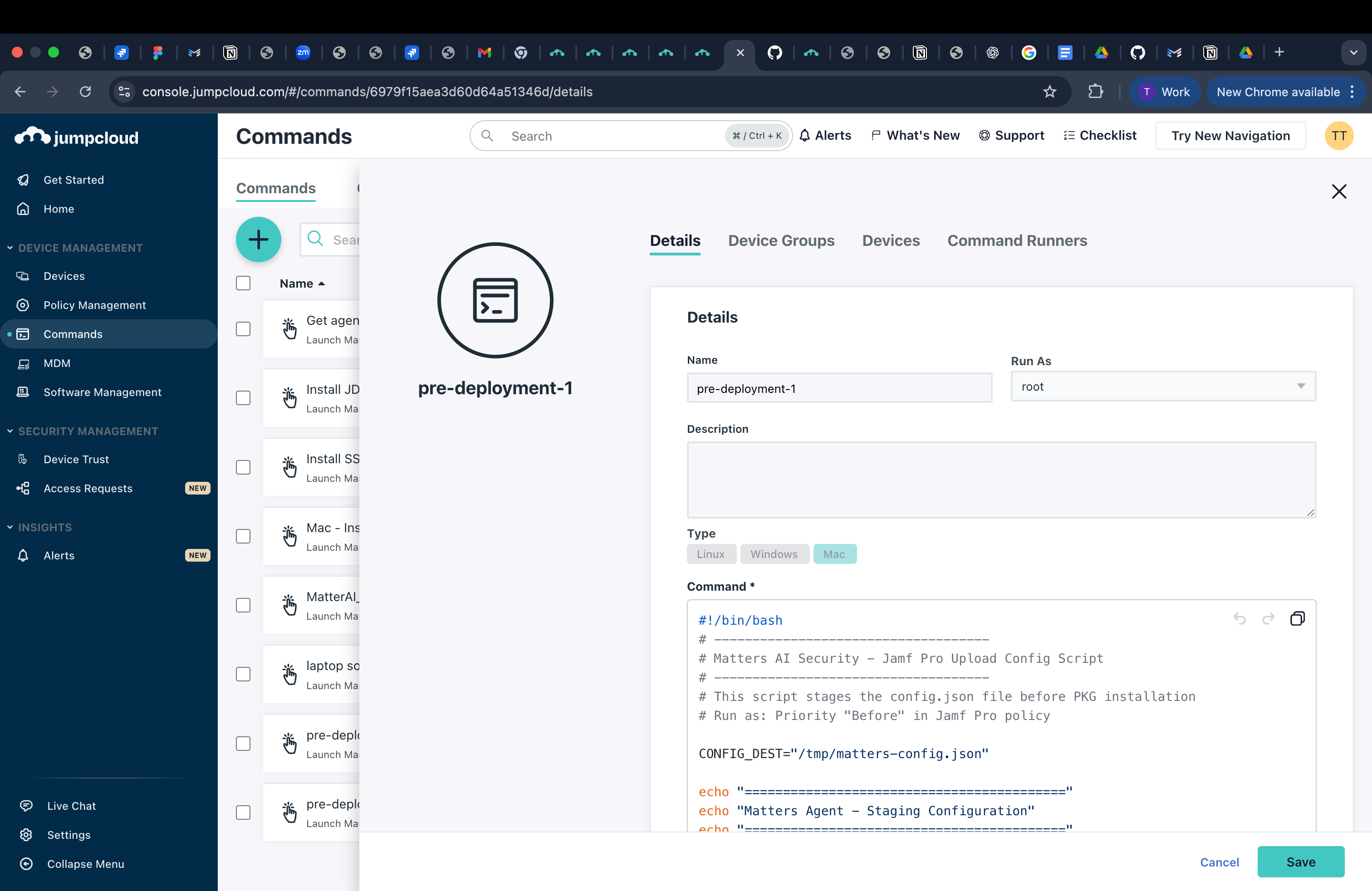
Once Step 2 is done we will have to run the
fill_client_name.shscript. Again we have to run it as a root user.Once Step 3 is done we can upload the
pkgunder software management and attach the devices and trigger the deployment.
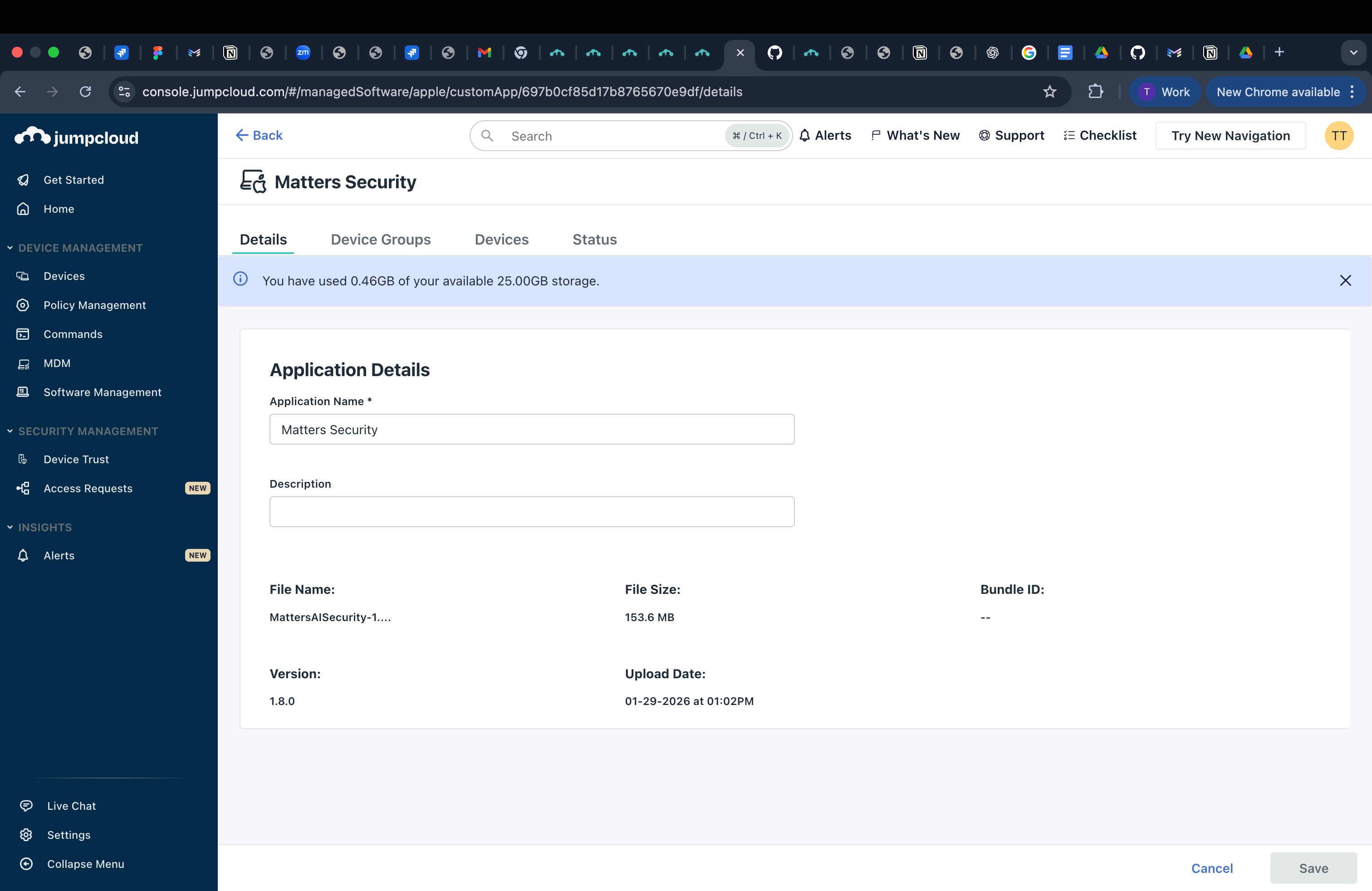
To test in the client device that the package has been deployed successfully you should be able to see the
Matters AI Securityin the applications.To verify that the agent is running once it has been deployed we can open the terminal and hit this CURL:
curl -X GET <http://localhost:5001/status>
This should return is_active: true .
Once all this is done you should be able to see your device in the dashboard.
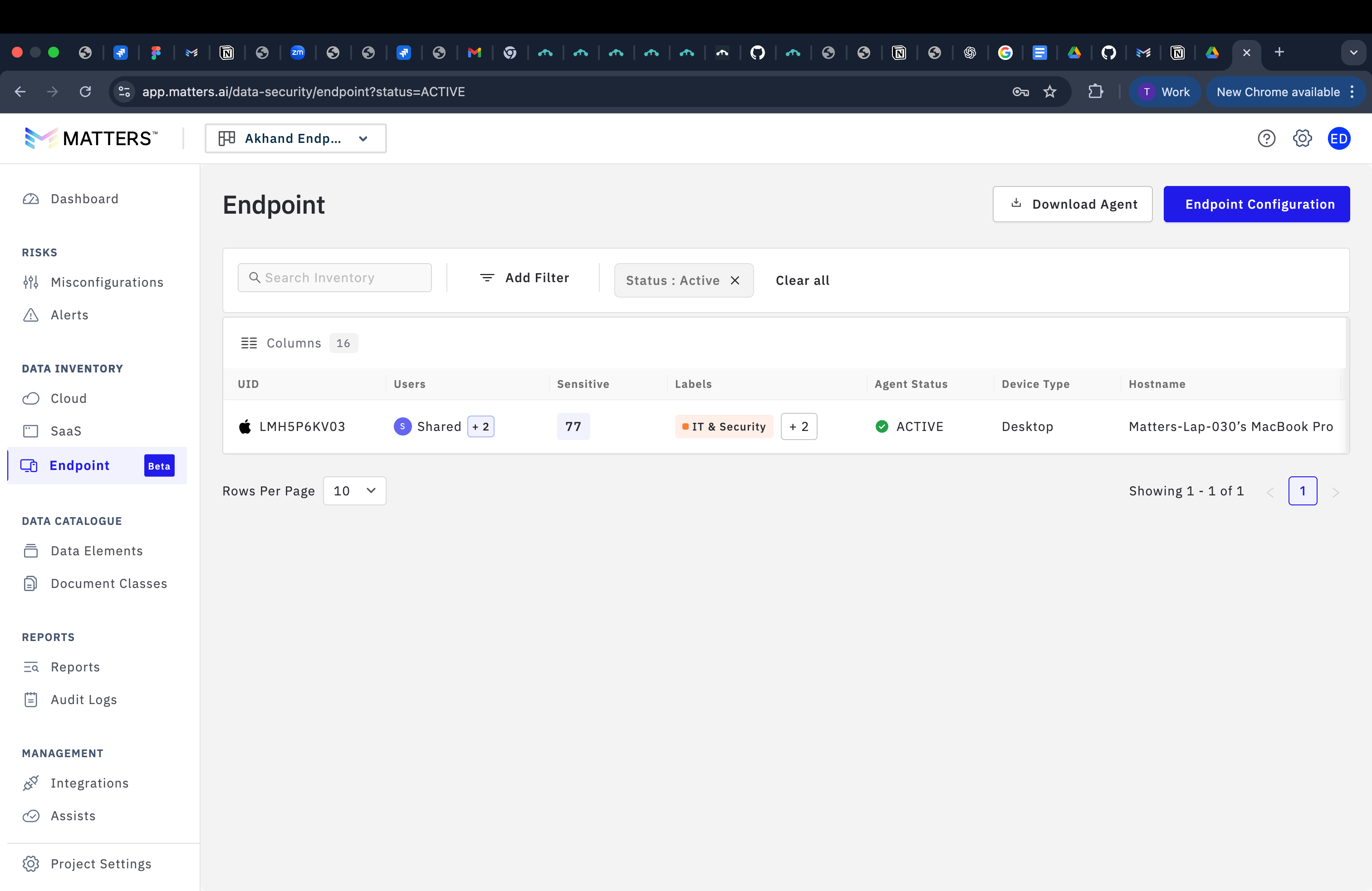
That’s it!