Google Drive Monitoring and Remediation Guide
Last updated: August 26, 2026
Overview
The Matters Google Workspace integration scans Google Drive and Gmail data for sensitive entities and supports authorised remediation actions on eligible Google Drive files and permissions.
Two connection modes are available:
Monitor
Provides read-only monitoring and scanning for:
Google Drive users and files
Gmail users, emails, and attachments
Matters can discover and classify sensitive entities without modifying files, sharing permissions, or access settings.
Monitor & Remediate
Includes all monitoring capabilities and enables authorised remediation actions on eligible Google Drive files and permissions.
Gmail content can be scanned for sensitive entities, but remediation actions are supported only for Google Drive.
Required Permission for Remediation
To enable Google Drive remediation, the Google Workspace administrator must provide the following OAuth scope through Domain-Wide Delegation:
Scope | Purpose |
|---|---|
| Provides read and write access to Google Drive files and metadata, allowing Matters to modify file-sharing permissions, restrict unsafe access, and update file permissions. |
Important: The drive.readonly scope supports monitoring and data classification only. The full drive scope is required for Google Drive remediation.
The existing Google Drive monitoring scopes must continue to remain configured.
Step 1: Configure Google Drive Remediation
Step 1.1: In Google Workspace Admin Console
If Google Workspace is already integrated with Matters in Monitor mode, ensure the Google Drive remediation scope is added to the Domain-Wide Delegation configuration.
Log in to the Google Workspace Admin Console.
Navigate to:
Security → Access and Data Control → API Controls → Domain-Wide Delegation
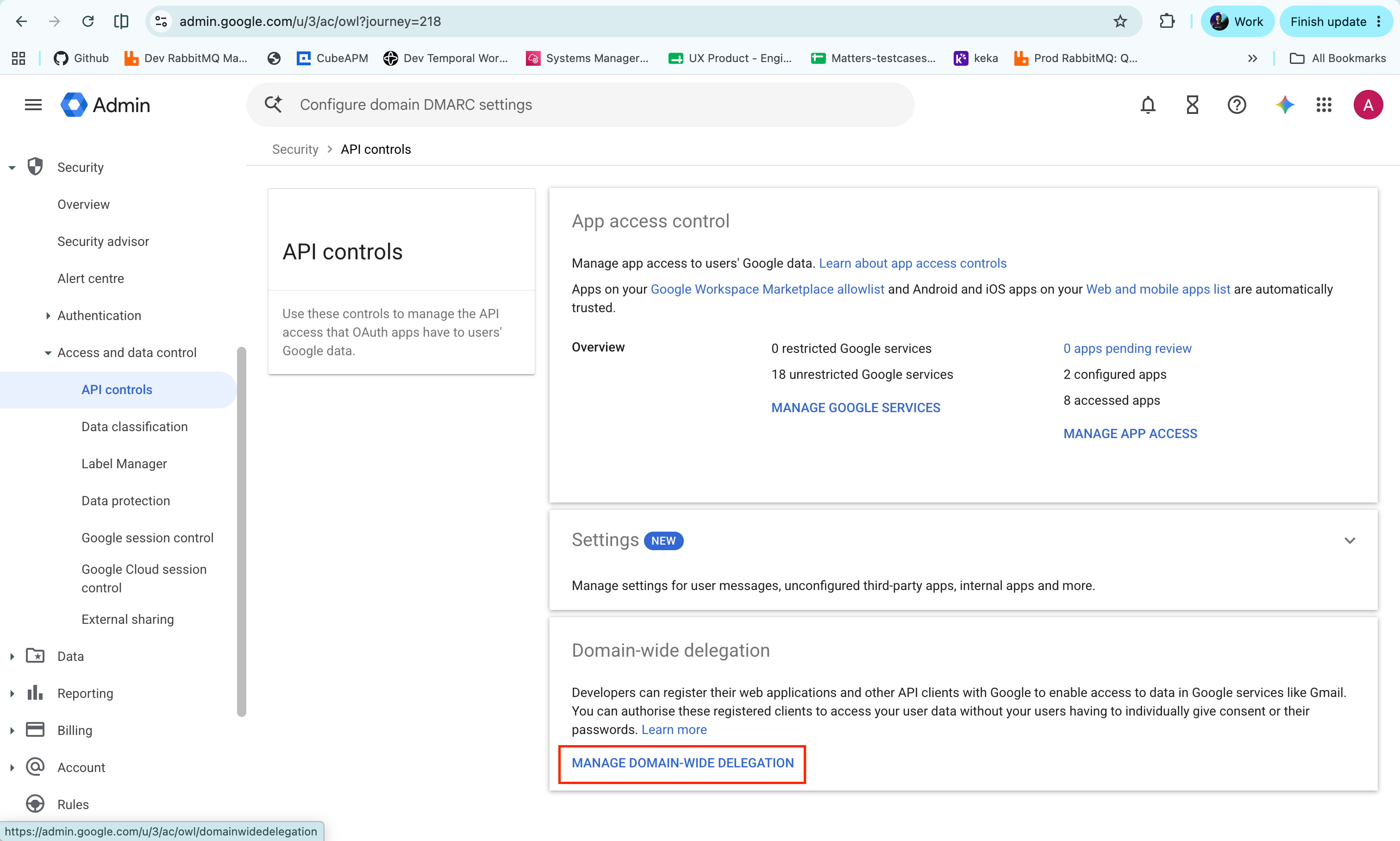
Locate the Domain-Wide Delegation Client ID configured for the Matters service account(which was used for GWS Integration).
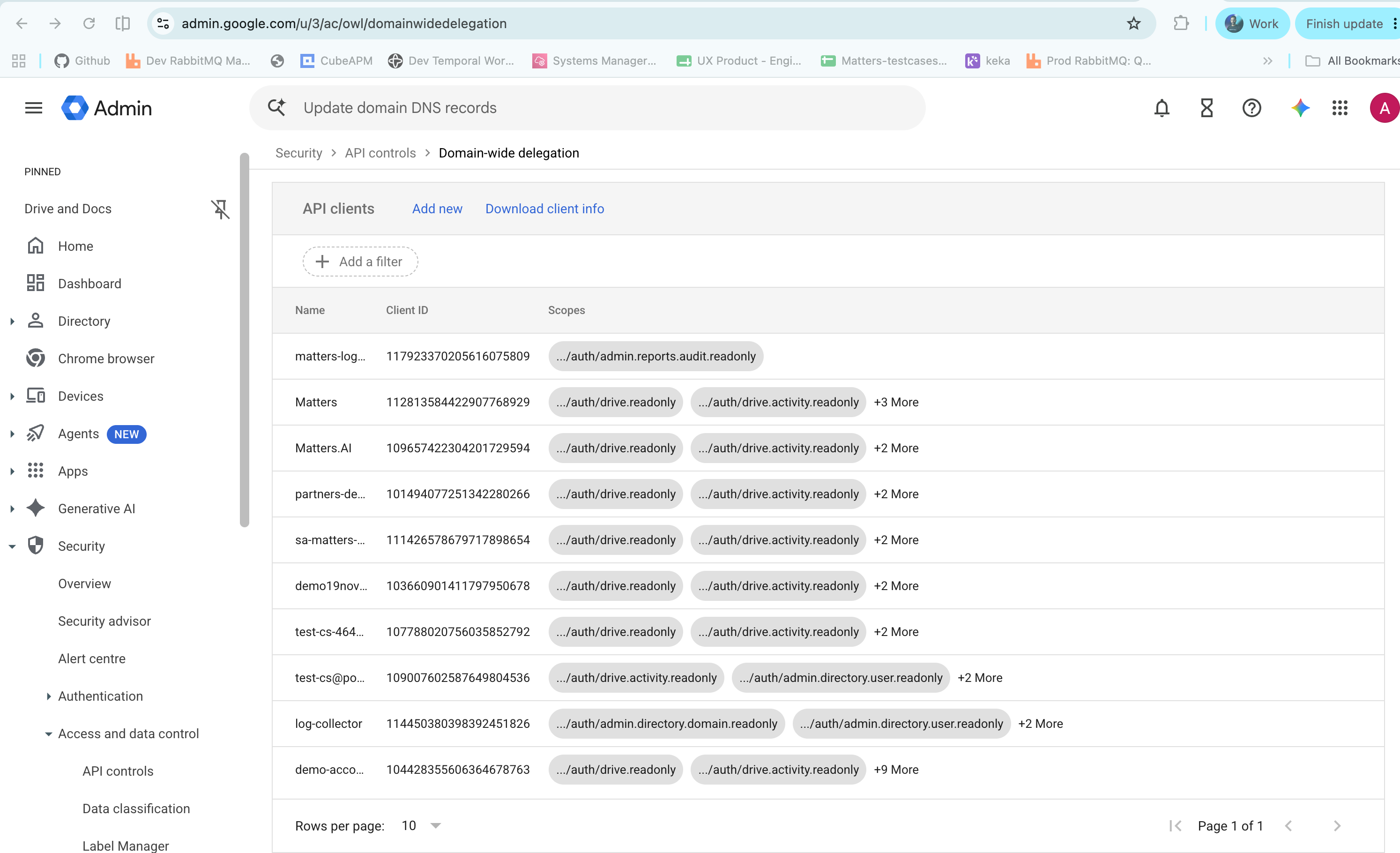
Ensure the existing monitoring scopes remain configured.
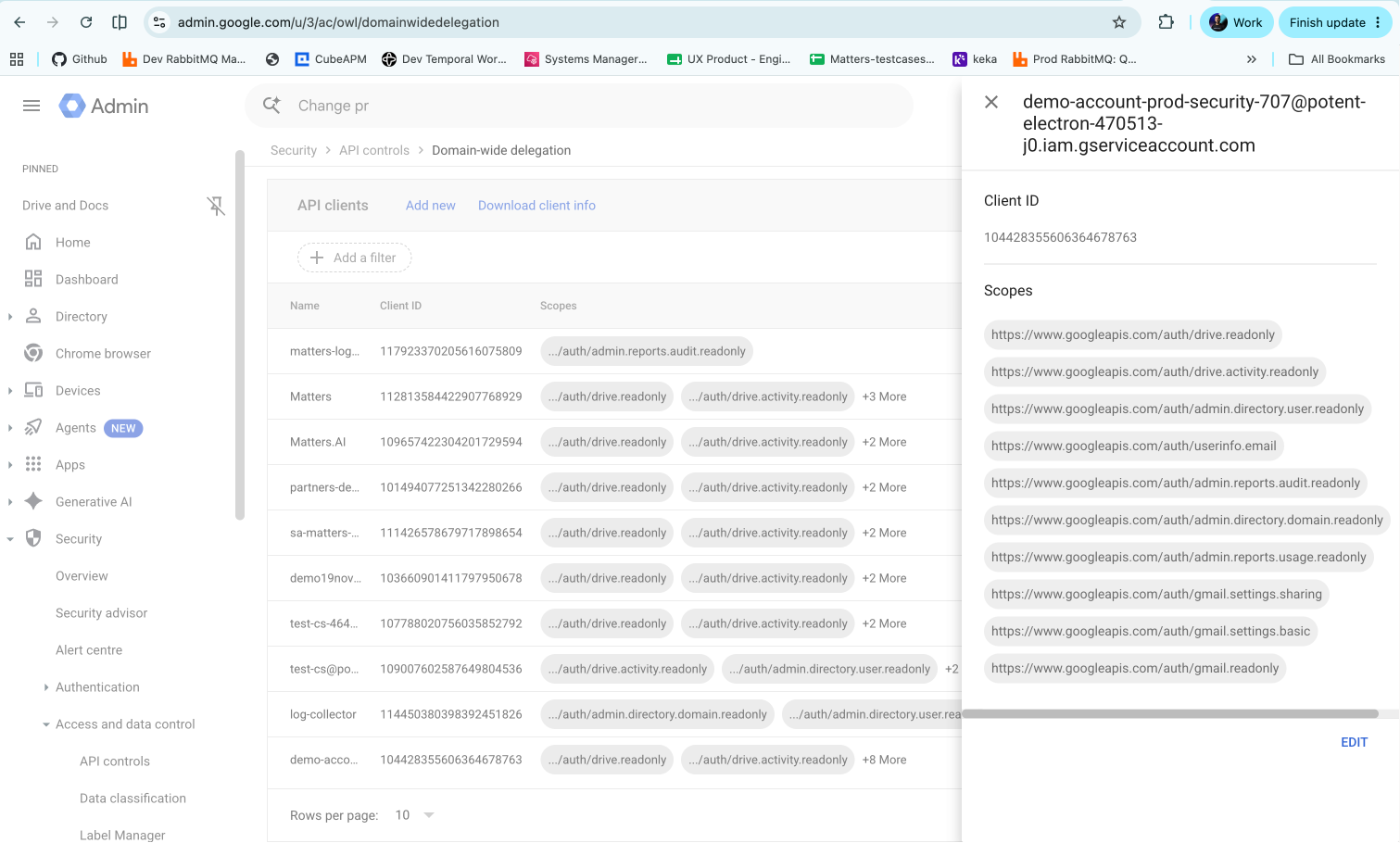
Add the following Google Drive remediation scope:
https://www.googleapis.com/auth/drive
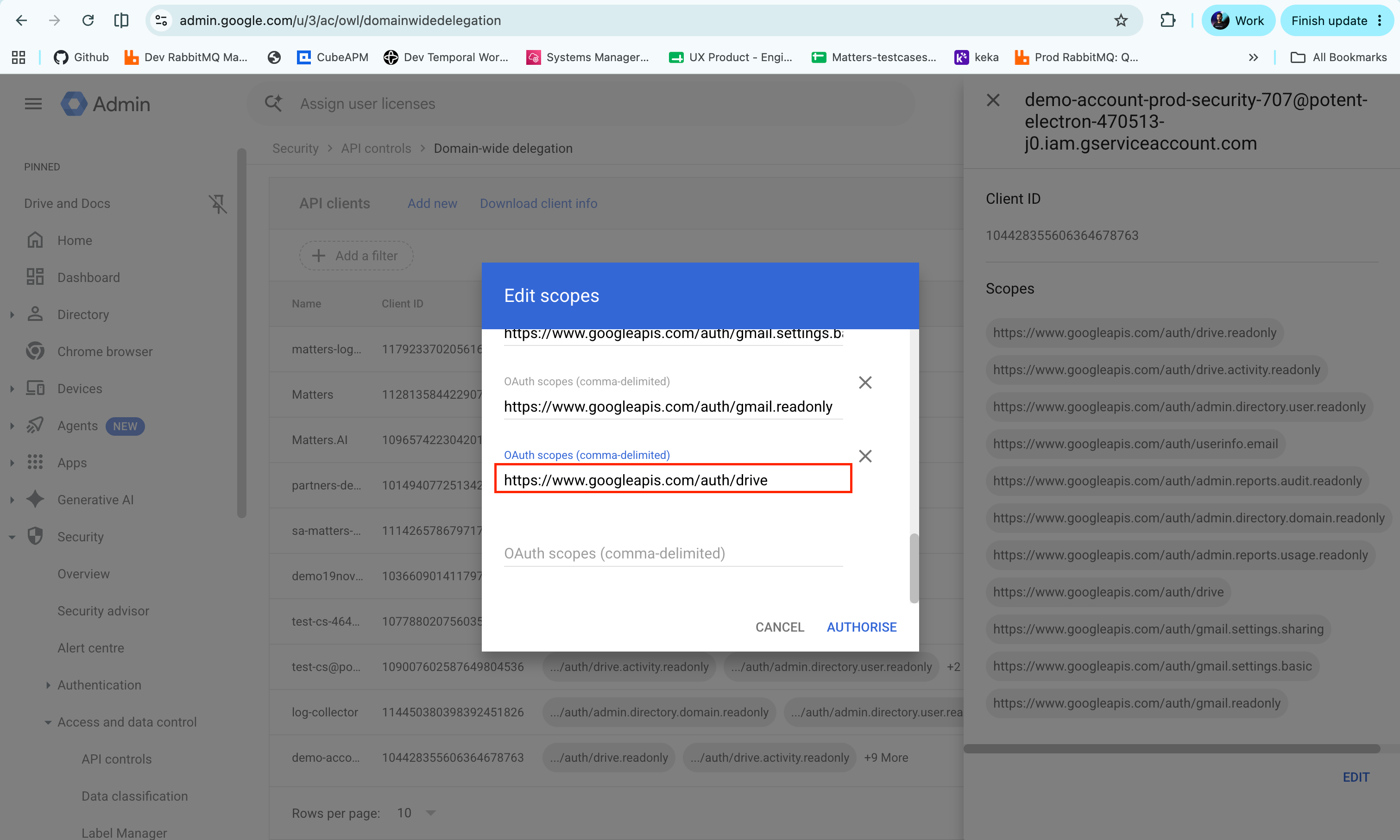
Save/authorise the updated scope configuration.
This scope allows Matters to modify Google Drive file permissions and sharing configurations when an authorised remediation action is executed.
Refer to the SaaS Google Workspace Integration Guide for detailed steps for configuring the service account, Domain-Wide Delegation, required OAuth scopes, APIs, and scan settings.
Step 1.2: Verify the Google Drive API
Ensure that the Google Drive API is enabled in the same GCP project where the Matters service account was created.
Log in to the Google Cloud Console.
Select the GCP project containing the Matters service account.
Navigate to APIs & Services → Library.
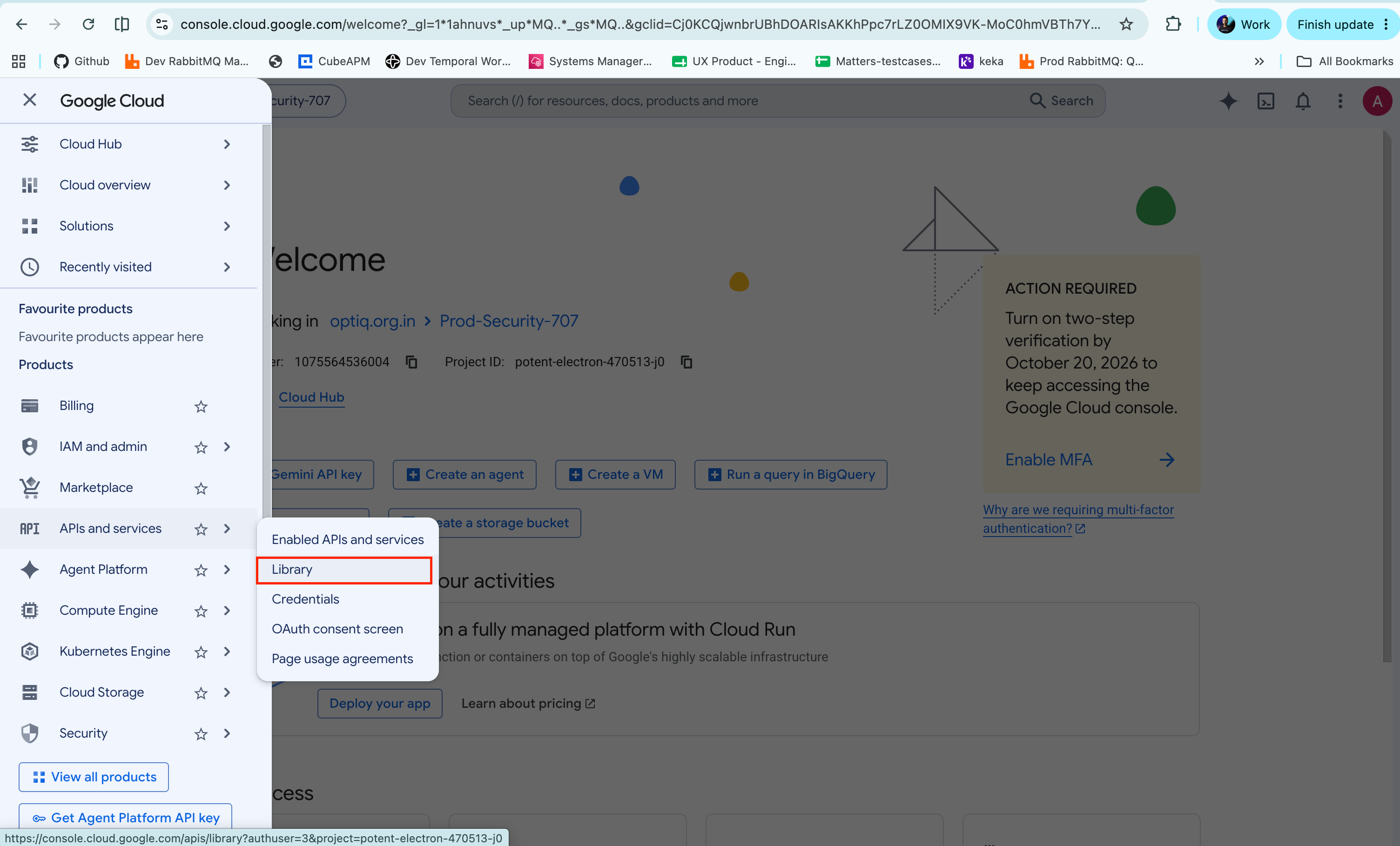
Search for Google Drive API. Ensure the API is enabled.
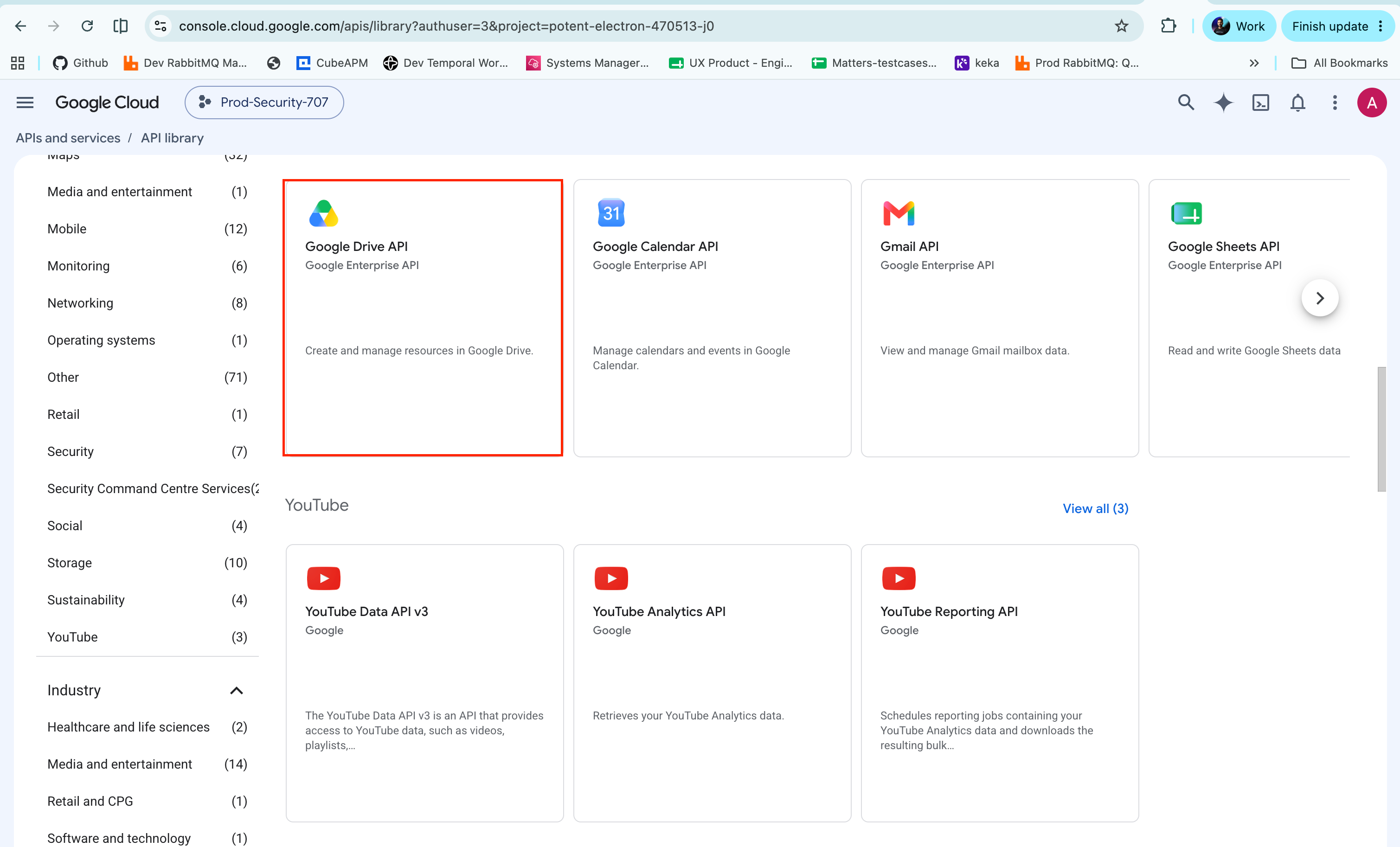
or you can use below link to navigate to Google Drive API.
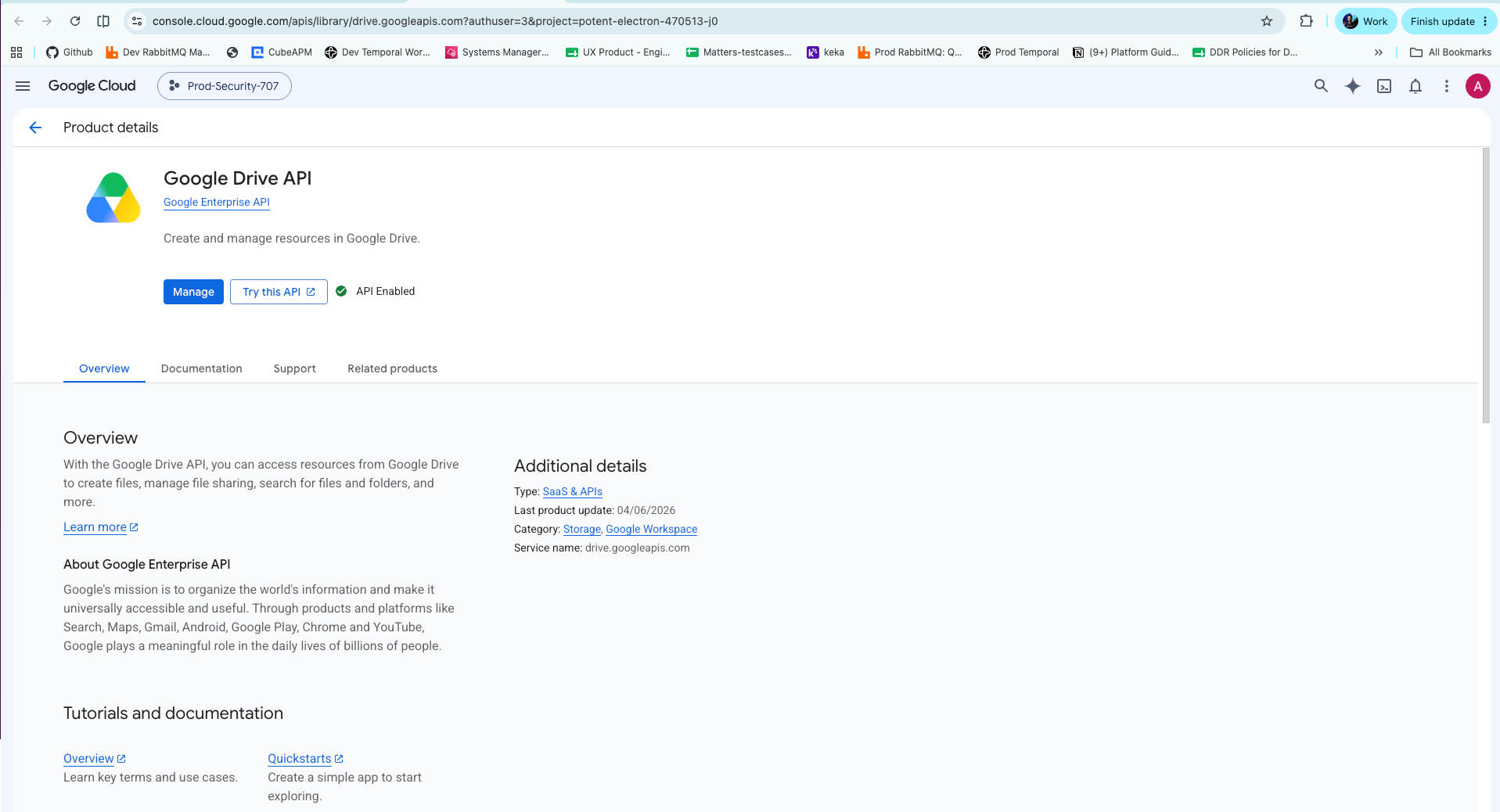
Step 1.3: In Matters
If Google Workspace is already integrated with Matters and you want to enable remediation for the existing connection:
Go to Integrations → SaaS.
Open the existing Google Workspace integration.
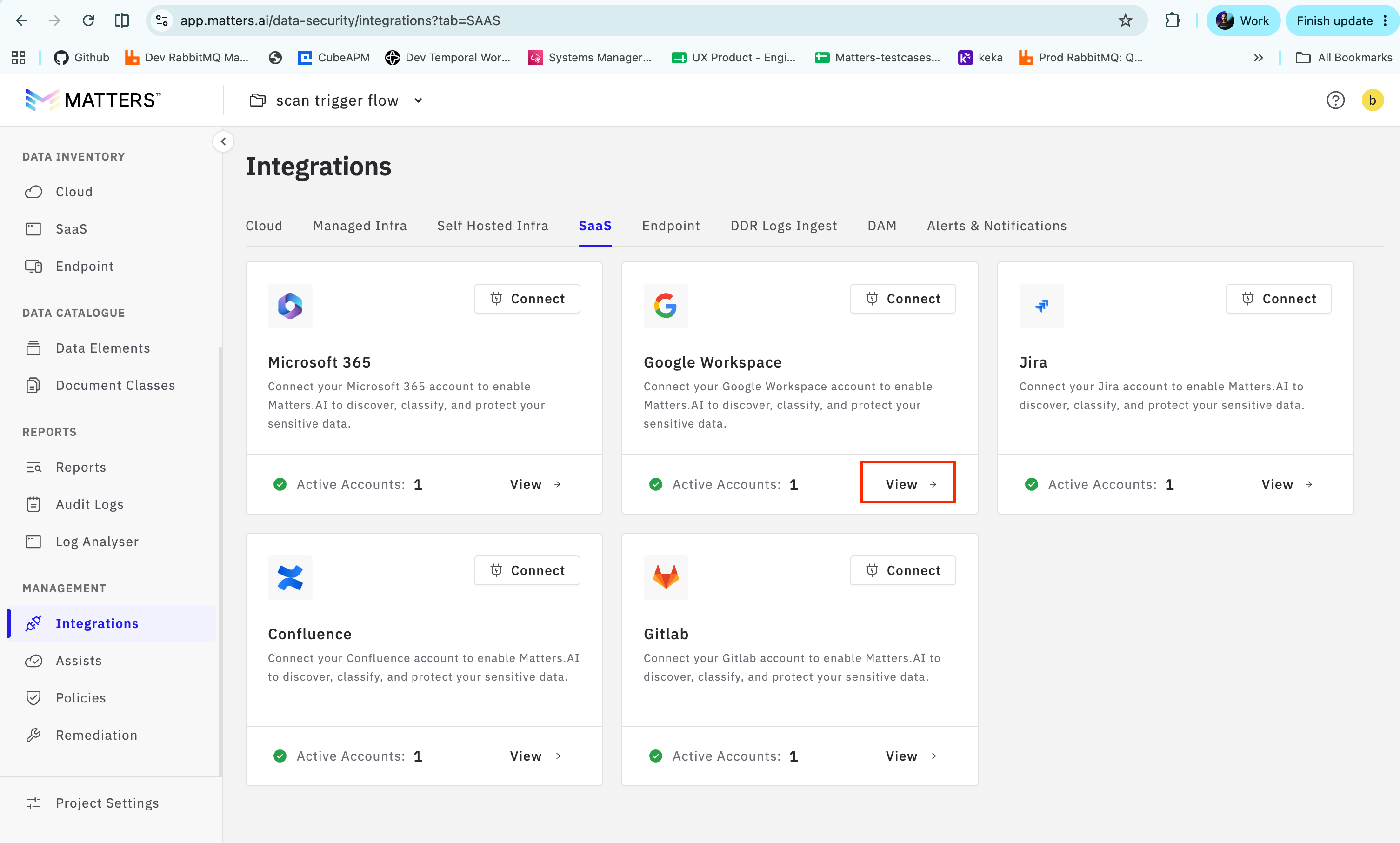
Click on Edit
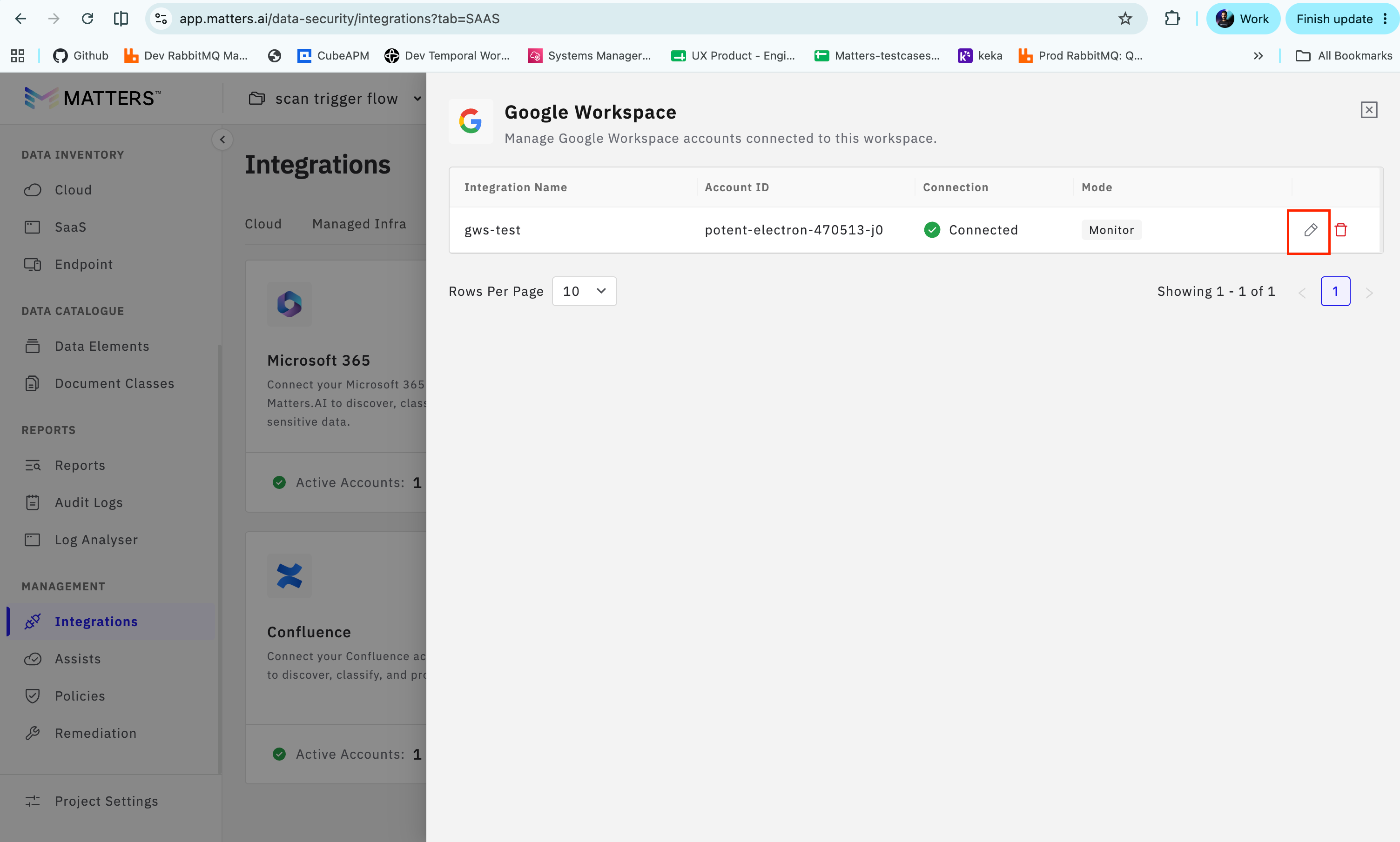
Change the Connection Mode to Monitor & Remediate.
Save the integration configuration.
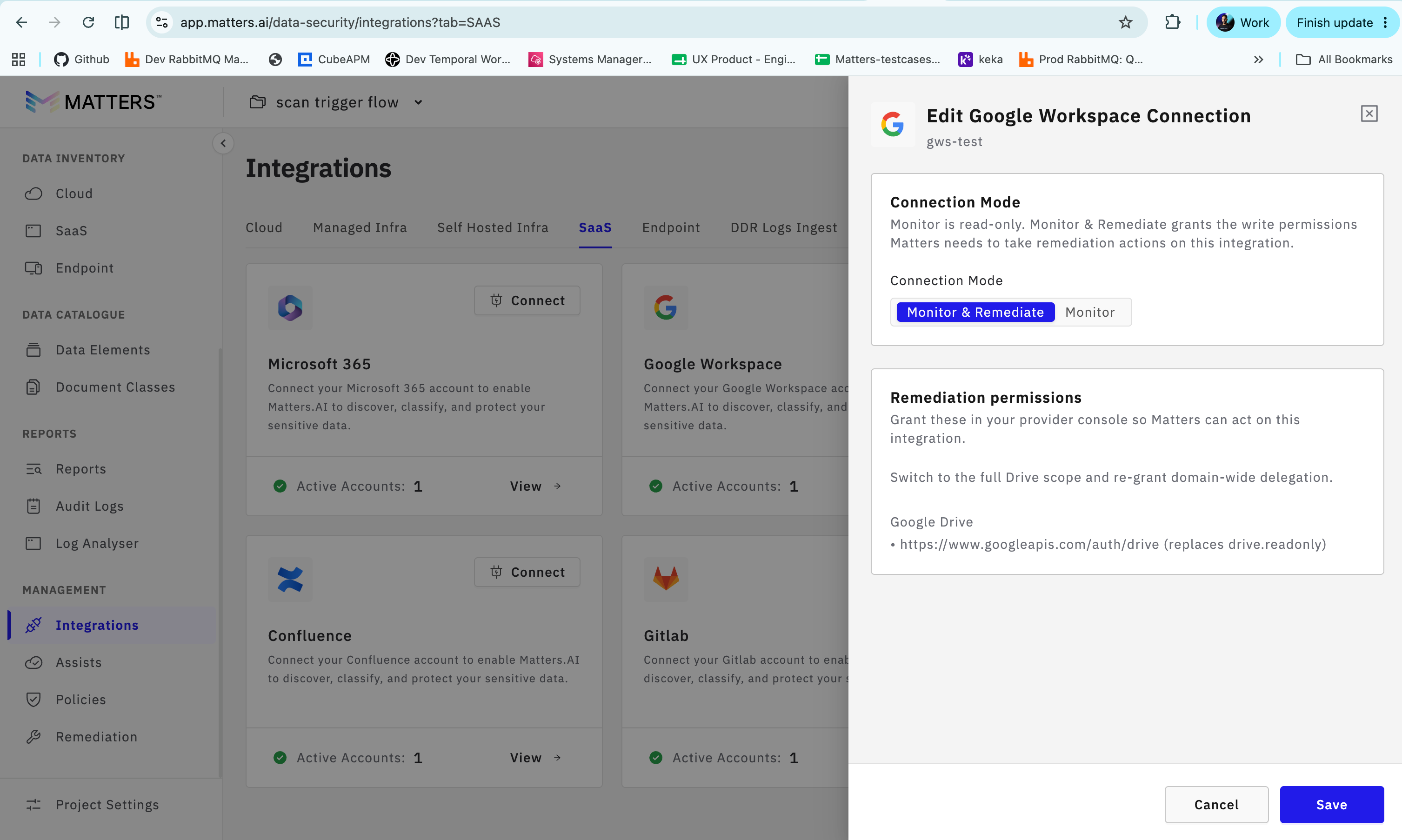
If you are configuring Google Workspace in Matters for the first time, select Monitor & Remediate while creating the integration.
Refer SAAS GWS Integration guide under SAAS for Detailed Steps for First Time Integration.
Selecting Monitor enables scanning only and does not allow Matters to modify Google Drive files or permissions.
Google Drive Remediation Capabilities
When Monitor & Remediate is enabled, Matters can perform authorised remediation operations against eligible Google Drive files and their sharing configurations.
Depending on the available remediation action and the current file-sharing configuration, remediation can include:
Action | Description |
|---|---|
Make Private | Revokes all sharing - anyone-with-link and every external grant - restoring the file to owner-only access. |
Remove External Access | Revokes every outside-org grant and external/anyone-with-link sharing in one action, while preserving internal collaboration. |
Remove External Access by Time | Schedules external-access removal for a future time. Matters removes all external access automatically when it elapses. |
Revoke Specific Recipient | Removes a single grantee from the file while leaving all other legitimate shares intact. |
Downgrade Link Scope | Converts an "Anyone with the link" share down to a narrower audience without fully privating the file. |
Set Link Expiry | Sets an expiry on the share; the link is made private automatically when the time is reached. |
Delete File | Moves the file to the recycle bin and stops all sharing. It can be restored for a limited time (typically 30 days), after which it is permanently deleted. |
Note: Matters displays only the remediation actions that are valid for the selected Google Drive file and its current sharing state.
Step 2: Perform a Remediation Action
Users can perform remediation actions on eligible Google Drive files discovered and classified by Matters.
Step 2.1: Open Google Drive Data
Log in to the Matters Dashboard.
Navigate to SaaS → Data Explorer.
Filter or locate the required Google Drive file.
Select the file on which remediation needs to be performed.
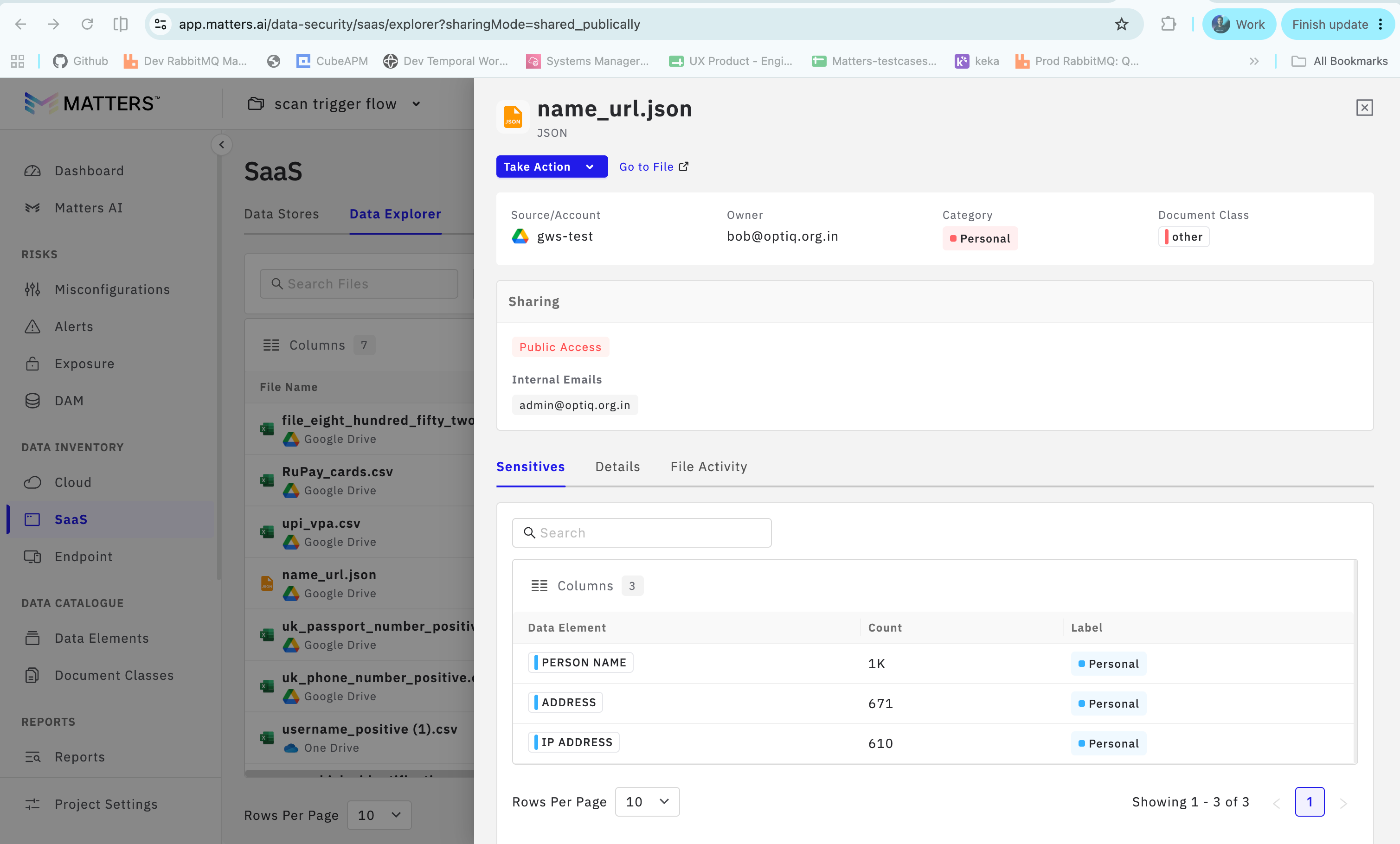
Step 2.2: Review the File
Review key file details before remediation, including the file name, owner, source, sharing status, sensitive entities, document class, category, and activity.
Step 2.3: Click Take Action
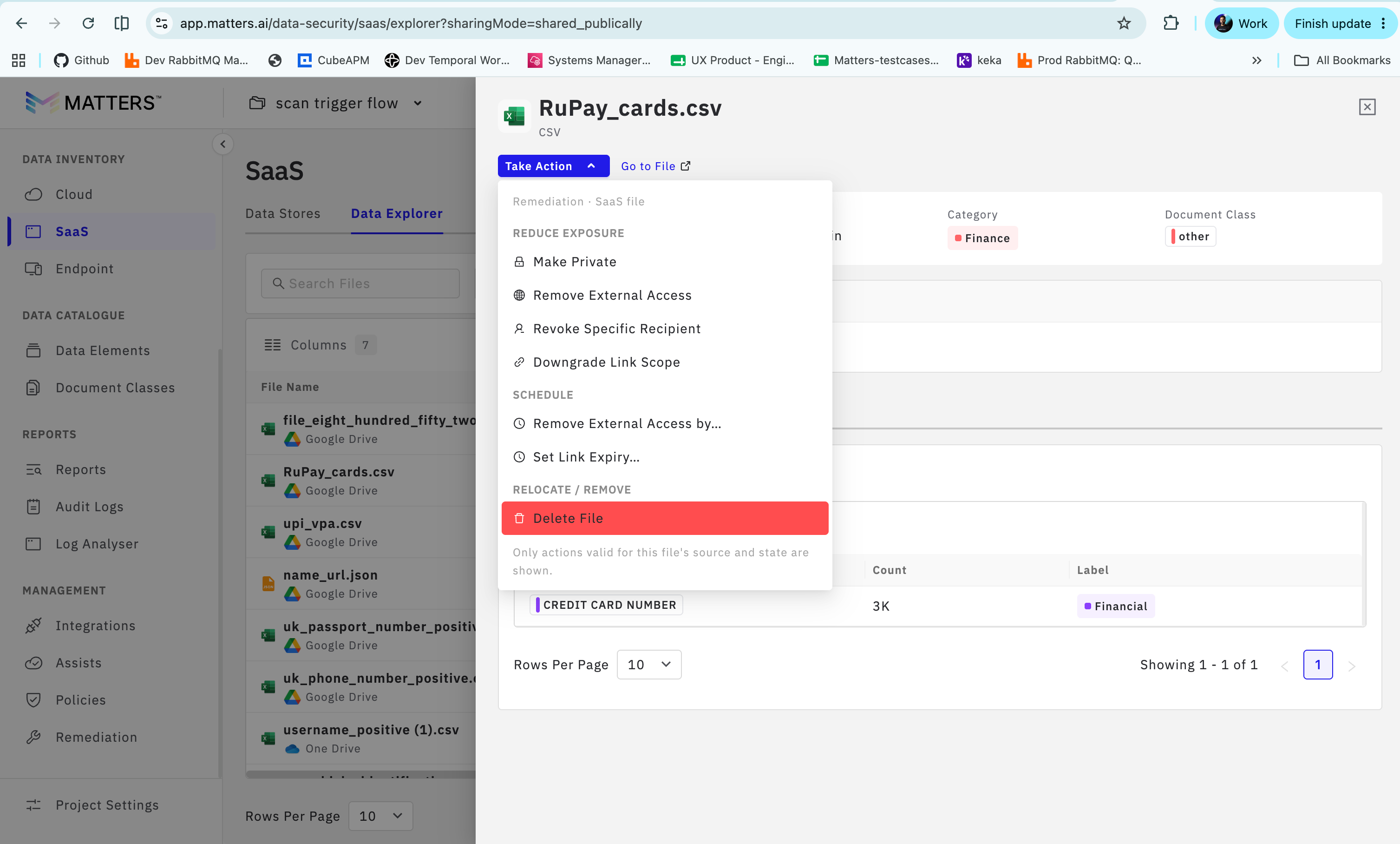
Click Take Action from the file details panel. Matters displays the remediation actions that are applicable to the selected Google Drive file.
Available actions can include:
Reduce Exposure
Make Private
Remove External Access
Revoke Specific Recipient
Downgrade Link Scope
Schedule
Remove External Access by Time
Set Link Expiry
Relocate / Remove
Delete File
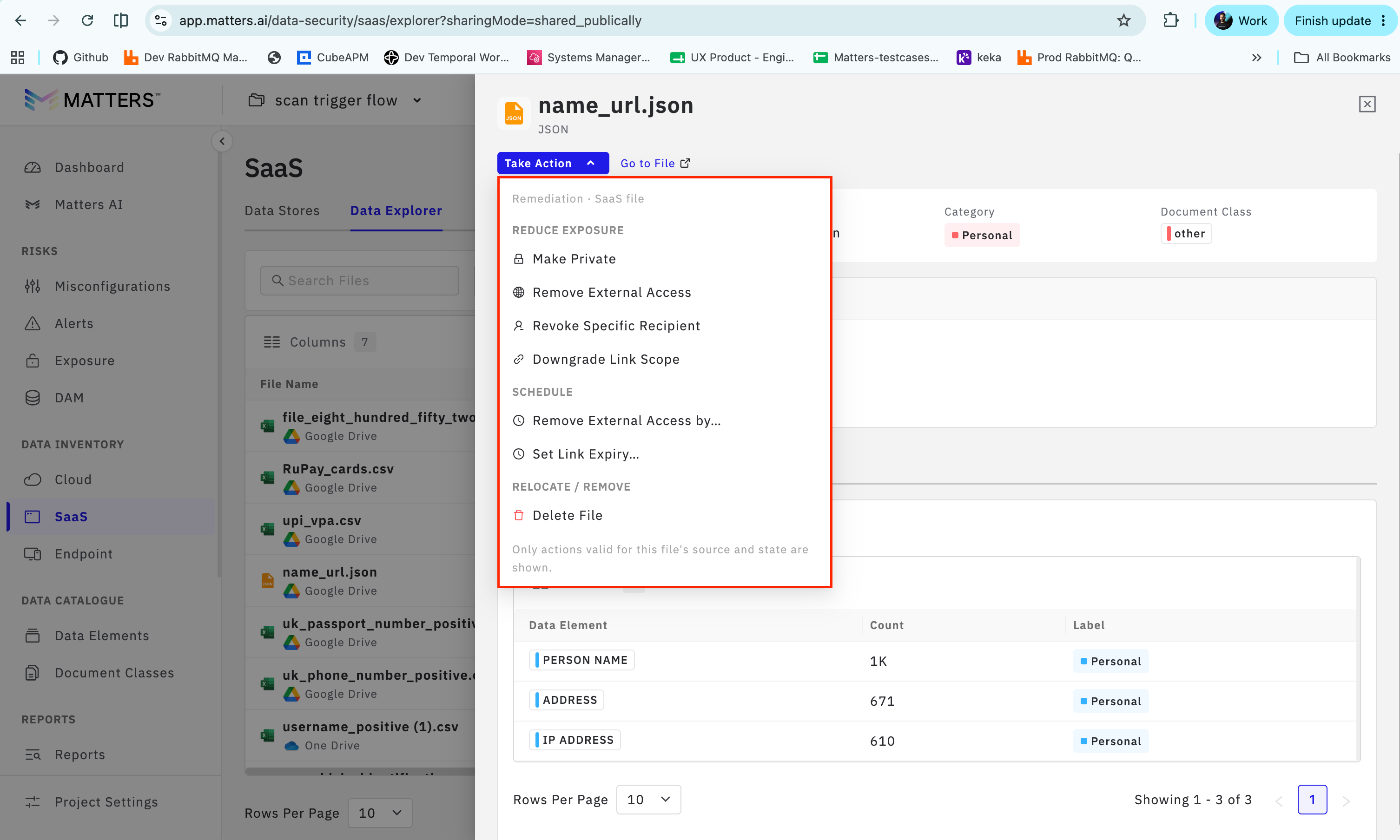
Step 2.4: Select the Remediation Action
Select the required remediation action from Take Action. Review the impact of the selected action before proceeding. Confirm the Action.
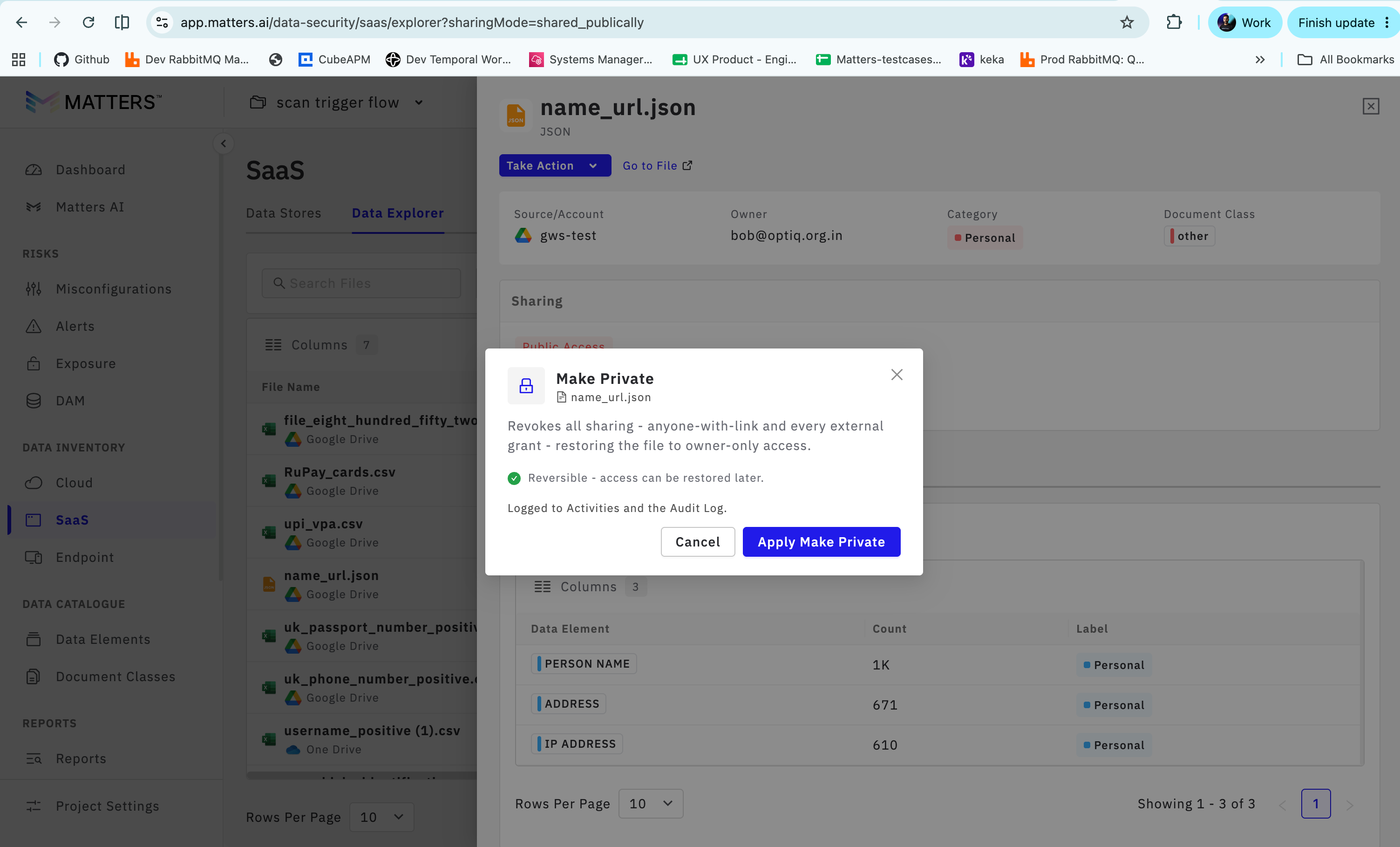
Open File Activity to track the remediation progress.
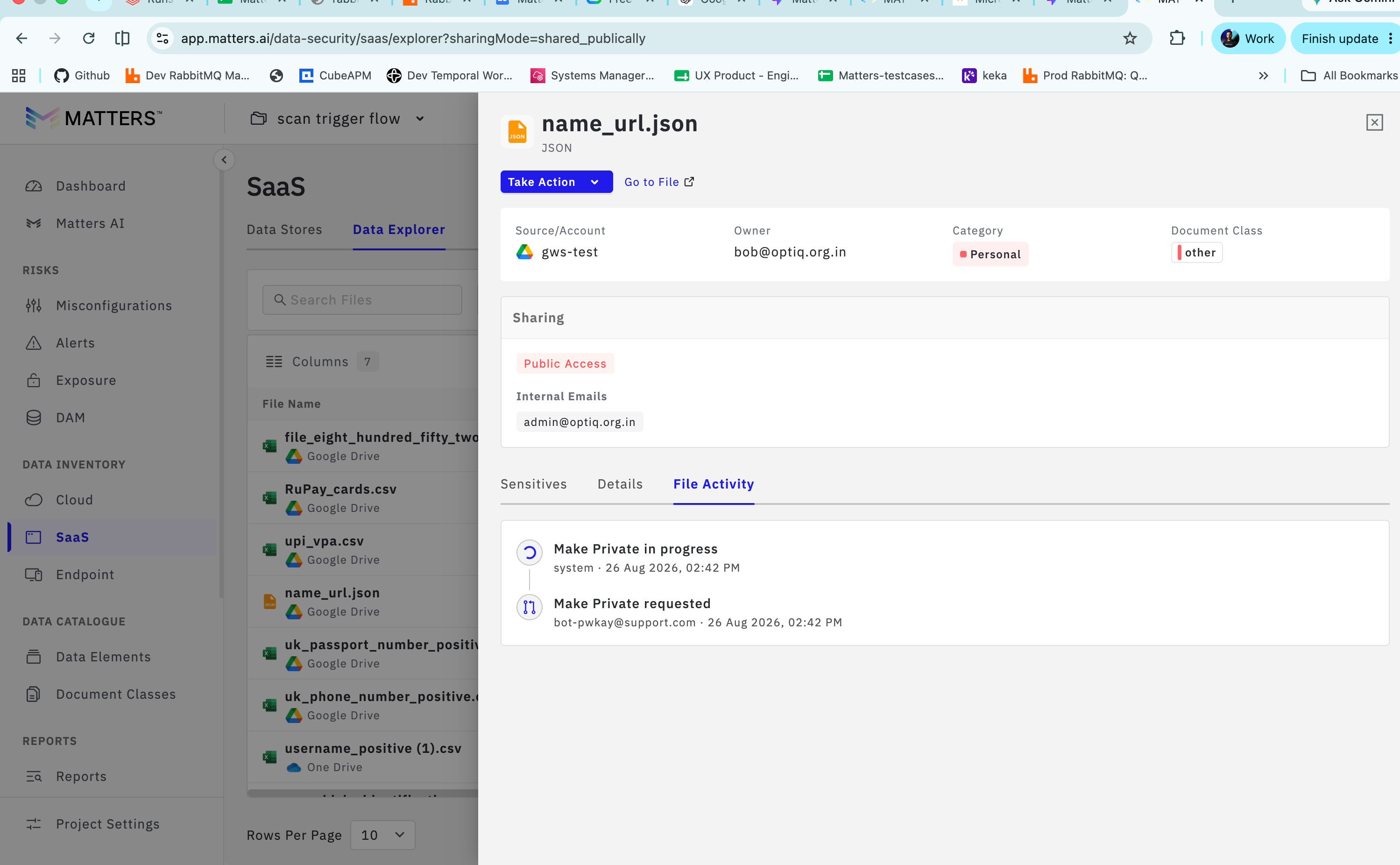
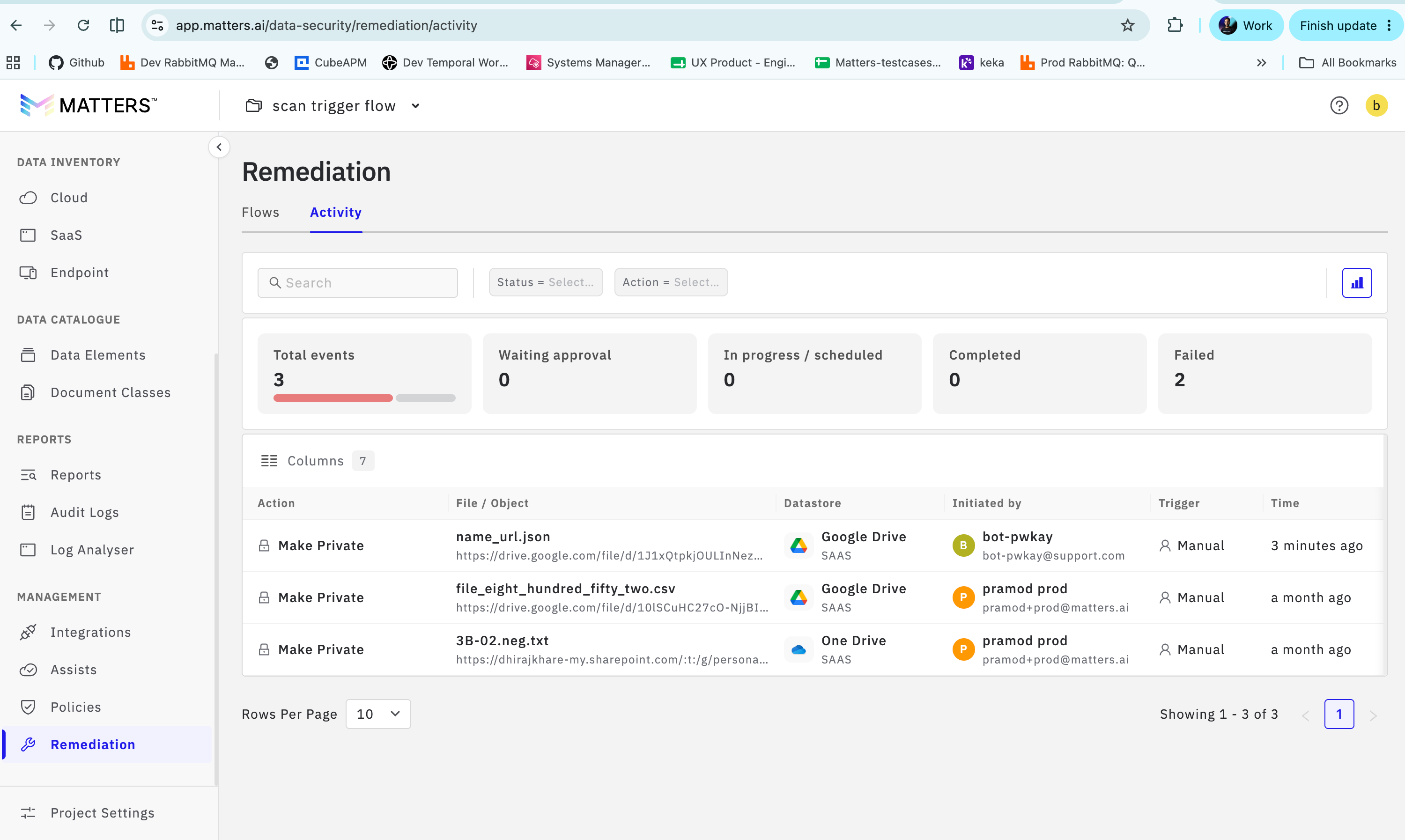
All remediation activity is recorded in:
Remediation → Activity
Step 3: Delete a Google Drive File
Delete File is supported for Google Drive files and is a destructive remediation action.
For better administrative control, the Delete File flow can be configured to require approval before Matters executes the deletion.
Step 3.1: Configure Delete File Approval
Navigate to Remediation → Flows.
Select Delete File.
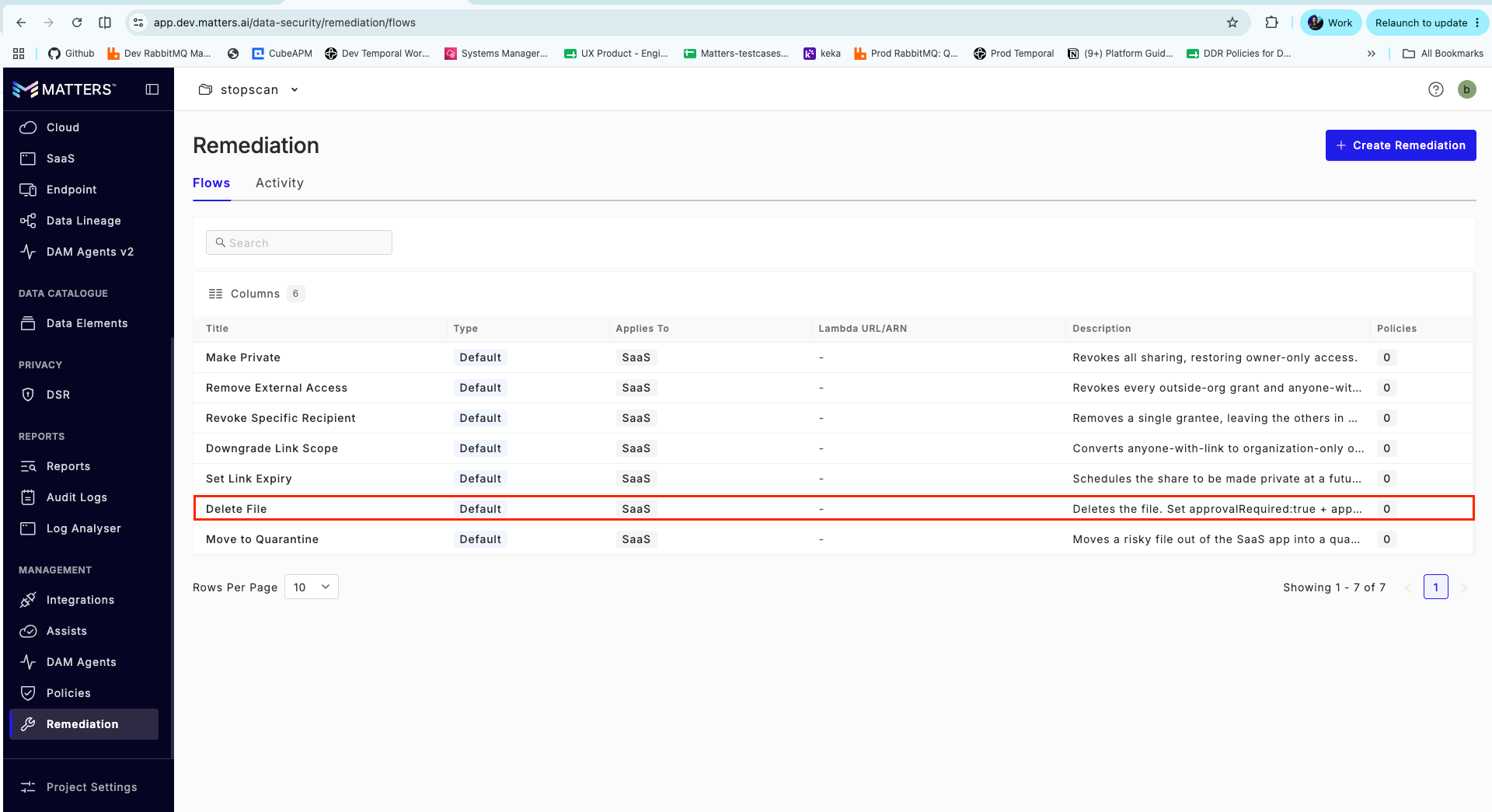
Configure the Scope to include the applicable Google Drive datastore.
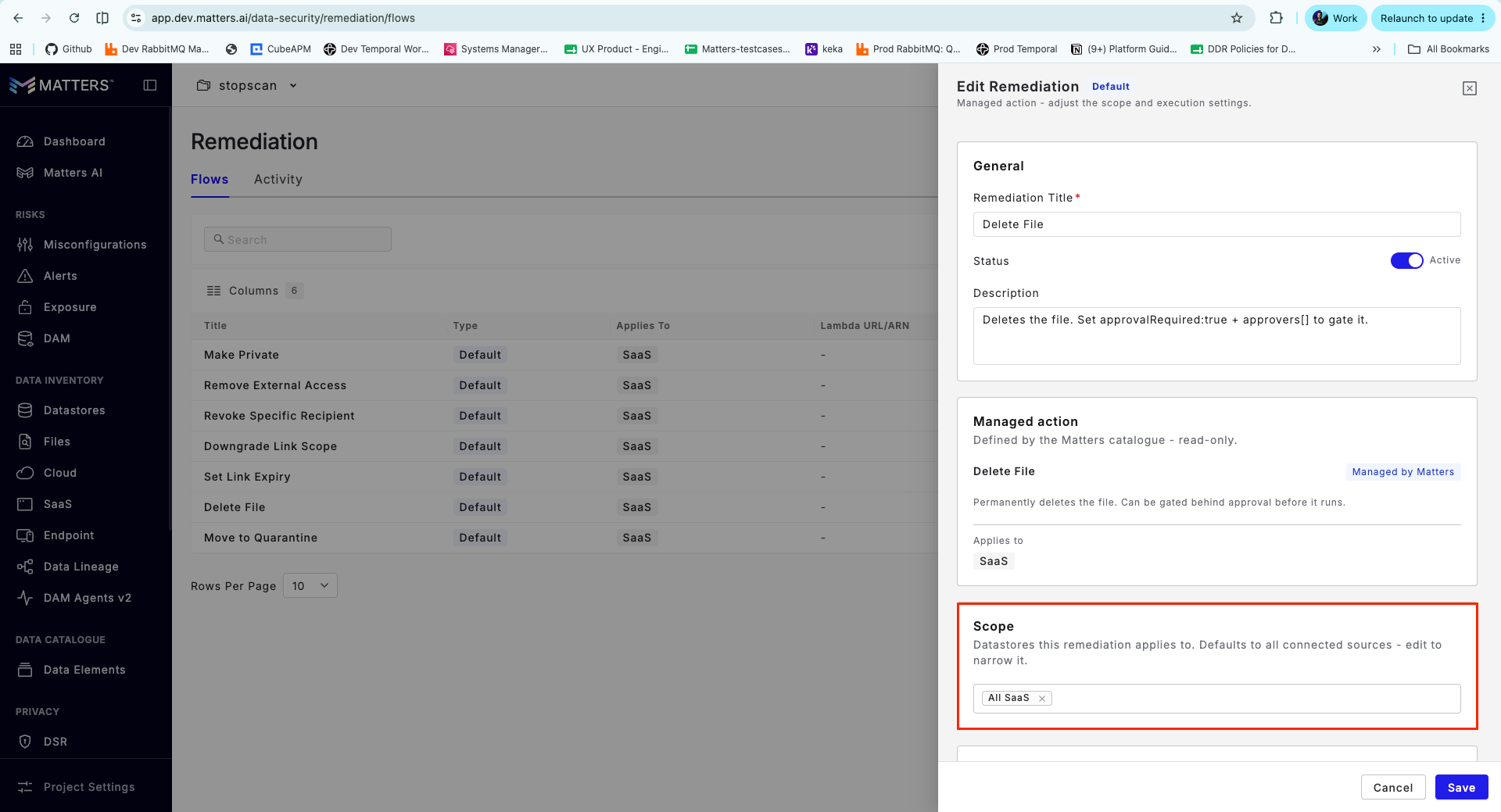
Under Approval, enable Require approval. Add the administrators or users authorised to approve deletion requests.
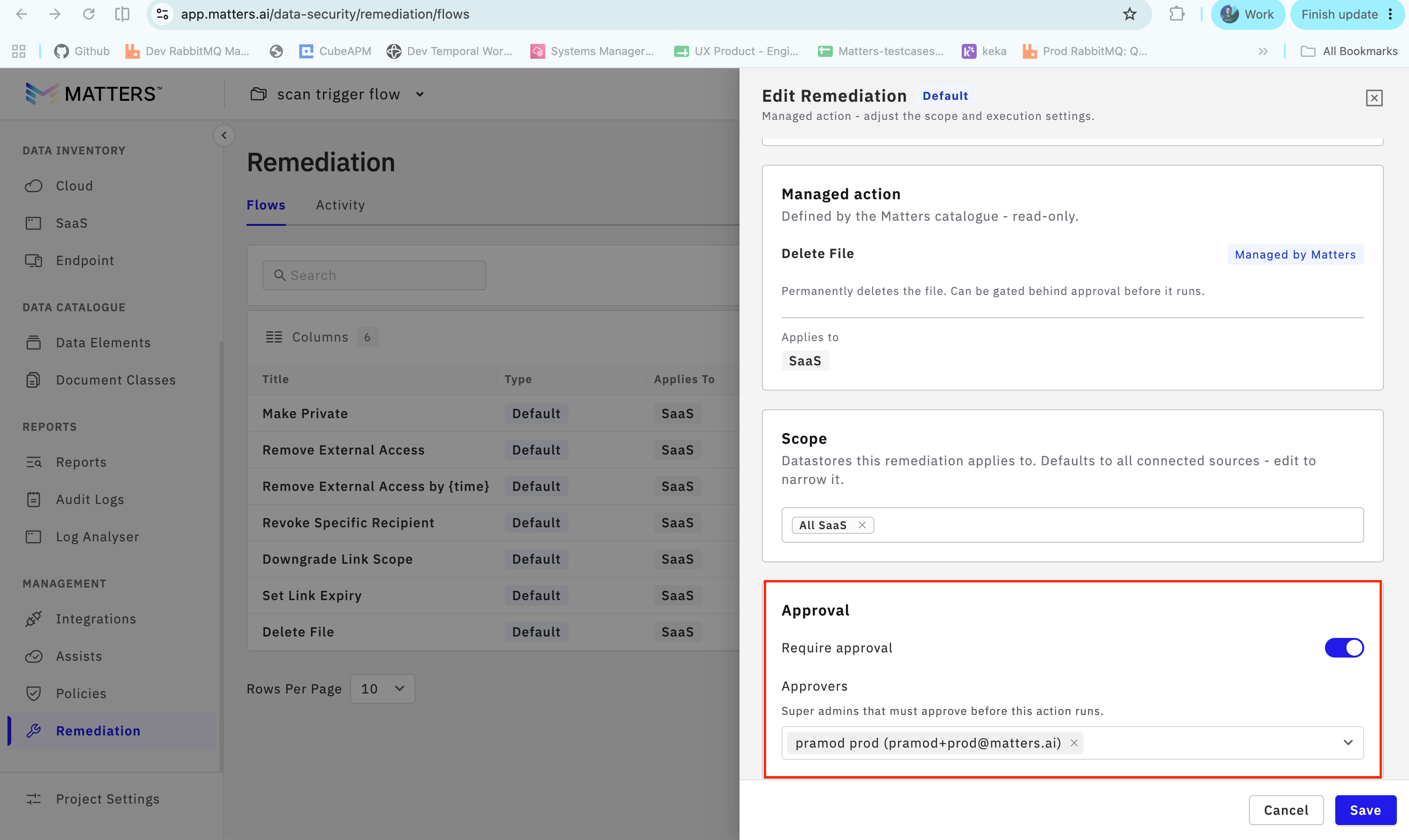
Click Save.
Step 3.2: Submit a Google Drive File for Deletion
Navigate to SaaS.
Open the required Google Drive file.
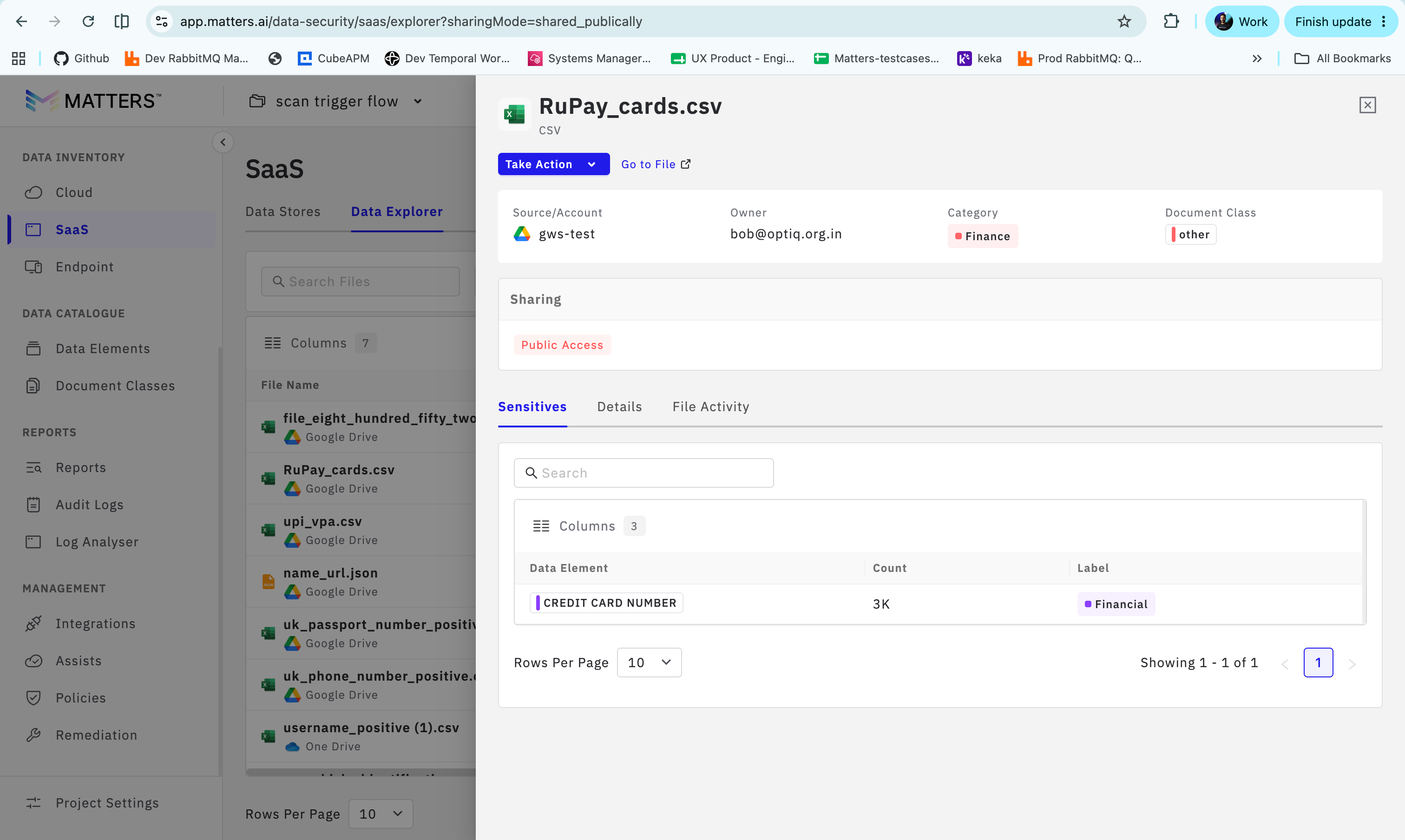
Click Take Action. Under Relocate / Remove, select Delete File.
Review the impact of the deletion. Add any required comments or information. Submit the request.
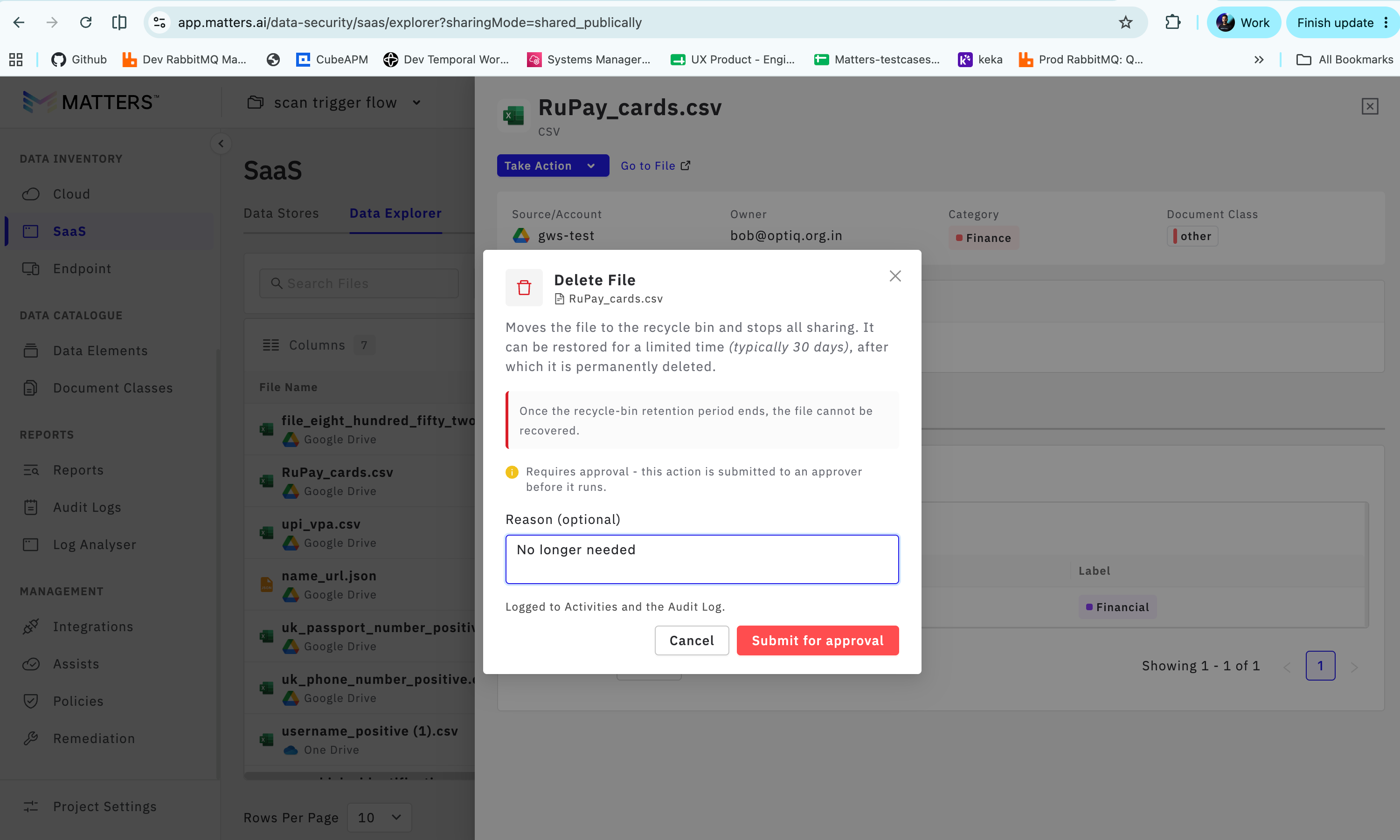
While the request is awaiting approval:
Delete File displays the Awaiting Approval status.
Other remediation actions may be unavailable until the pending action is resolved.
Step 3.3: Approval Notification
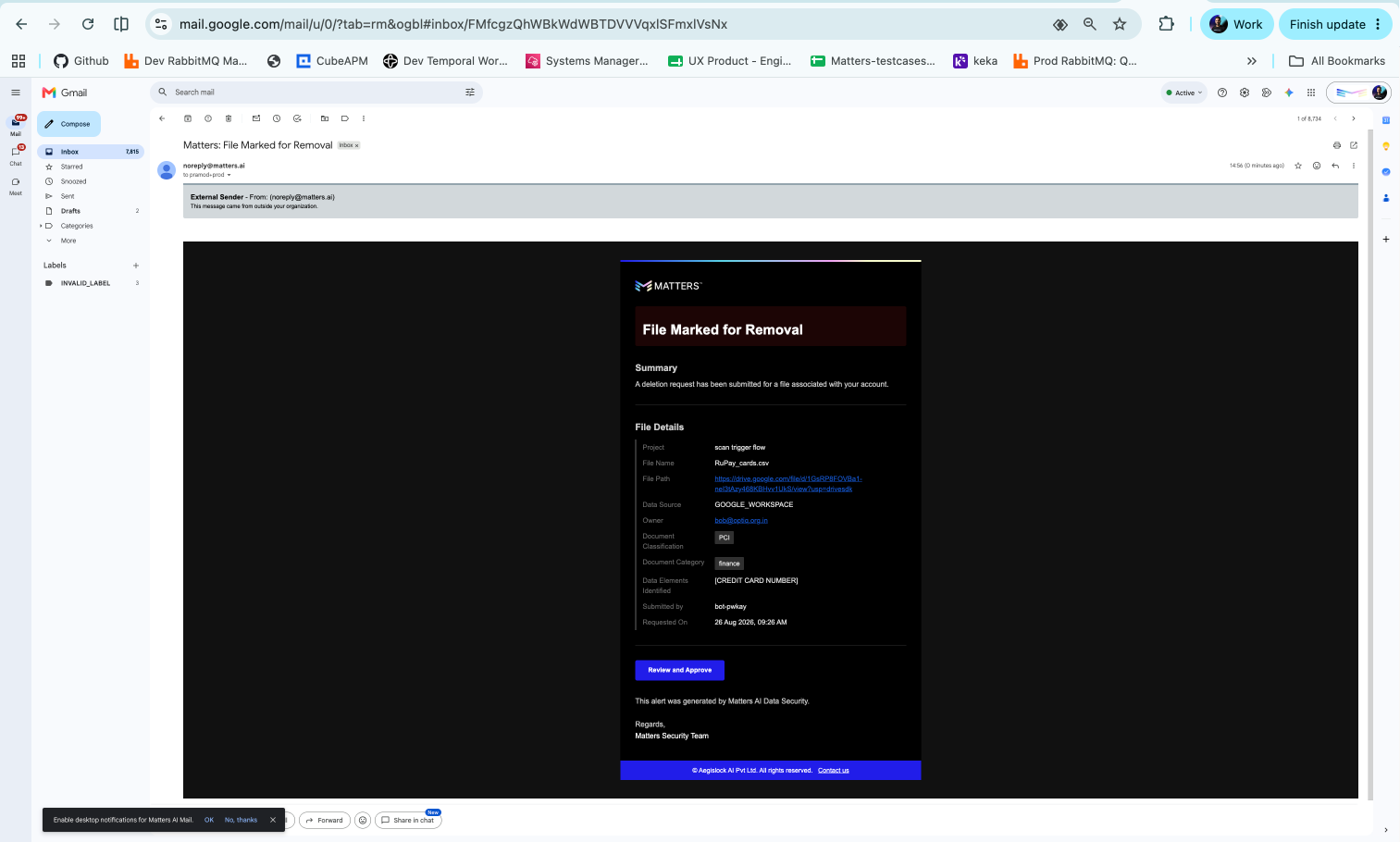
When the deletion request is submitted, the configured approver receives an email notification from Matters informing them that a file has been marked for removal.
The email includes relevant information about the request, such as:
File name and path
Data source
File owner
Detected sensitive data
Requester
Request time
Request comments
The approver can select Review and Approve from the email to open the remediation request in Matters.
Step 3.4: Approve or Reject the Deletion
The administrator/approver can also review pending requests directly from Matters.
Go to Remediation → Activity.
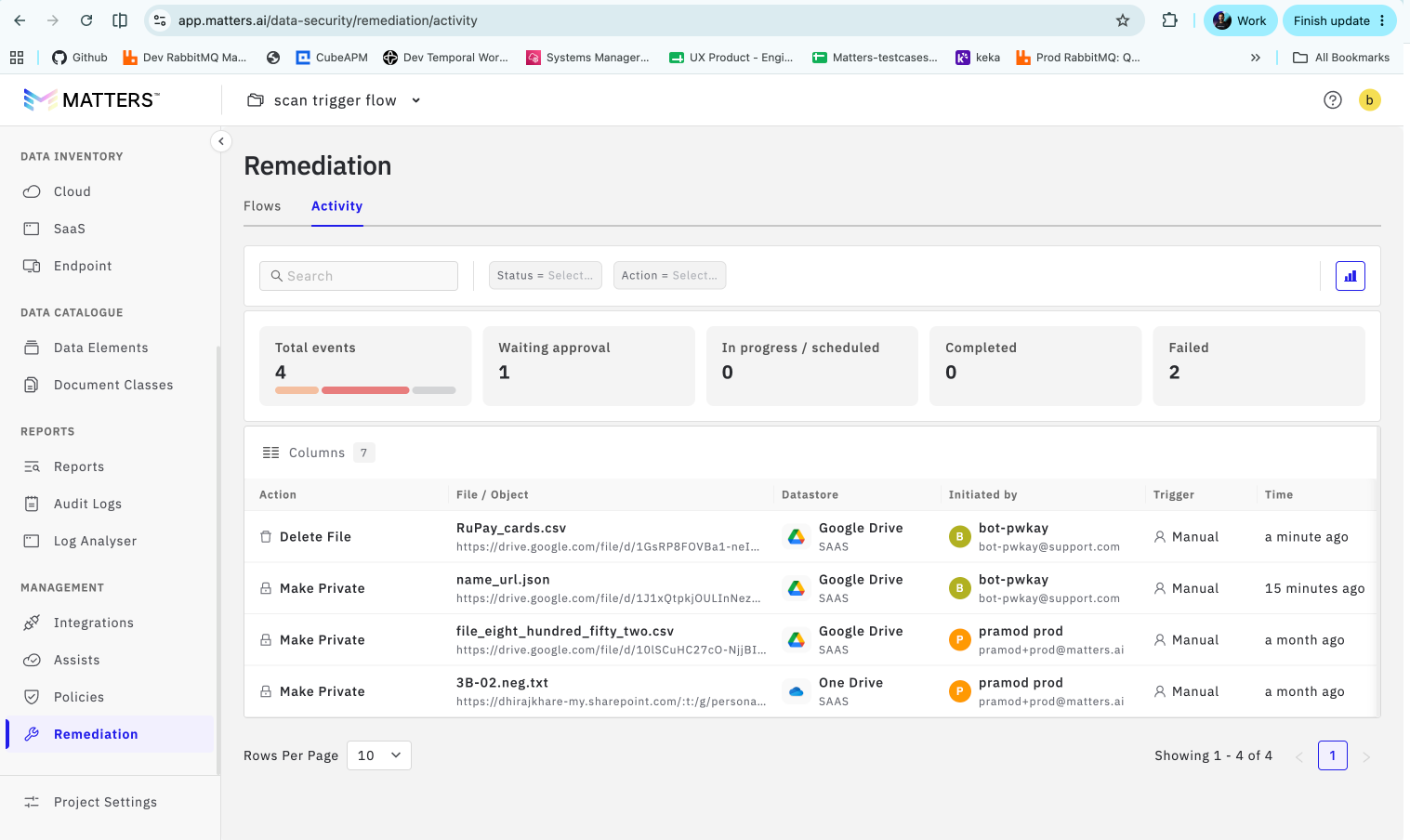
Locate the Delete File action with the Awaiting Approval status.
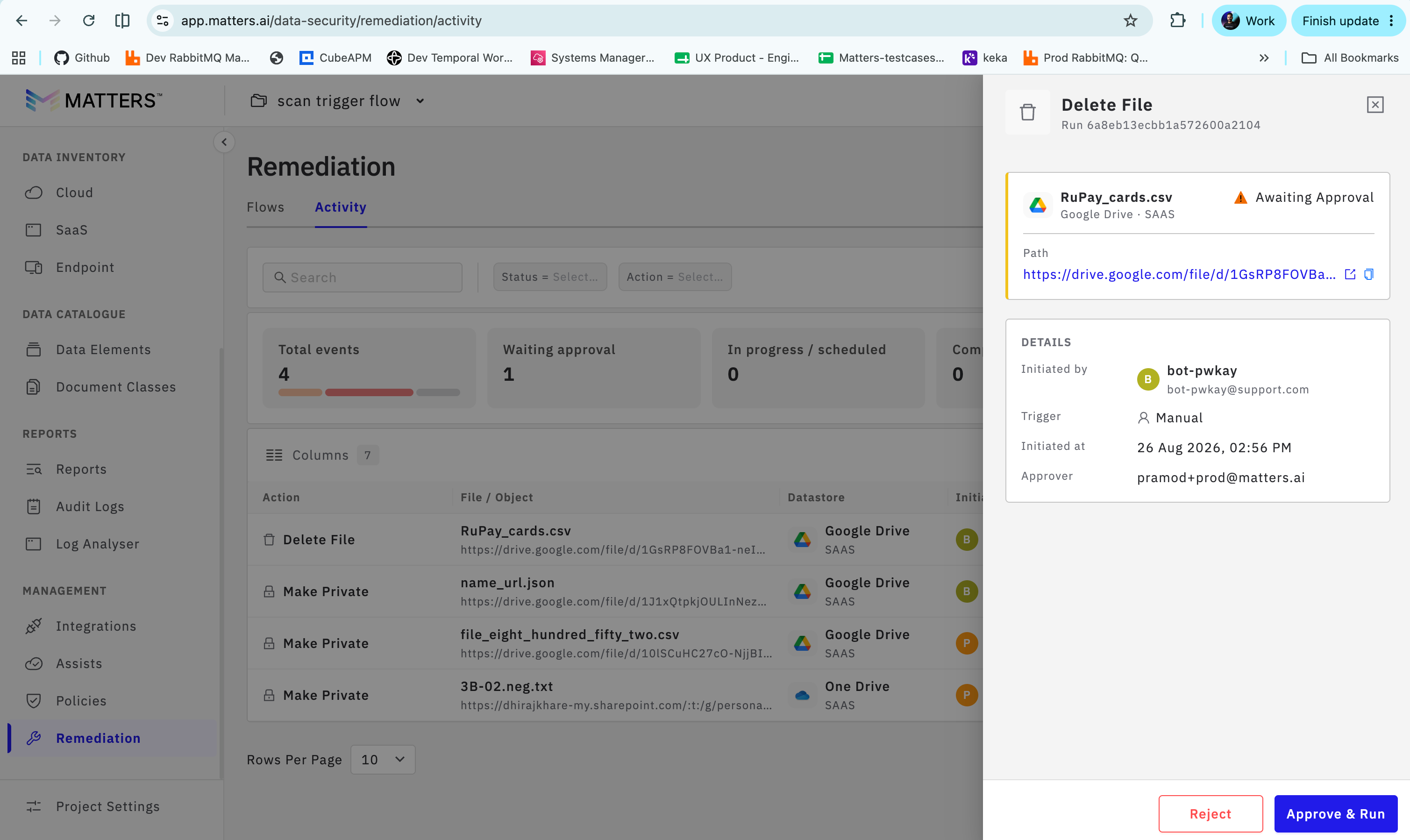
Open the remediation activity.
Review the file, requester, datastore, and other request details.
Select one of the following:
Approve & Run: Approves the request and allows Matters to execute the file deletion.
Reject: Rejects the deletion request and prevents the file from being deleted.
Step 3.5: After Approval
When the administrator clicks Approve & Run, Matters executes the Delete File remediation action. Once the action completes successfully, the file is deleted from the corresponding Gdrive location.
If the administrator selects Reject, the deletion is not performed.
The request and its final status can be tracked from Remediation → Activity and are also recorded in the Audit Logs.
Important Considerations
Google Drive remediation requires the integration to use Monitor & Remediate mode.
The full
https://www.googleapis.com/auth/driveOAuth scope must be authorised through Domain-Wide Delegation.The Google Drive API must remain enabled in the GCP project associated with the Matters service account.
Remediation applies to supported Google Drive files and permissions.
By enabling Monitor & Remediate and granting the required Google Drive OAuth permission, Matters can extend Google Workspace monitoring beyond sensitive-data discovery and allow authorised remediation of eligible Google Drive files and sharing configurations.
Users can identify a sensitive Google Drive file, open Take Action, select the appropriate remediation action, review its impact, and complete the required confirmation or approval workflow.
All other supported Google Drive remediation actions can be performed in a similar way by selecting the relevant action from Take Action, reviewing its impact, and completing the required confirmation or approval steps.