Jira Integration and usage guide
Last updated: April 20, 2026
Overview
This guide explains how to integrate Jira with the Matters Dashboard to track alerts, misconfigurations, and sensitive data.
By integrating Jira, security analysts can efficiently manage risks and track actionable items across relevant teams.
Steps to Integrate Jira on Matters Dashboard
Step 1: Navigate to Jira Integration
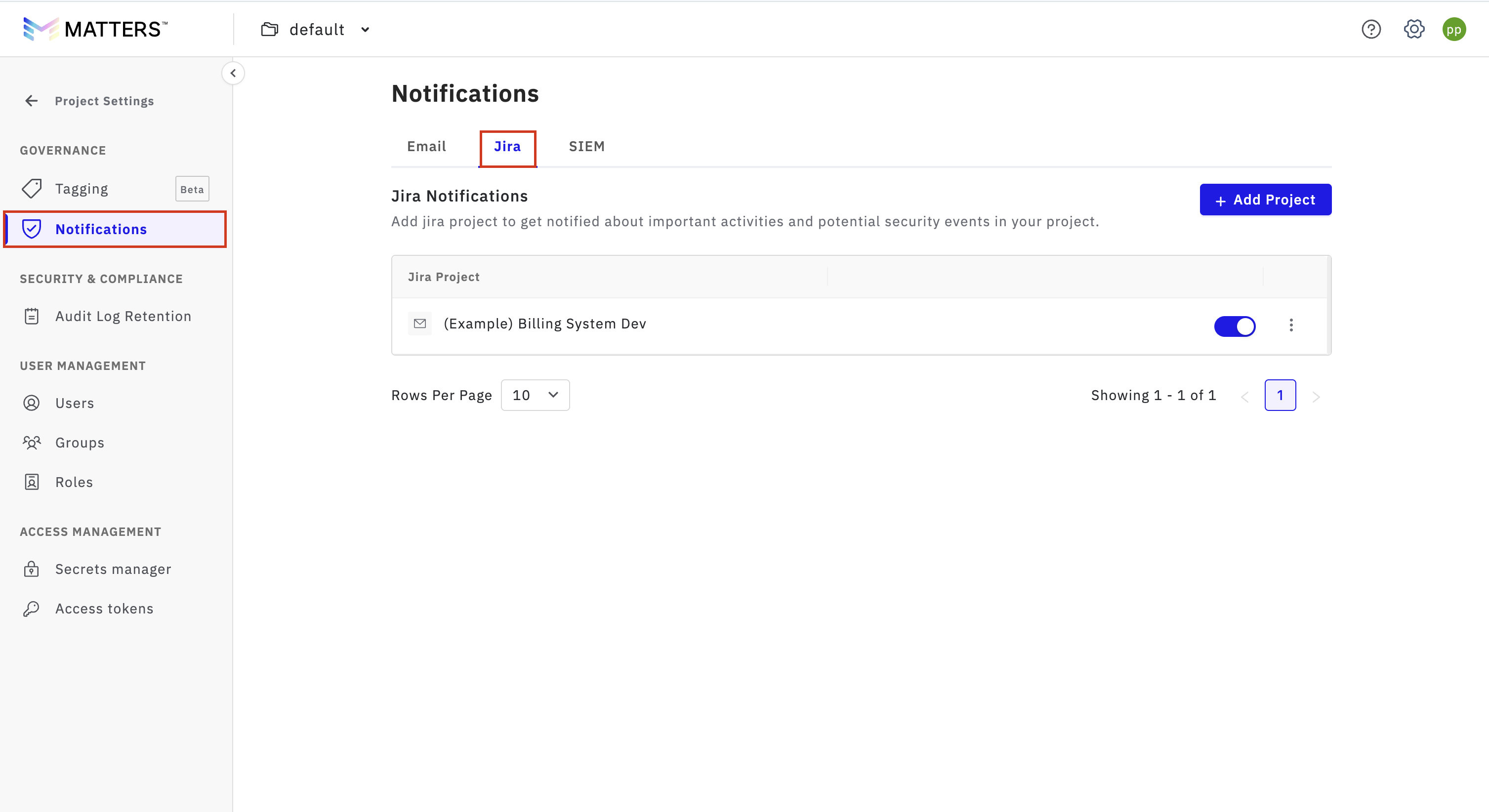
Log in to the Matters Dashboard
Click on Project Settings (bottom-left corner)
Navigate to Notifications > Jira
Step 2: Choose Integration Type
Integration can be done in two ways:
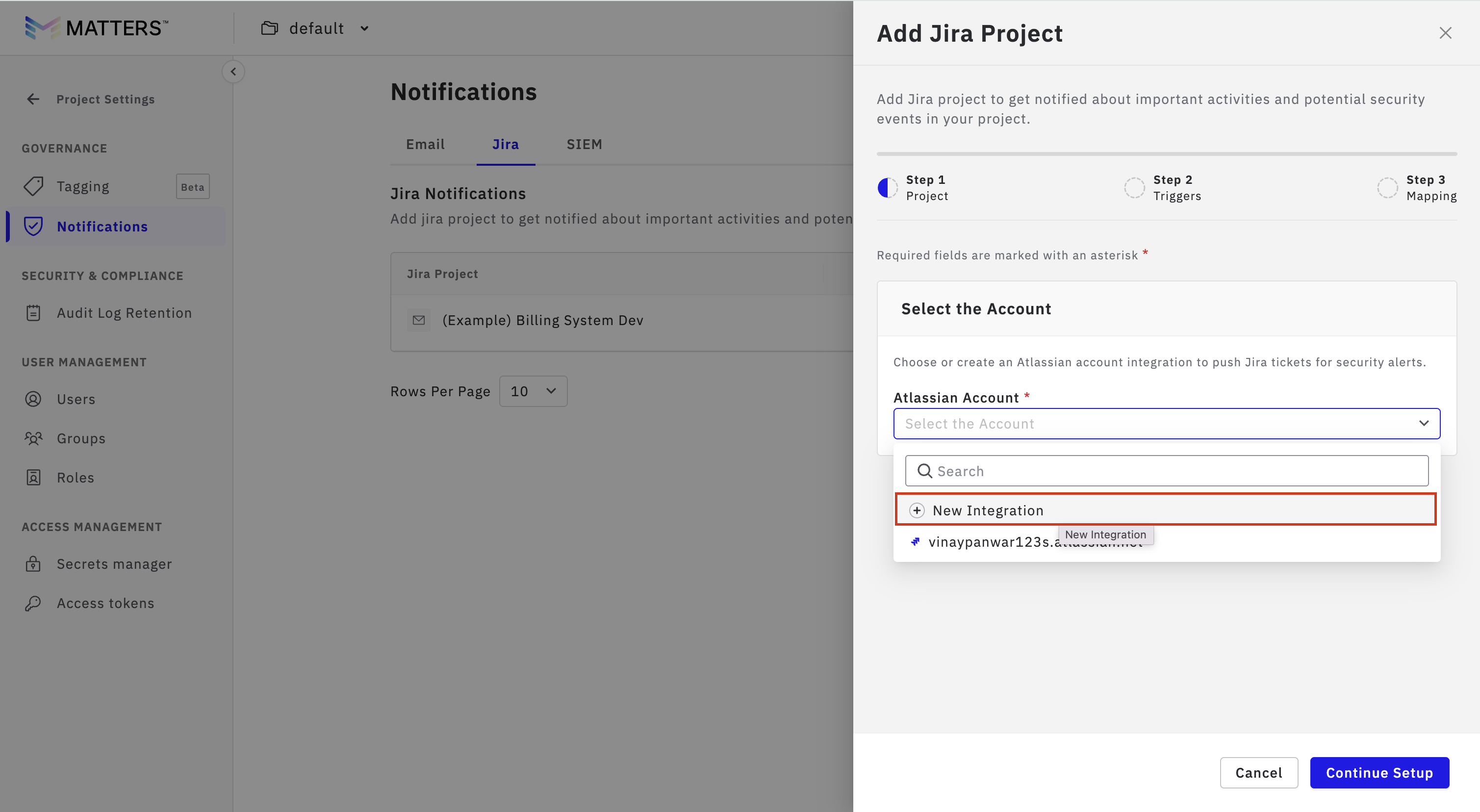
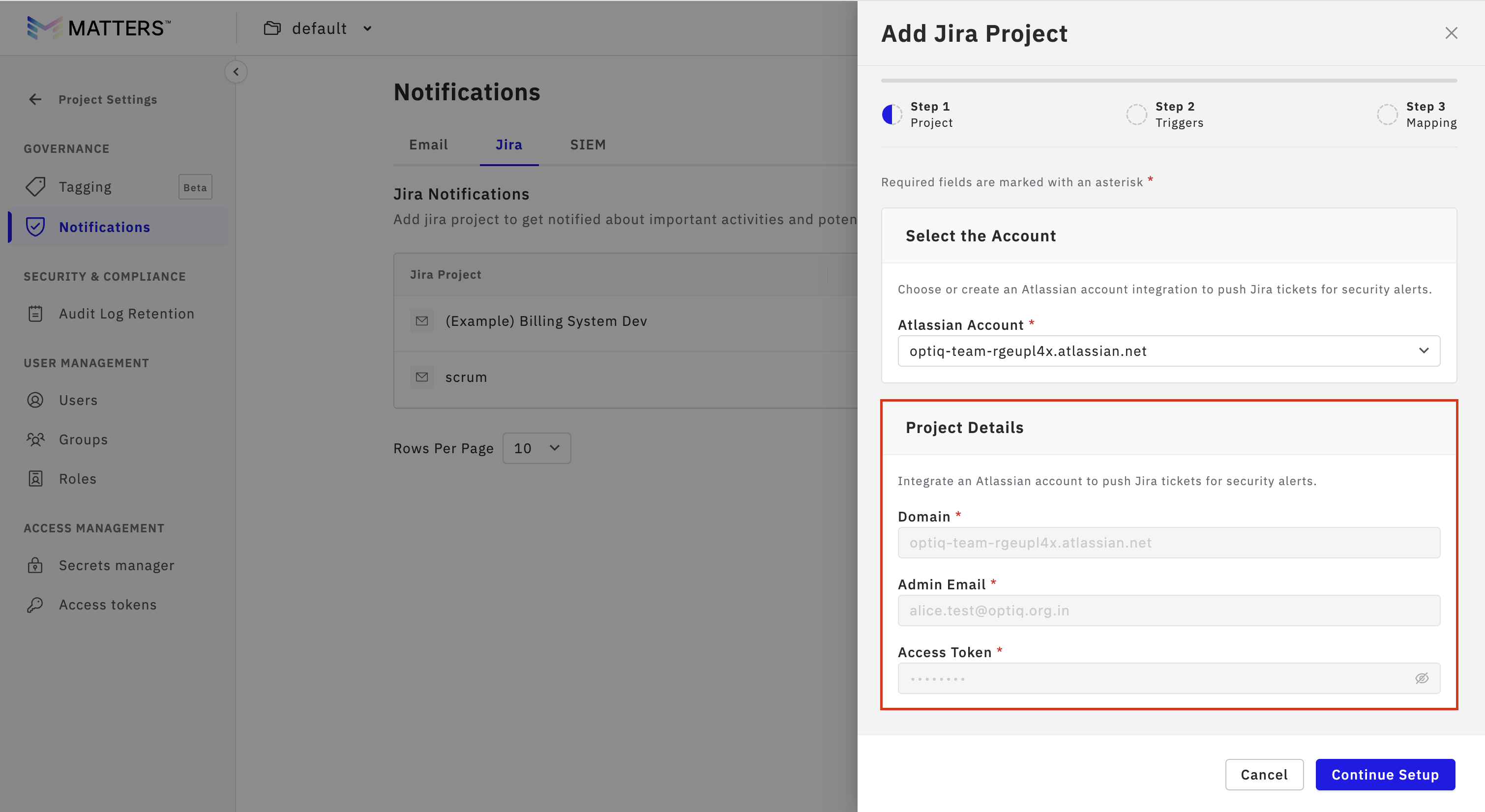
Procedure A: New Integration Flow
Click on Add Project → Select New Integration
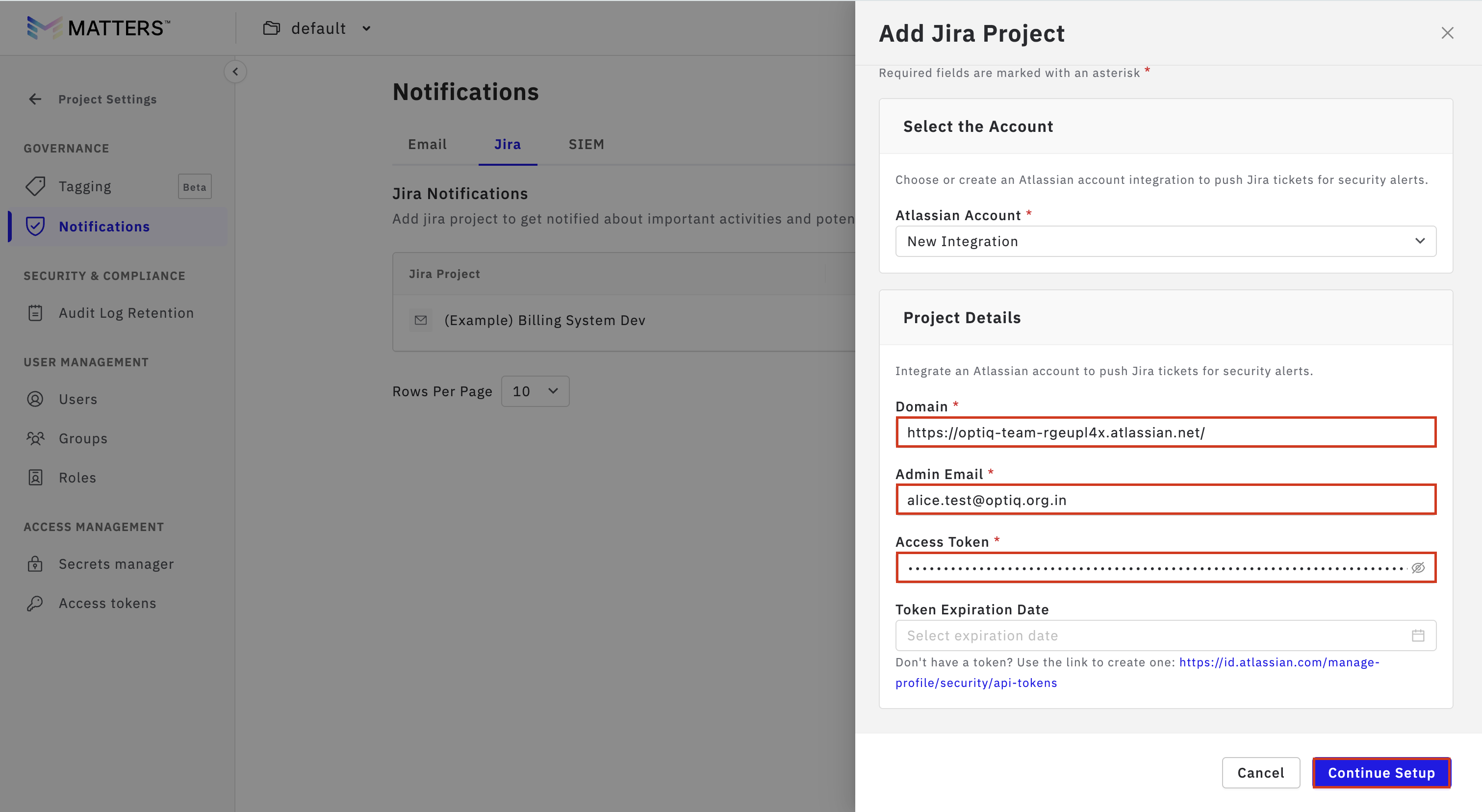
Enter the following details:
Jira Domain (e.g., https://your-domain.atlassian.net)
Admin Email
Jira Access Token (Create from: https://id.atlassian.com/manage-profile/security/api-tokens)
Optional: Token Expiration Date
Click Continue Setup
Procedure B: Existing Integration Flow
Click on Add Project → Select Existing Integration
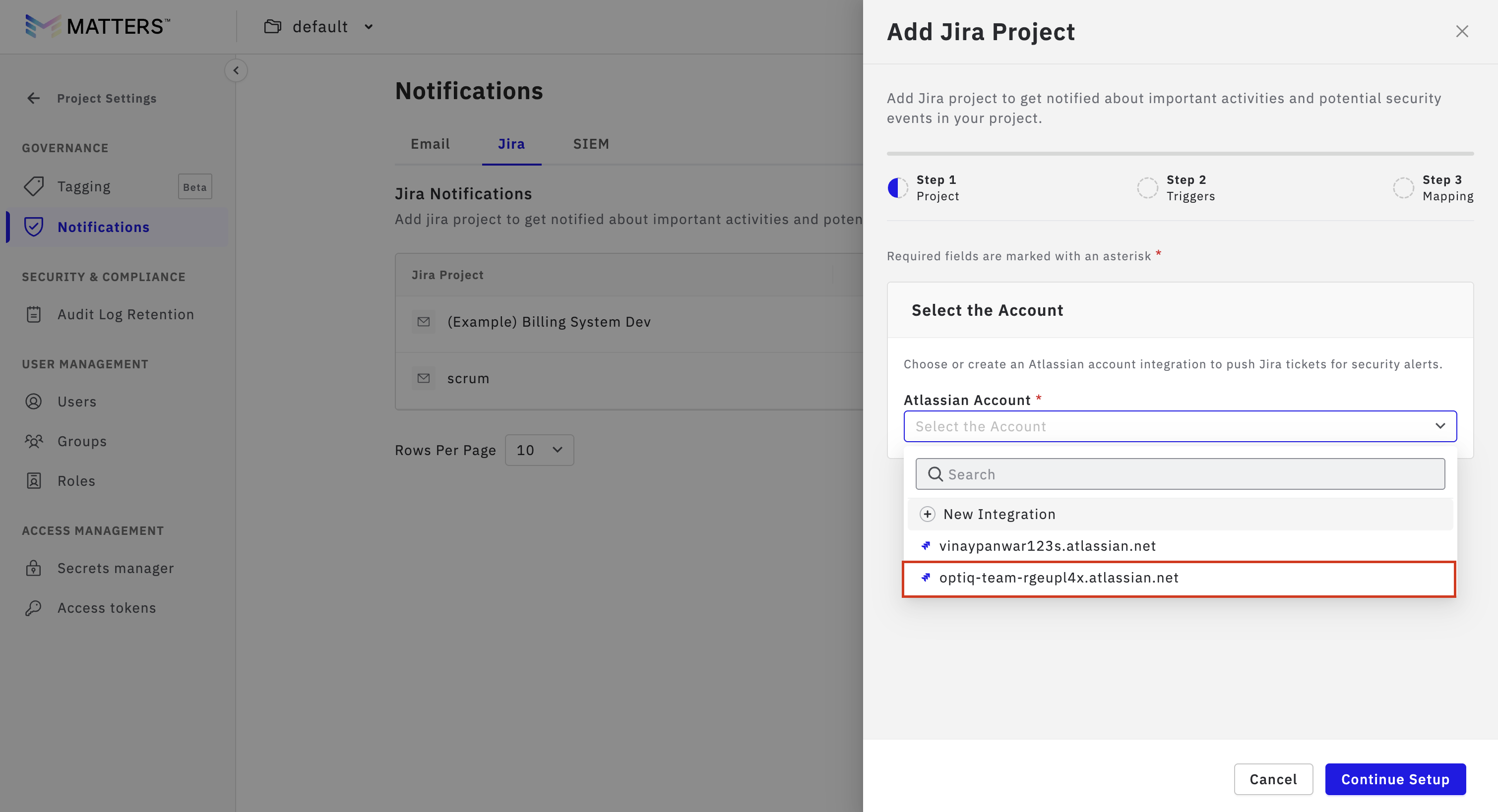
Project details will be auto-populated
Verify the details
Click Continue Setup
Step 3: Configure Jira Project
Select:
Jira Project (Space)
Work Type
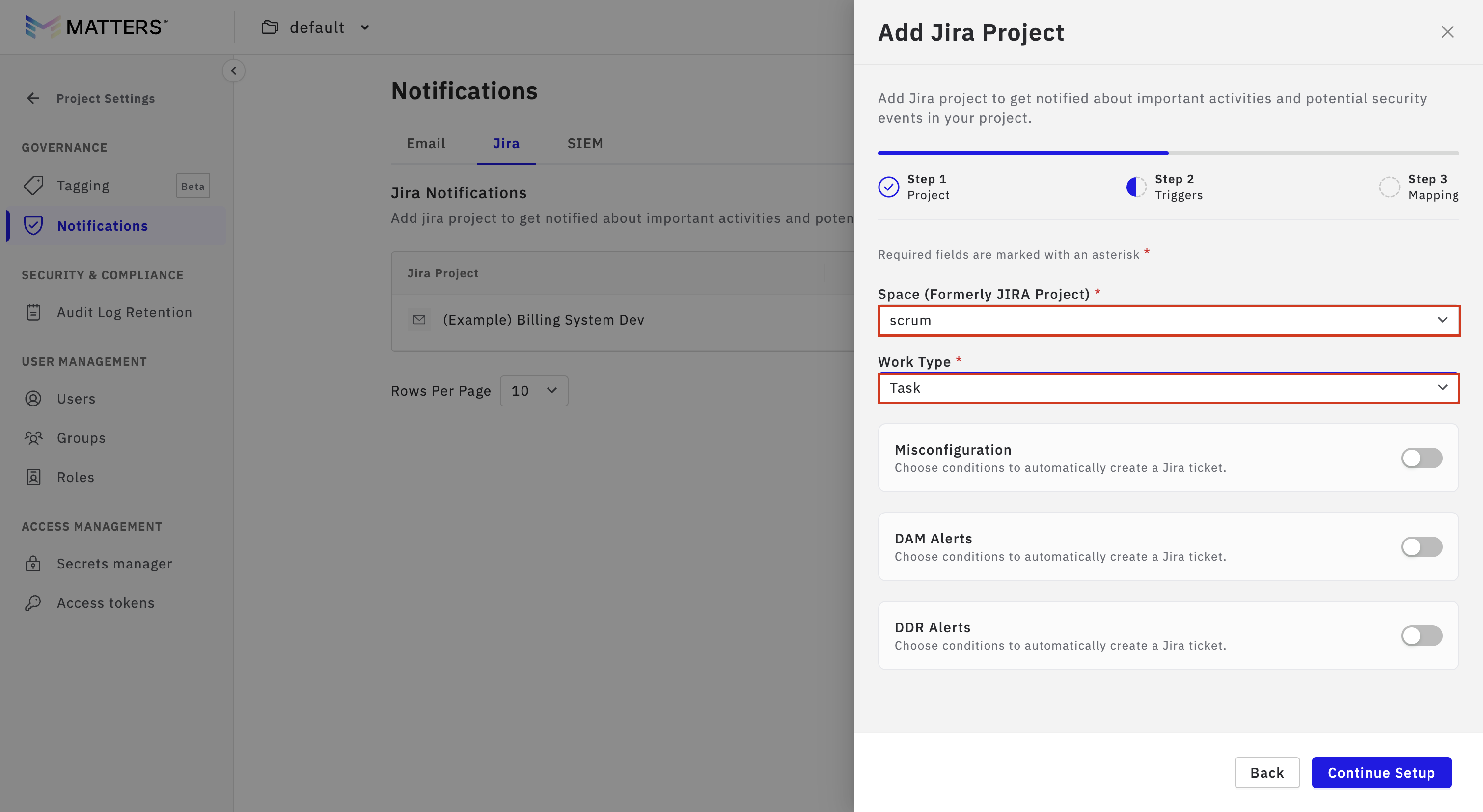
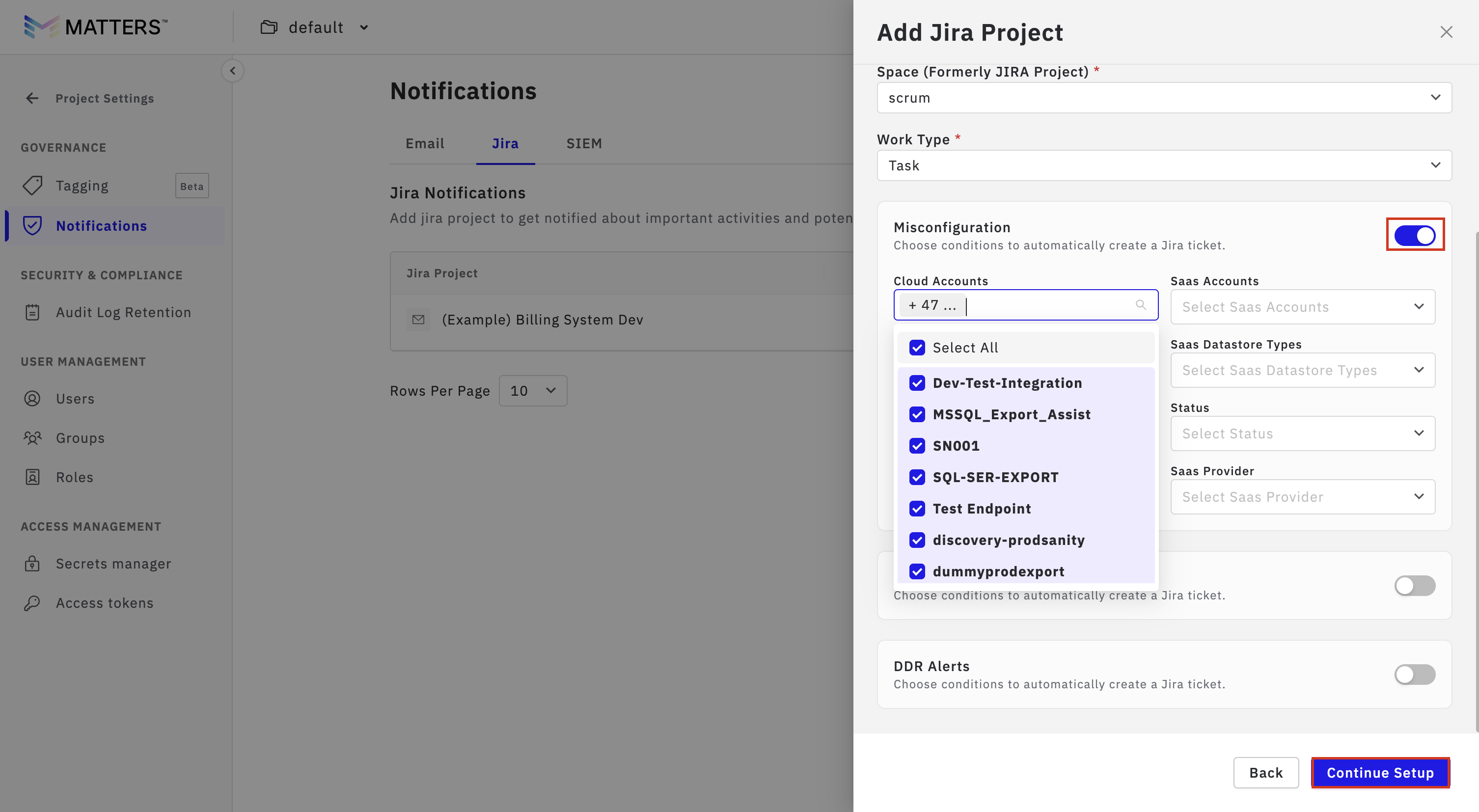
Enable ticket creation for:
Misconfigurations
DAM Alerts
DDR Alerts
Add filters for each type if required
Click Continue Setup
Step 4: Mapping and Configuration
4.1 Field Mapping
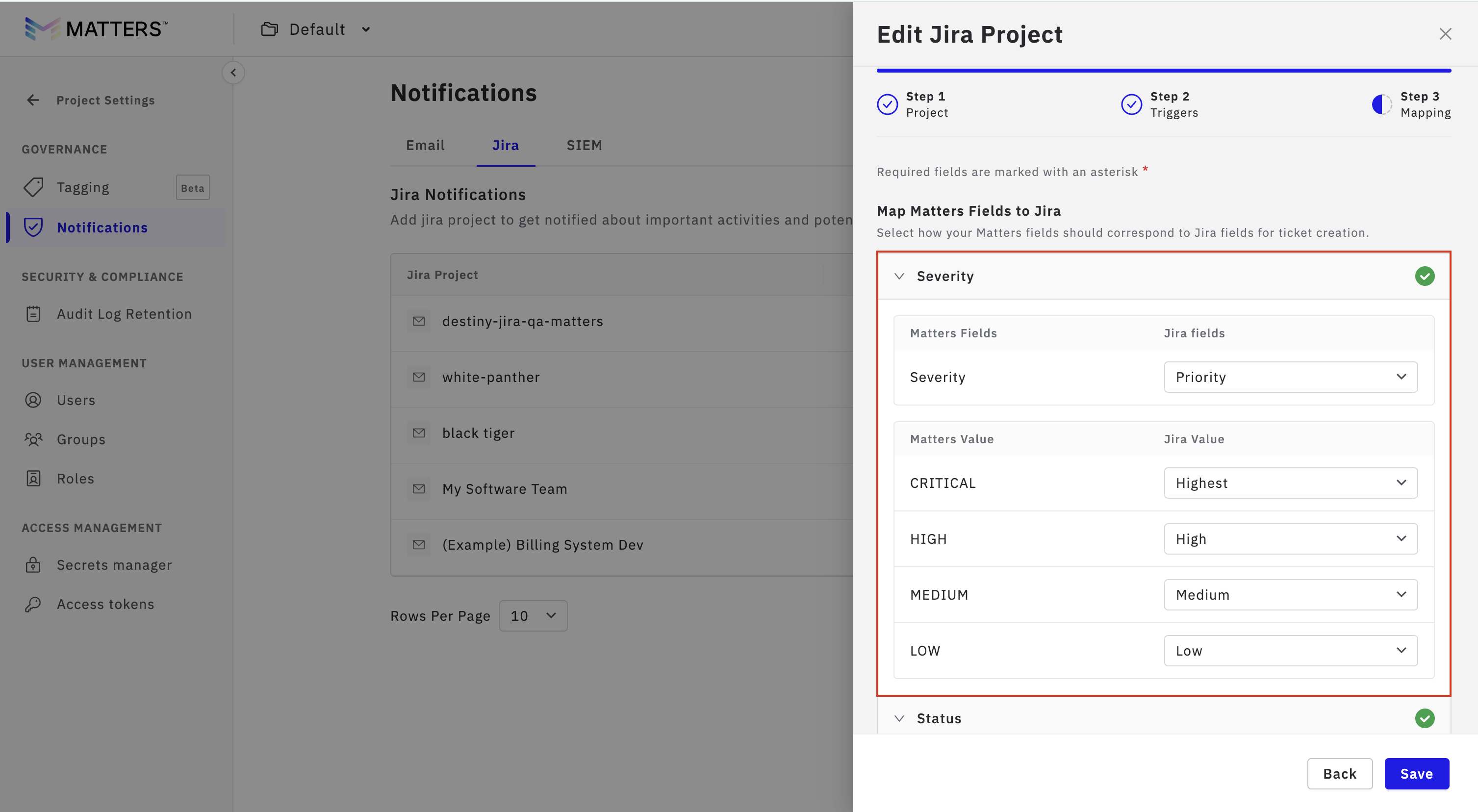
a. Severity Mapping → Priority
Map the severity levels in Matters to the corresponding priority levels in Jira.
This ensures that the importance of an alert or issue is correctly represented in Jira.
Example:
Matters Critical → Jira Highest
Matters High → Jira High
Matters Medium → Jira Medium
Matters Low → Jira Low / Lowest
This mapping helps Jira users quickly understand the urgency of issues based on priority.
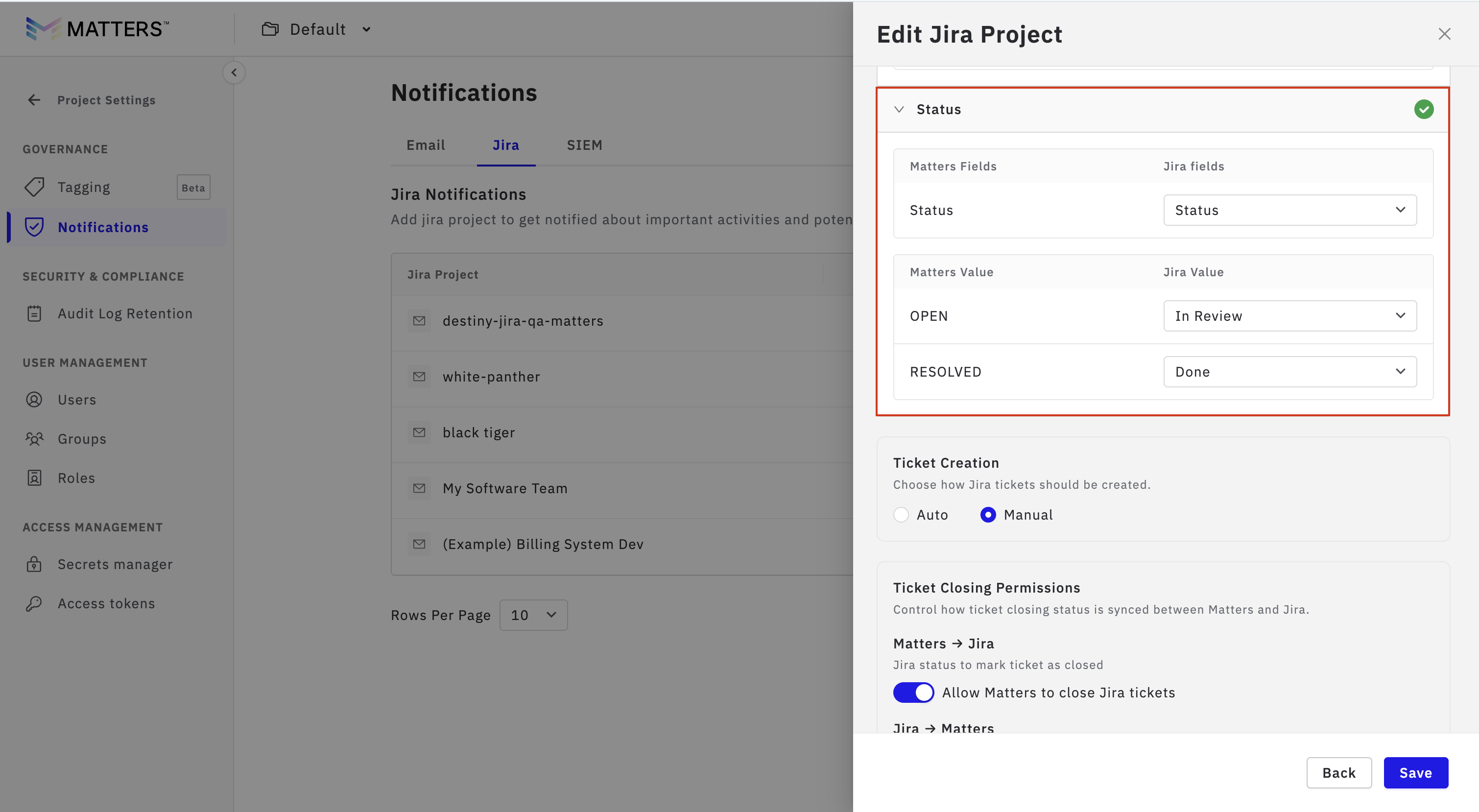
b. Status Mapping
In this step, you need to configure status mapping between Matters and Jira.
You will map the status from Matters (such as Open or Resolved) to the corresponding status in Jira.
This ensures that when a ticket is created or updated, the correct status is reflected in Jira.
For example:
Matters Open → Jira In Review/Todo/In Progress
Matters Resolved → Jira Done
This mapping helps maintain consistency between both systems and ensures that ticket status is correctly synced.
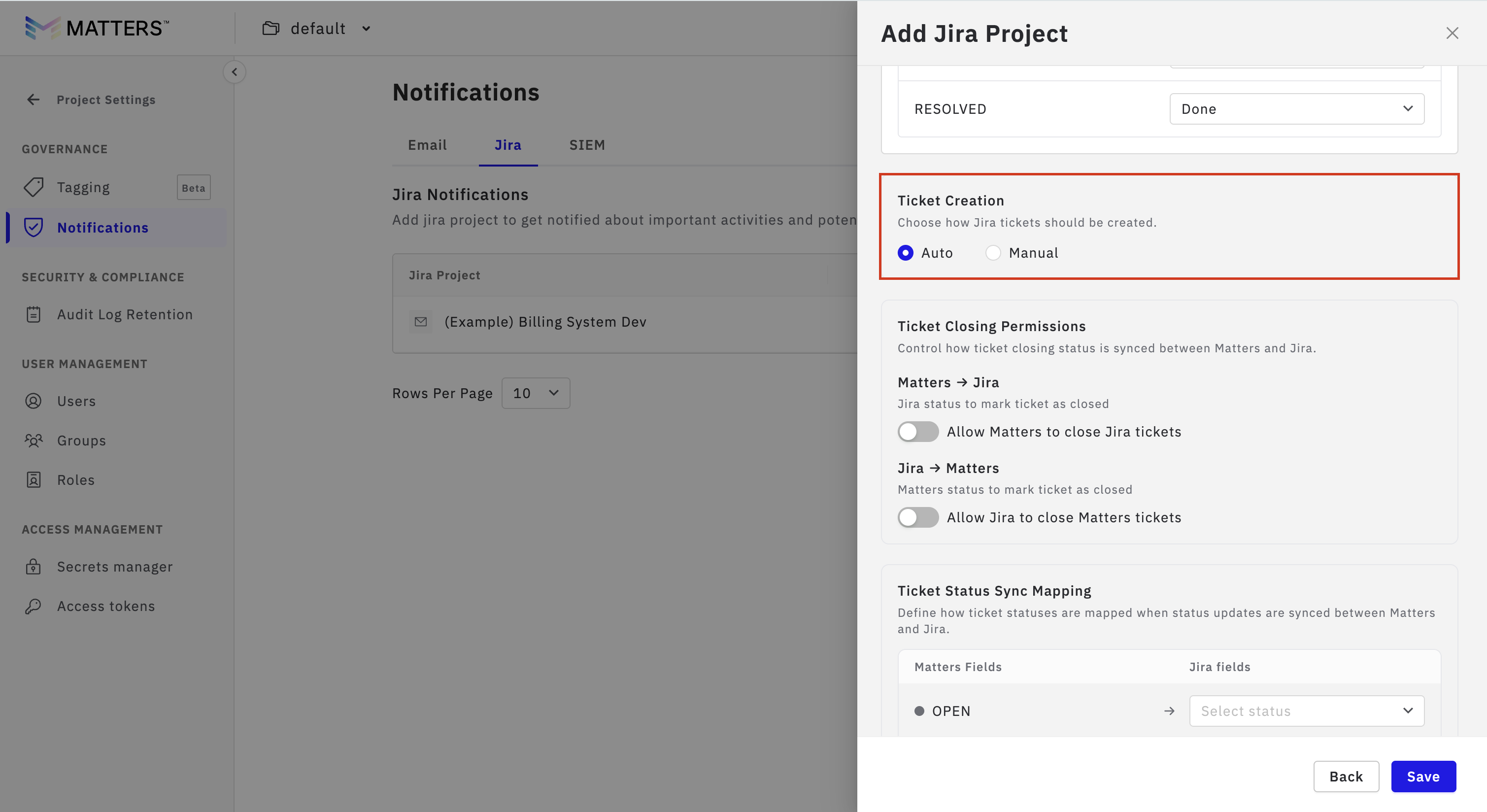
4.2 Ticket Creation Mode
In this step, you decide how Jira tickets should be created.
Auto (Automatic): Jira tickets will be created automatically whenever a new alert, misconfiguration, or issue is detected based on your configuration and filters.
Manual: Jira tickets will only be created when the user clicks the “Push to Jira” button from the UI.
Note: If Auto mode is selected, manual ticket creation will not be available.
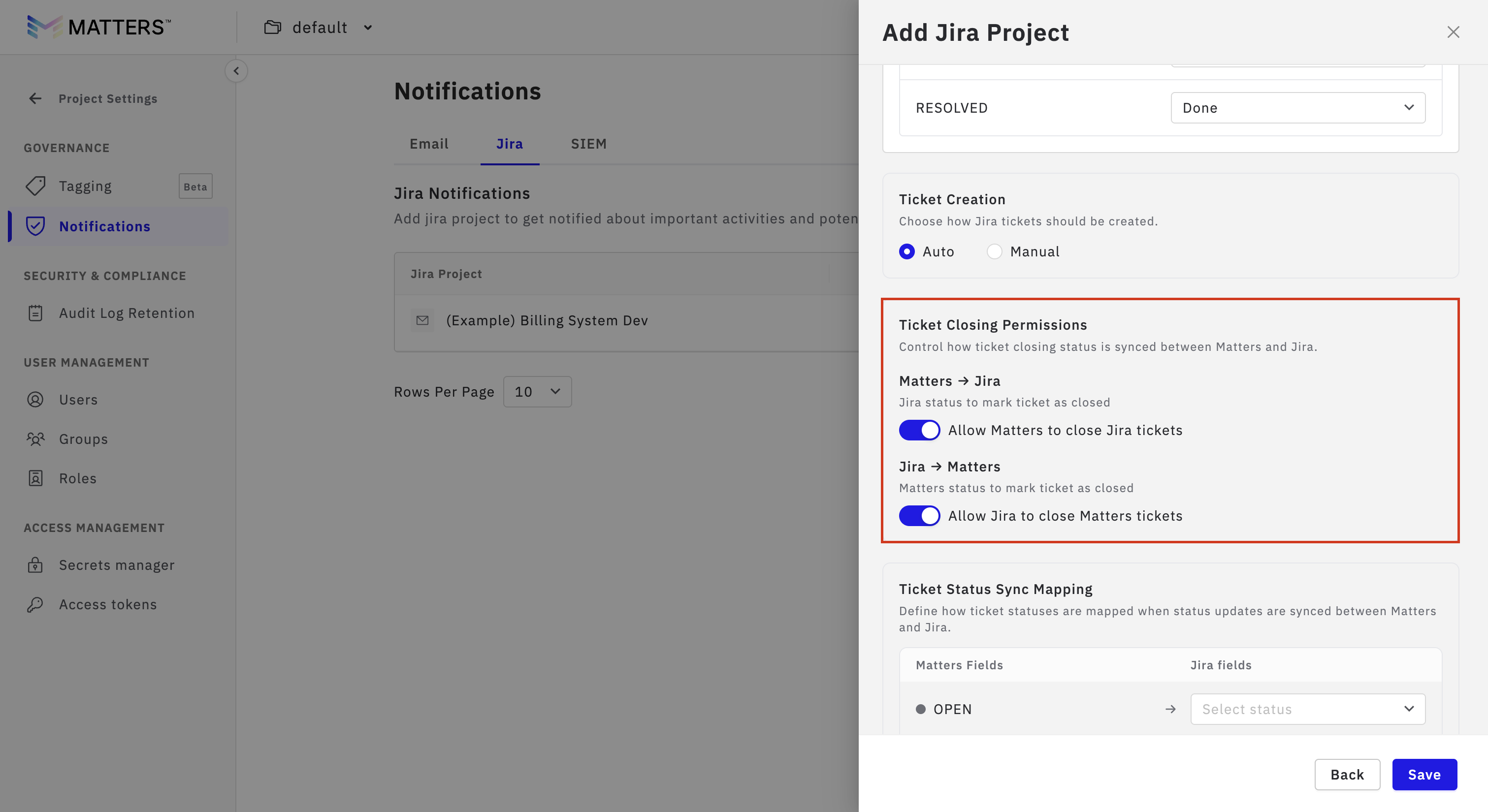
4.3 Ticket Closing Permissions
This setting controls how ticket closure is synchronized between Matters and Jira. It helps ensure that ticket status remains consistent across both platforms.
You will see two options here:
1. Matters → Jira
Enable this option if you want Jira tickets to be automatically closed when the corresponding alert, misconfiguration, or issue is marked as closed in the Matters Dashboard.
2. Jira → Matters
Enable this option if you want the status in Matters to be updated when the linked Jira ticket is closed in Jira.
Note: You can enable either one-way sync or both directions, depending on how your team manages tickets and workflows.
Once Configured click on Save
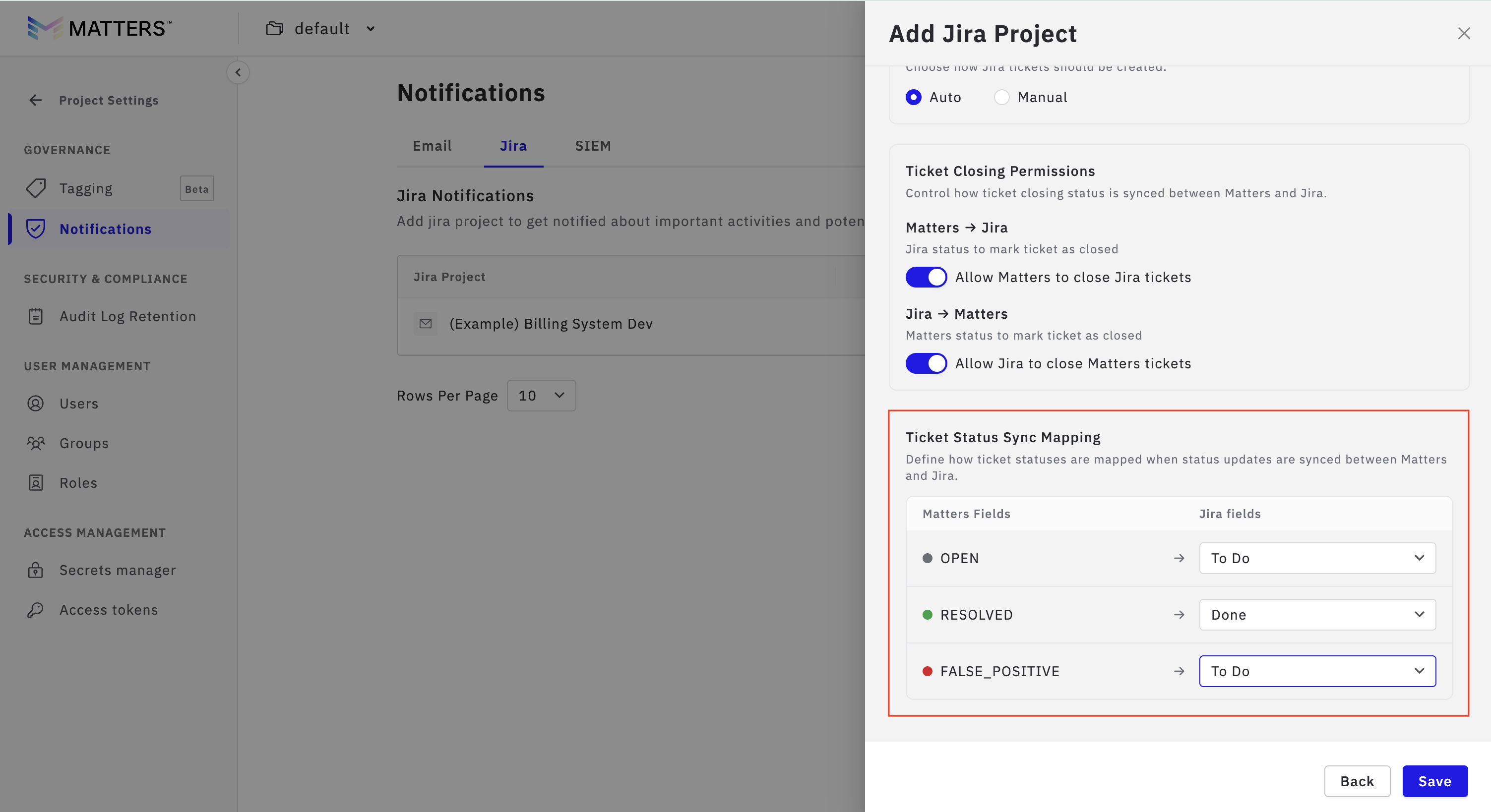
Ticket Status Sync Mapping
This section allows you to define how statuses in Matters should correspond to statuses in Jira.
Since Matters and Jira may use different status names, this mapping ensures that when a status is synced, it is translated correctly between both systems.
For example:
Open in Matters can be mapped to To Do in Jira
Resolved in Matters can be mapped to Done in Jira
4.5 Save Configuration
After completing all the required settings, click Save to finalize the Jira integration setup.
When you click Save:
The Jira project configuration is stored
Field mappings are saved
Ticket creation preferences are applied
Closing permissions and status sync settings are activated
Once saved successfully:
Jira integration will be added to the Matters UI
Ticket creation will start working based on the configuration you selected
If manual mode is enabled, the Push to Jira option will appear in the supported sections
If automatic mode is enabled, tickets will be created automatically based on the enabled conditions and filters
Before clicking Save, make sure:
The correct Jira project is selected
Required alert types are enabled
Filters are properly configured
Field mapping is complete
Ticket creation mode is selected correctly
Closing permissions and status mapping are reviewed
Push to Jira feature
The Push to Jira feature allows users to manually create Jira tickets directly from the Matters Dashboard for specific alerts or misconfigurations.
This feature is available only when Manual Ticket Creation is enabled during Jira configuration.
A. Create Jira Ticket for Misconfigurations
Follow the steps below to create a Jira ticket for a misconfiguration:
Navigate to Misconfigurations from the dashboard.
Select the specific misconfiguration for which you want to create a Jira ticket.
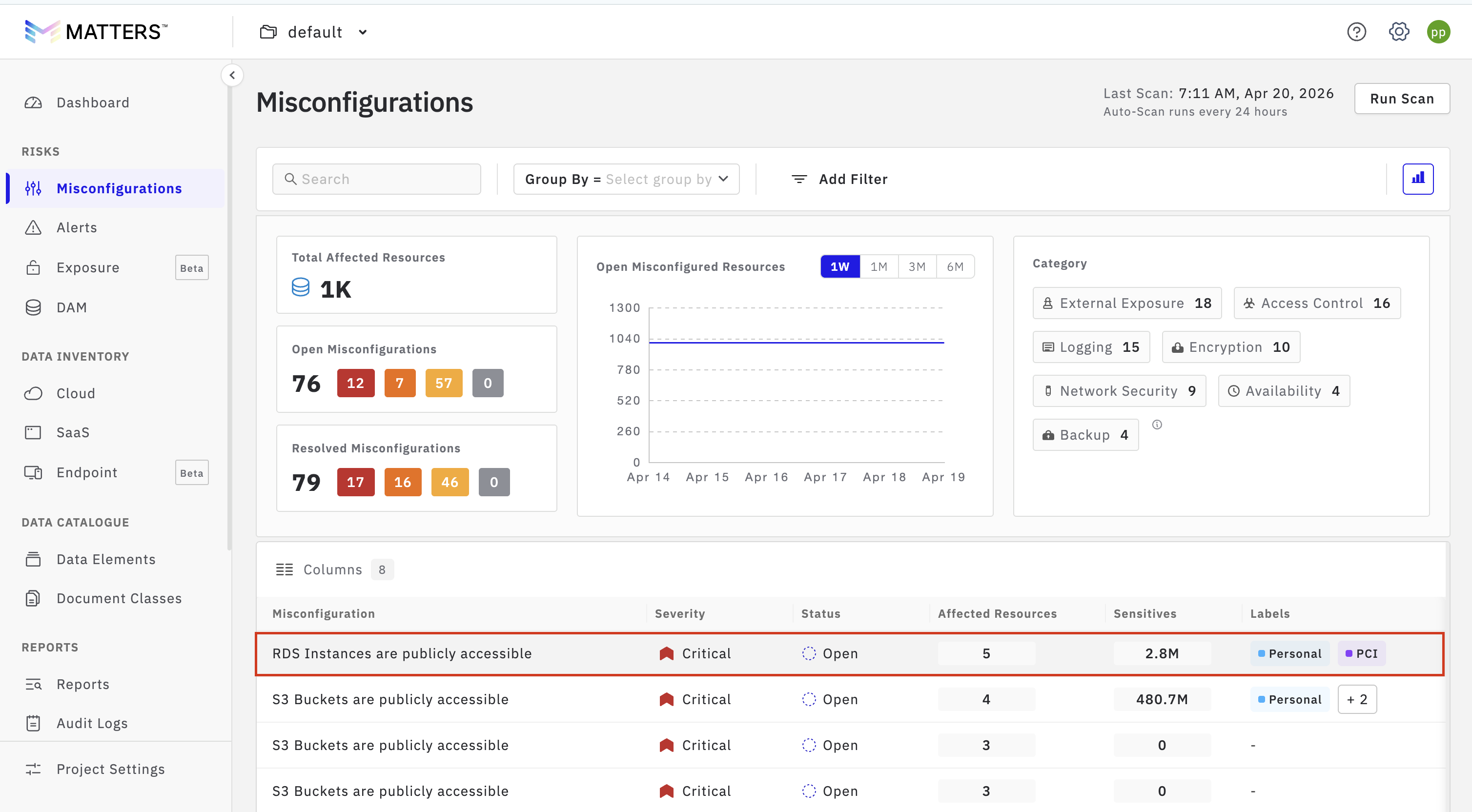
Go to the Affected Data Stores section.
Click on “Push to Jira” for the specific data store where you want to raise the ticket.
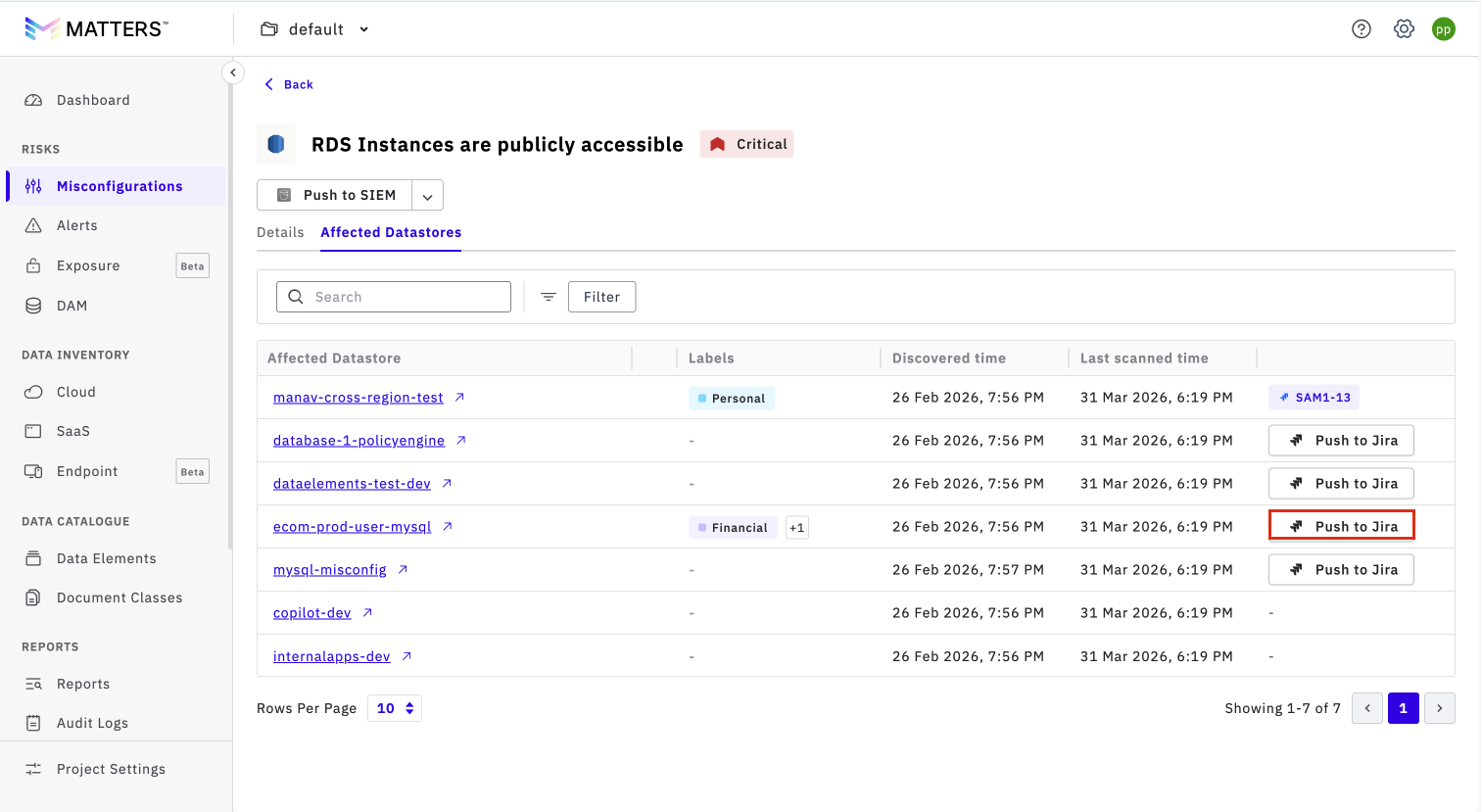
Once clicked:
A Jira ticket will be created successfully.
The ticket will be visible in the Matters UI.
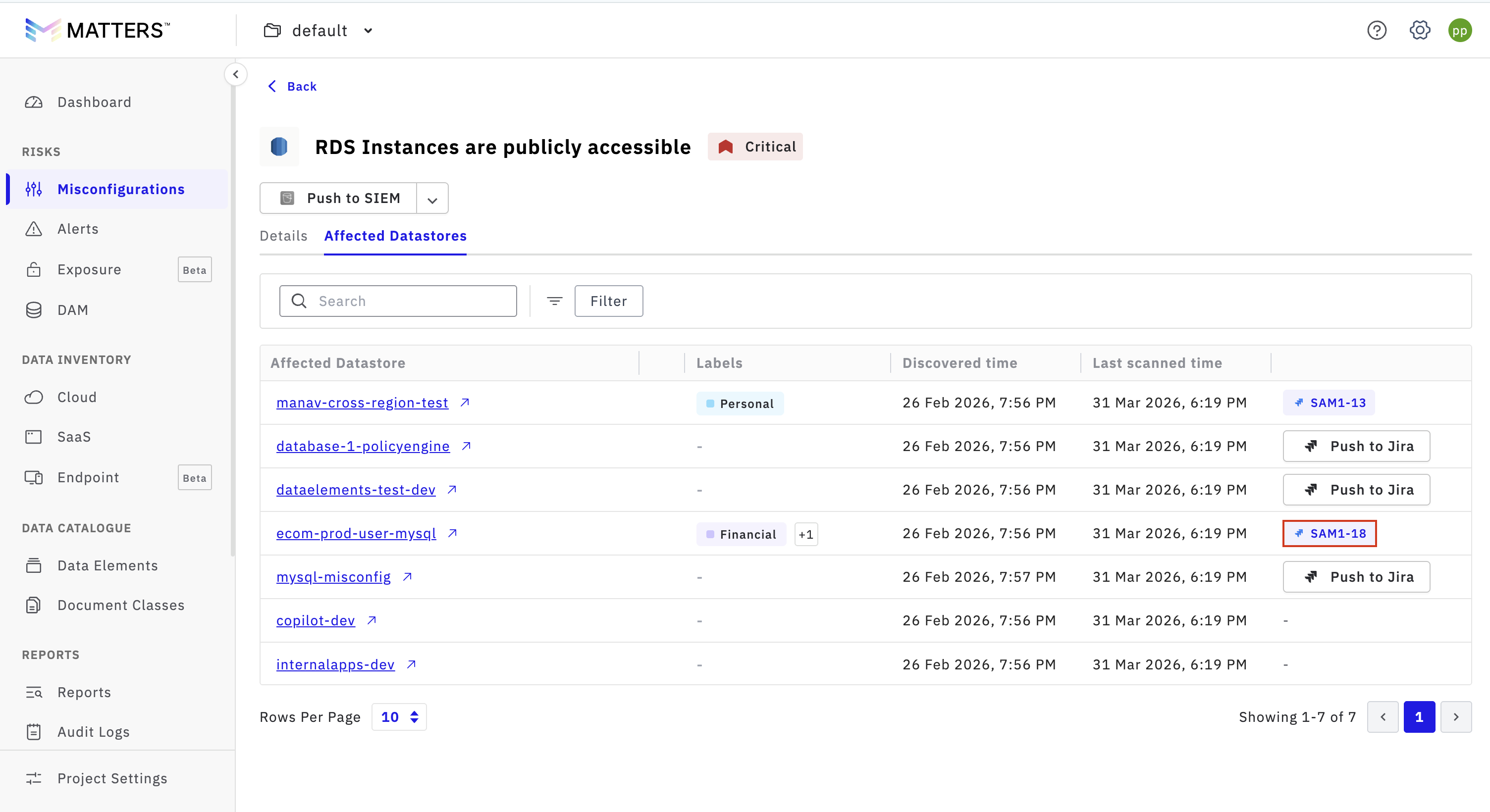
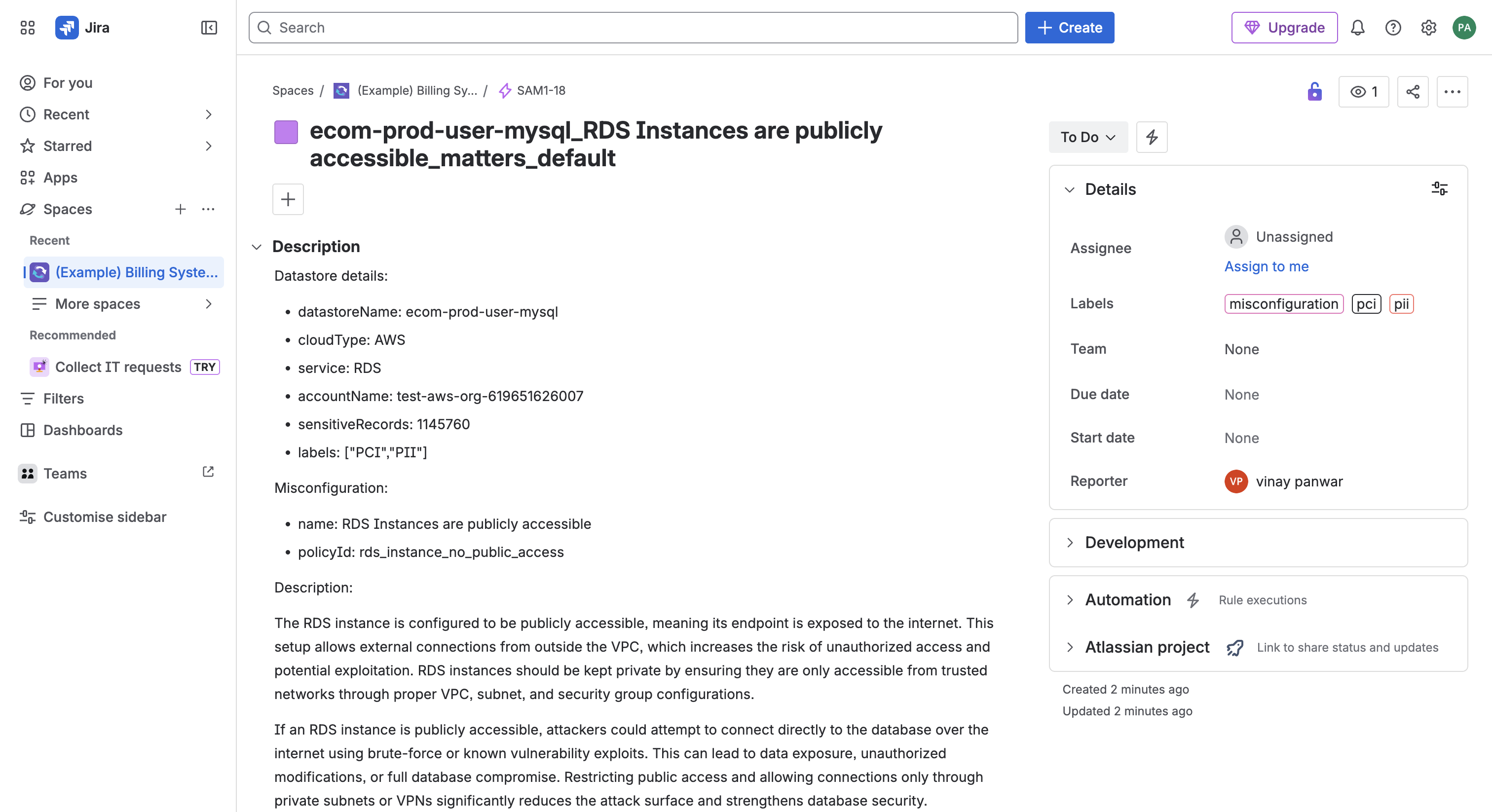
You can:
Click on the Jira ticket link from the UI
This will redirect you to the Jira platform
Validate the ticket details such as fields, description, and status
B. Create Jira Ticket for DDR Alerts
Follow the steps below to create a Jira ticket for DDR alerts:
Navigate to DDR Alerts.
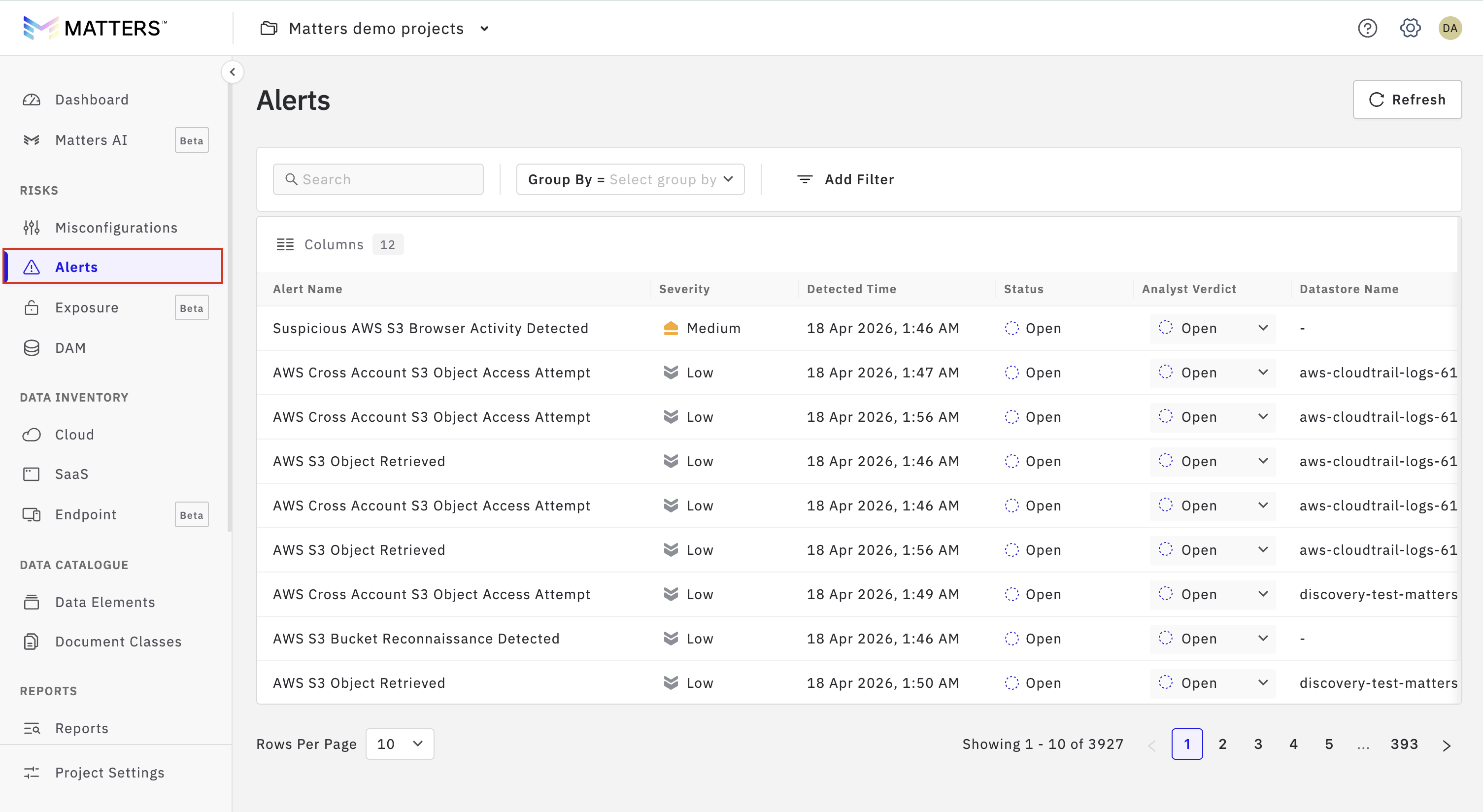
Select the specific alert for which you want to create a Jira ticket.
Click on “Push to Jira” (available within the alert details page).
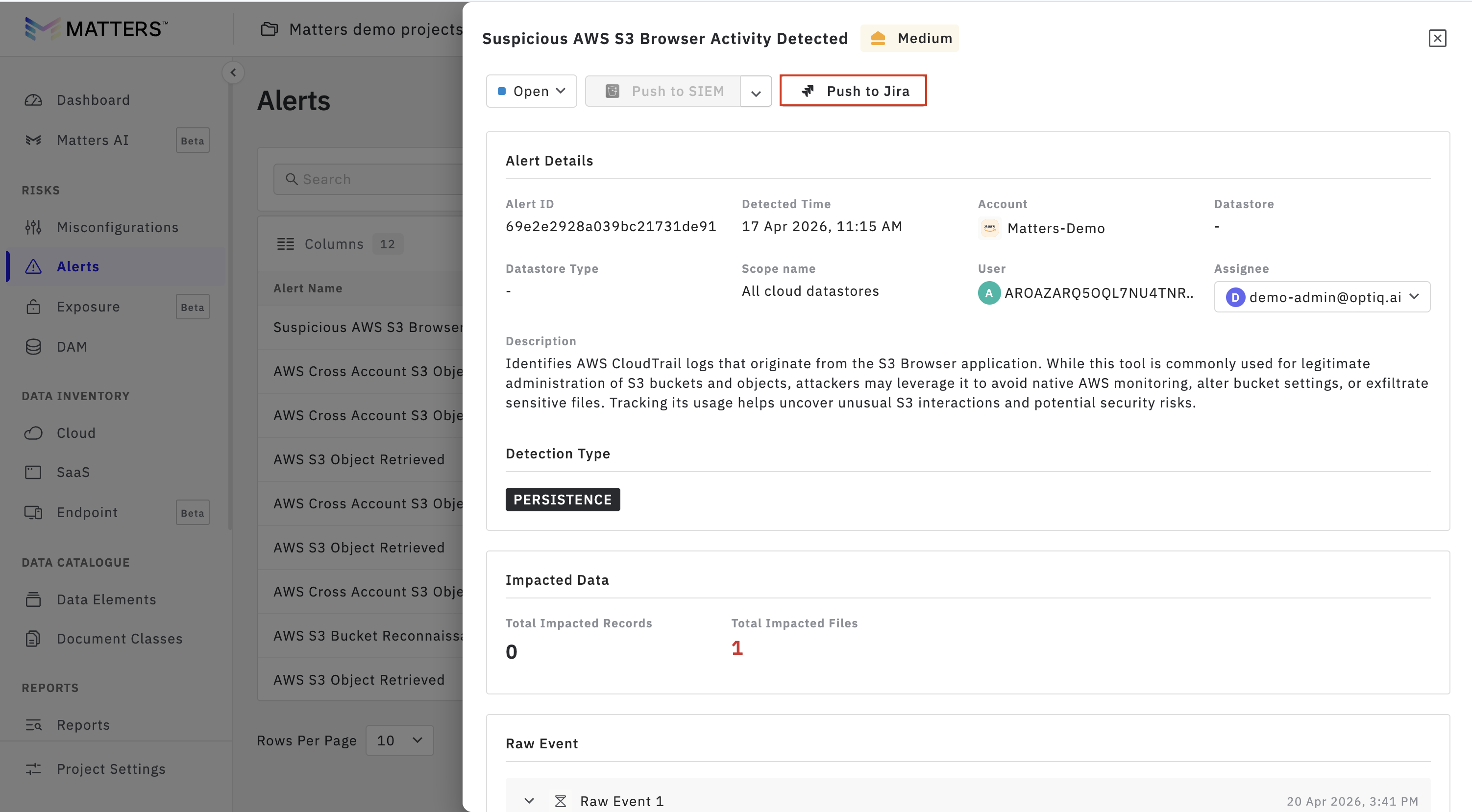
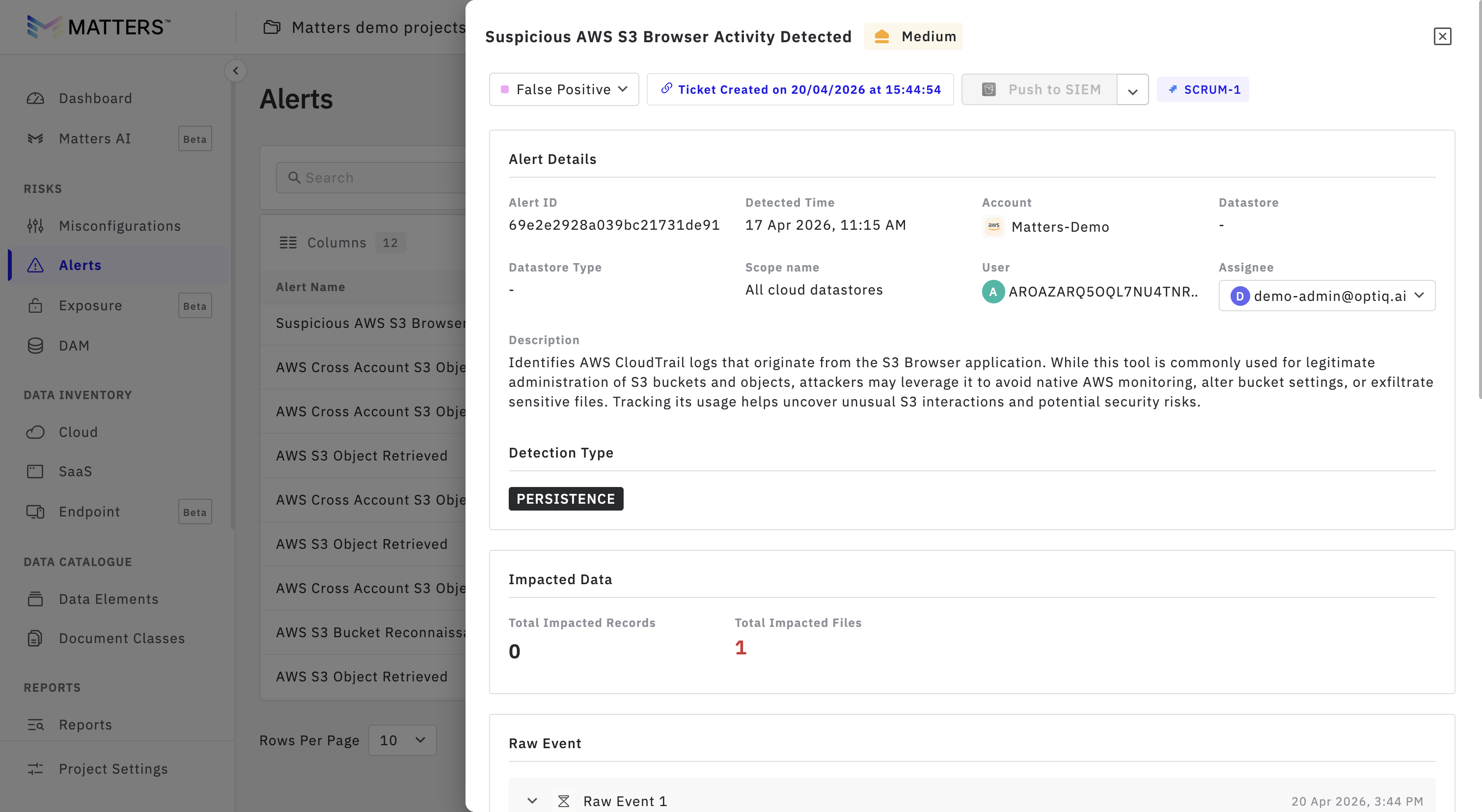
Once clicked:
A Jira ticket will be created for the selected alert
The ticket will be reflected in the UI
C. Create Jira Ticket for DAM Alerts
Follow the steps below to create a Jira ticket for DAM alerts:
Navigate to DAM Alerts.
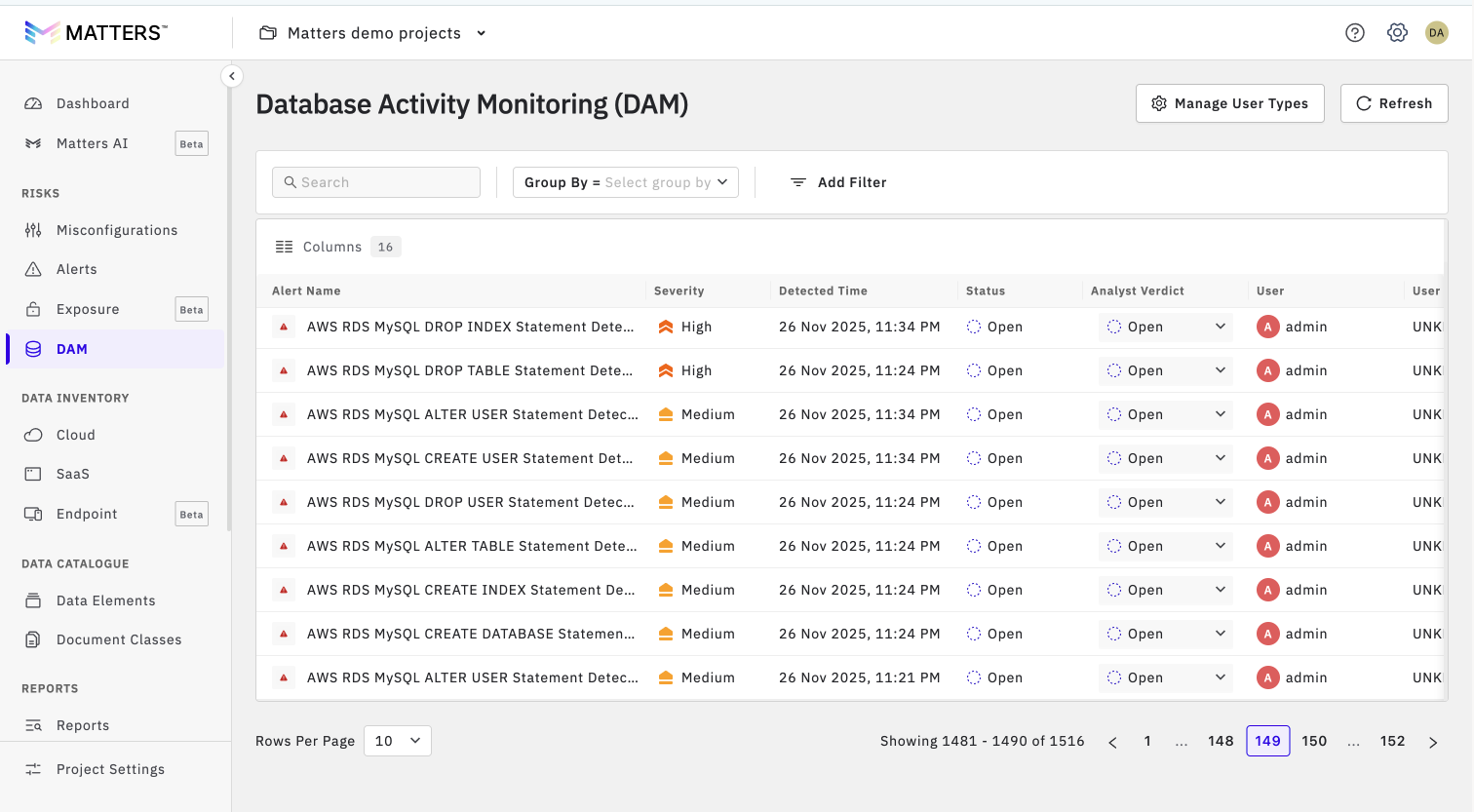
Click on “Push to Jira”.
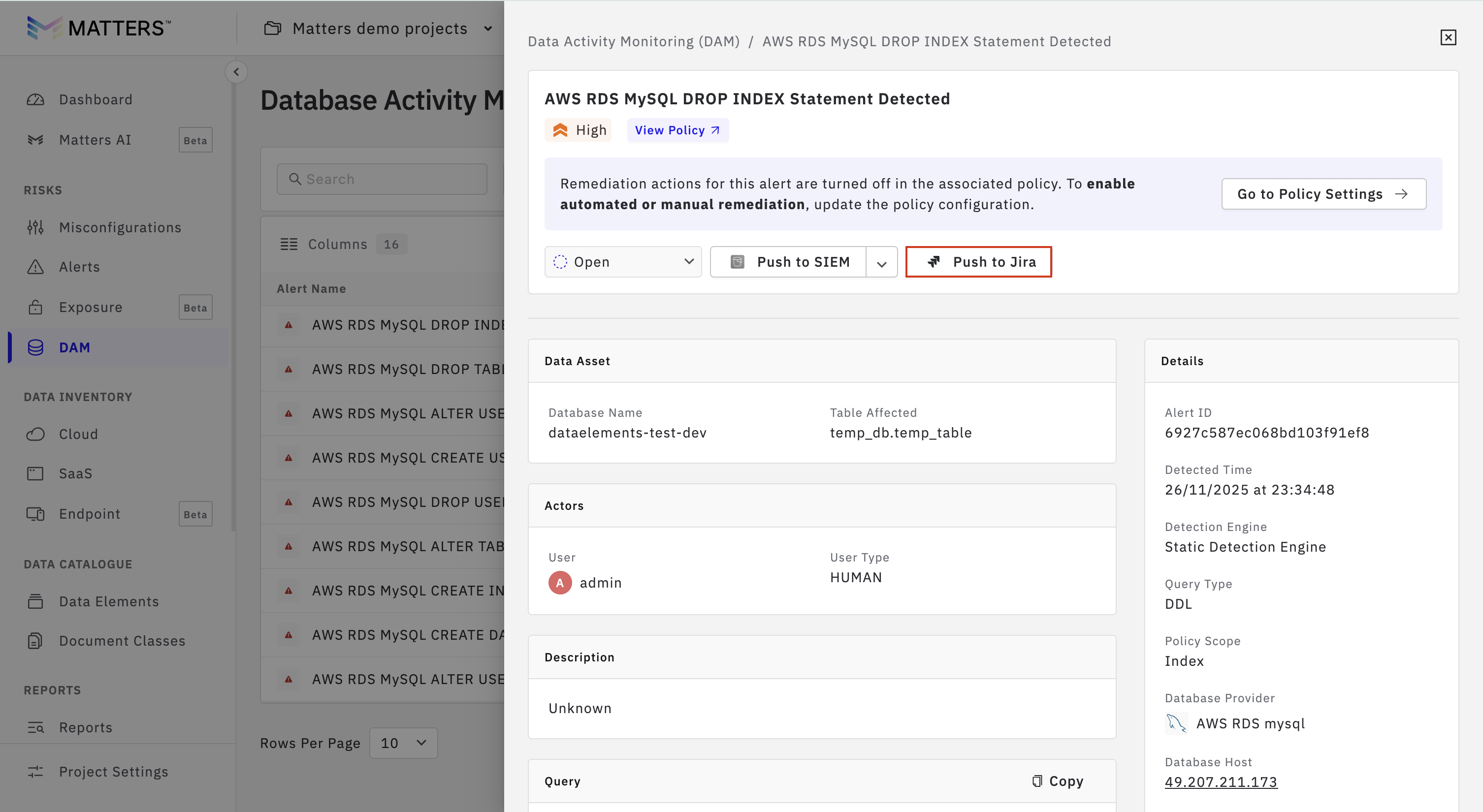
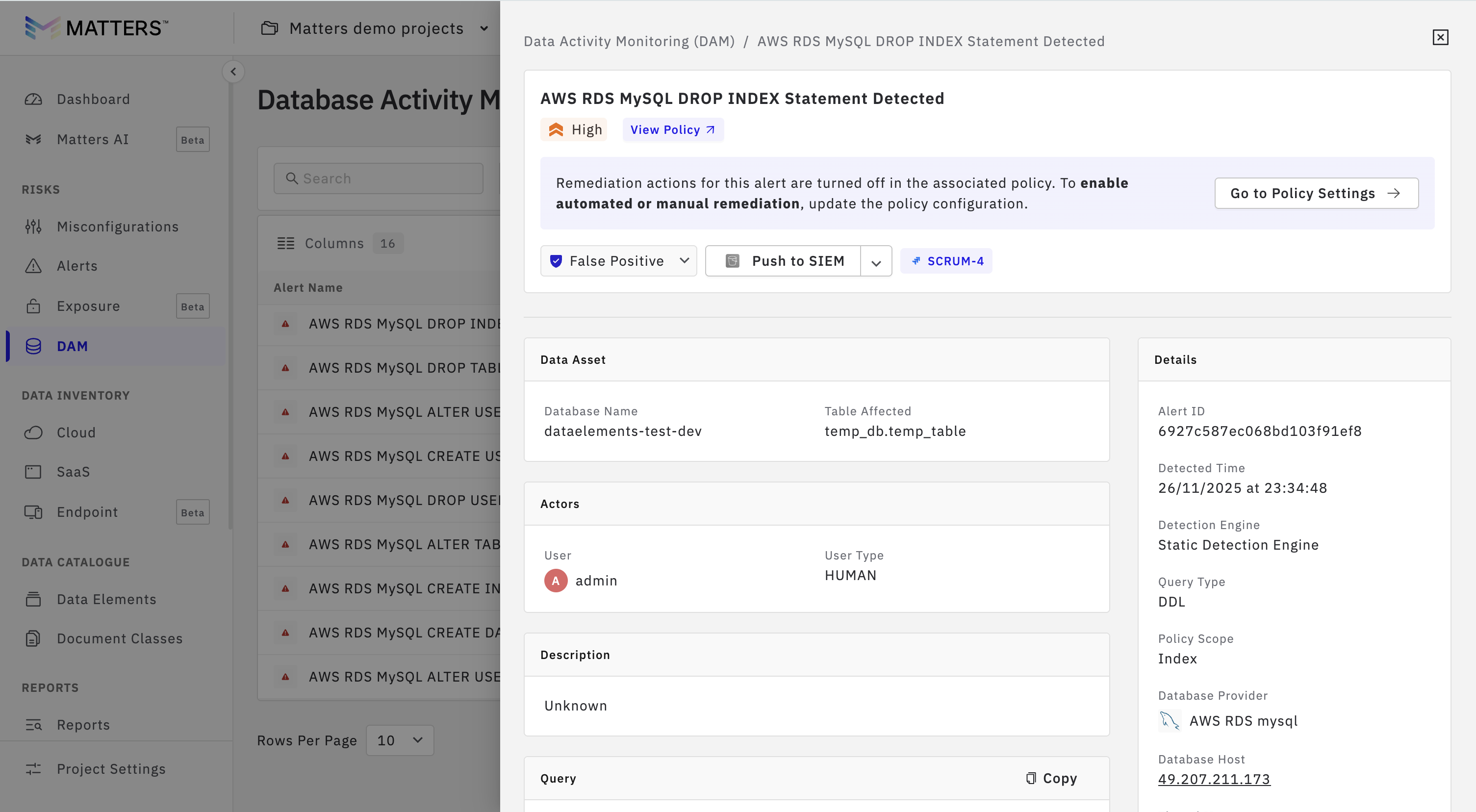
Once clicked:
A Jira ticket will be created successfully
The ticket will be visible in the UI
You can open the ticket in Jira to validate the information and track the issue.
That’s it — your Jira integration is now set up and ready to use.
You can start creating and tracking tickets directly from the Matters Dashboard.