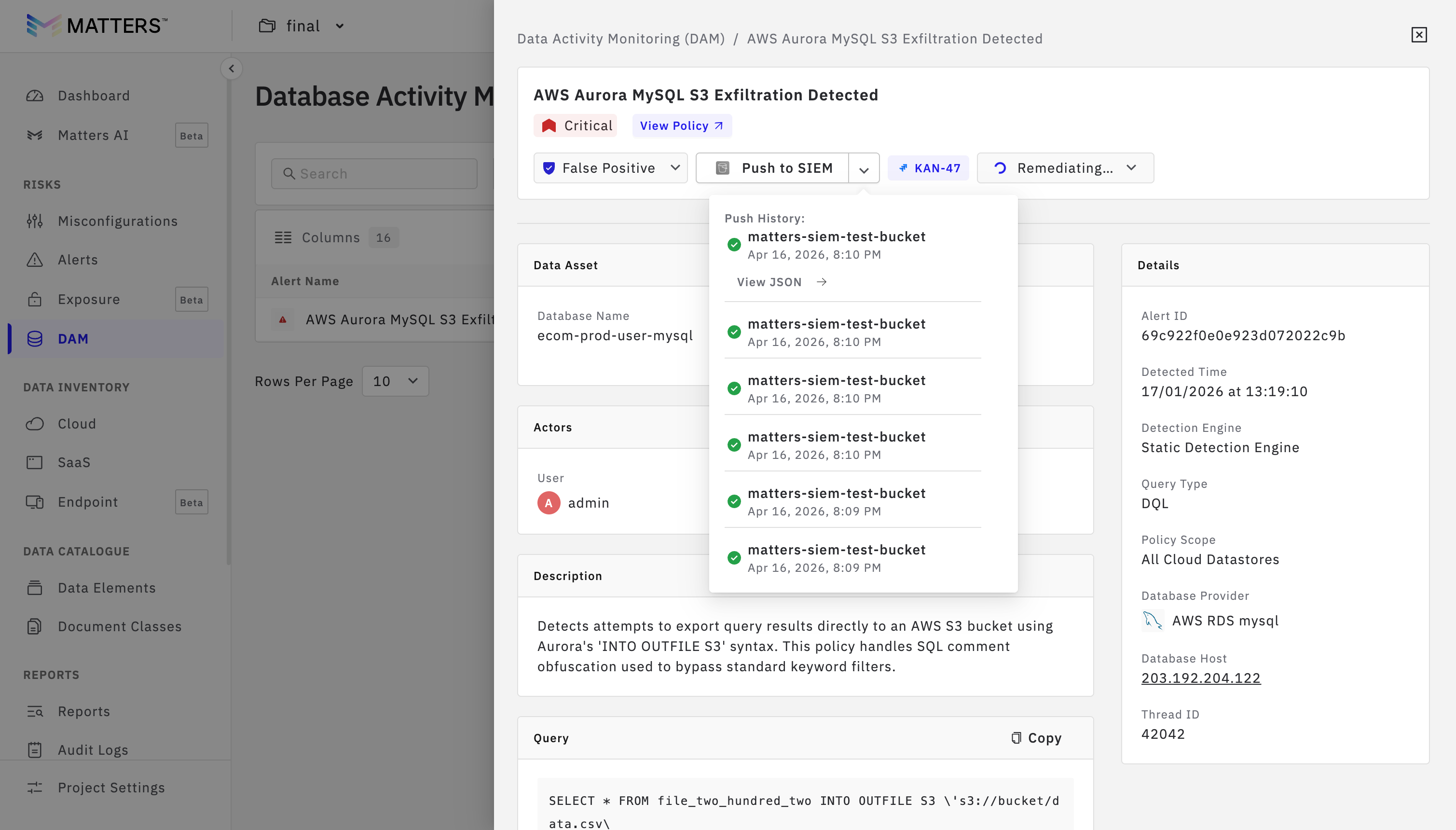
SIEM Integration and Usage guide
Last updated: April 20, 2026
SIEM integration in the Matters platform enables seamless export of DAM, DDR, and Misconfiguration data to external systems such as Amazon S3. This integration helps in centralized monitoring, analysis, and long-term storage of security events. By configuring SIEM, users can ensure that critical alerts and data are securely transferred and easily accessible for further processing and compliance needs.
Follow the steps below to configure SIEM integration on the Matters dashboard.
Prerequisites
Access to Matters Dashboard with permissions to configure SIEM.
Access to AWS account with IAM role and policy management permissions.
A pre-created S3 bucket with known bucket name and region.
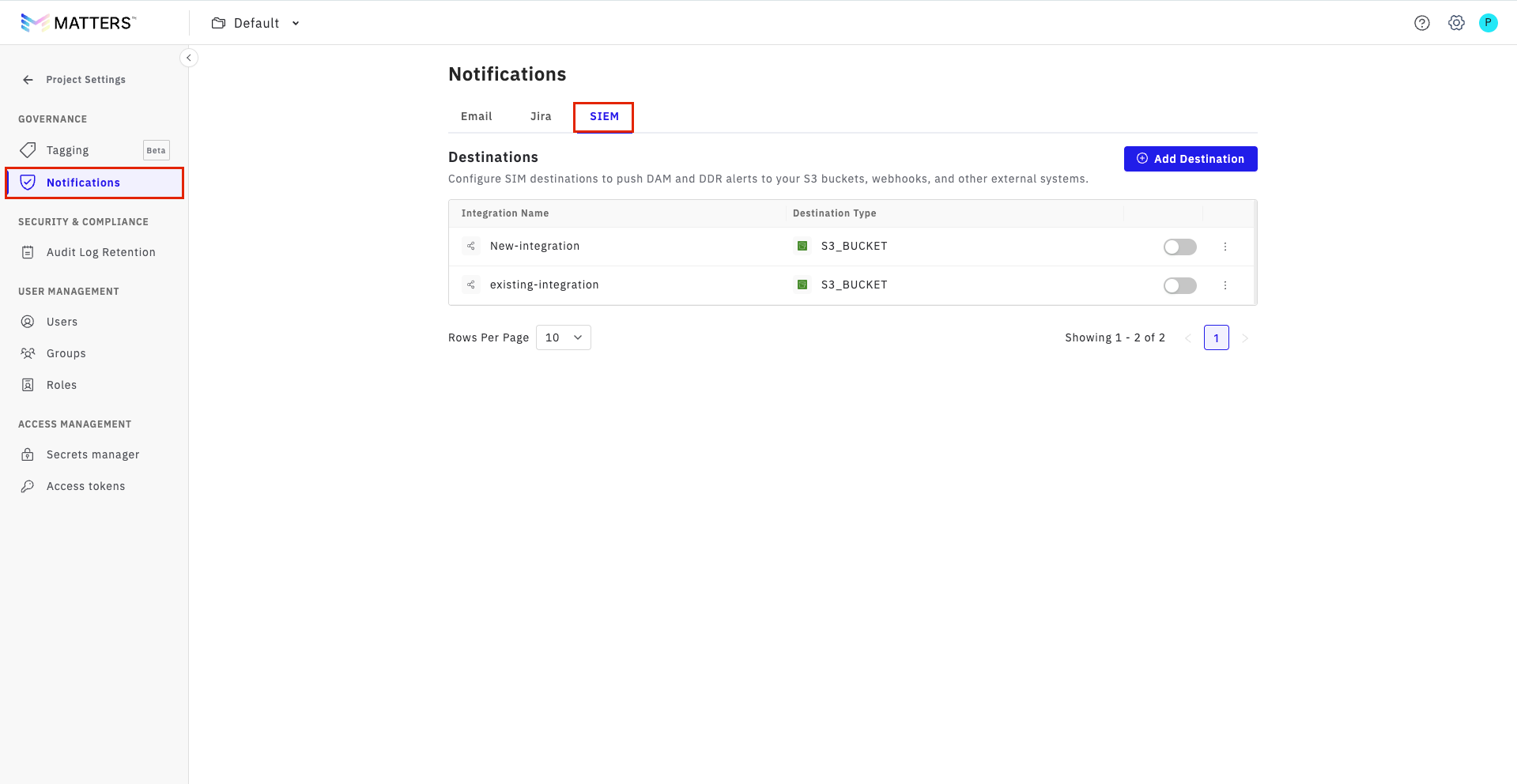
Step:1. Open SIEM Settings in Matters
Log in to the Matters Dashboard.
Navigate to Project Settings from the bottom-left corner.
Click Notifications.
Select SIEM.
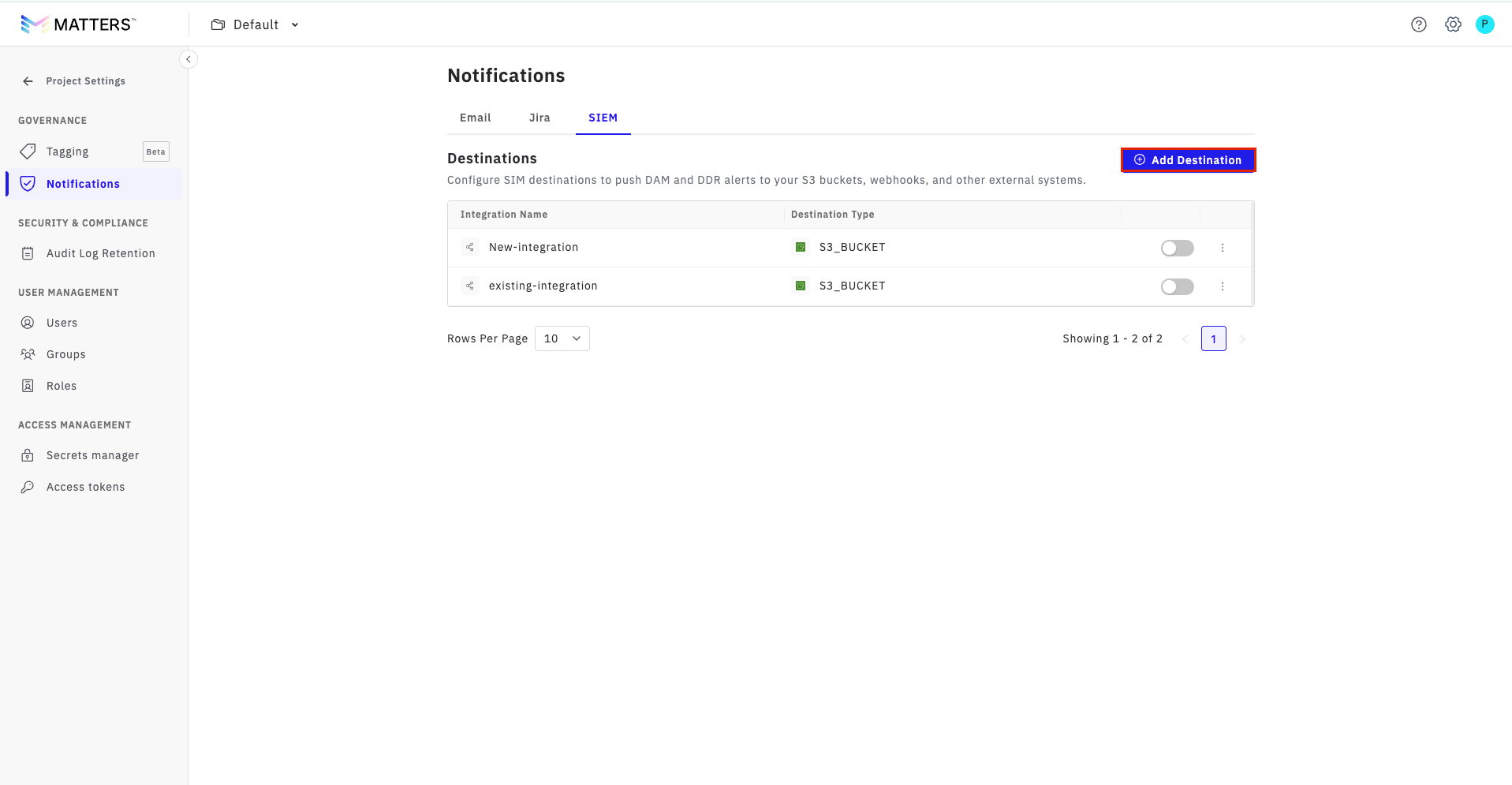
step:2. Add a New Destination
Click on Add Destination.
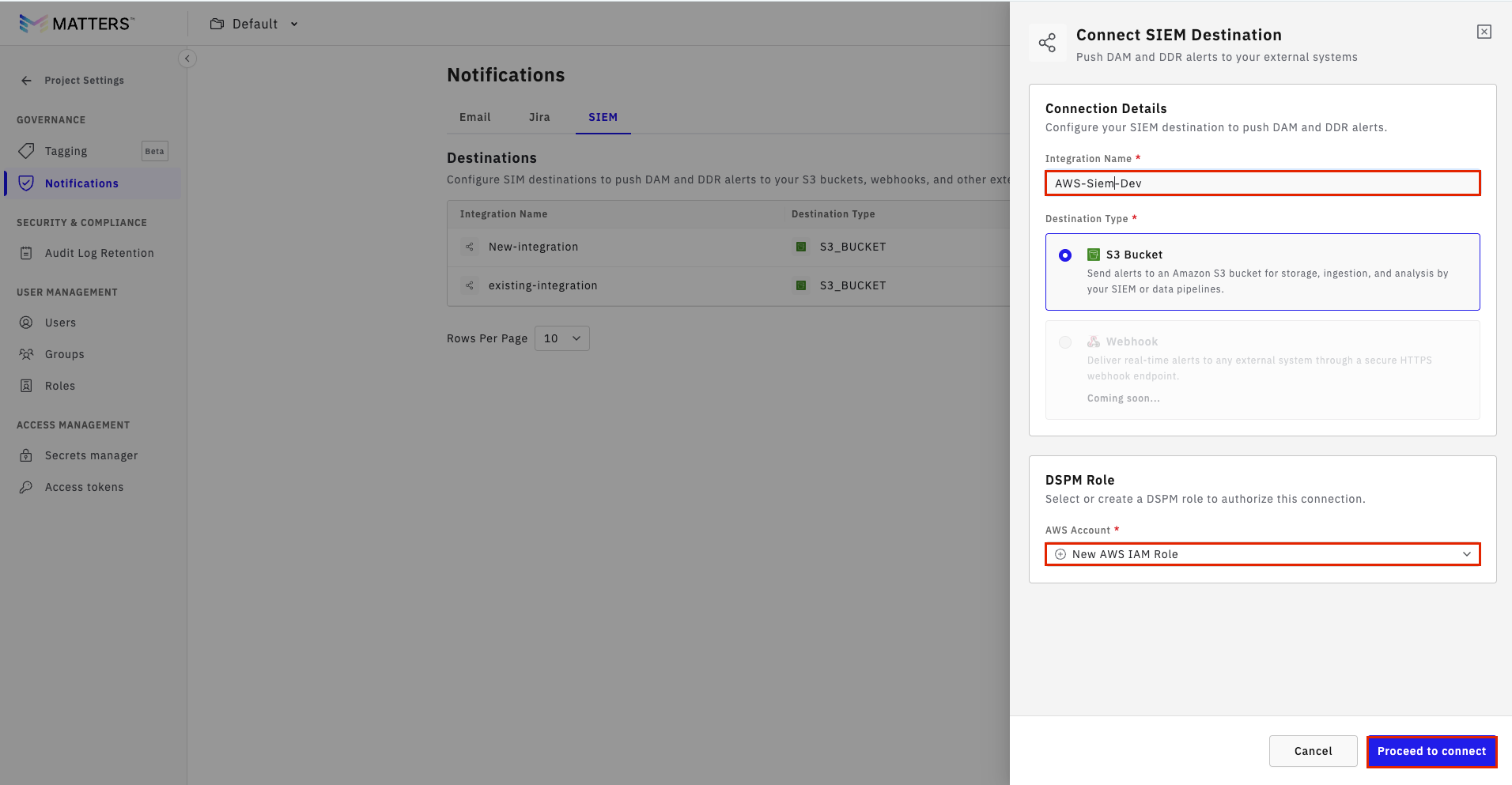
There are two ways to integrate SIEM into the dashboard: one is by using an existing role, and the other is by creating a new role. Follow the procedure below for the same.
Procedure A: Create a New AWS IAM Role
Step:1. Start Role Creation
Enter a Valid Integration Name
Select Create New Role.
Click Proceed to Connect.
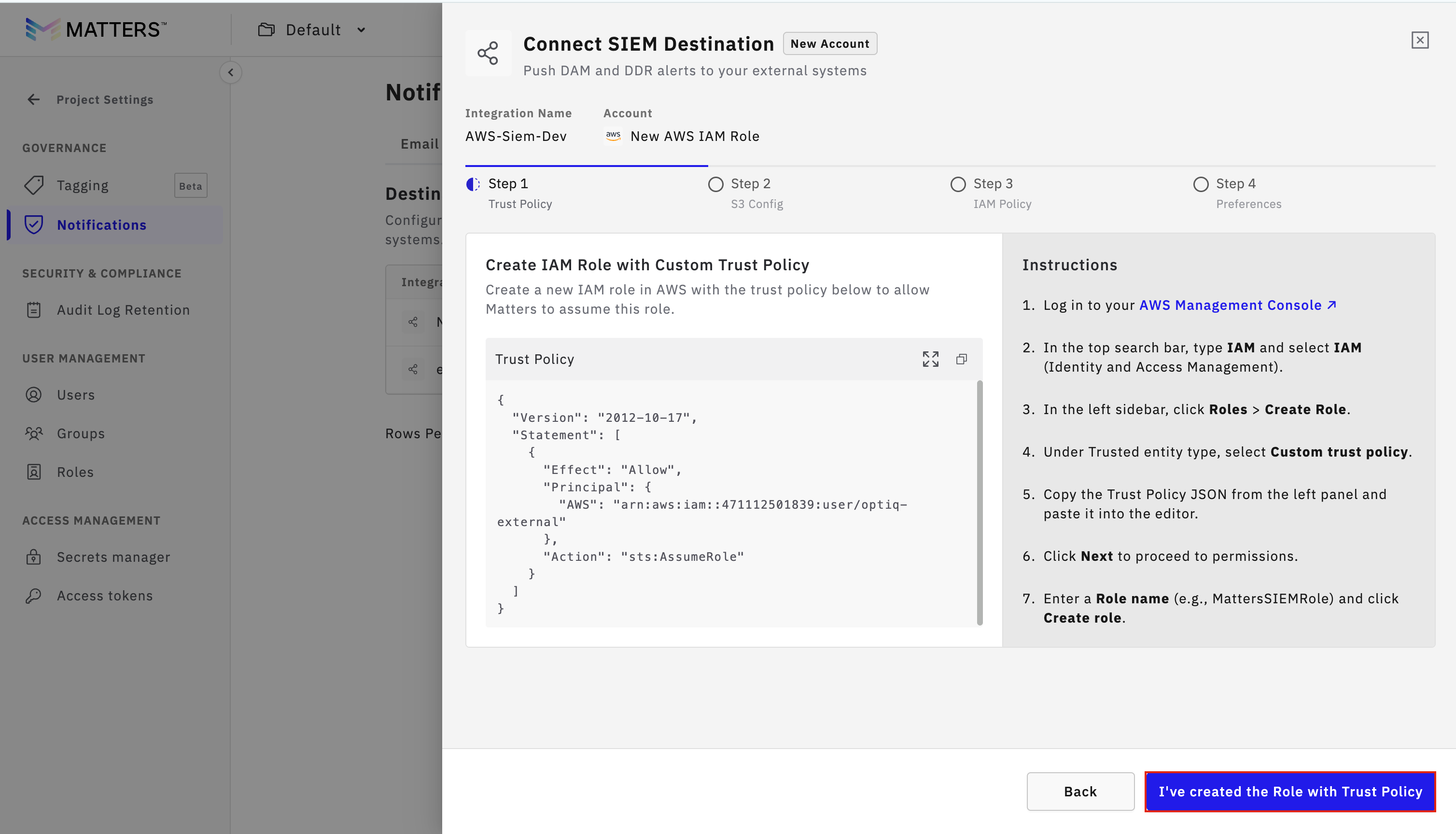
Step:2. Copy Trust Policy
Copy the Trust Policy displayed on the Matters dashboard.
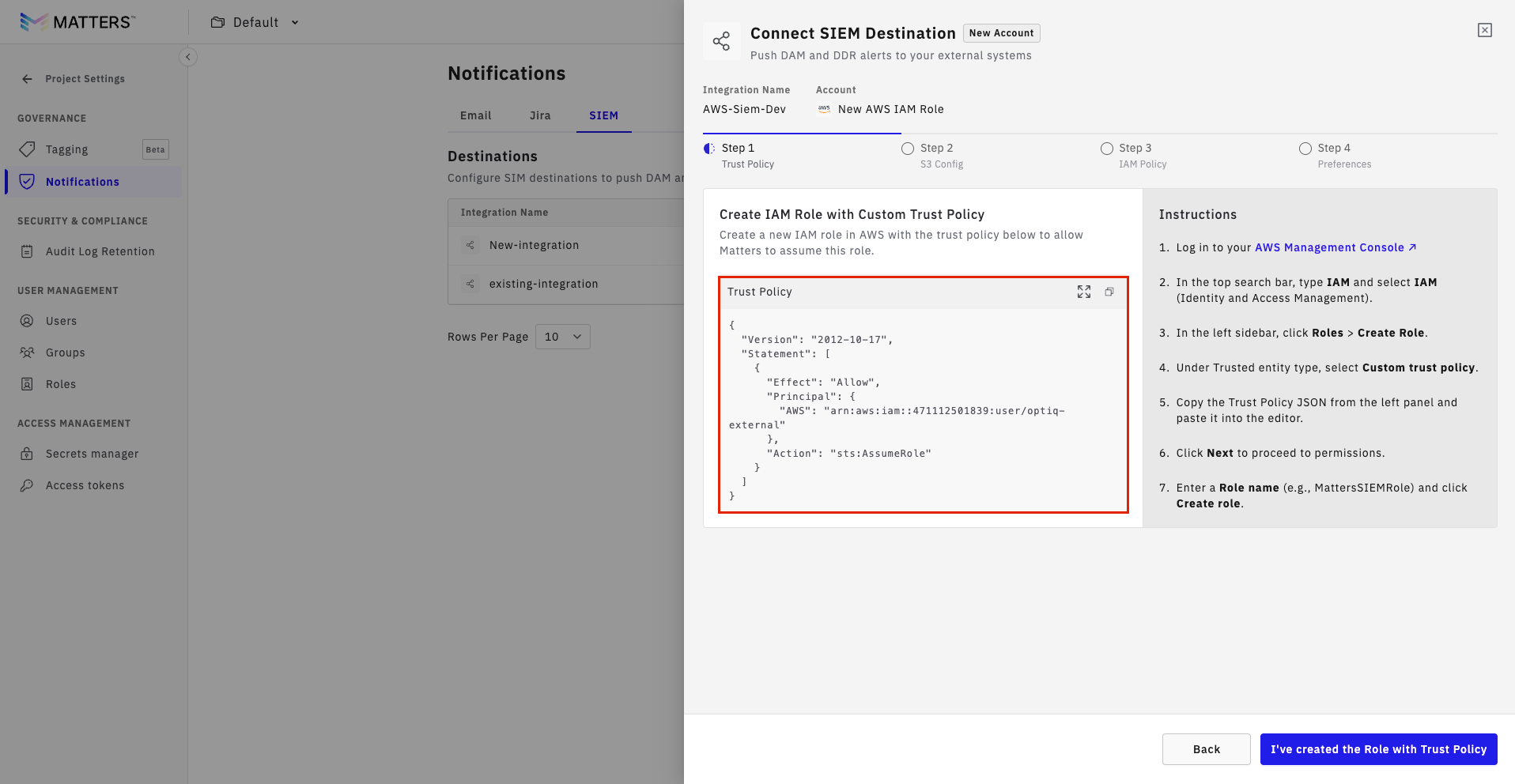
Step:3. Create Role in AWS
Log in to the AWS Console.
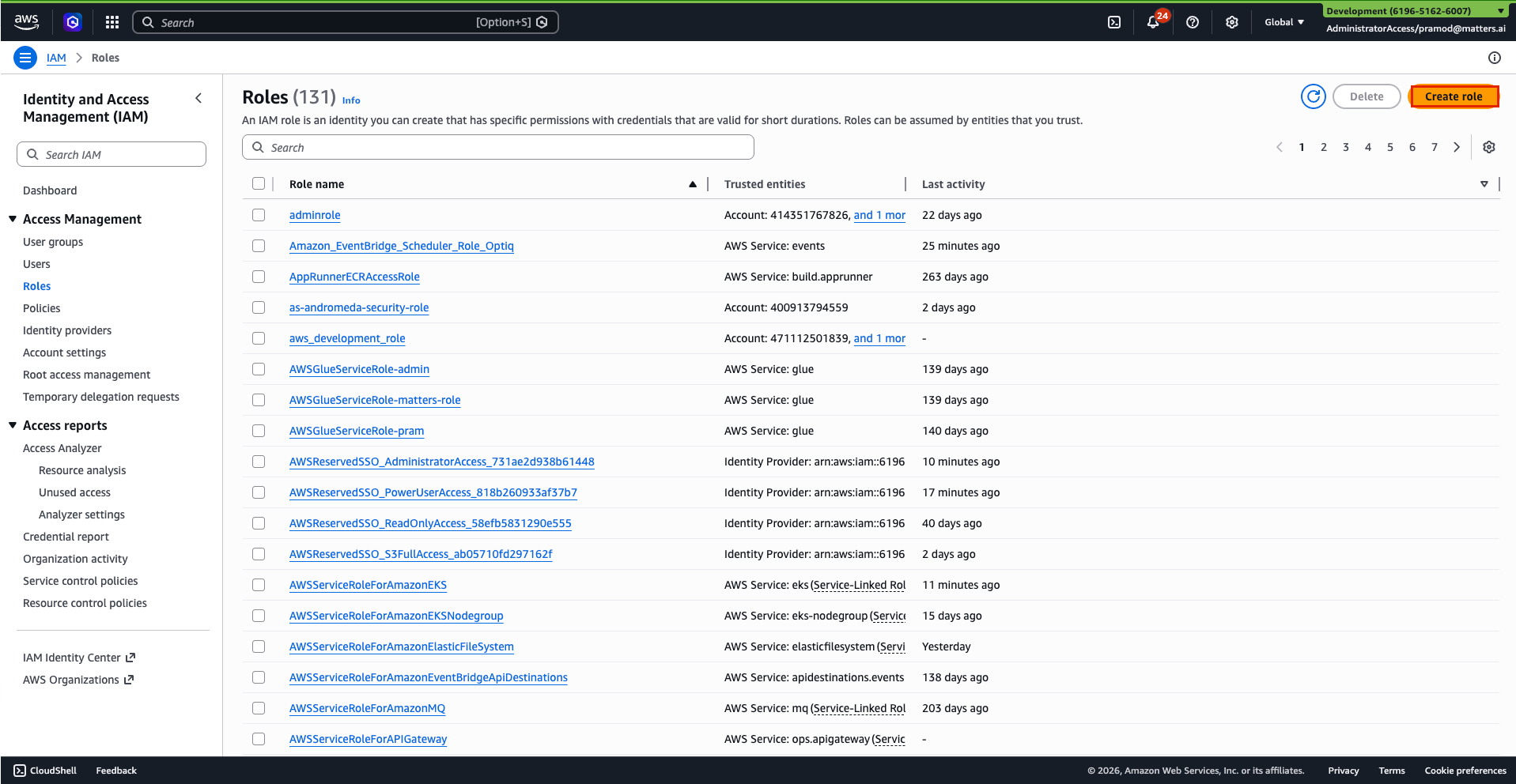
Go to IAM > Roles.
Click Create Role.
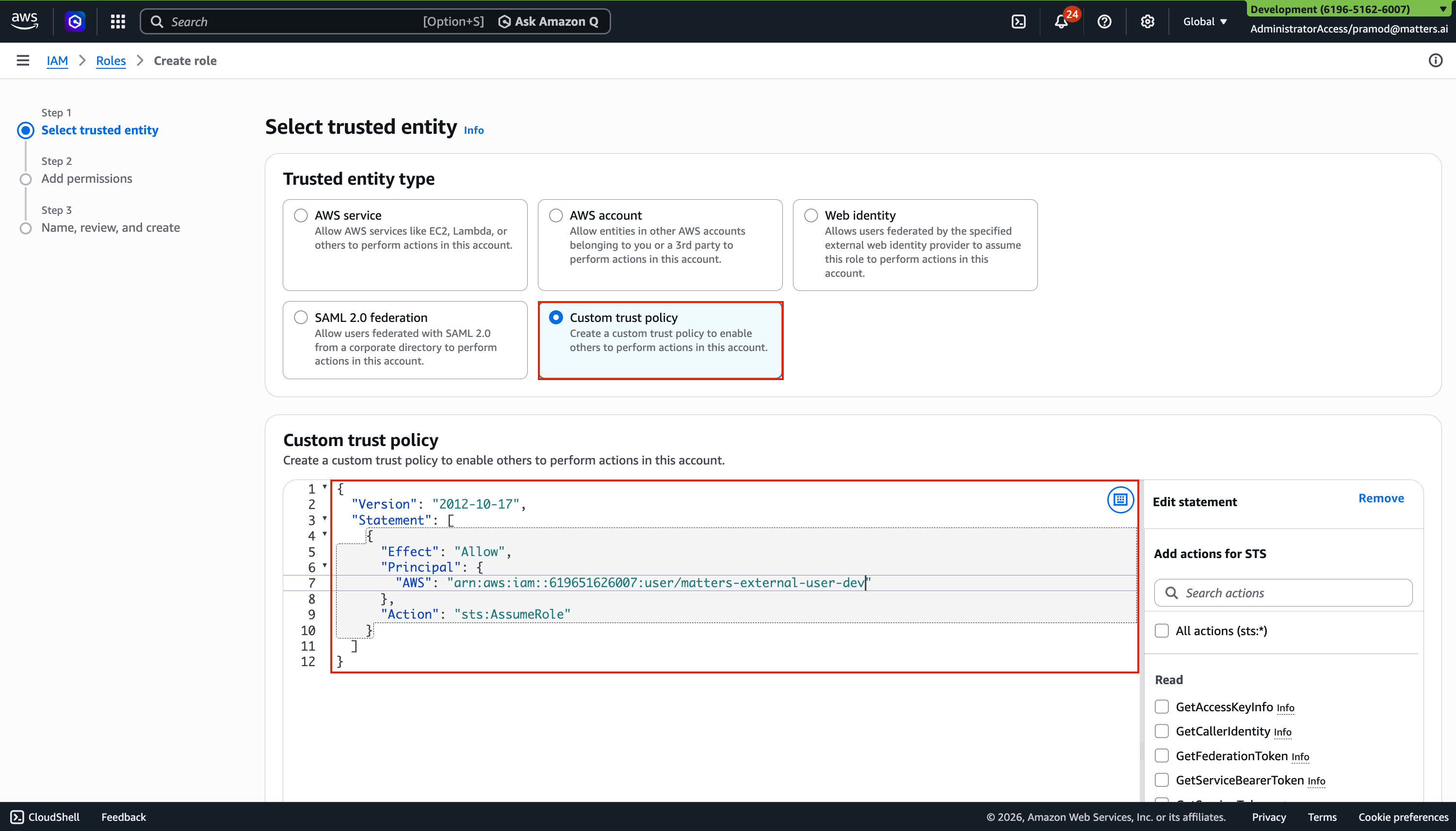
Select Custom Trust Policy.
Paste the copied trust policy.
Click Next.(you can skip the step for adding permissions)
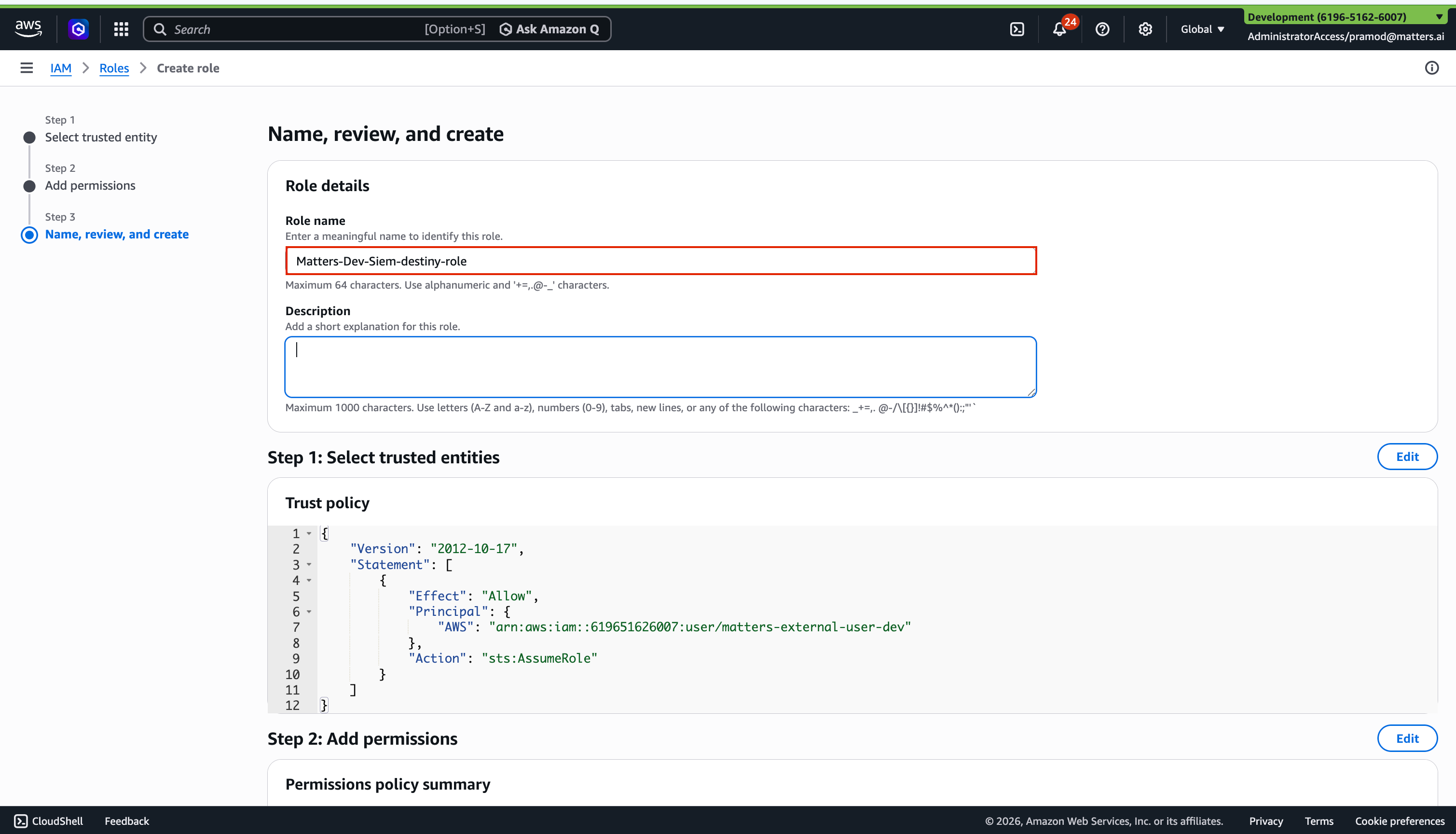
Enter the Role Name.
Click Create Role.
Once the role is created, copy the Role ARN for future use.
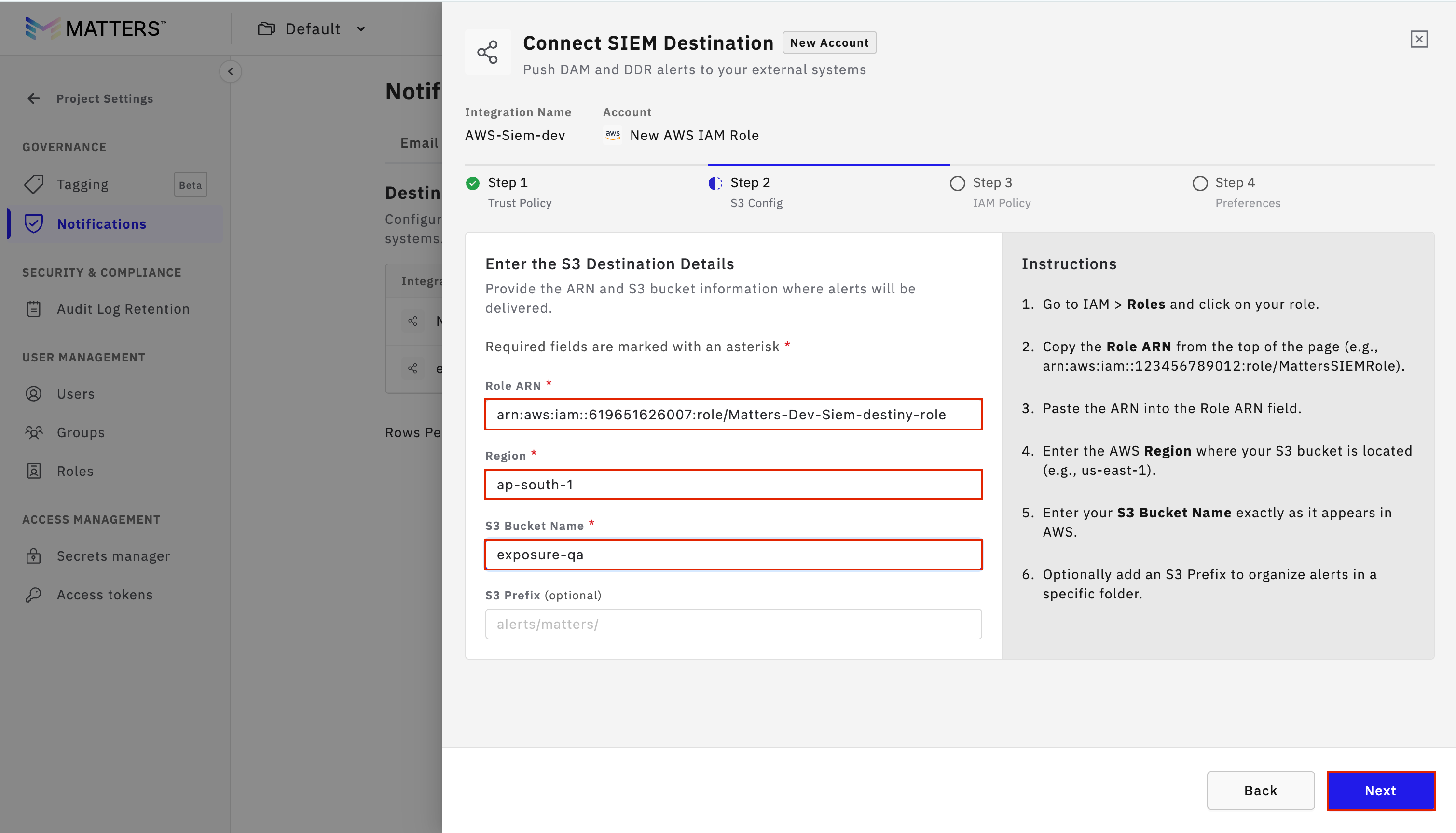
Step:4. Provide Role Details in Matters
Return to the Matters Dashboard.
Click I’ve Created the Role with Trust Policy.
Paste the Role ARN.
Enter:
AWS Region
S3 Bucket Name
Optional S3 Prefix
Click Next.
Step :5 Copy Role Policy
Copy the Role Policy shown on the Matters dashboard.
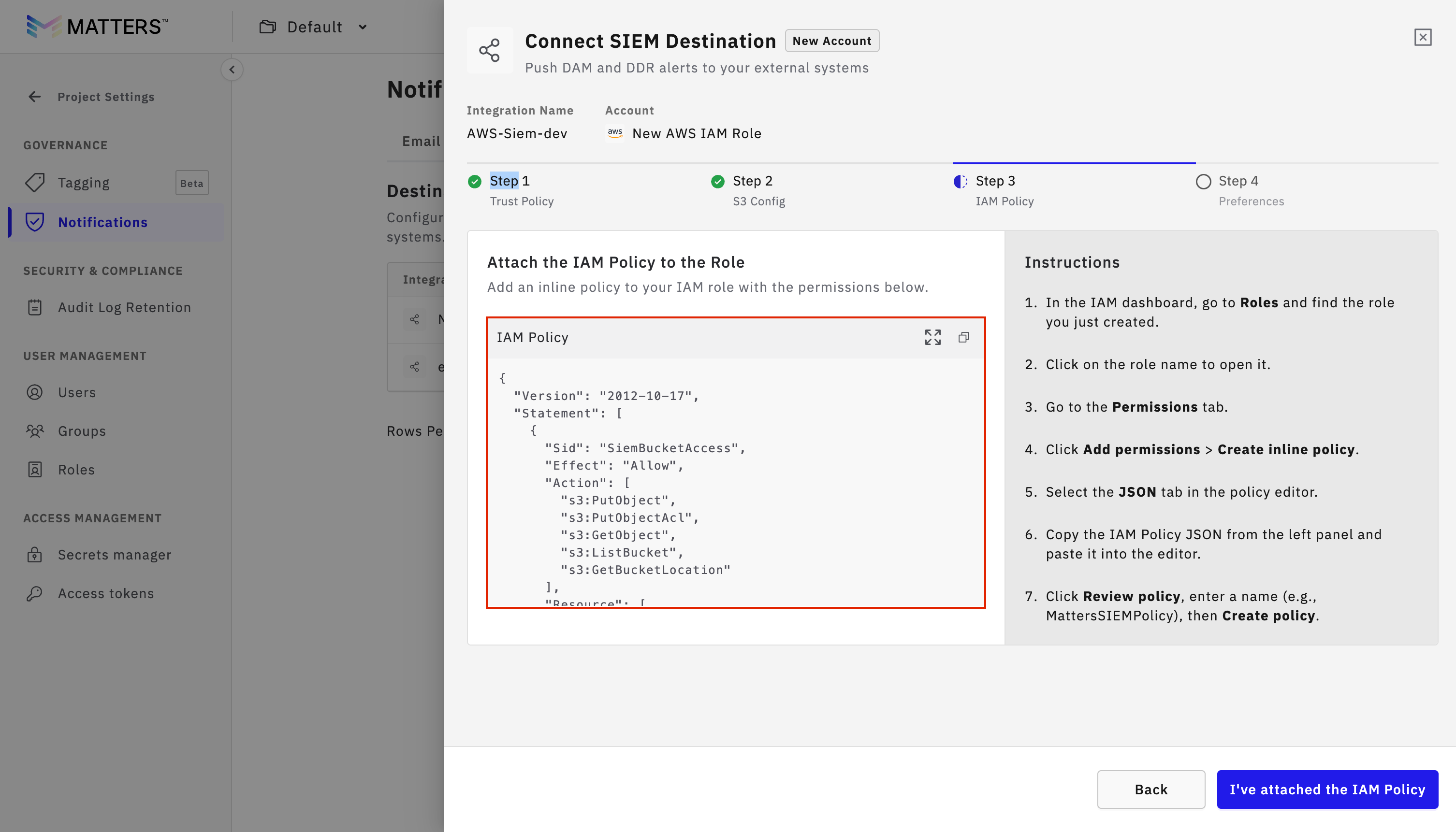
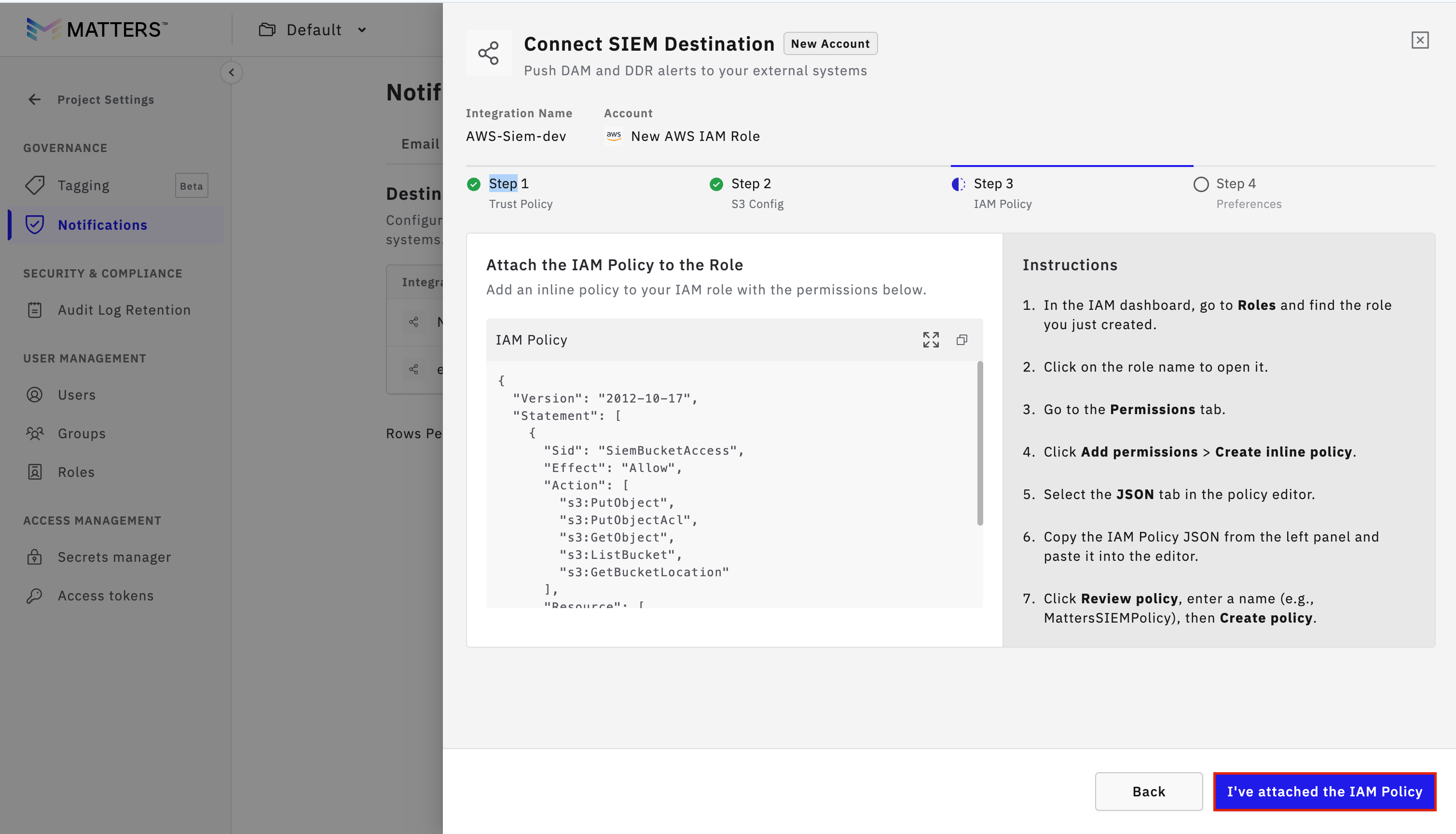
Step:6 . Attach Policy in AWS
Go to the AWS Console.
Open the created IAM role.
Click Add Permissions.
Select Create Inline Policy.
Go to the JSON tab.
Paste the copied policy.
Click Next.
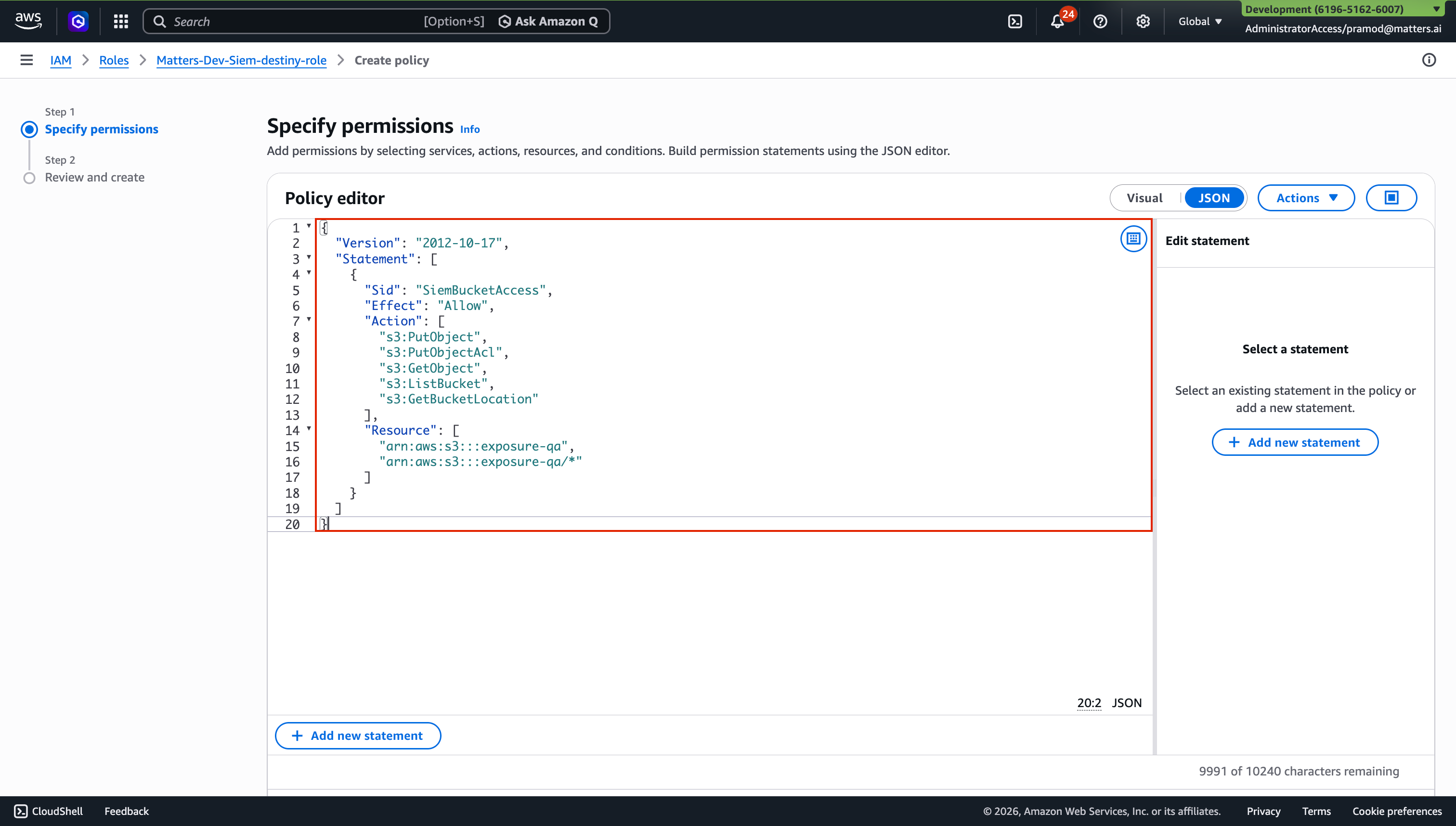
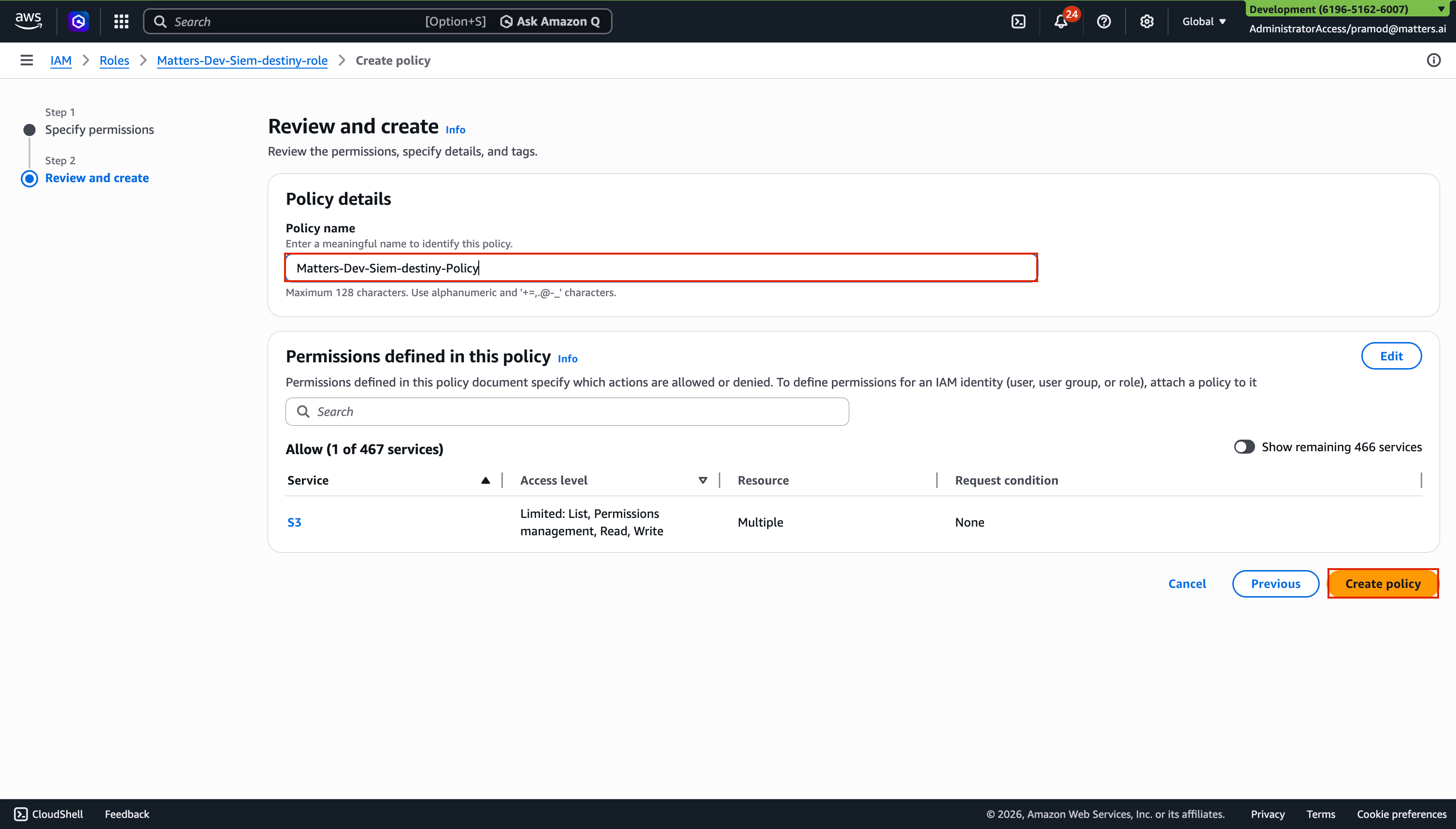
Enter a Policy Name.
Click Create Policy.
Step:7 . Complete Setup
Return to the Matters Dashboard.
Click on “I’ve attatched the IAM Policy”
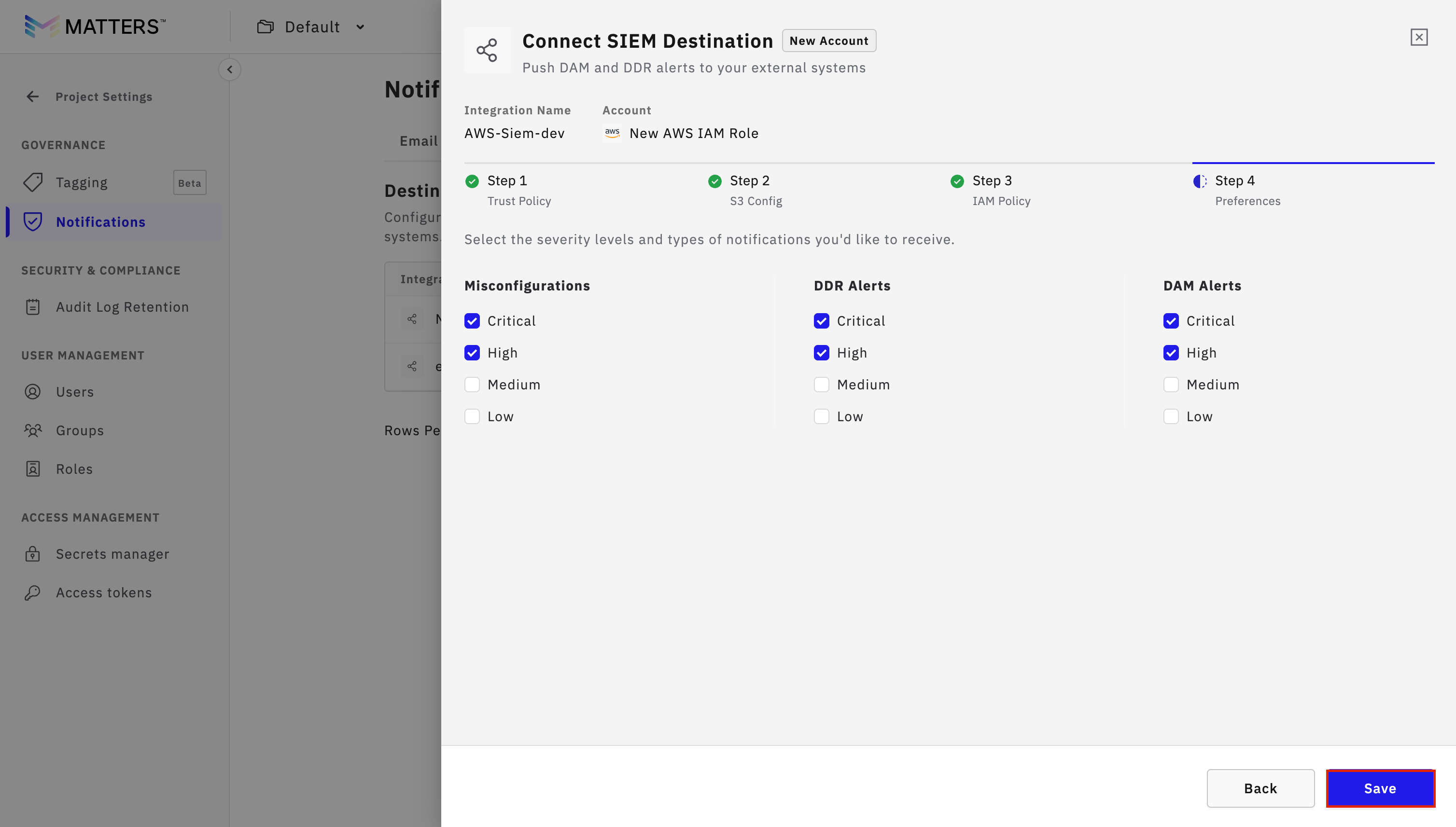
Set preferences as required.
Click Save.
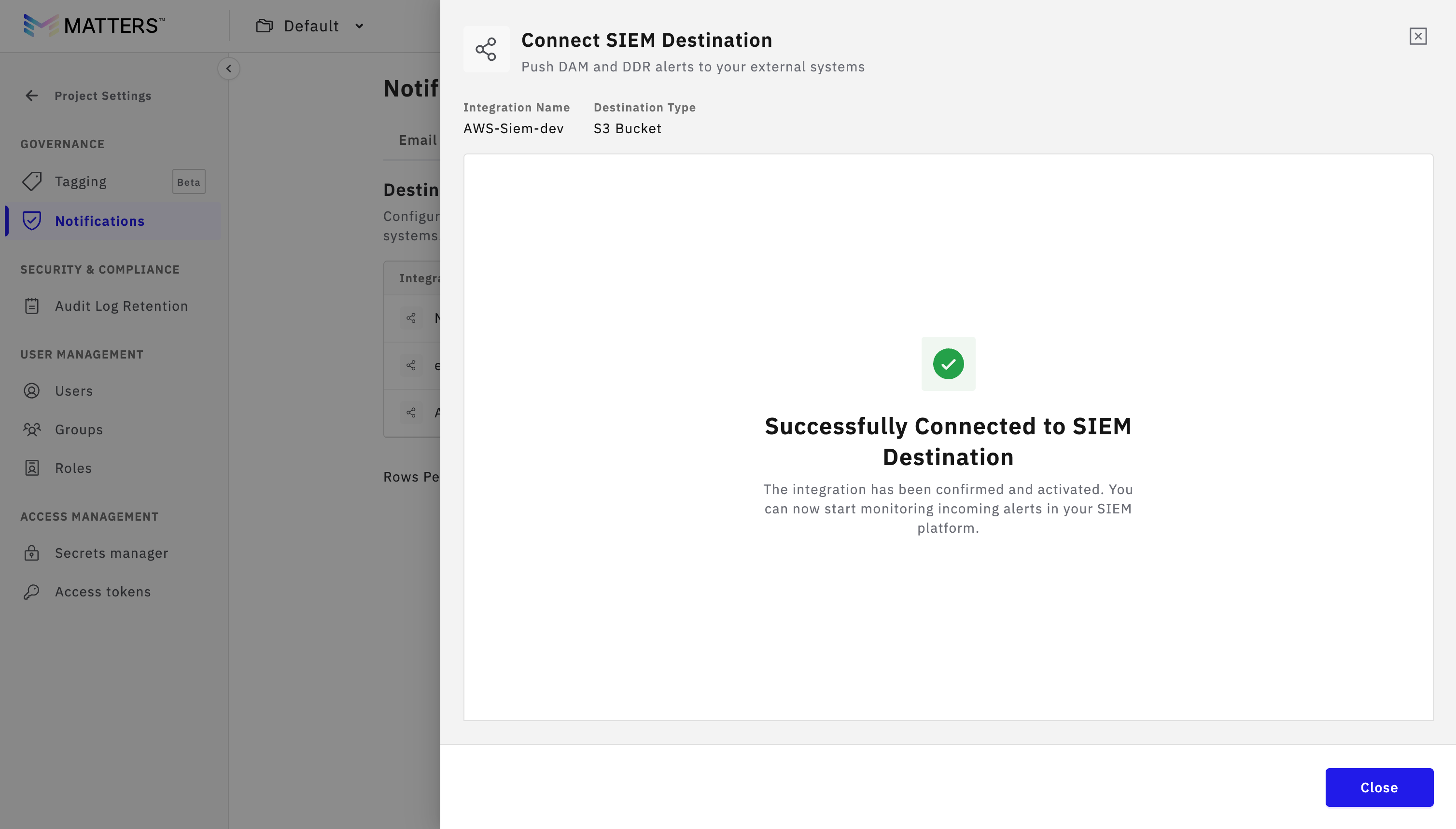
On successfull Integration you will see “Successfully Connected to SIEM Destination” message
Procedure B: Use an Existing AWS IAM Role
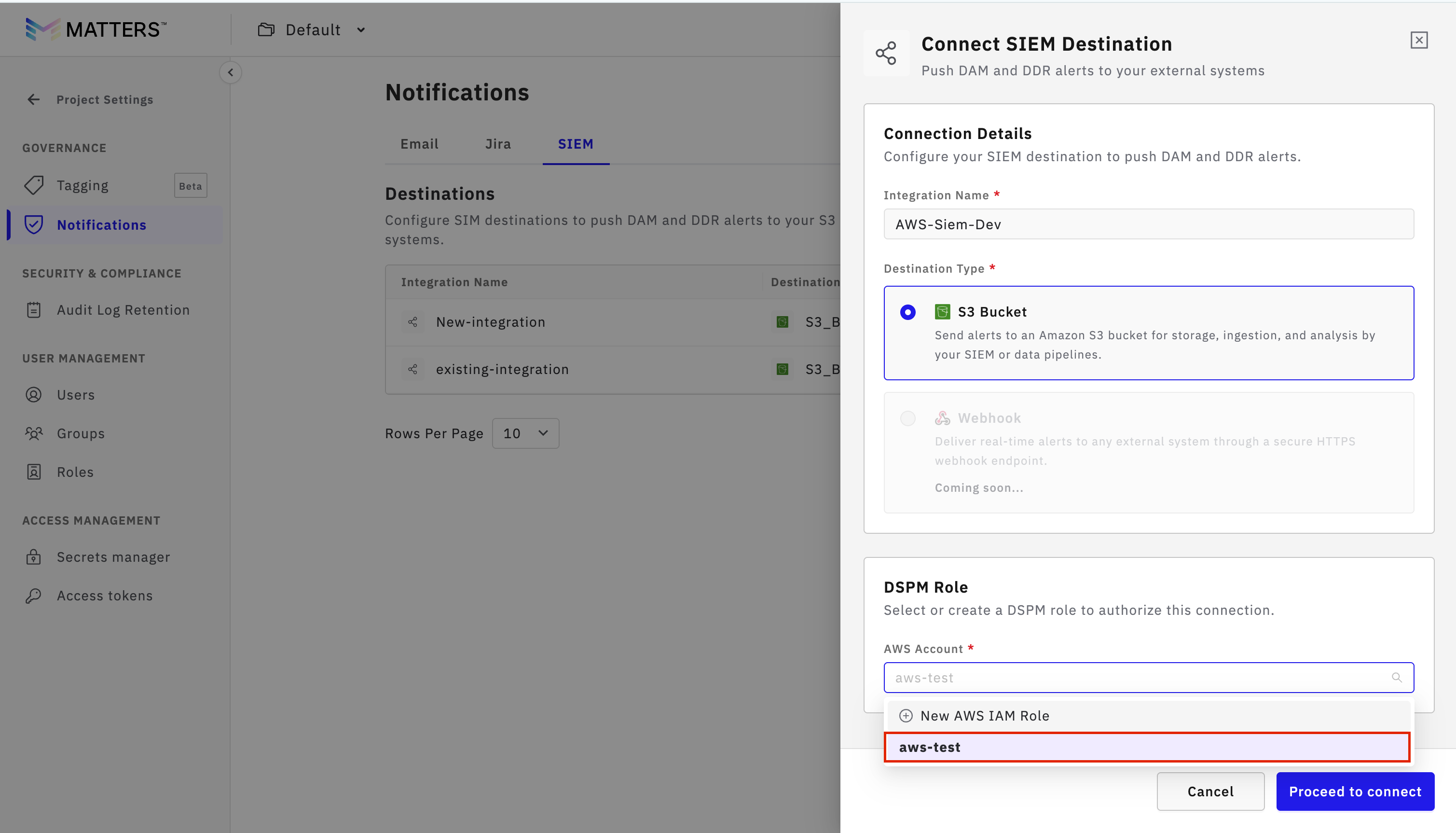
Step:1 Selecting Existing Role
Enter valid Integration Name.
Select Existing Role which you want to use from the dropdown.
Click Proceed to Connect.
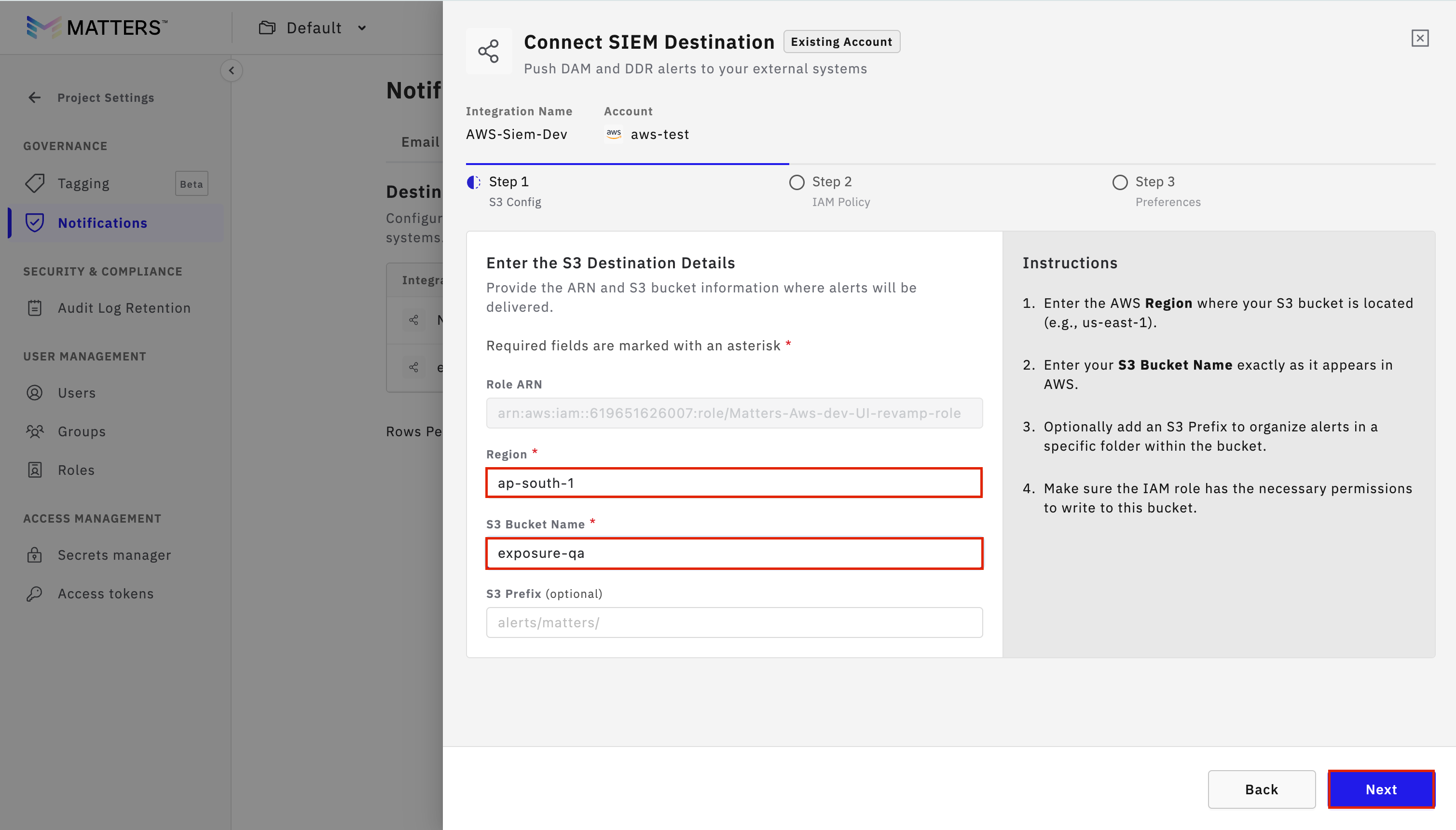
Step:2 Enter Role and S3 Details
Verify that the Role ARN is auto-populated.
Enter:
AWS Region
S3 Bucket Name
optional S3 prefix
Click Next.
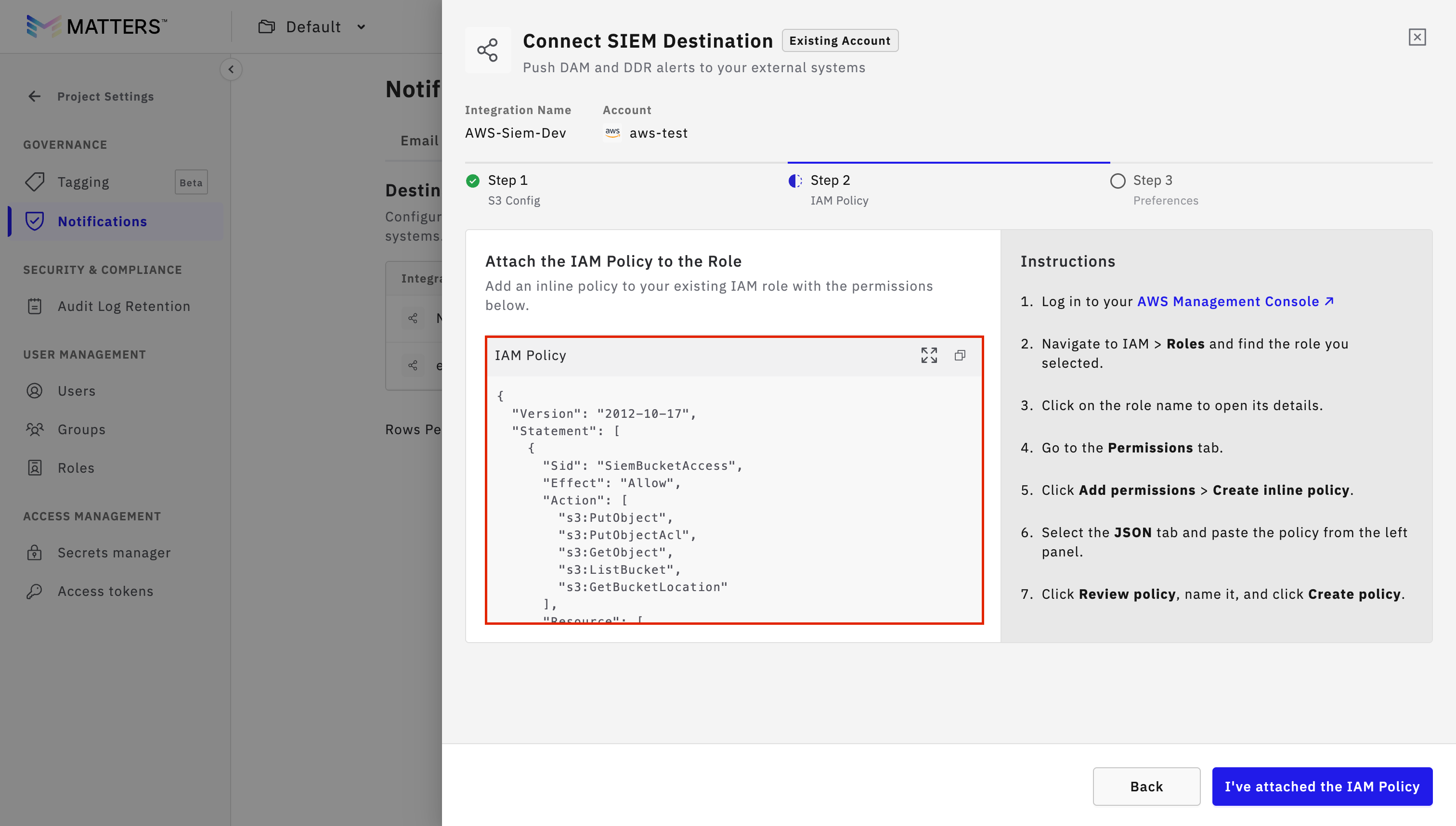
Step:2 Copy Role Policy
Copy the Role Policy displayed on the Matters dashboard.
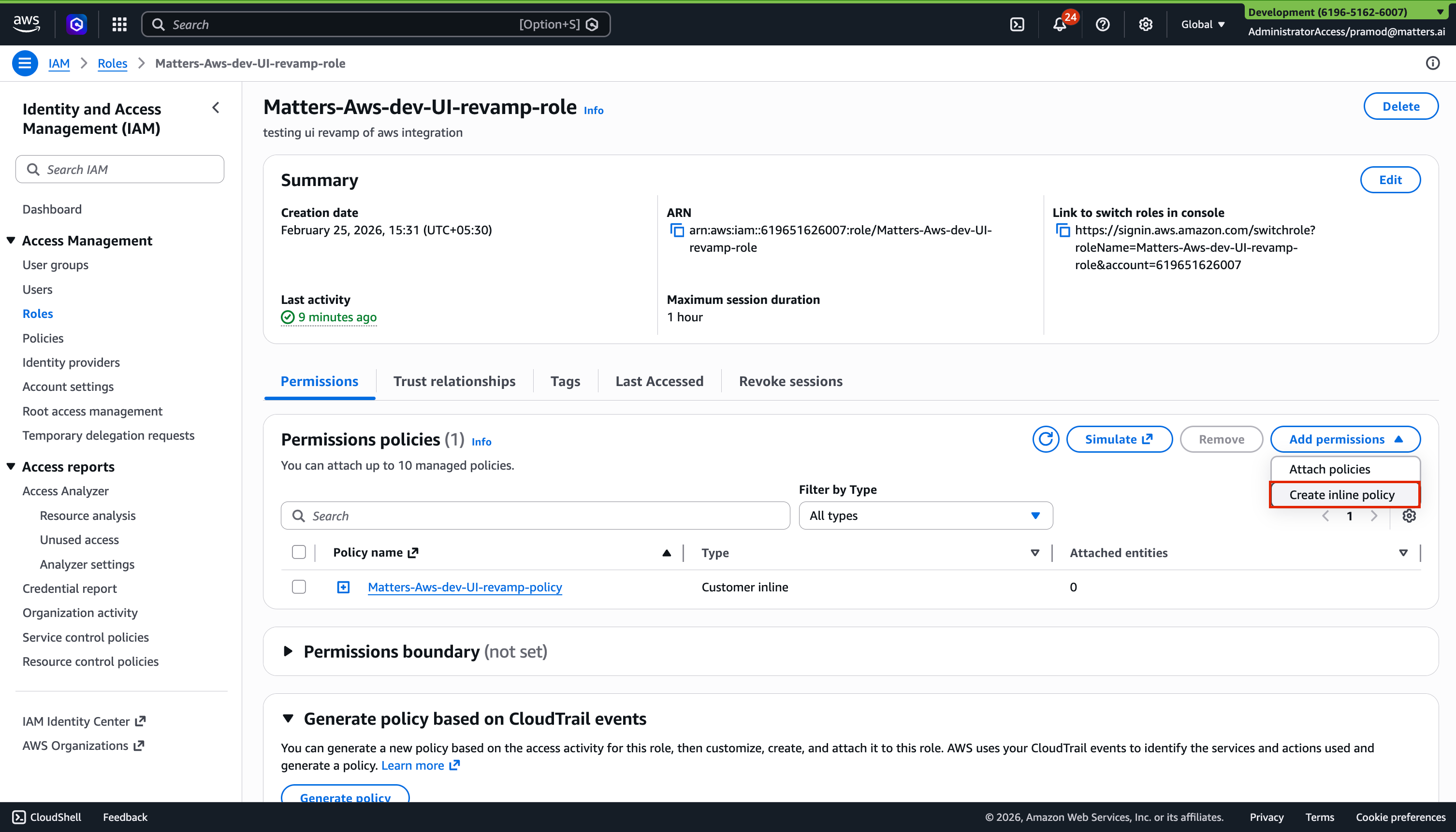
Step:3 Attach Policy to Existing Role
Log in to the AWS Console.
Navigate to IAM > Roles.
Search for and open the existing role.
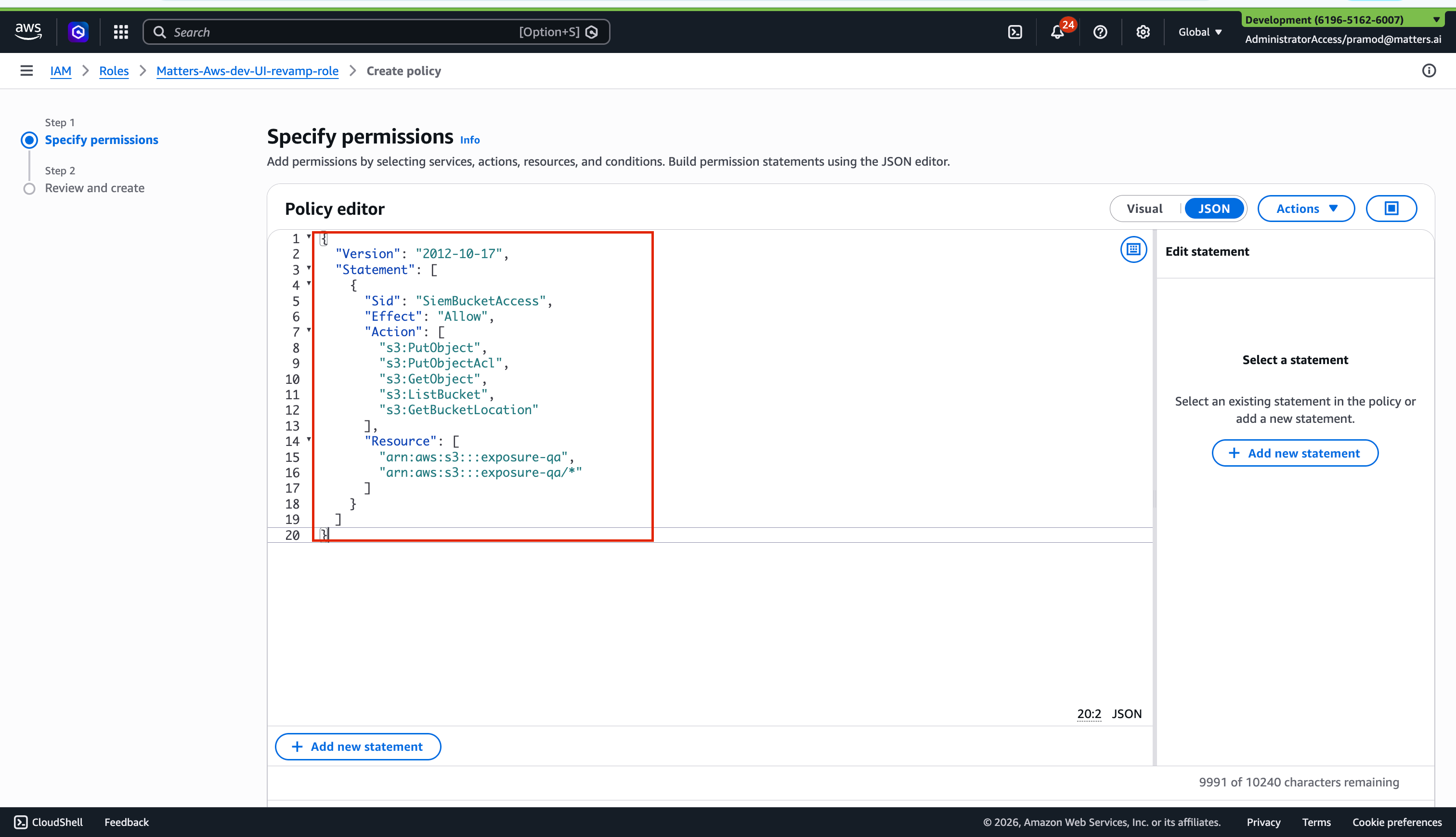
Click Add Permissions → Create Inline Policy.
Go to the JSON tab.
Paste the copied policy.
Click Next.
Enter a Policy Name.
Click Create Policy.
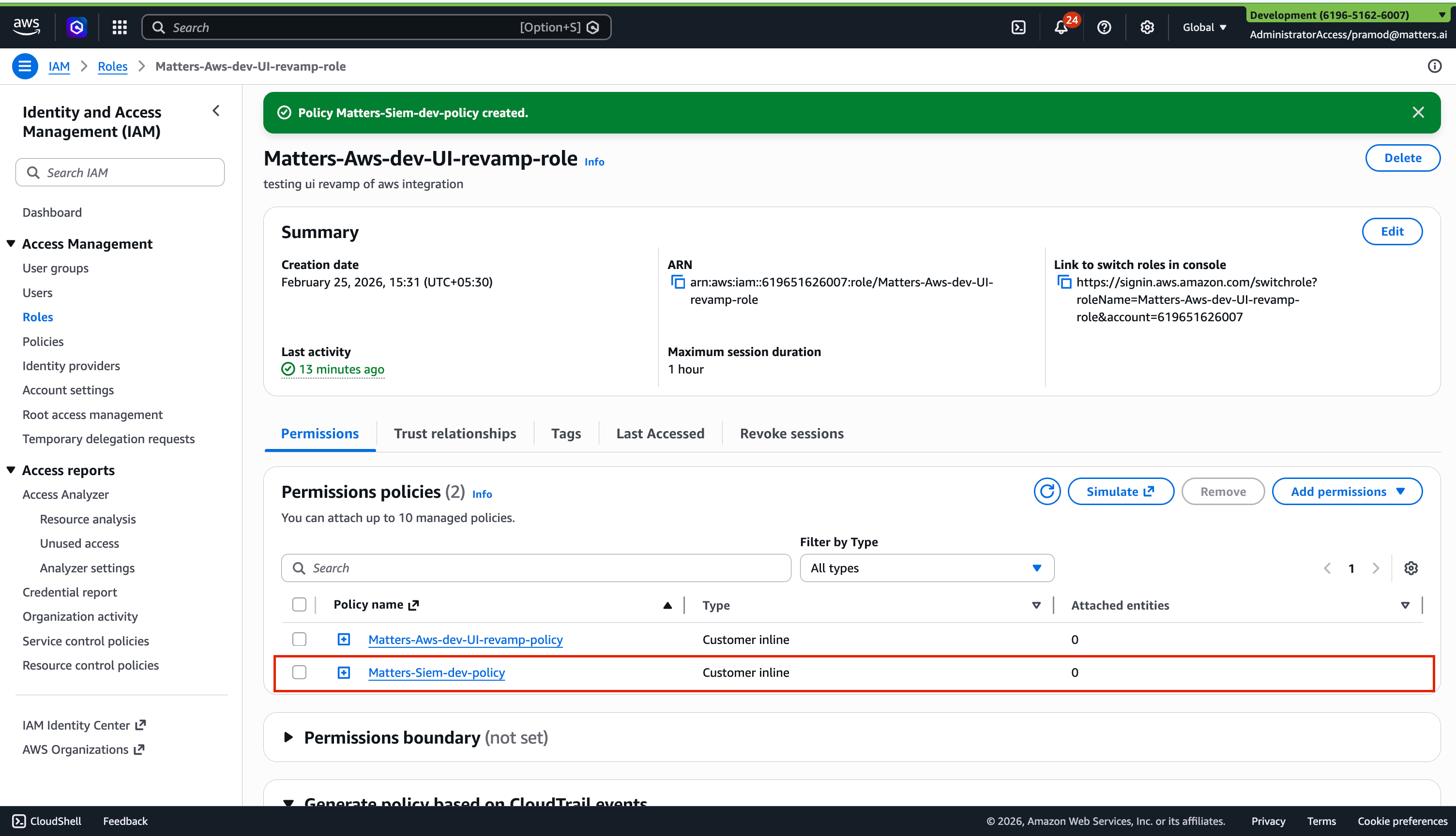
verify that the permission will be added
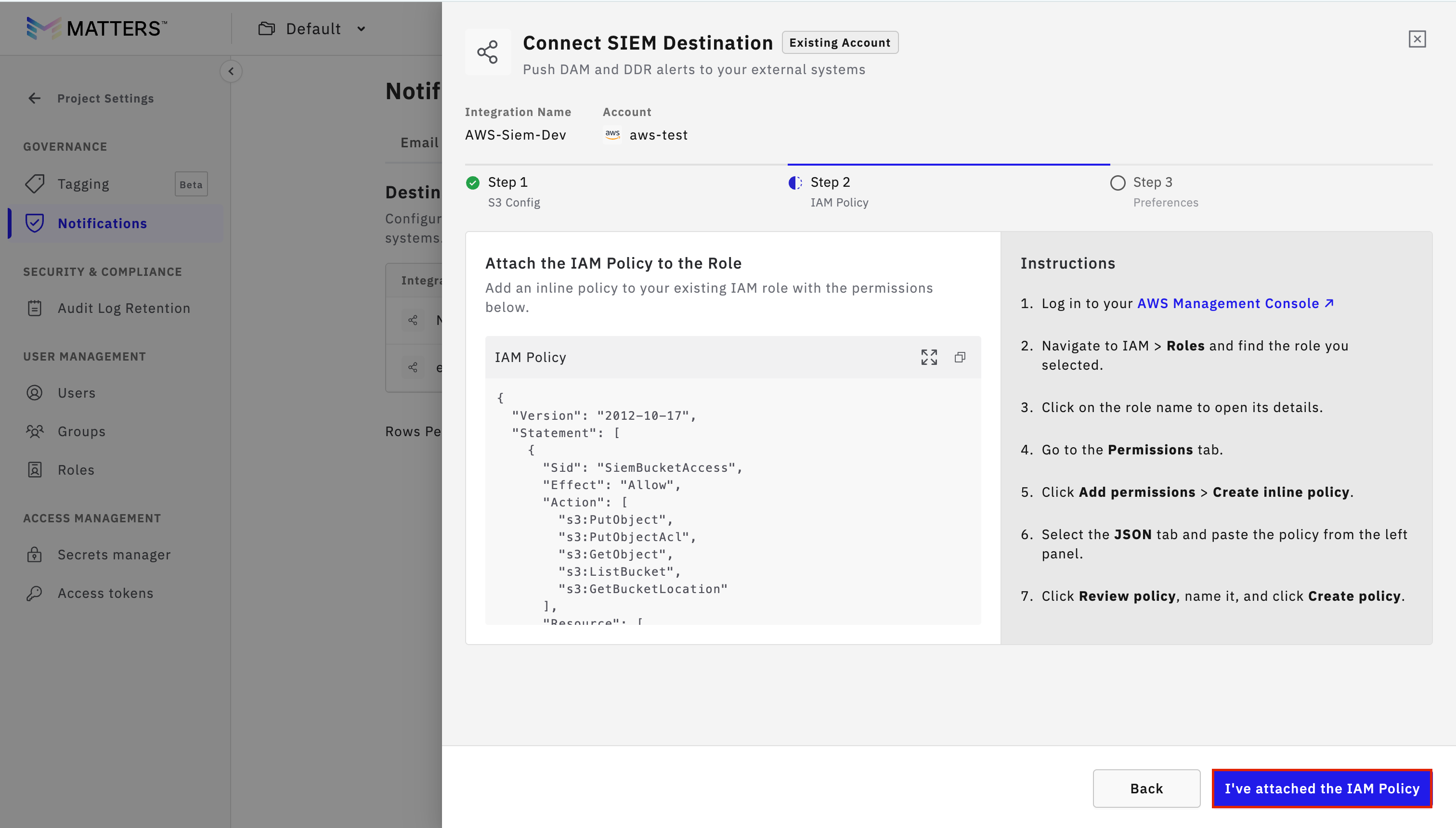
Step:4 Finalize Setup
Return to the Matters Dashboard.
Click I’ve Attached the IAM Policy.
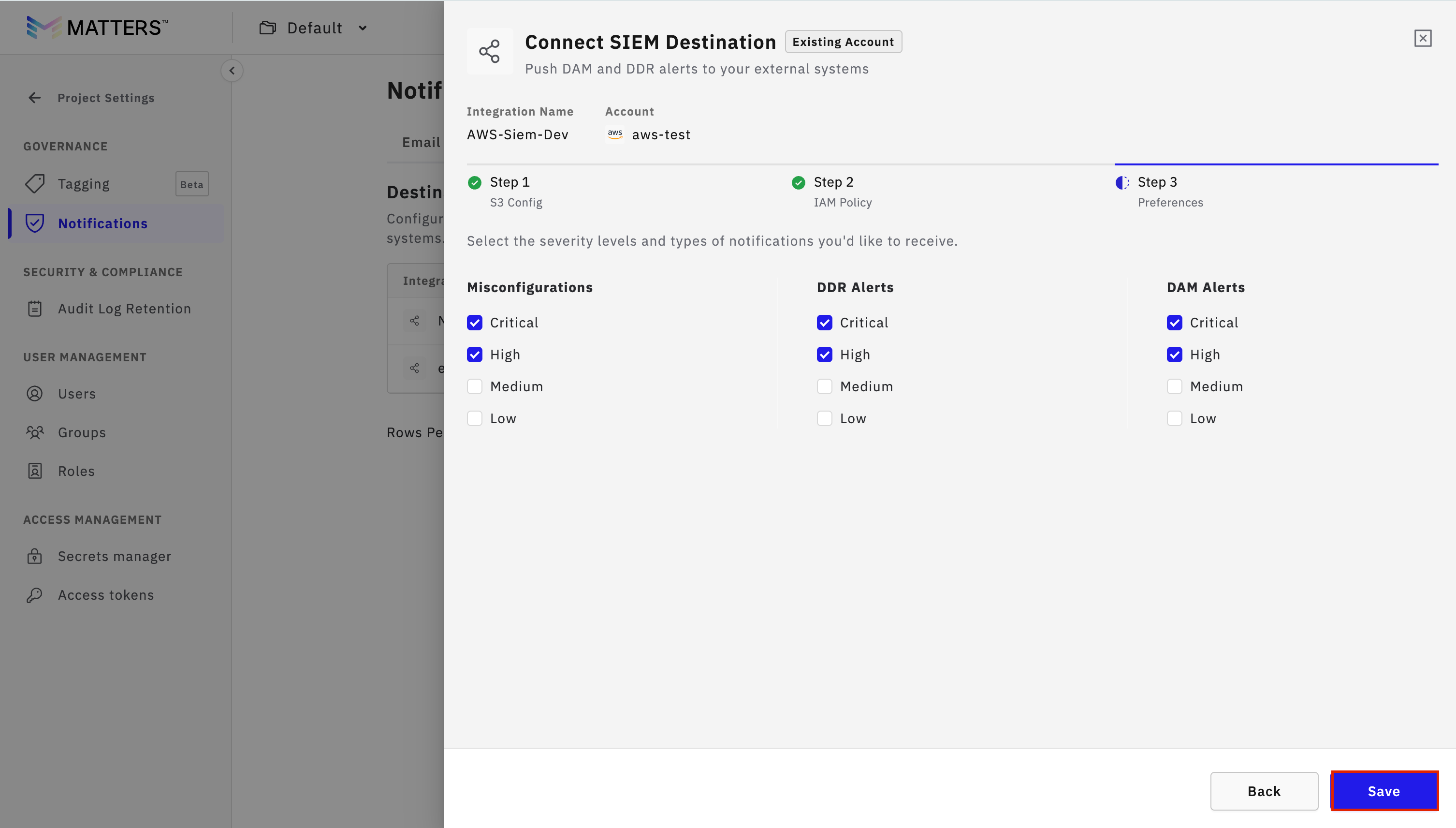
Set preferences as required.
Click Save.
Push Data to SIEM
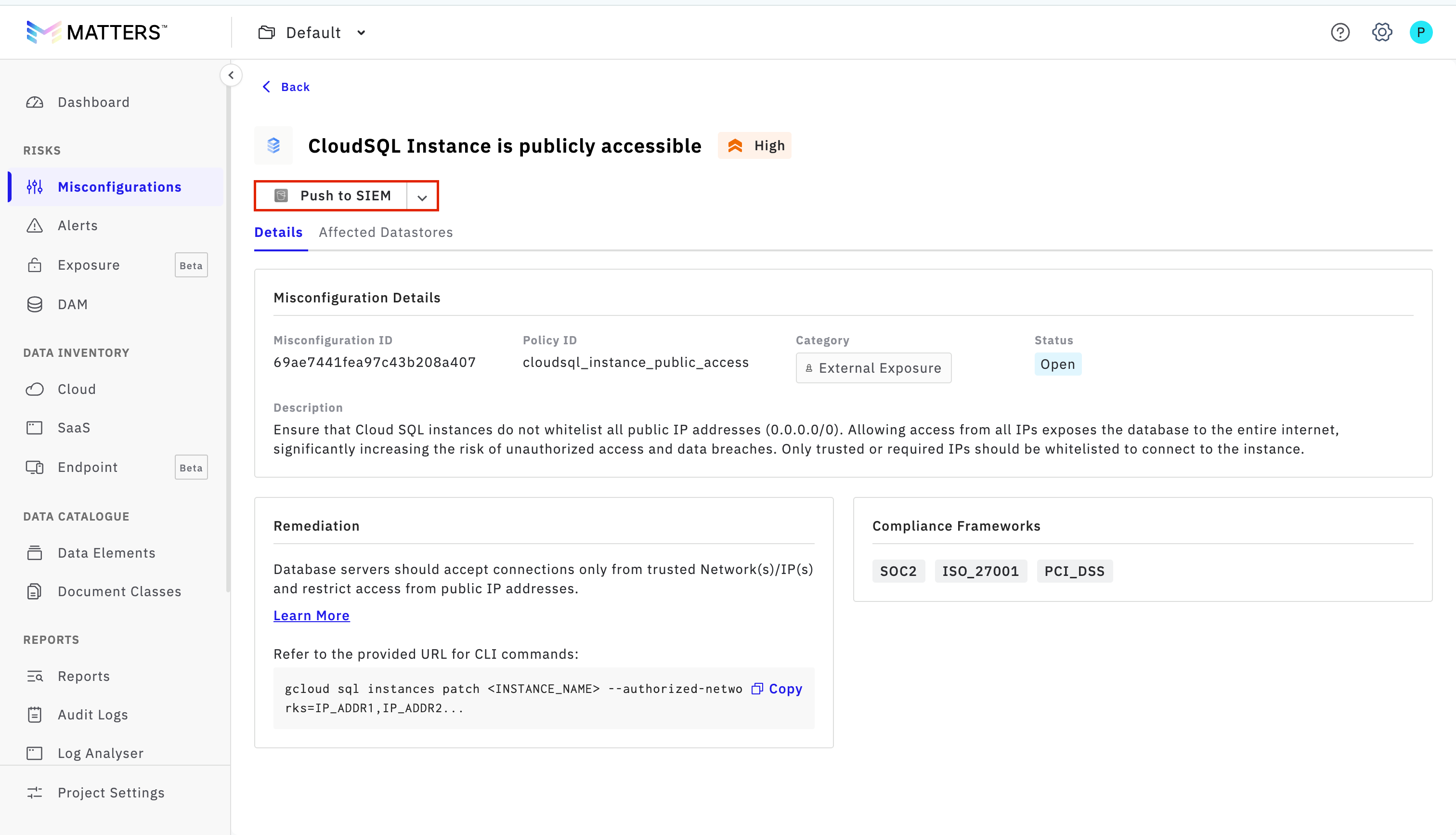
1. Push Misconfiguration Data
Navigate to Misconfigurations.
Open any item.
Click Push to SIEM.
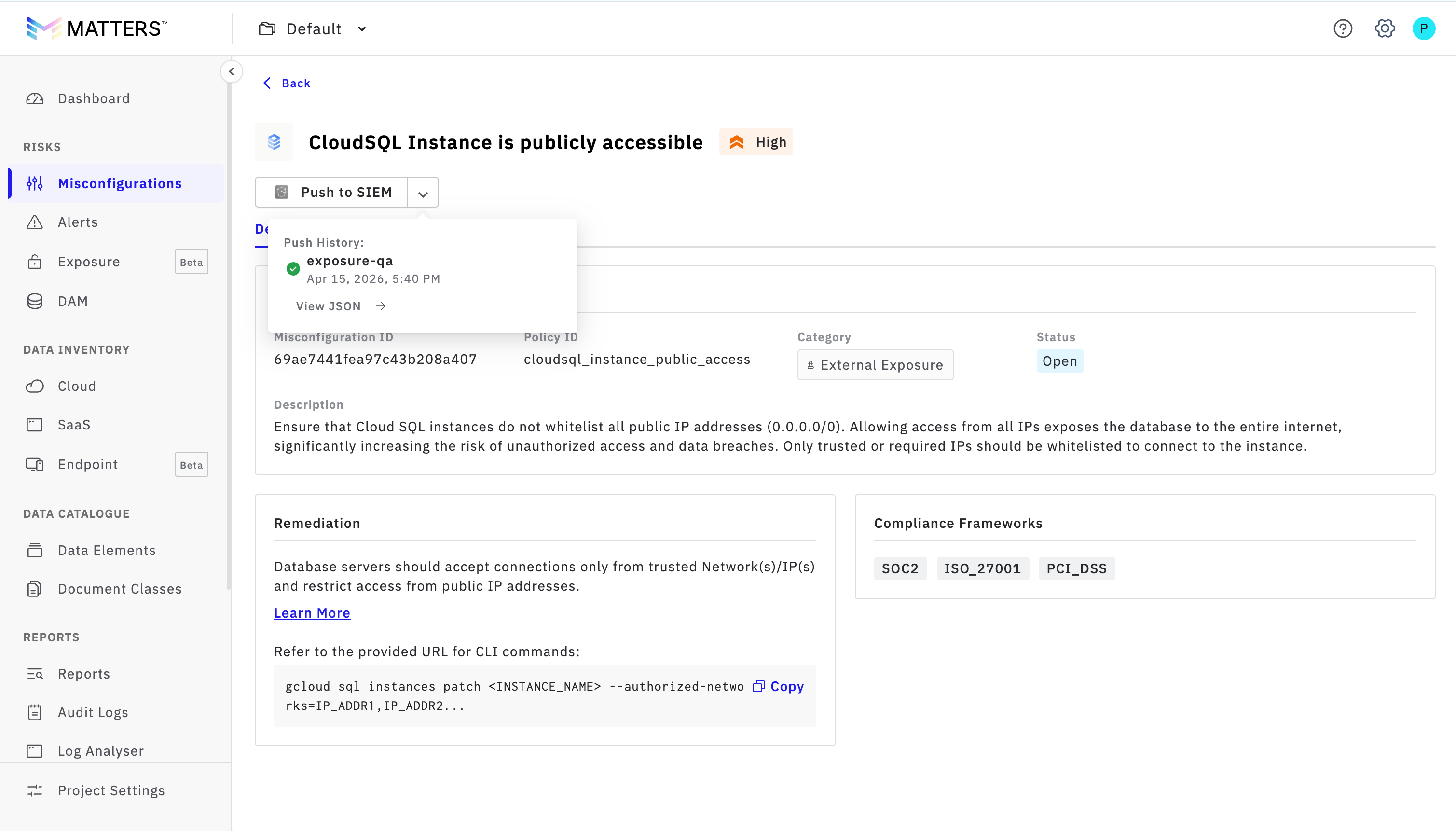
View the transfer status in Push History.
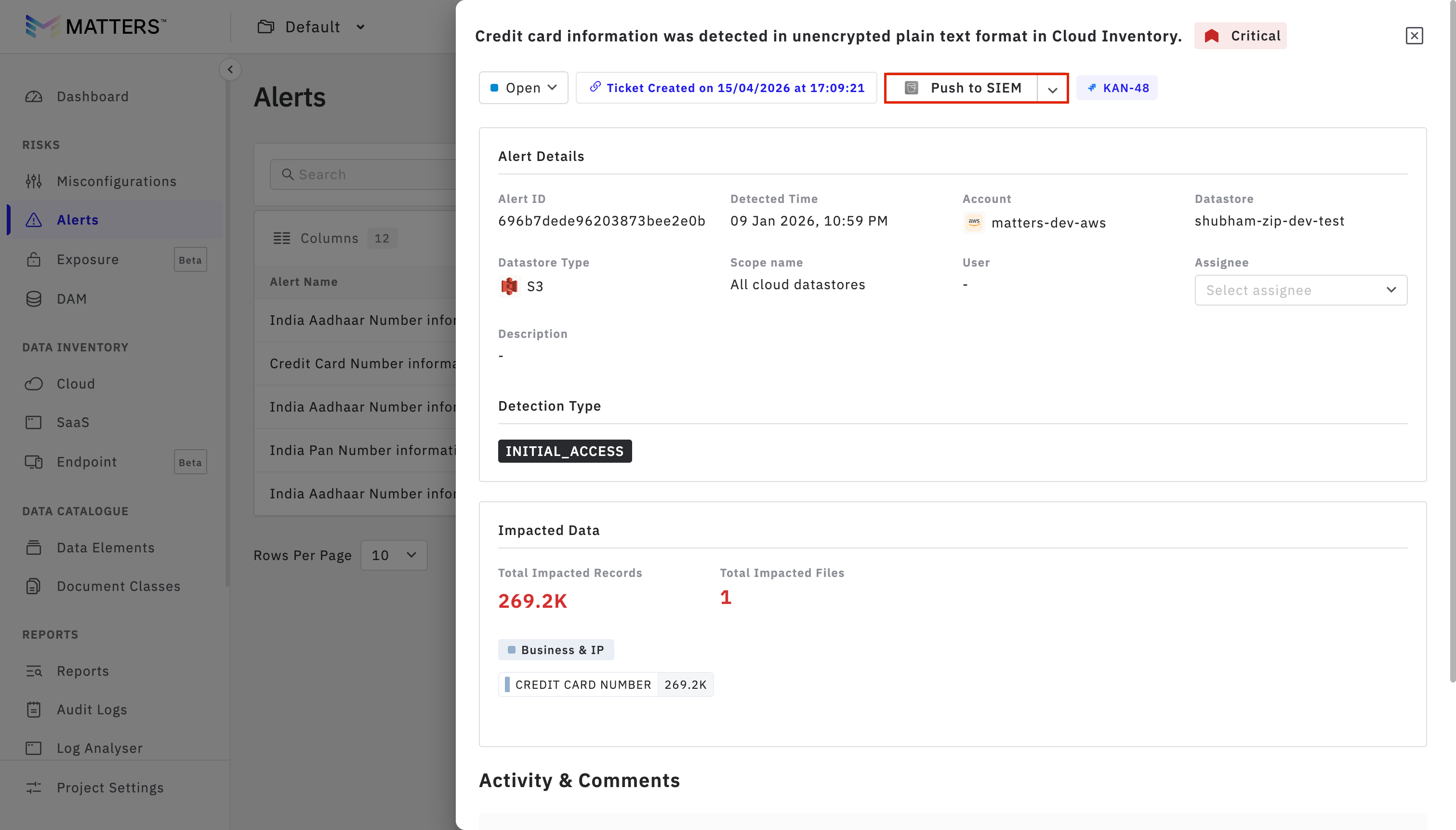
2. Push Alert Data
Go to the Alerts section.
Click on Push to SIEM to send alert data.
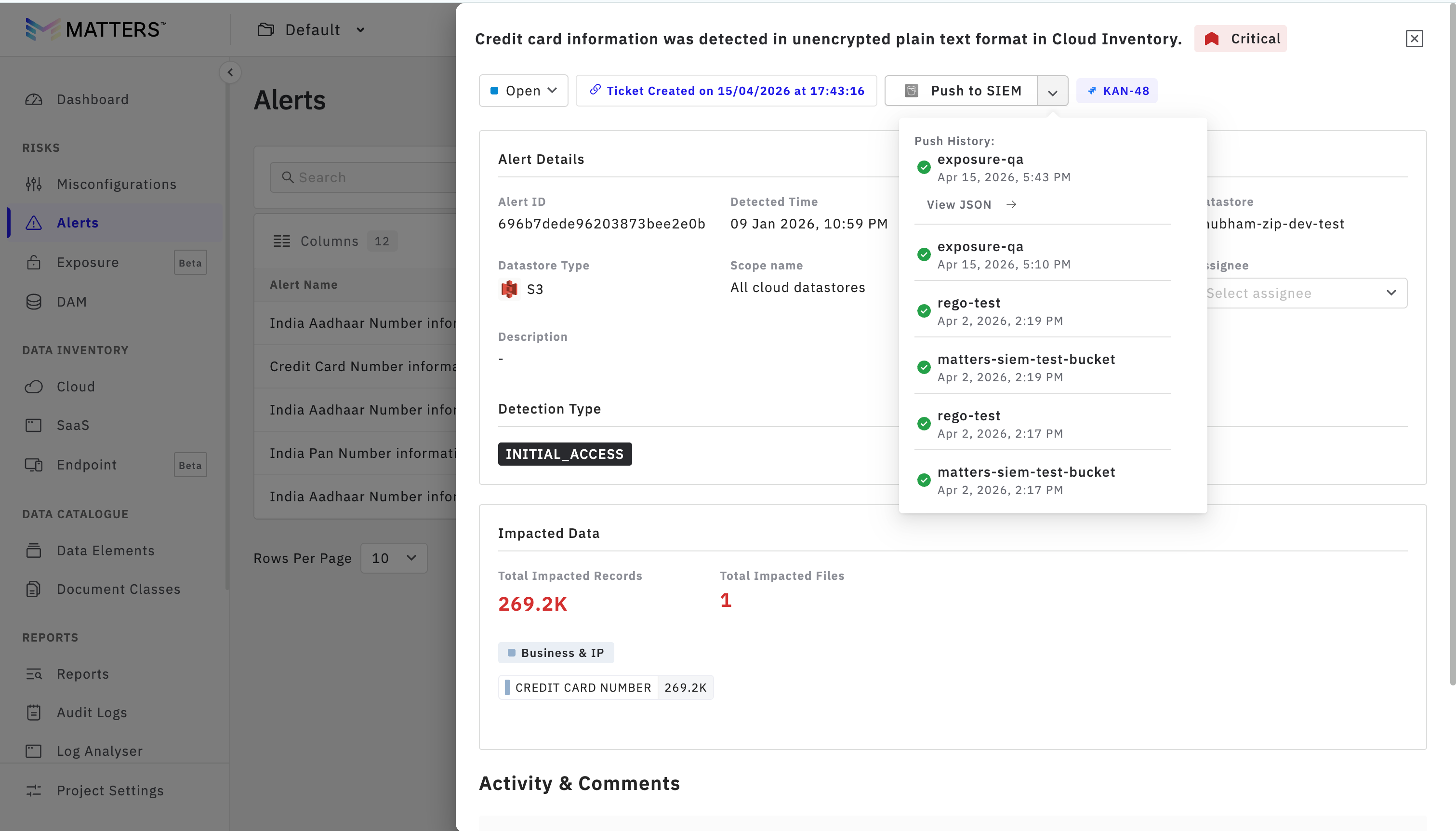
You can verify the transfer details in Push History.
3.Push DAM Data
Navigate to the DAM section.
Open any item.
Click on Push to SIEM to transfer the data.
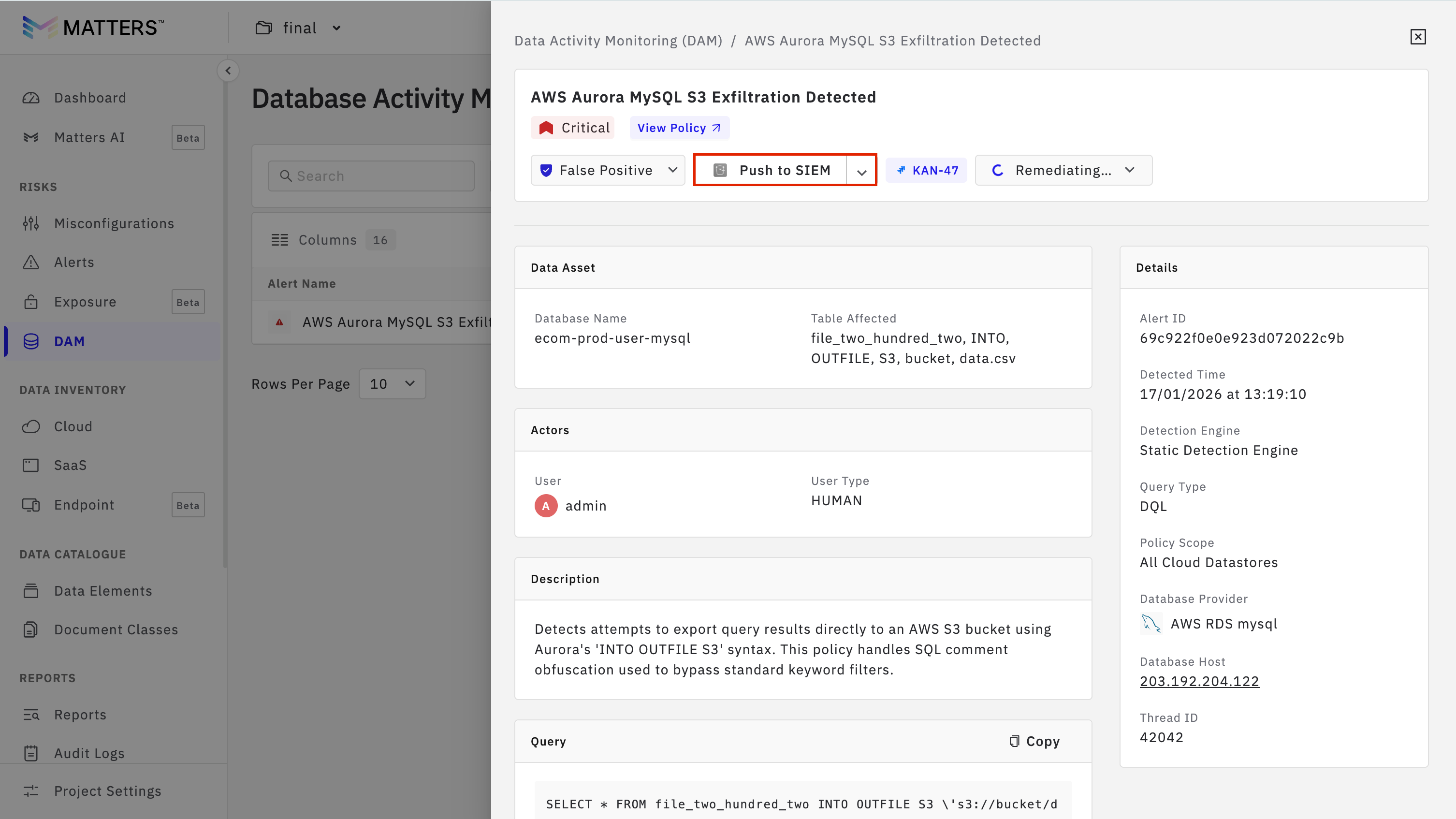
Check the transfer status in Push History.