Dell ObjectScale Integration with Matters AI
Last updated: August 14, 2026
This guide explains how to connect a Dell ObjectScale Storage to Matters AI so Matters AI can discover objects and scan them for sensitive entities.
The integration is read-only. Matters AI requires permission to list buckets and objects, read object contents for classification, and inspect selected bucket security configurations. It does not require permissions to create, modify, or delete objects.
Integration Setup Overview
Identify the ObjectScale namespace.
Create a read-only IAM policy.
Create an IAM user.
Attach the policy and generate credentials.
Start the integration from the Matters AI Dashboard.
Enter ObjectScale connection details and credentials.
Connect and run Sensitive Entity scans.
Step 1: Select the ObjectScale Namespace
Log in to your Dell ObjectScale Portal.
Navigate to Identity and Access (S3)
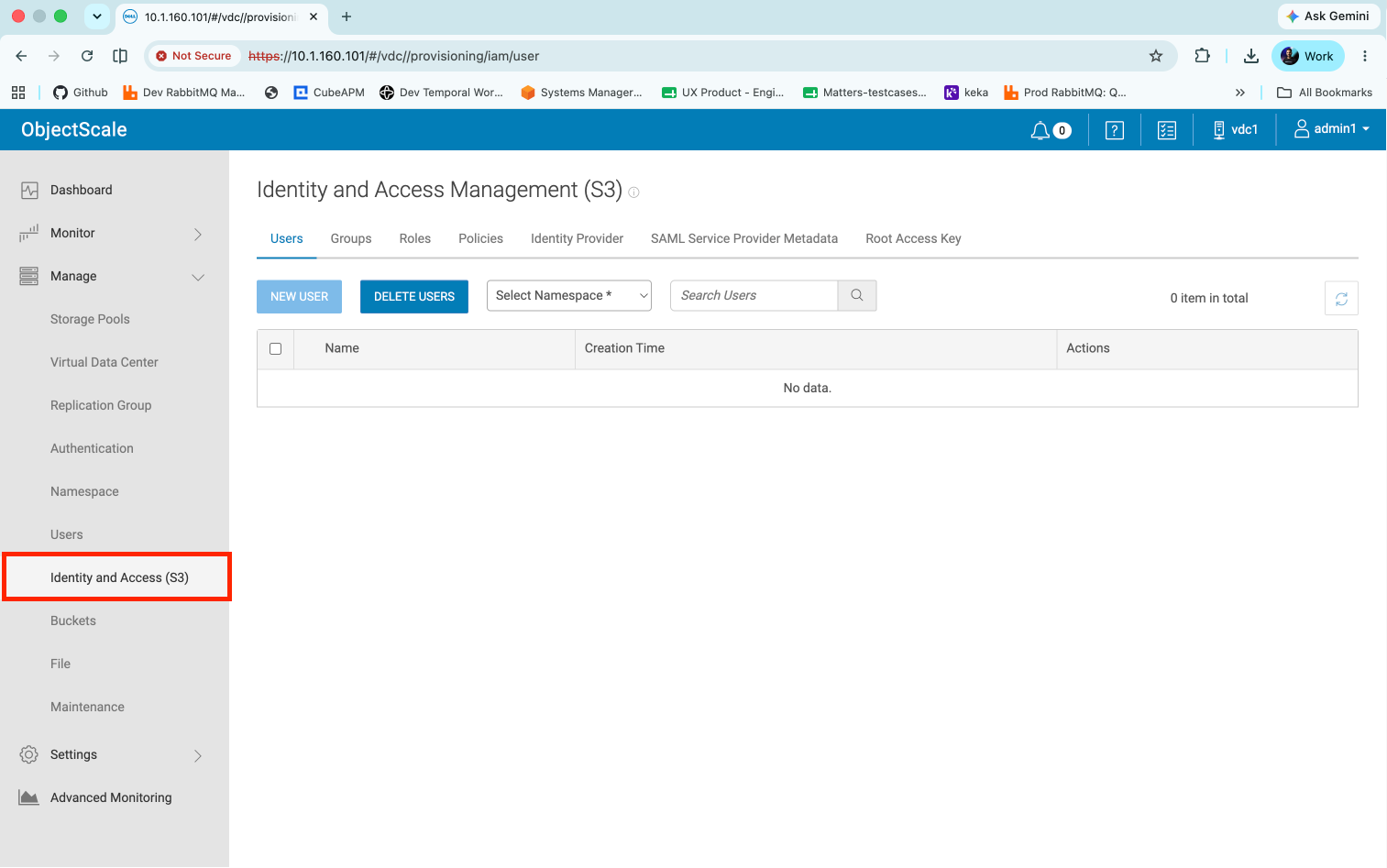
Select the namespace containing the buckets that you want Matters AI to scan.
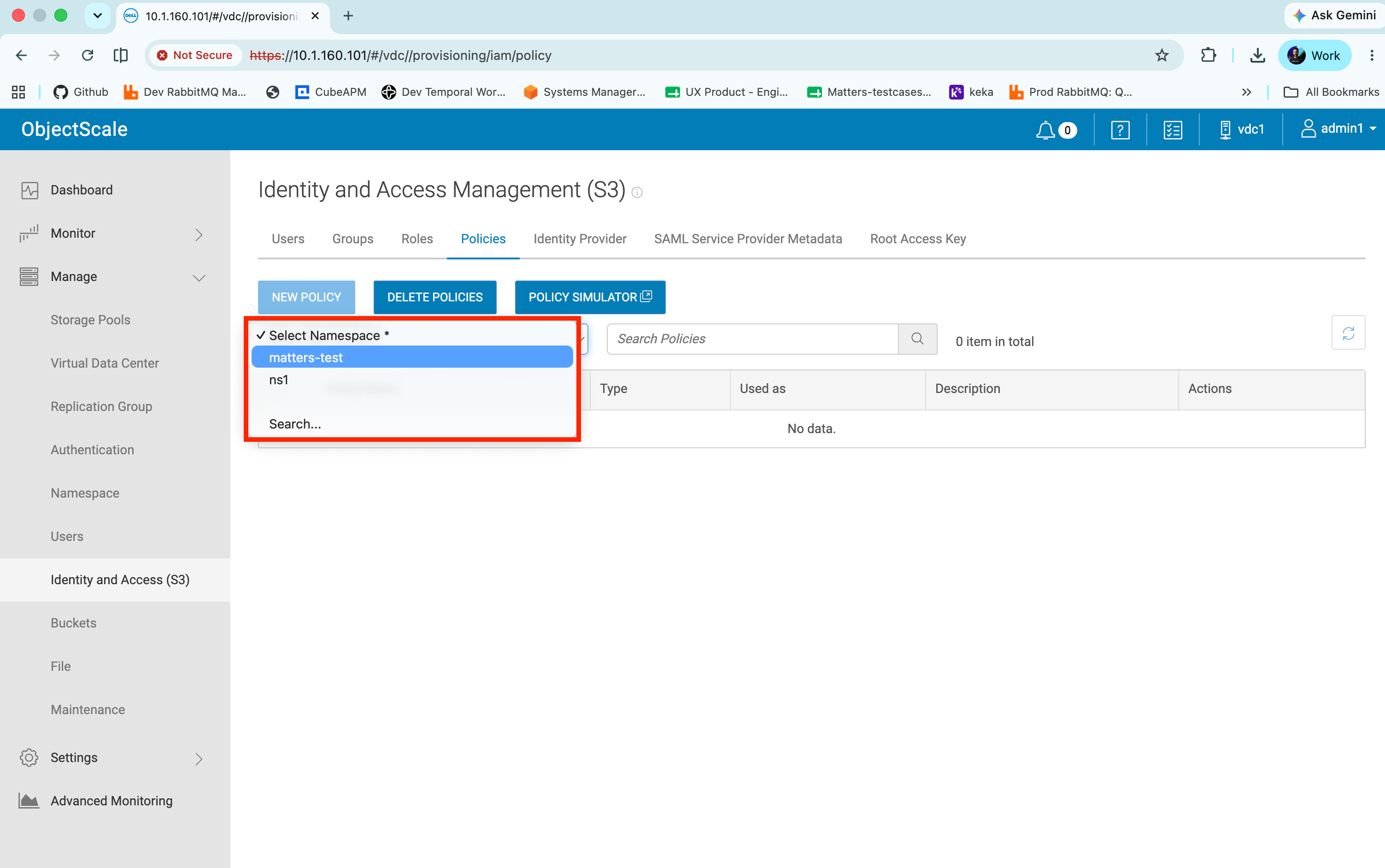
It is important that the IAM user and policy are created for the correct namespace/account. If the IAM user belongs to a different account or namespace, authentication would fail even though the credentials themselves are valid.
Keep the namespace name available because you will need to enter it later in the Matters AI Dashboard.
Step 2: Create a Read-Only IAM Policy
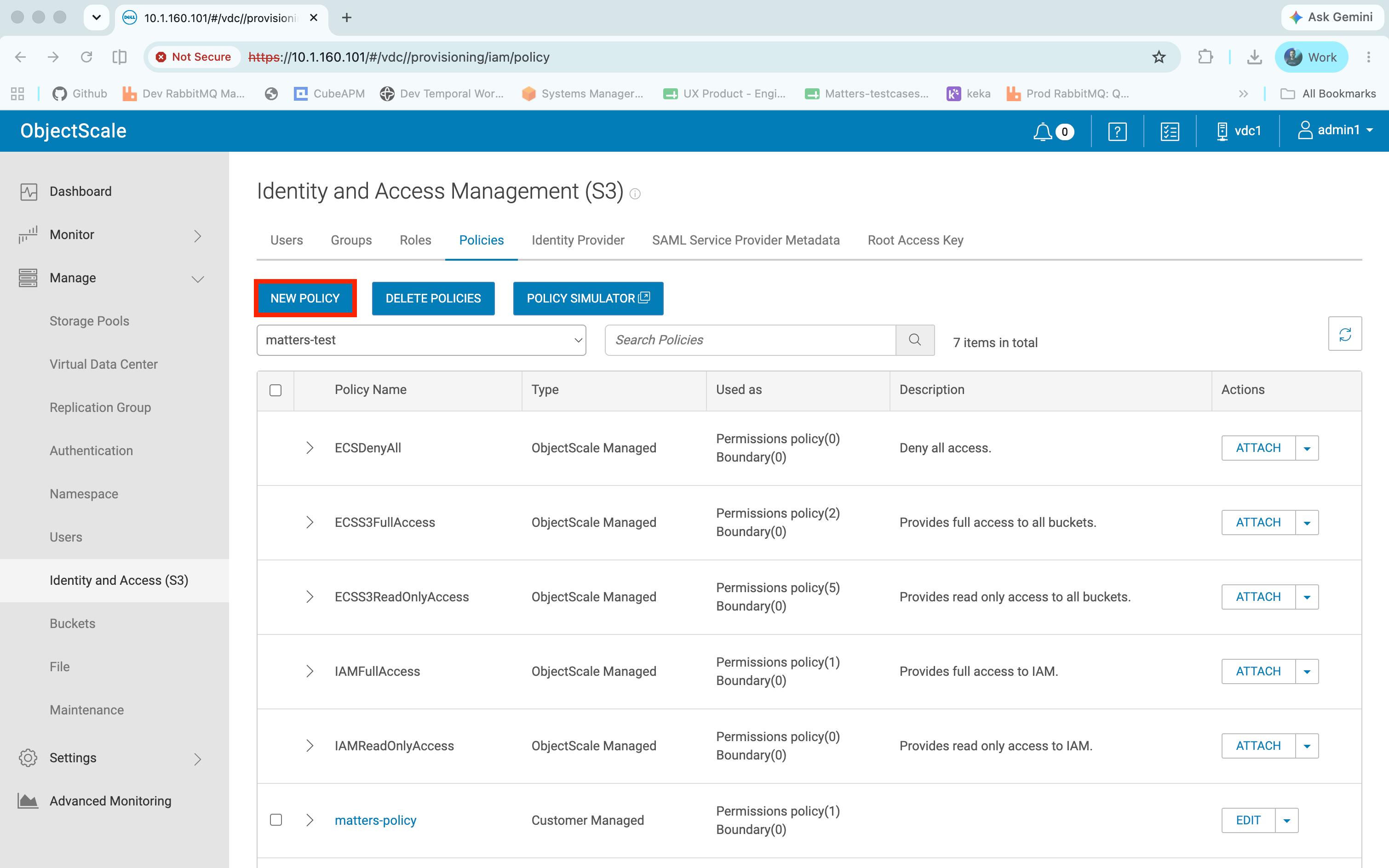
From the ObjectScale Portal, navigate to: Identity and Access (S3) → Policies
Select the required Namespace, and then click: New Policy
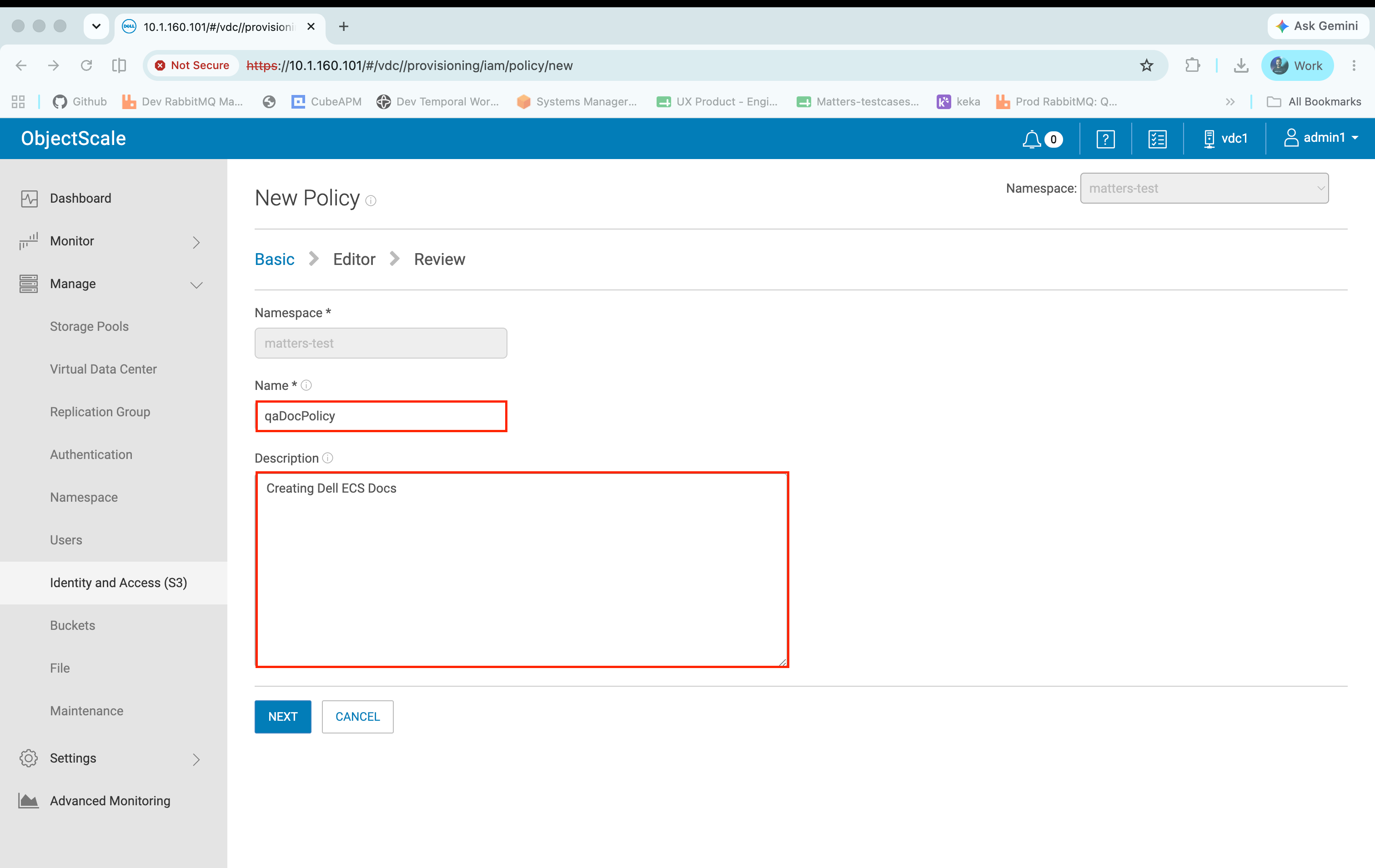
Enter:
Policy Name: Use a valid name without spaces or special characters. For example,
MattersAIReadOnlyDescription: Optional. For example,
Read-only access for Matters AI sensitive data scanning
Click Next.
On the policy definition screen, select: JSON
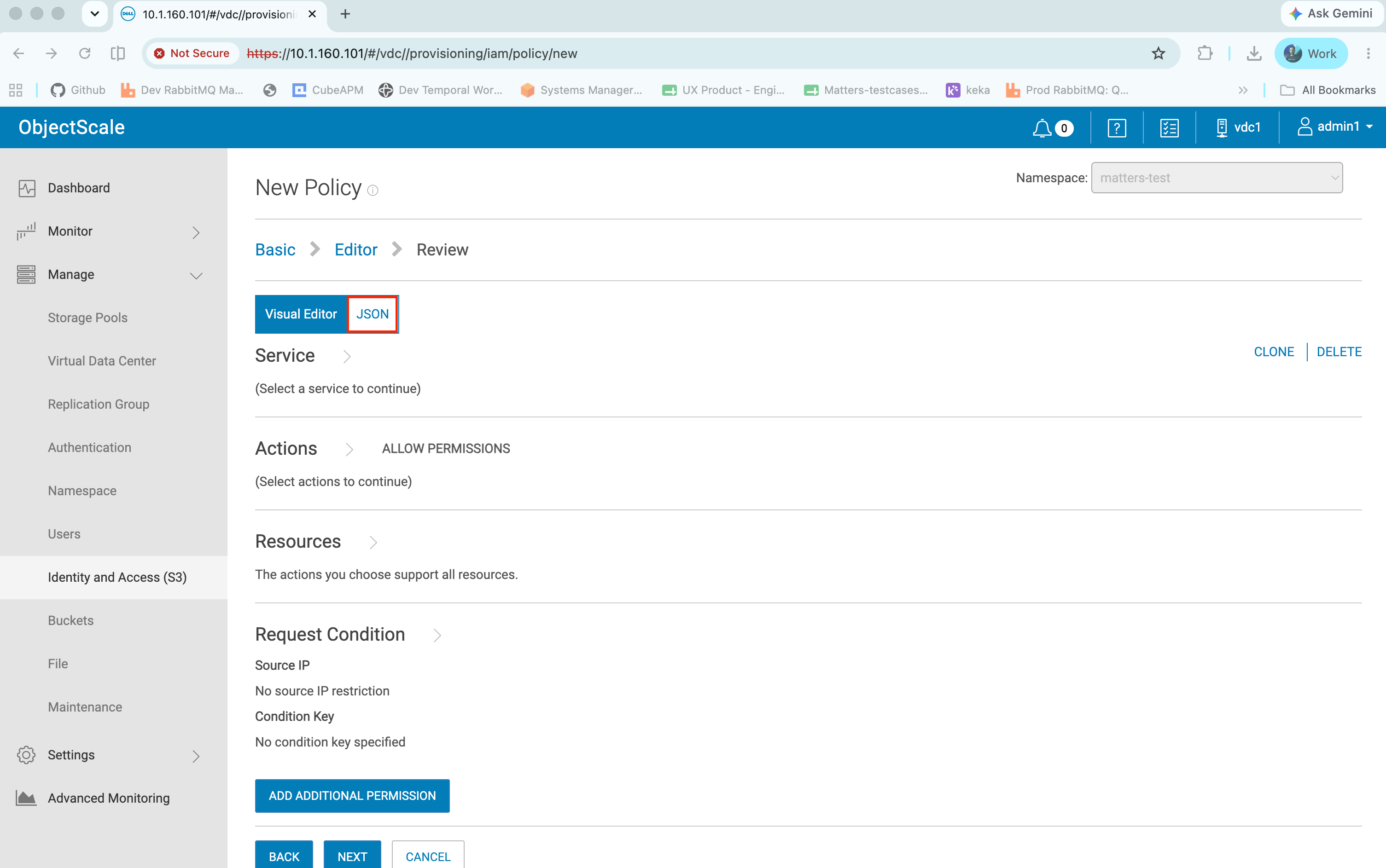
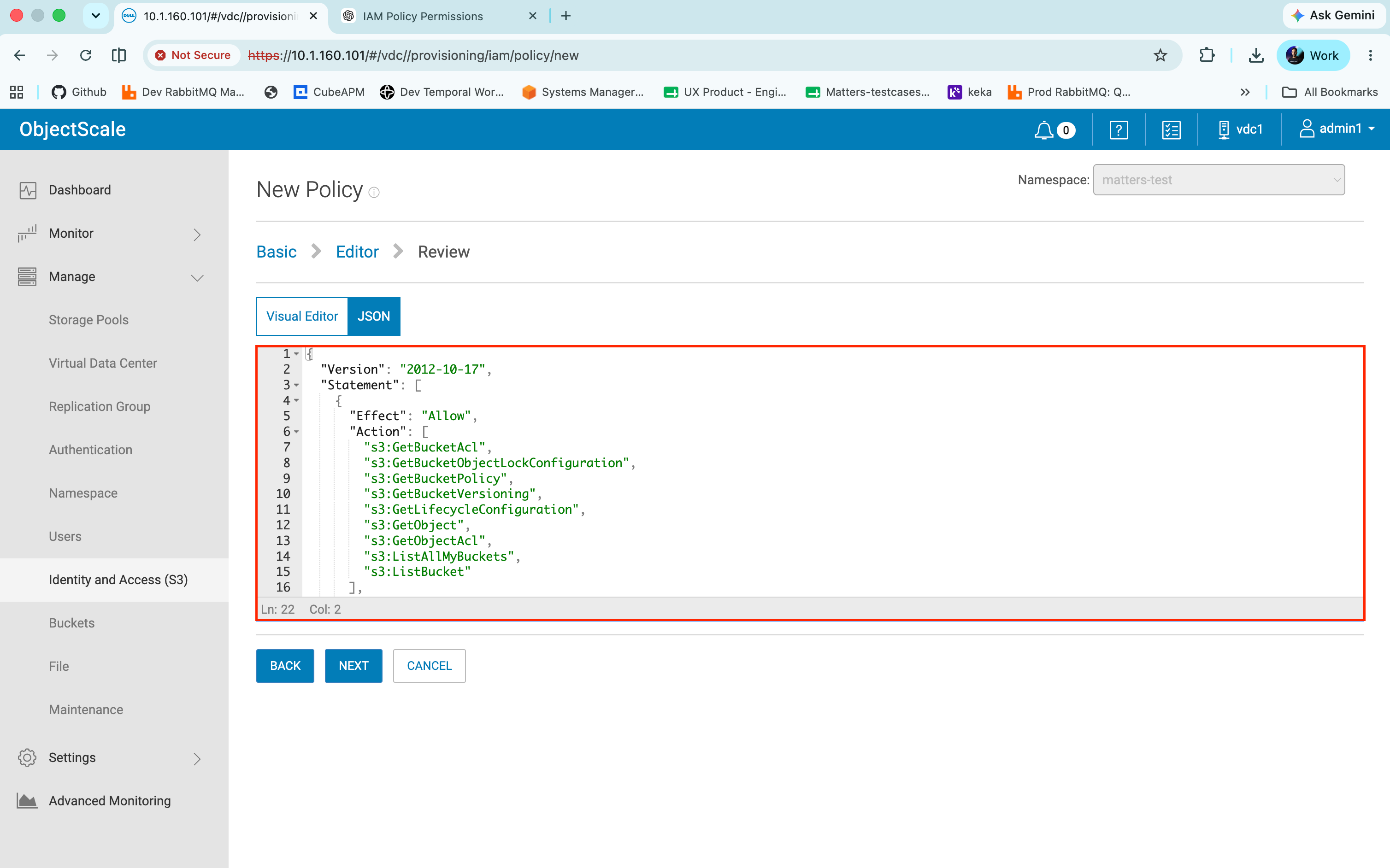
Paste the following policy:
{
  "Version": "2012-10-17",
  "Statement": [
    {
      "Effect": "Allow",
      "Action": [
        "s3:GetBucketAcl",
        "s3:GetBucketObjectLockConfiguration",
        "s3:GetBucketPolicy",
        "s3:GetBucketVersioning",
        "s3:GetLifecycleConfiguration",
        "s3:GetObject",
        "s3:GetObjectAcl",
        "s3:ListAllMyBuckets",
        "s3:ListBucket"
      ],
      "Resource": "*"
    }
  ]
}
You can also obtain the required policy from the Matters AI Dashboard while configuring the Dell ObjectScale integration.
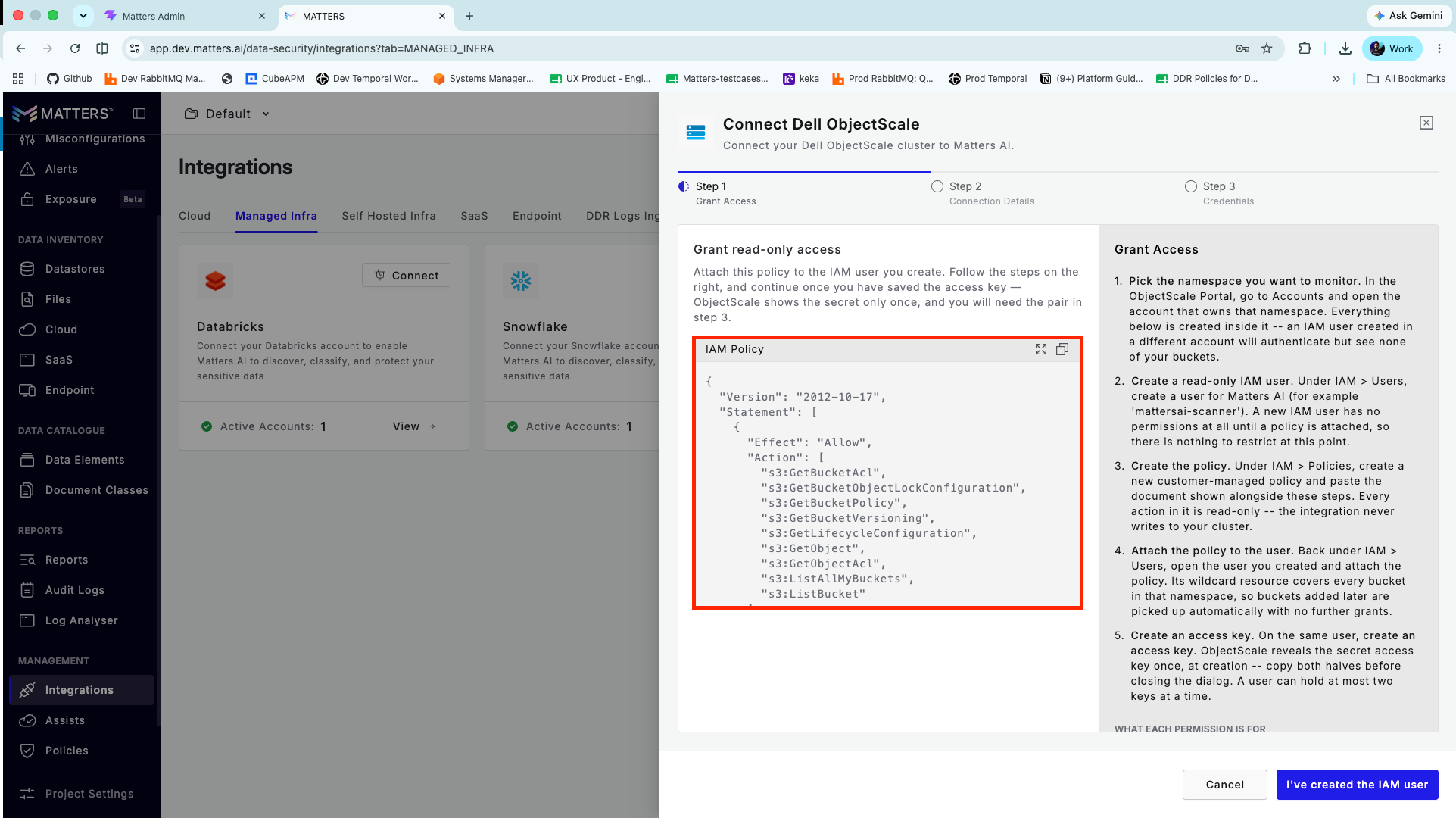
Click Next,
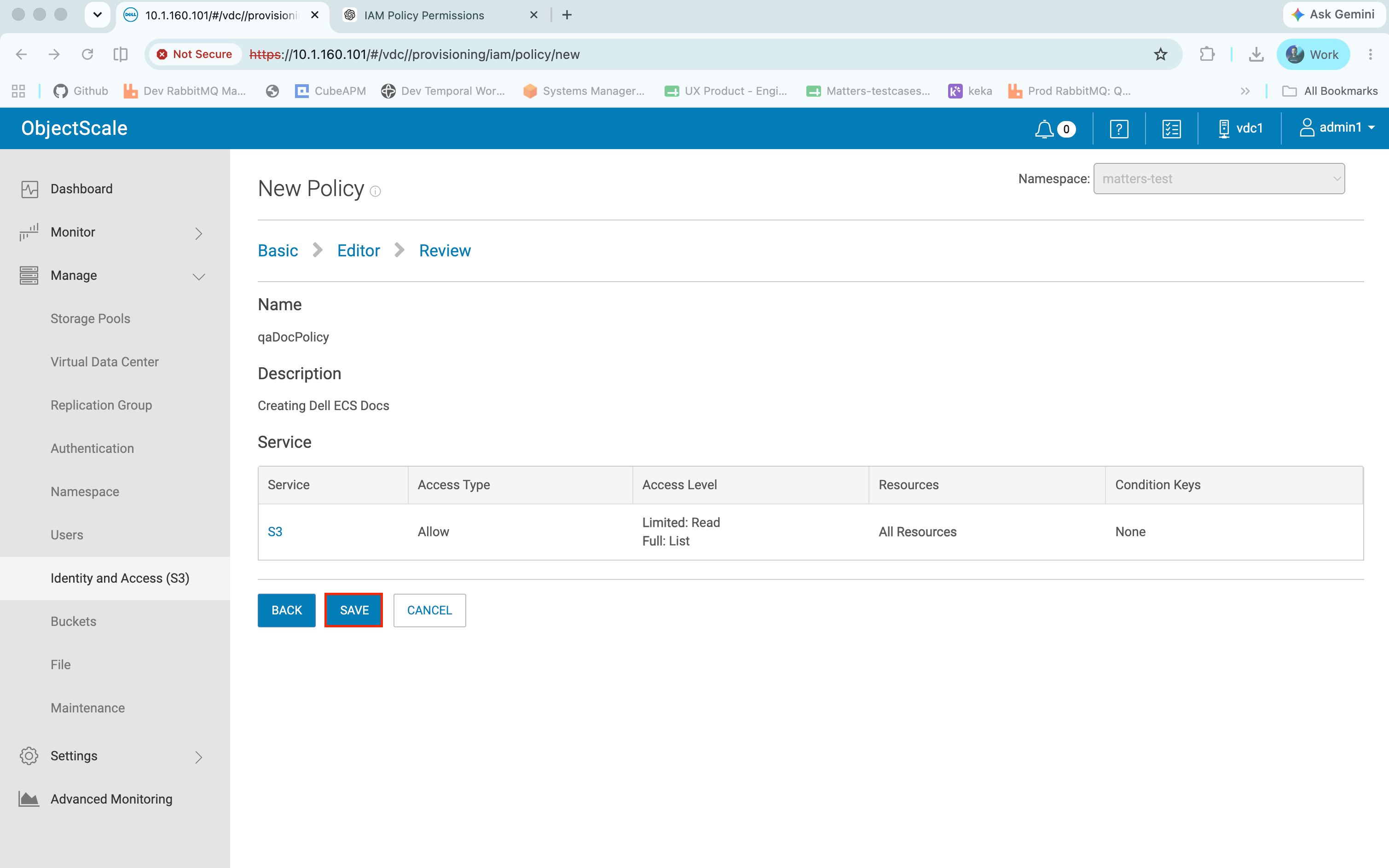
Review the configuration, and then click Save.
S3 Read-Only Permissions
The following permissions provide read-only access to S3 resources. They allow users or applications to view buckets, list and retrieve objects, and inspect selected bucket and object configurations without allowing modifications or deletions.
Permission | Description |
|---|---|
| Allows viewing the access control list (ACL) configured for a bucket, including the access permissions assigned to the bucket. |
| Allows viewing the Object Lock configuration of a bucket, including retention-related settings where applicable. |
| Allows viewing the bucket policy that defines access permissions and restrictions for the bucket. |
| Allows checking the versioning configuration of a bucket, such as whether object versioning is enabled or suspended. |
| Allows viewing lifecycle rules configured for a bucket, such as object retention, transition, or expiration policies. |
| Allows reading or downloading objects stored within a bucket. This permission provides access to the actual contents of the stored objects. |
| Allows viewing the access control list (ACL) associated with an individual object. |
| Allows listing the buckets that are accessible to the authenticated user or application. |
| Allows listing the objects and object keys stored within a bucket. This permission does not by itself allow the object contents to be read. |
Step 3: Create the IAM User
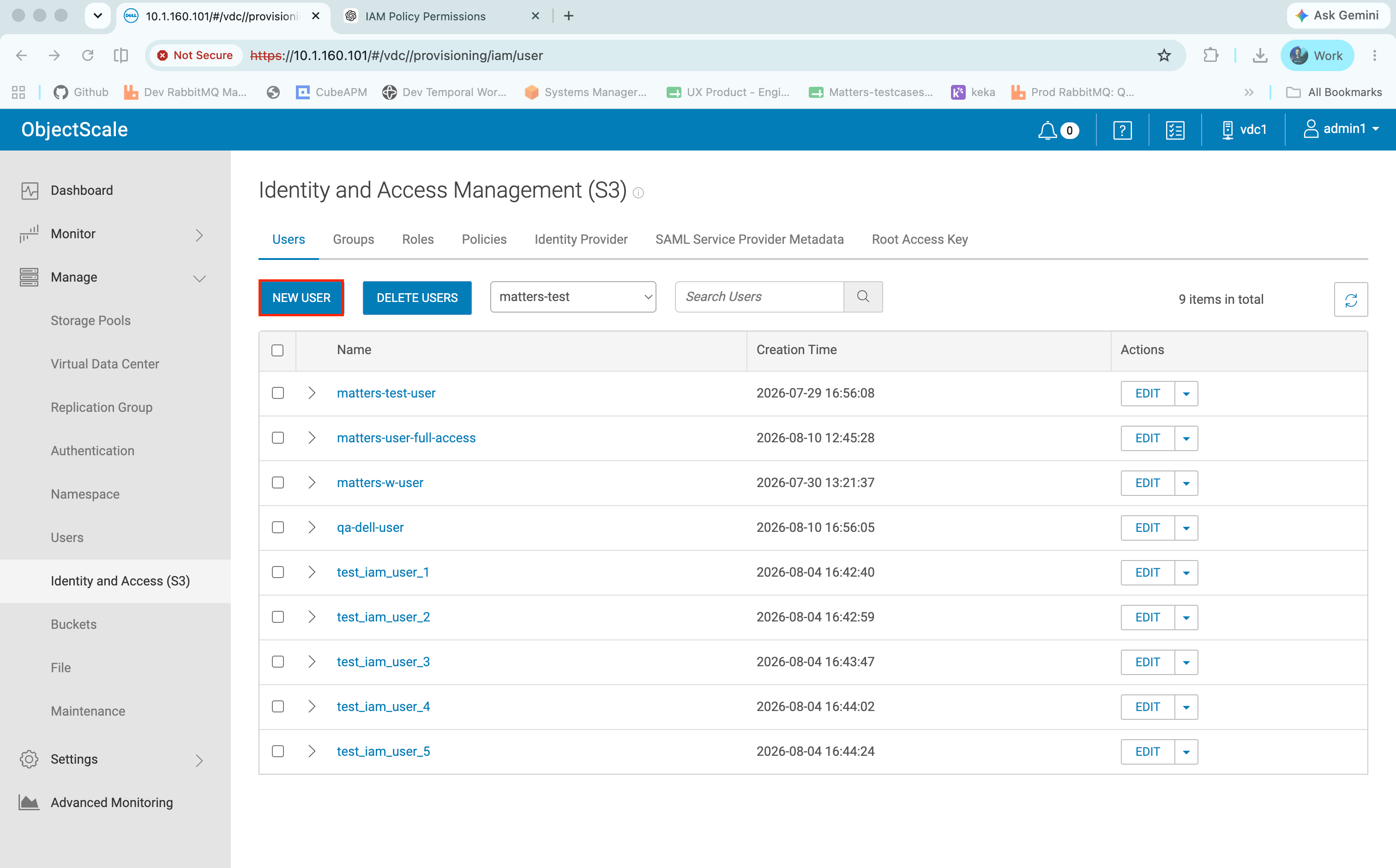
Navigate to: Identity and Access (S3) → Users
Click: New User
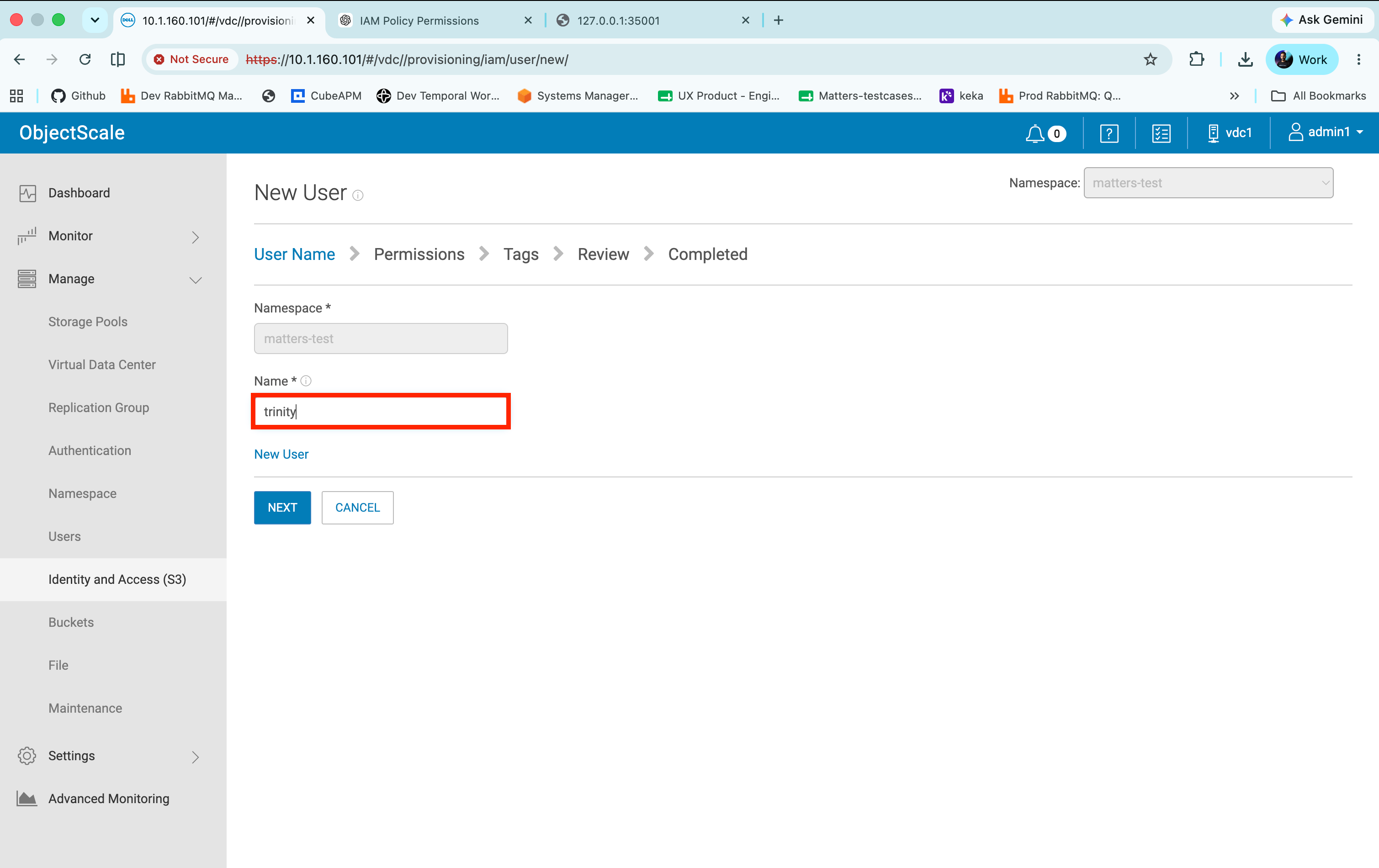
Provide a meaningful username, for example:
mattersai-scannerClick Next.
A newly created IAM user does not automatically have access to your S3 data. Access is provided by attaching the policy created in Step 2.
Step 4: Attach the Policy and Generate Credentials
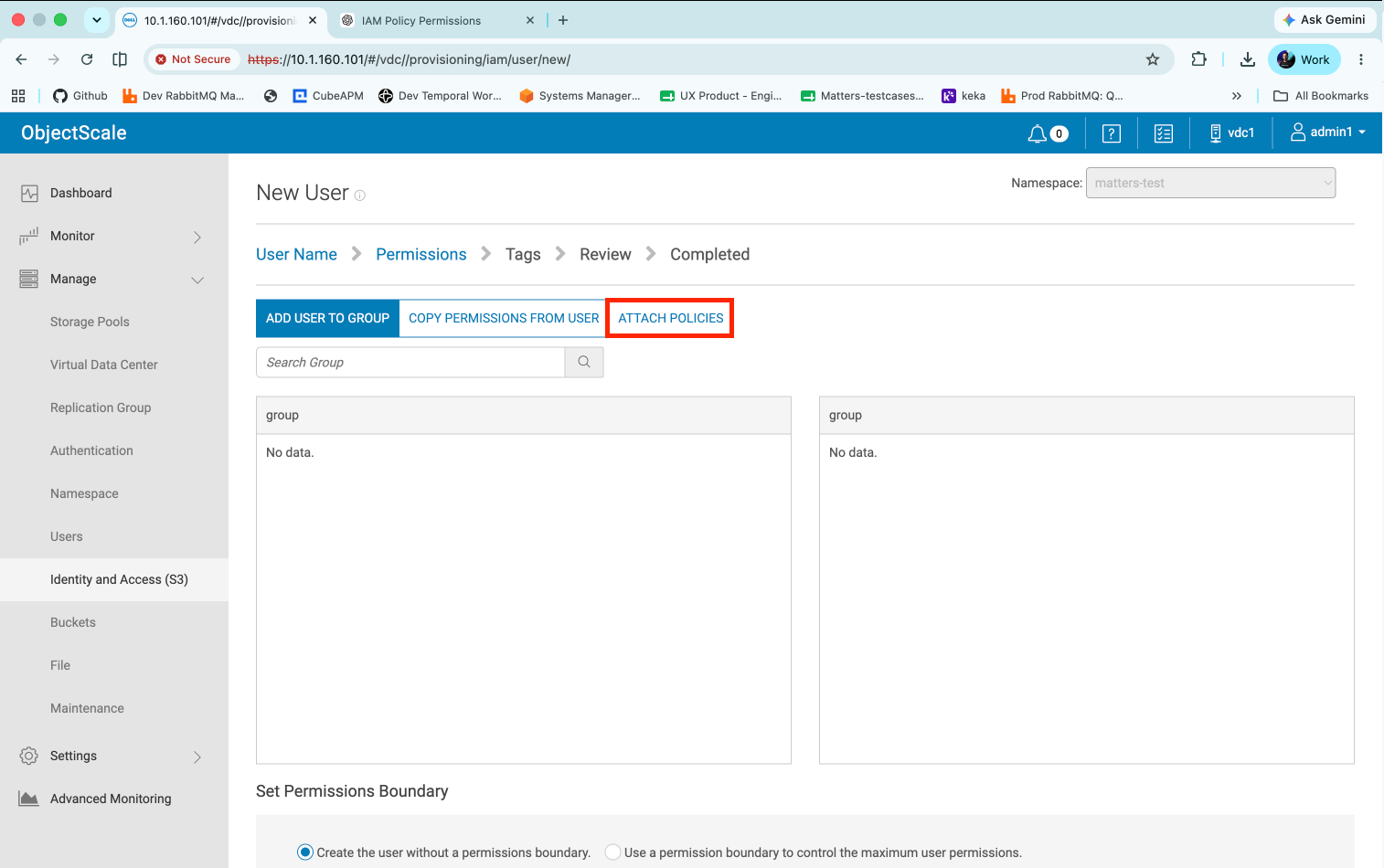
During user creation, select: Attach Policy
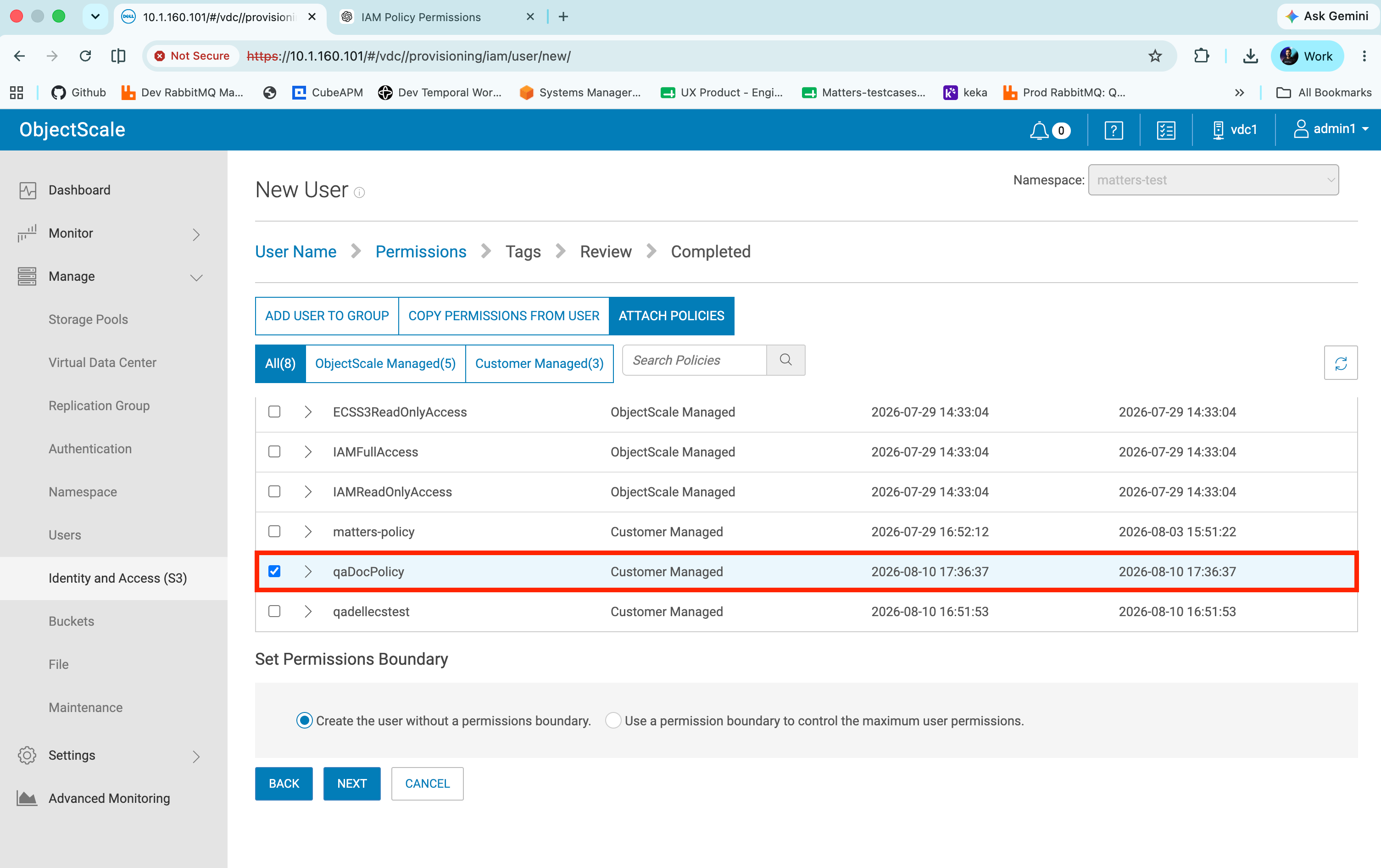
Find and select the policy created earlier, for example:
MattersAIReadOnly.Click on Next.
Review the user configuration and click: Create User
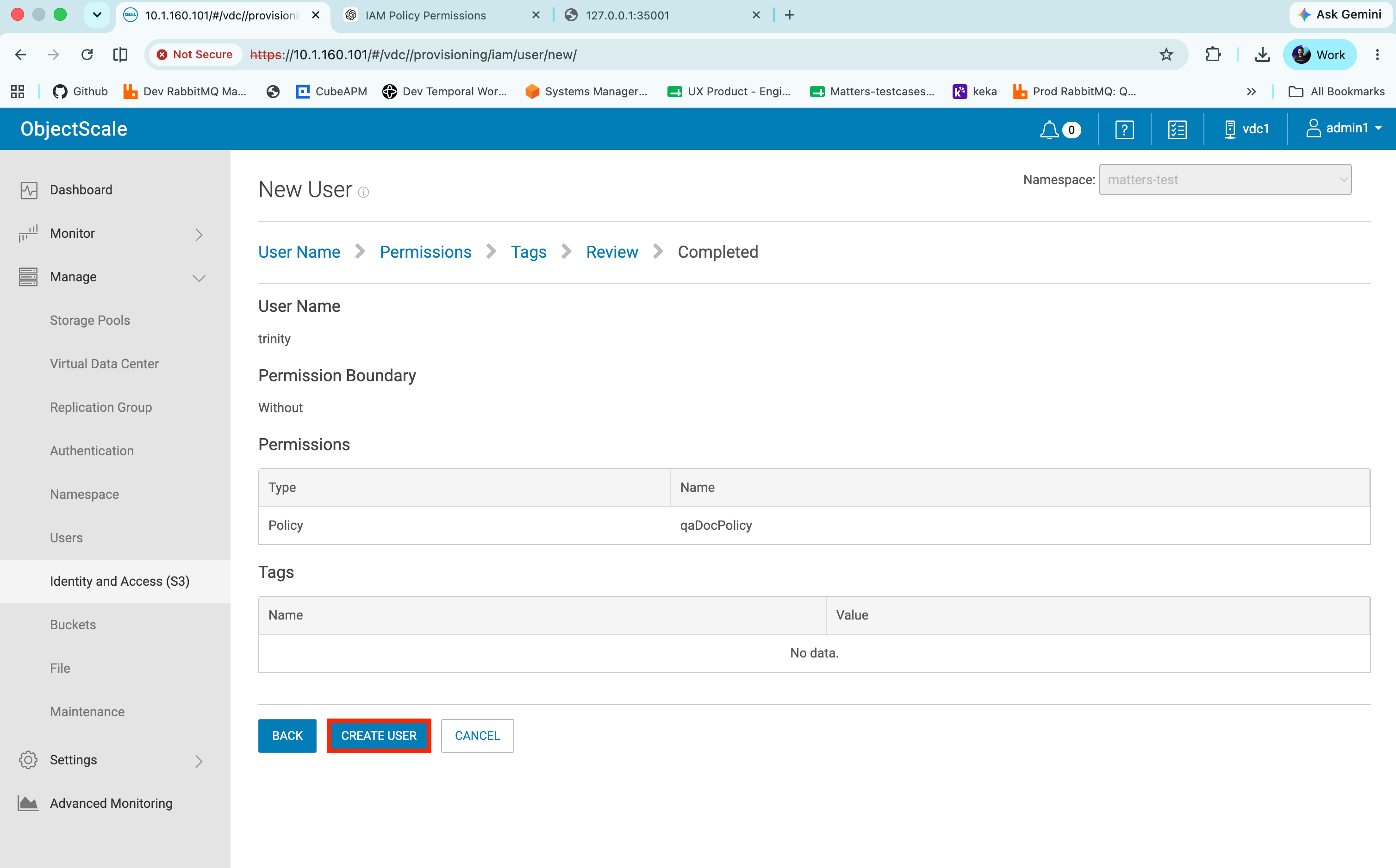
After the user has been created, an Access Key will be generated for the IAM user.
ObjectScale will provide:
Access Key ID
Secret Access Key
Copy both values and store them securely.
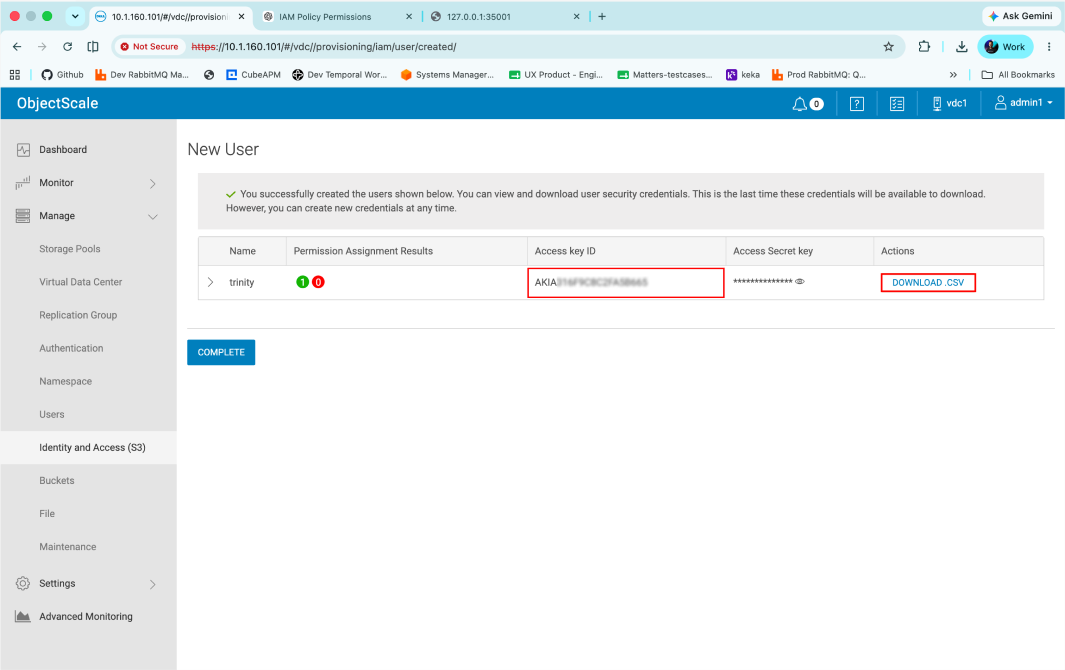
Important: The Secret Access Key is displayed only once when it is generated. Download the CSV or securely copy the credentials before closing the screen.
Do not share these credentials through email, Slack, tickets, screenshots, or other unsecured locations.
Once saved, click Complete.
Step 5: Start the Integration in Matters AI
Log in to the Matters AI Dashboard.
Navigate to: Integrations → Dell ObjectScale → Connect
Enter an Integration Name.
For example: Production ObjectScale
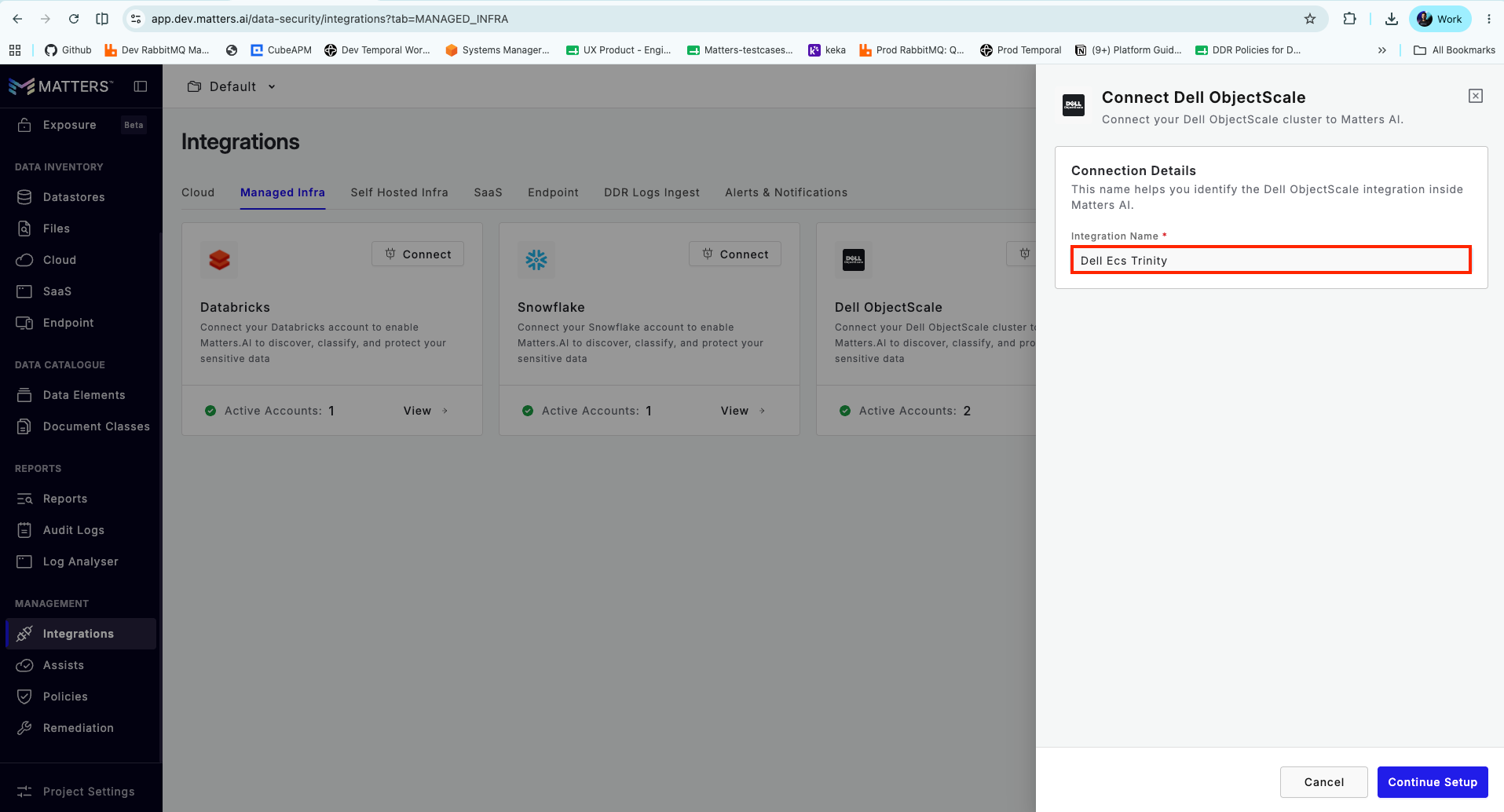
Click: Continue Setup
Step 6: Click I’ve Created the IAM user
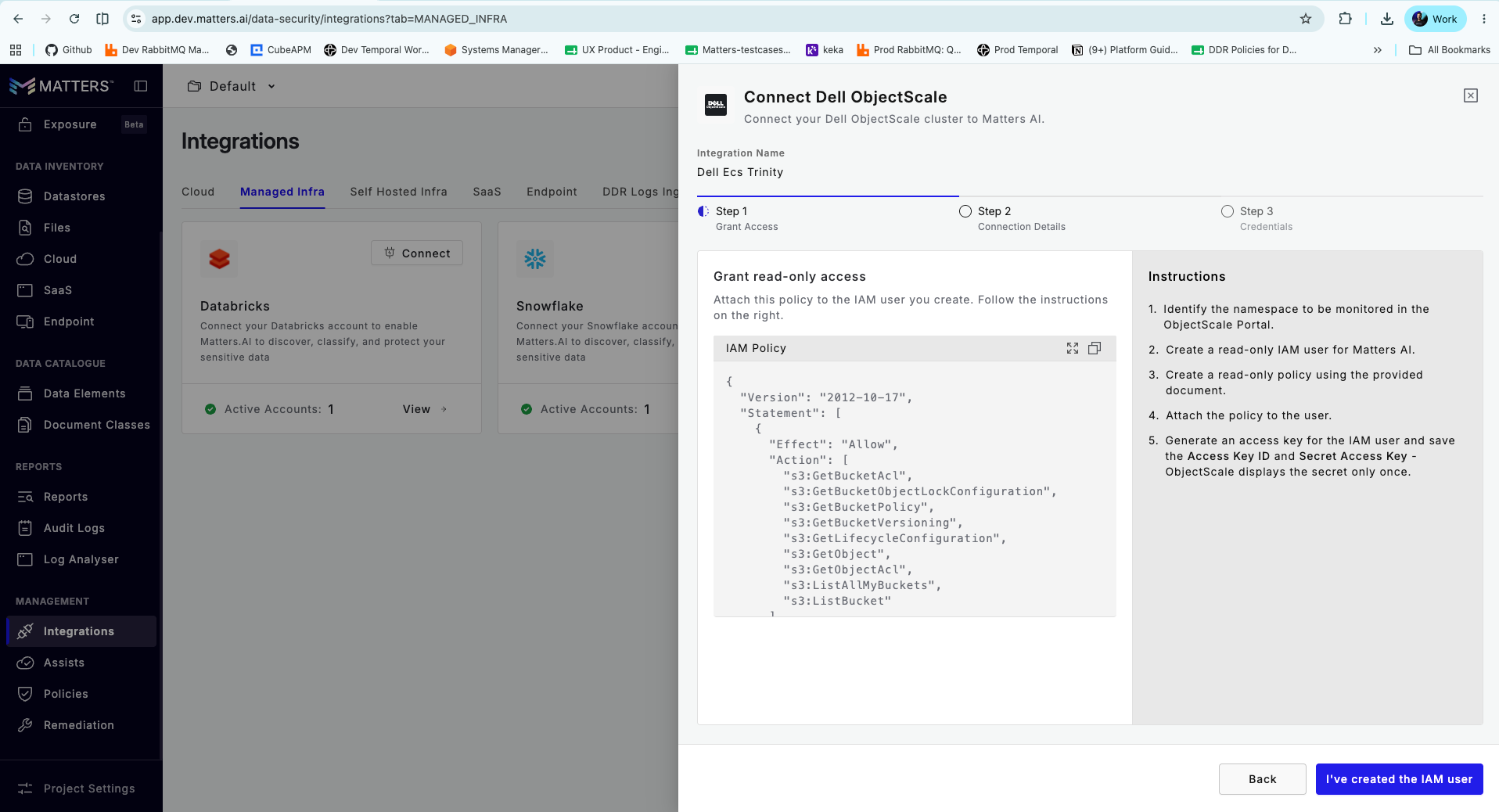
Step 6: Enter ObjectScale Connection Details
You now need the S3 data endpoint for your ObjectScale cluster. This is important because the ObjectScale management portal endpoint and S3 data endpoint are different. Do not enter the URL that you use to administer ObjectScale unless it is also explicitly configured as the S3 data endpoint.
Collect the following information from your ObjectScale environment and configure on Dashboard:
Field | Description | Example |
|---|---|---|
Hostname / IP | ObjectScale S3 data-node hostname or IP |
|
S3 Port | S3 service port |
|
Namespace | Namespace identified in Step 1 |
|
Common ObjectScale S3 ports are:
9021 — HTTPS
9020 — HTTP/plaintext
HTTPS should normally be preferred.
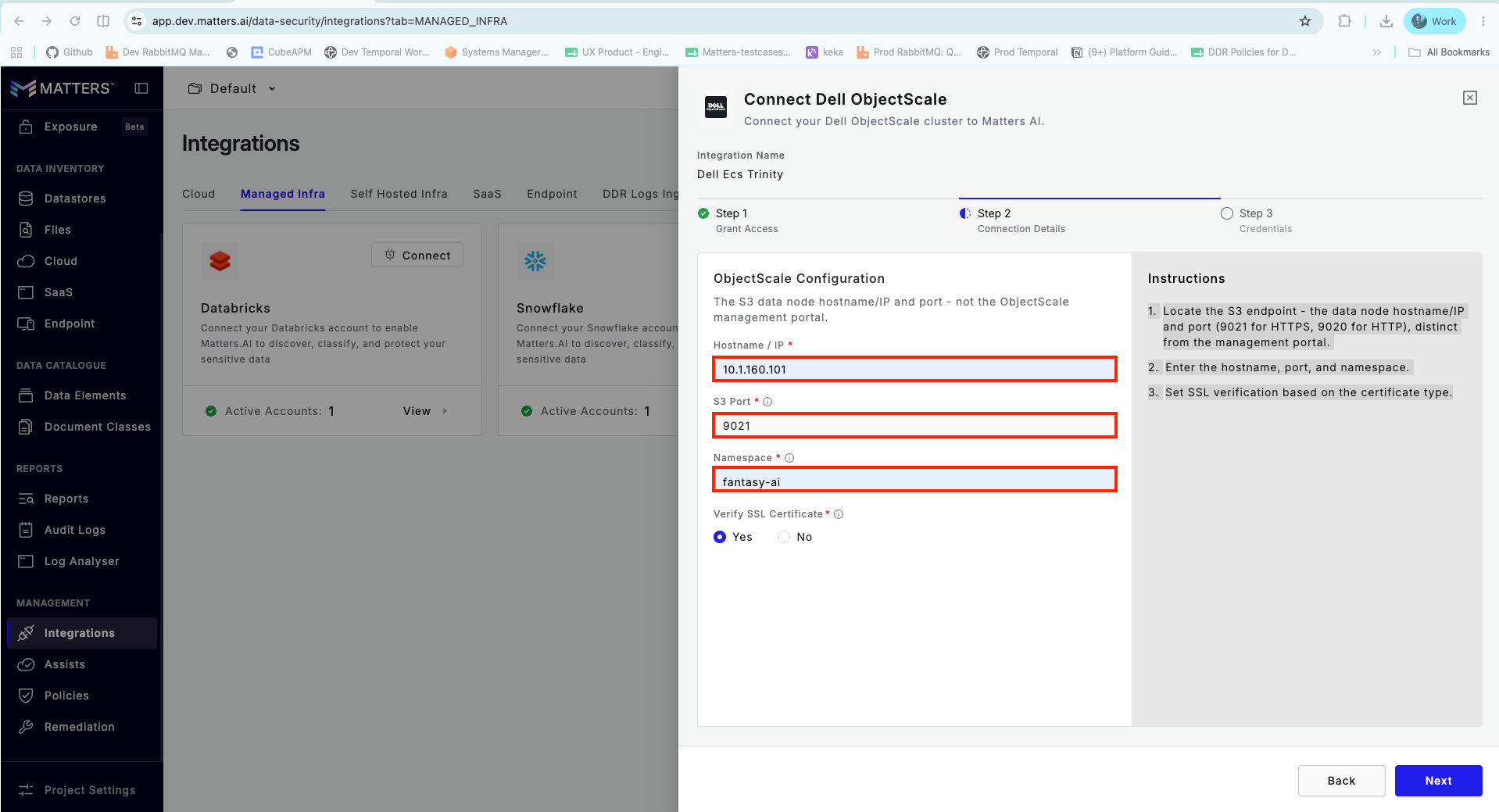
SSL Certificate Verification
Yes: Matters AI verifies the SSL certificate presented by ObjectScale against a trusted certificate authority before establishing a secure HTTPS connection.
No: Skips certificate verification, typically used when ObjectScale has a self-signed or untrusted certificate.
Step 7: Enter IAM Credentials
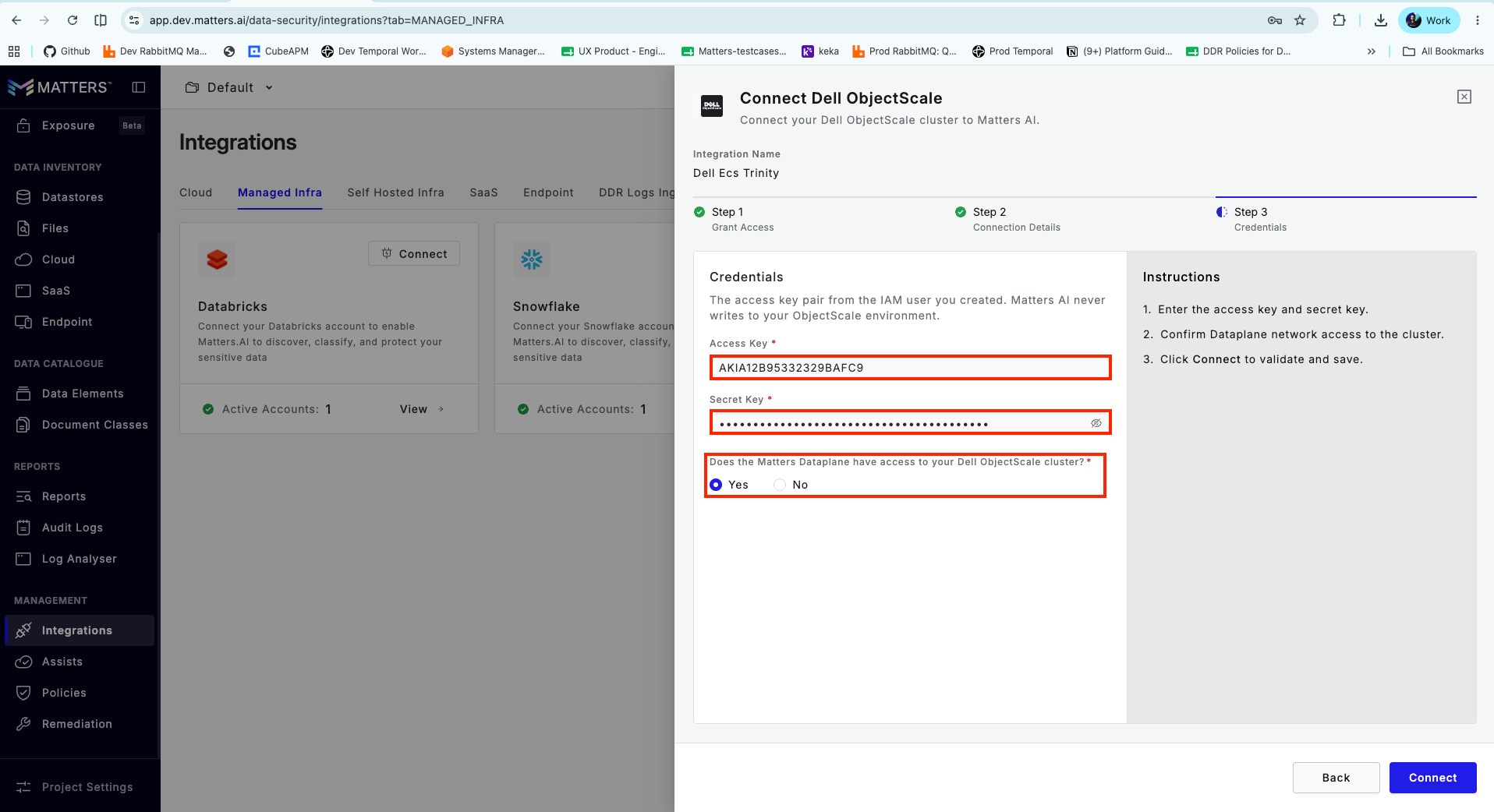
Enter the credentials created earlier:
Access Key: Enter the ObjectScale IAM user's Access Key ID.
Secret Key: Enter the Secret Access Key that was generated together with the Access Key.
Make sure you are using credentials belonging to the IAM user that has the read-only Matters AI policy attached.
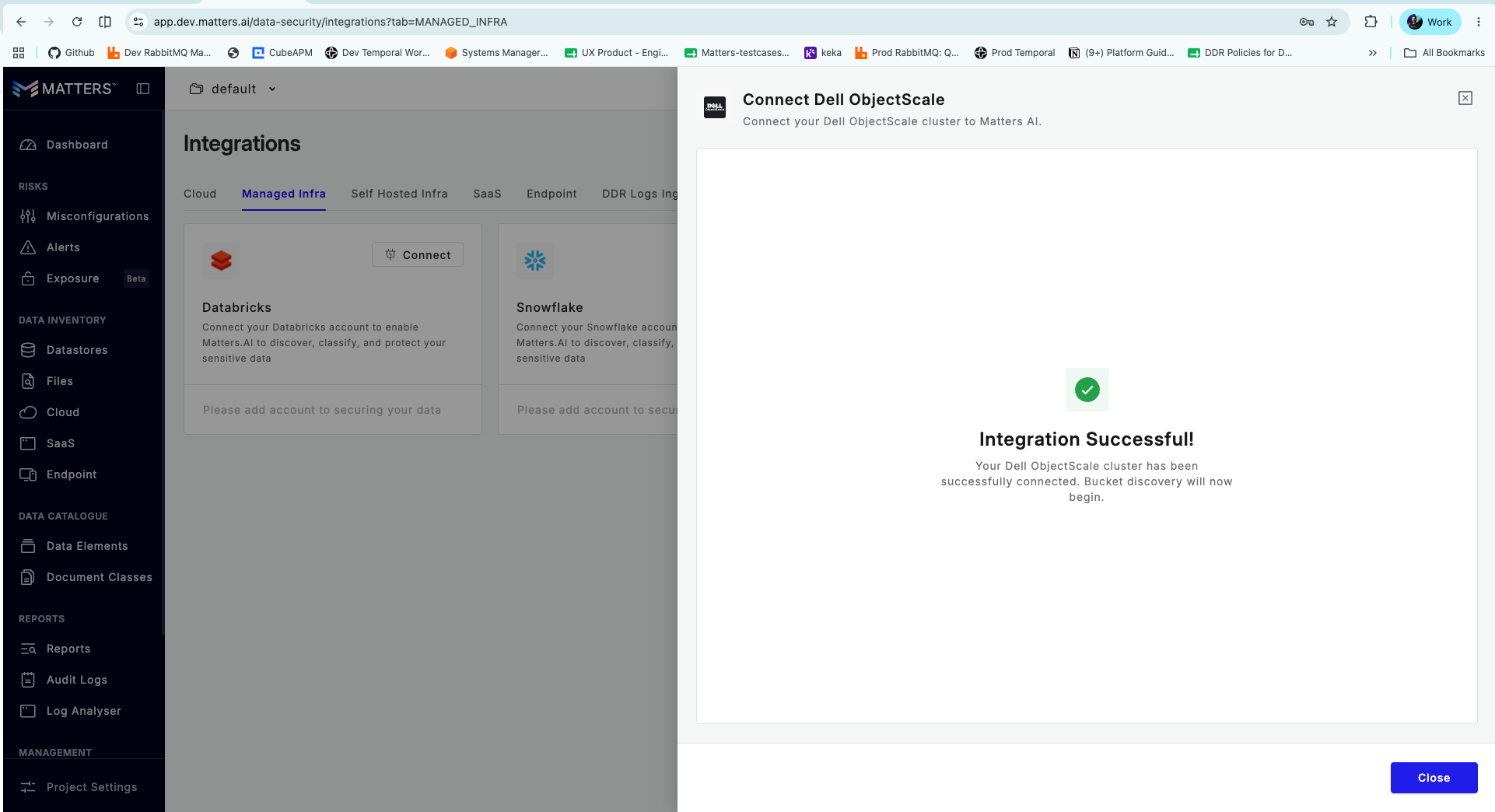
Step 8: Integration Complete
You will see “Integration Successful” message once Integration is complete
Step 9: Discovery and Classification
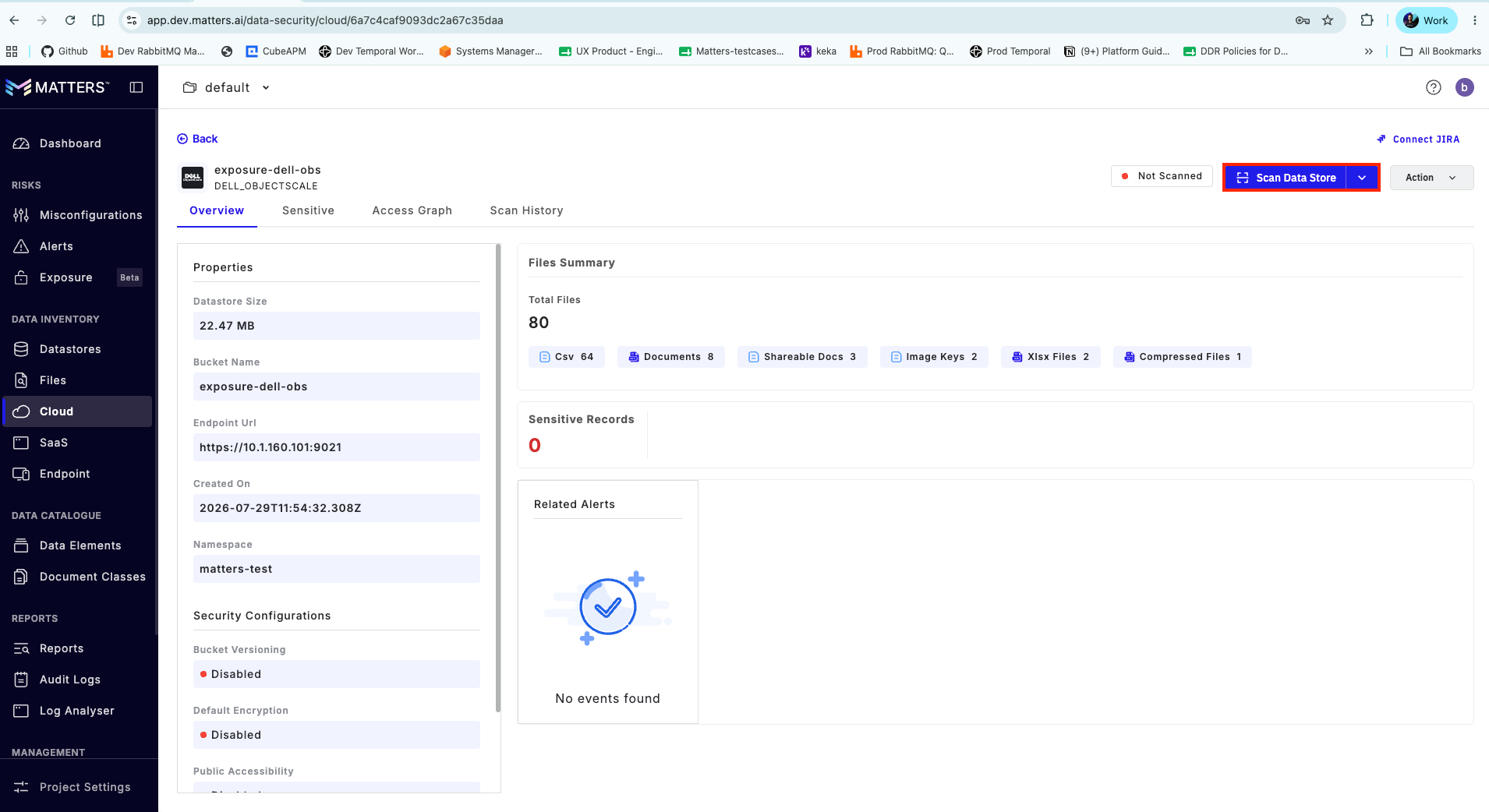
Once the Dell ObjectScale is successfully Integrated, all the Buckets will be automatically discovered and listed on the Cloud Inventory of Matters Dashboard.
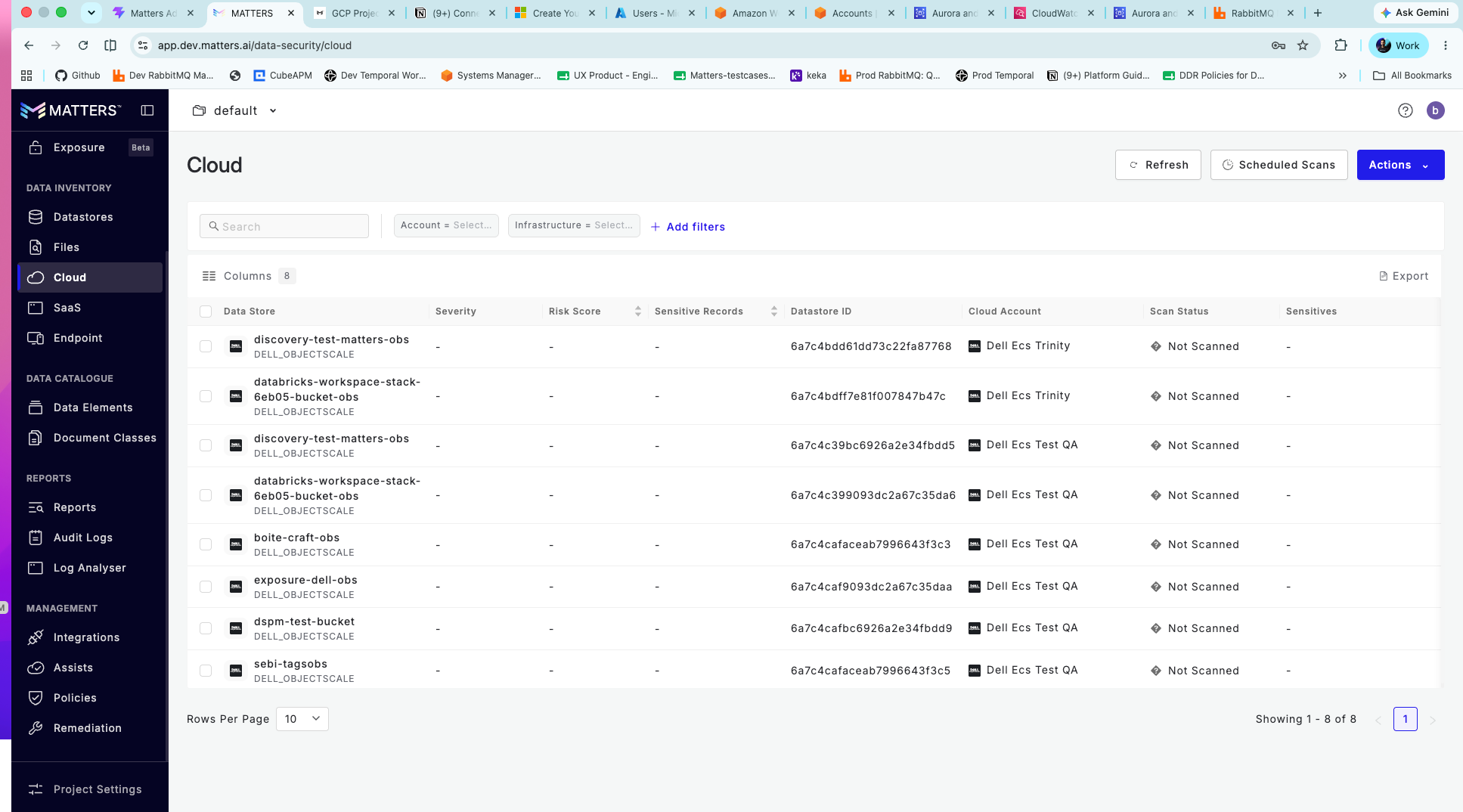
• Click Scan Data Store to initiate detection of sensitive entities.
Step 10: Review Scan Results
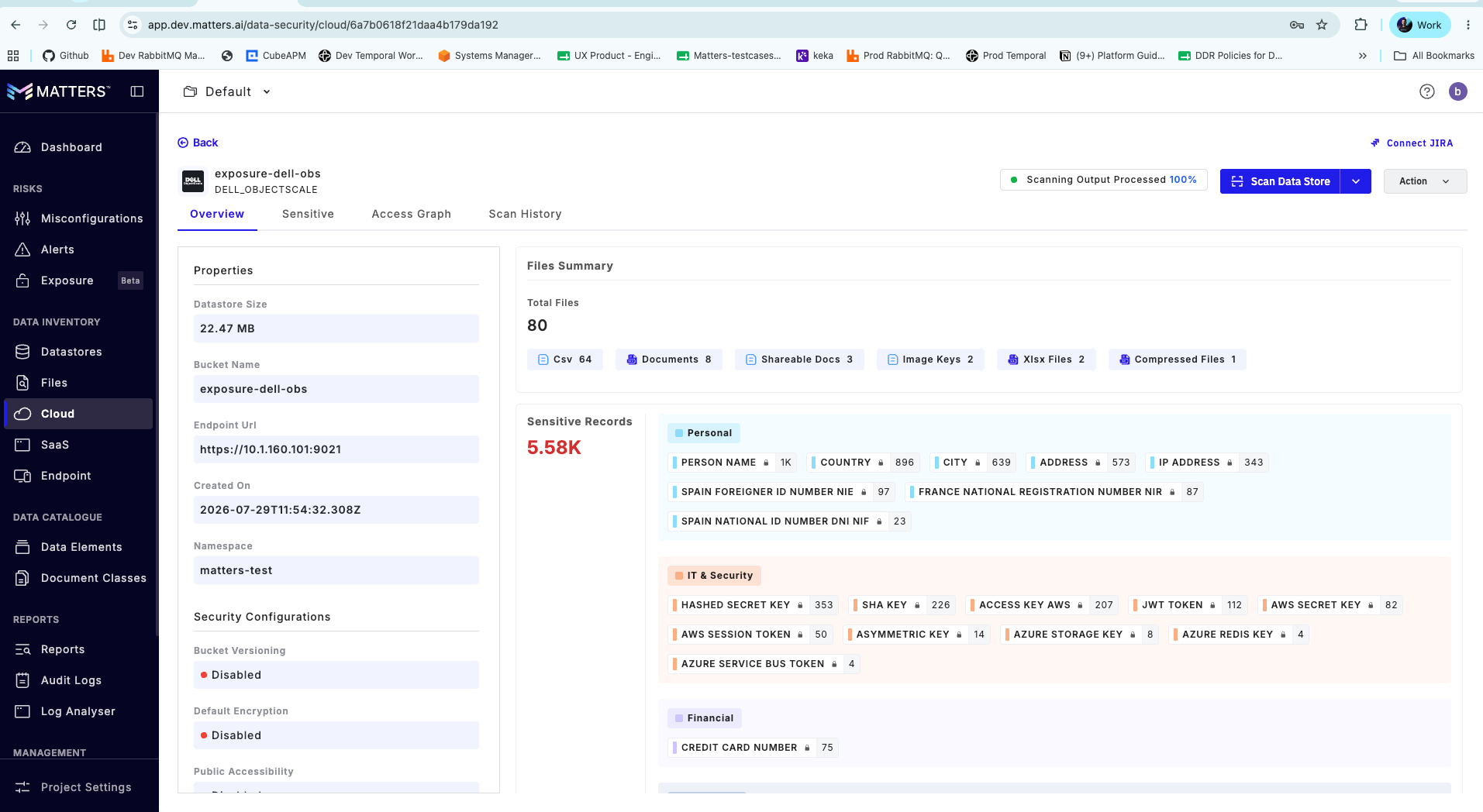
After the scan is completed, navigate to the Overview page.
You will see detailed information on:
Account Properties
Sensitive Records Data
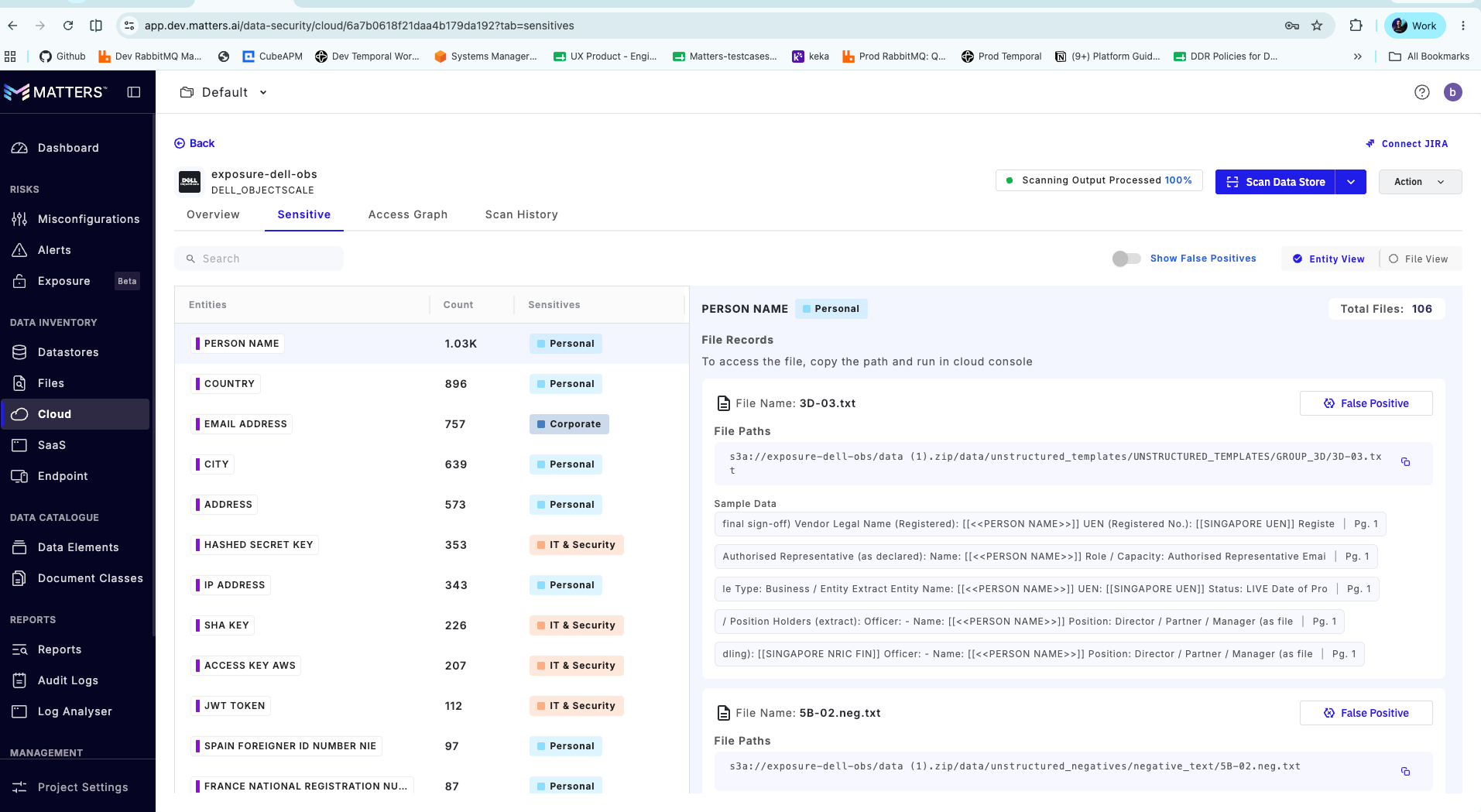
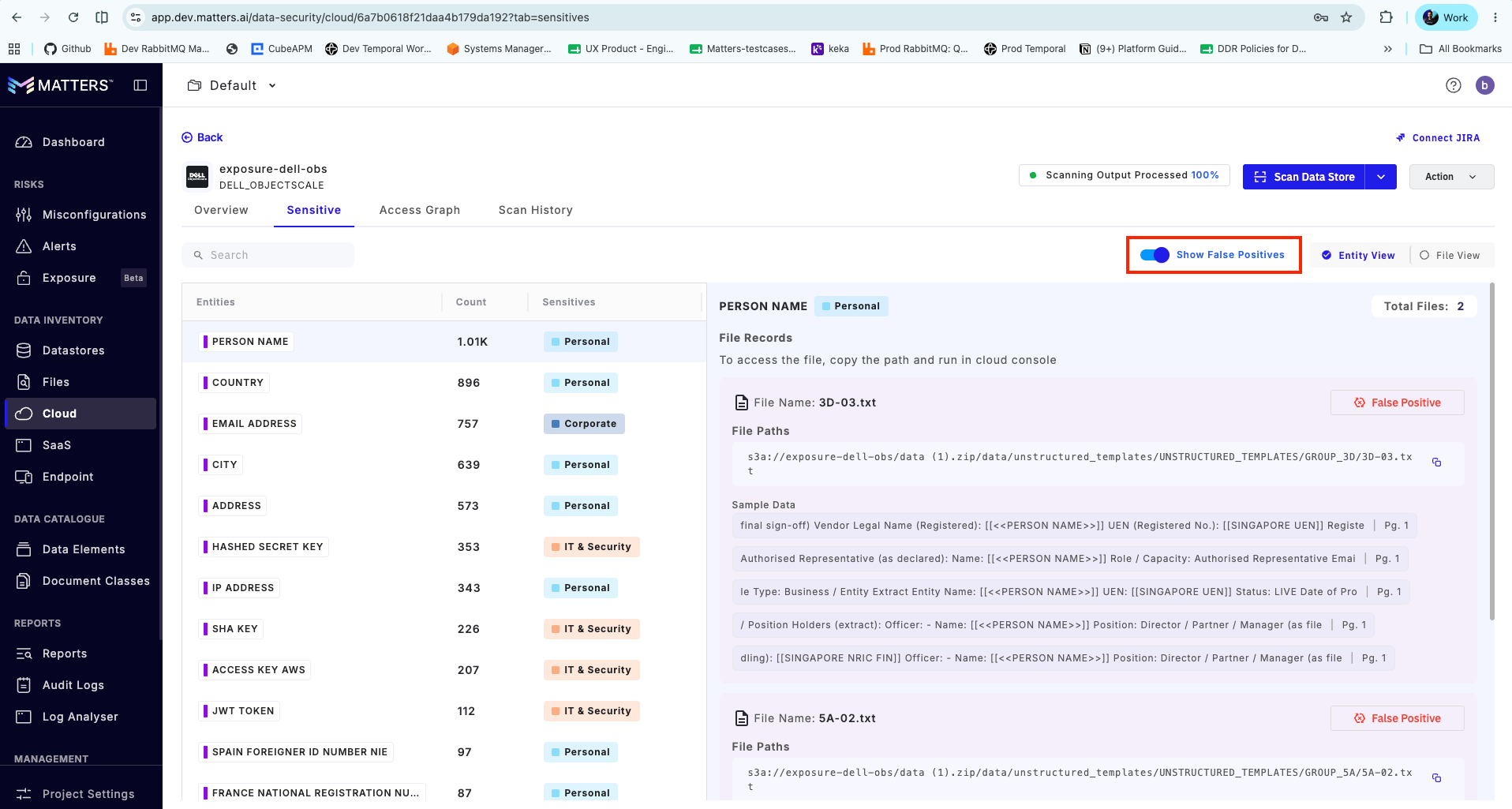
• You can also view additional sensitivity details in the Entity View and File View formats.
• If any entities are found to be false positives, mark them by clicking on the False Positive button. This action allows you to manage the accuracy of the scan results.
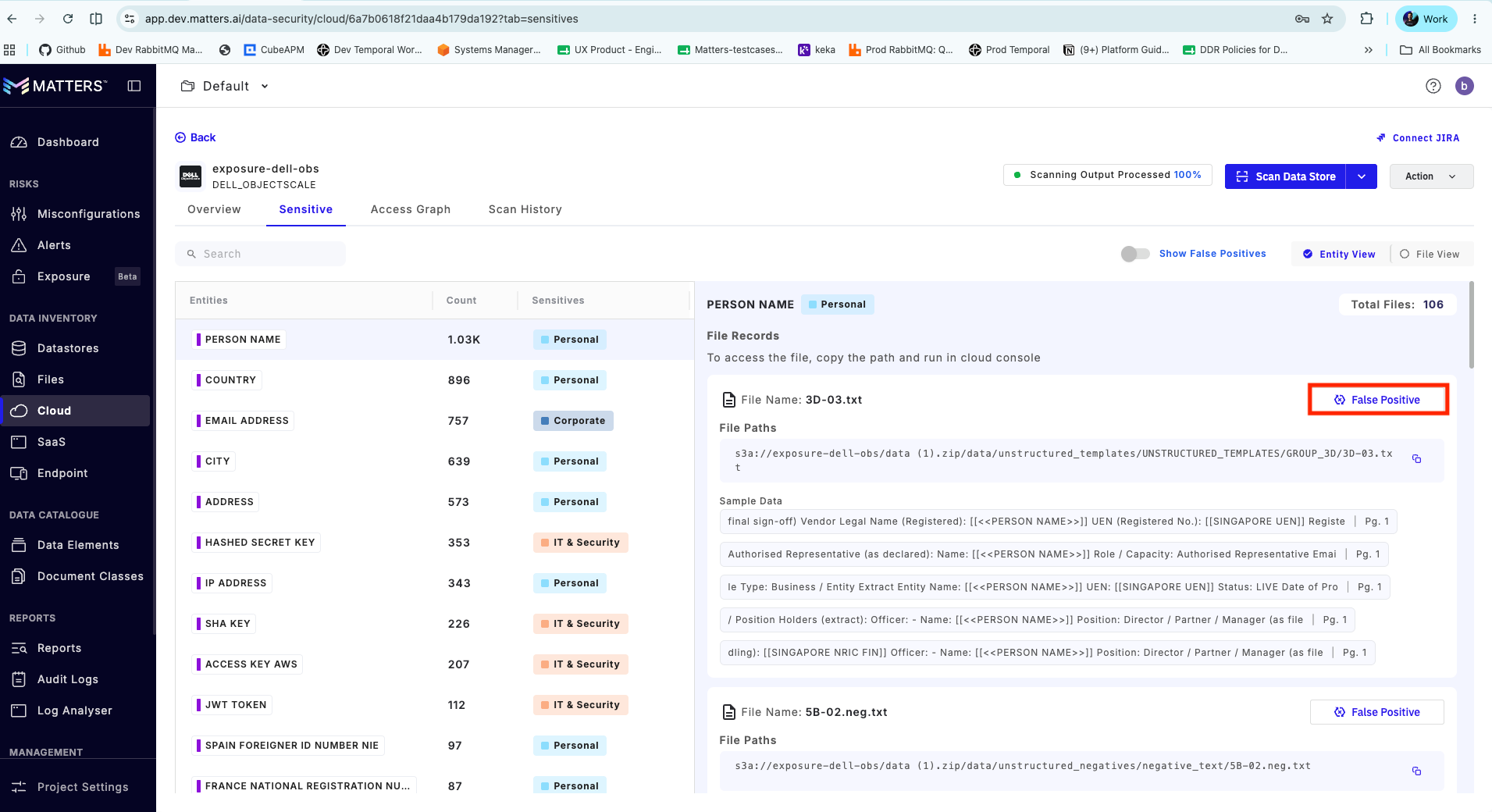
You can view the false positives by toggling the “Show False Positive” Button at the top of the page.
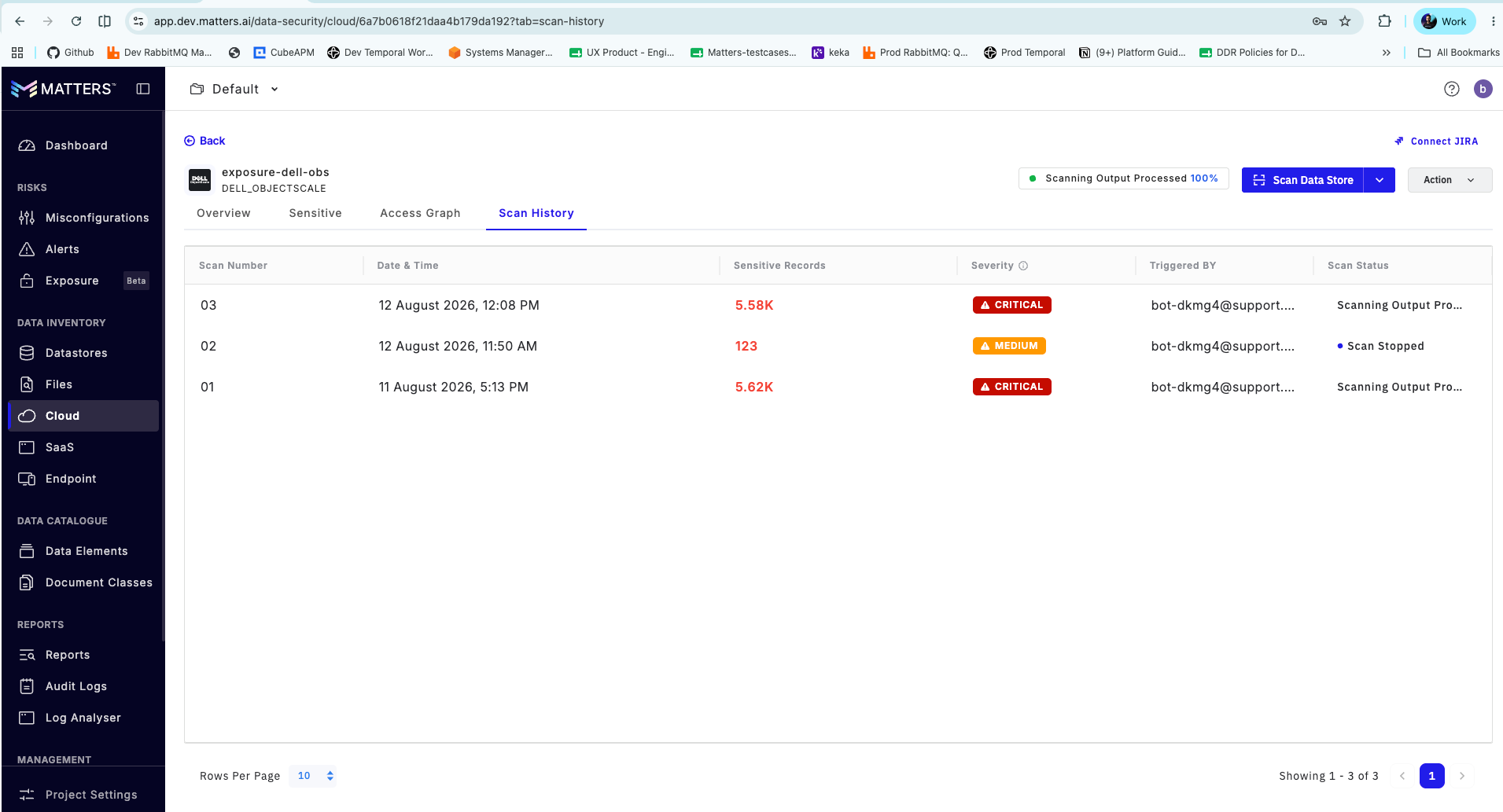
Additionally, the Scan History section provides a detailed log of all previous scans, allowing for easy reference.
Additional Features:
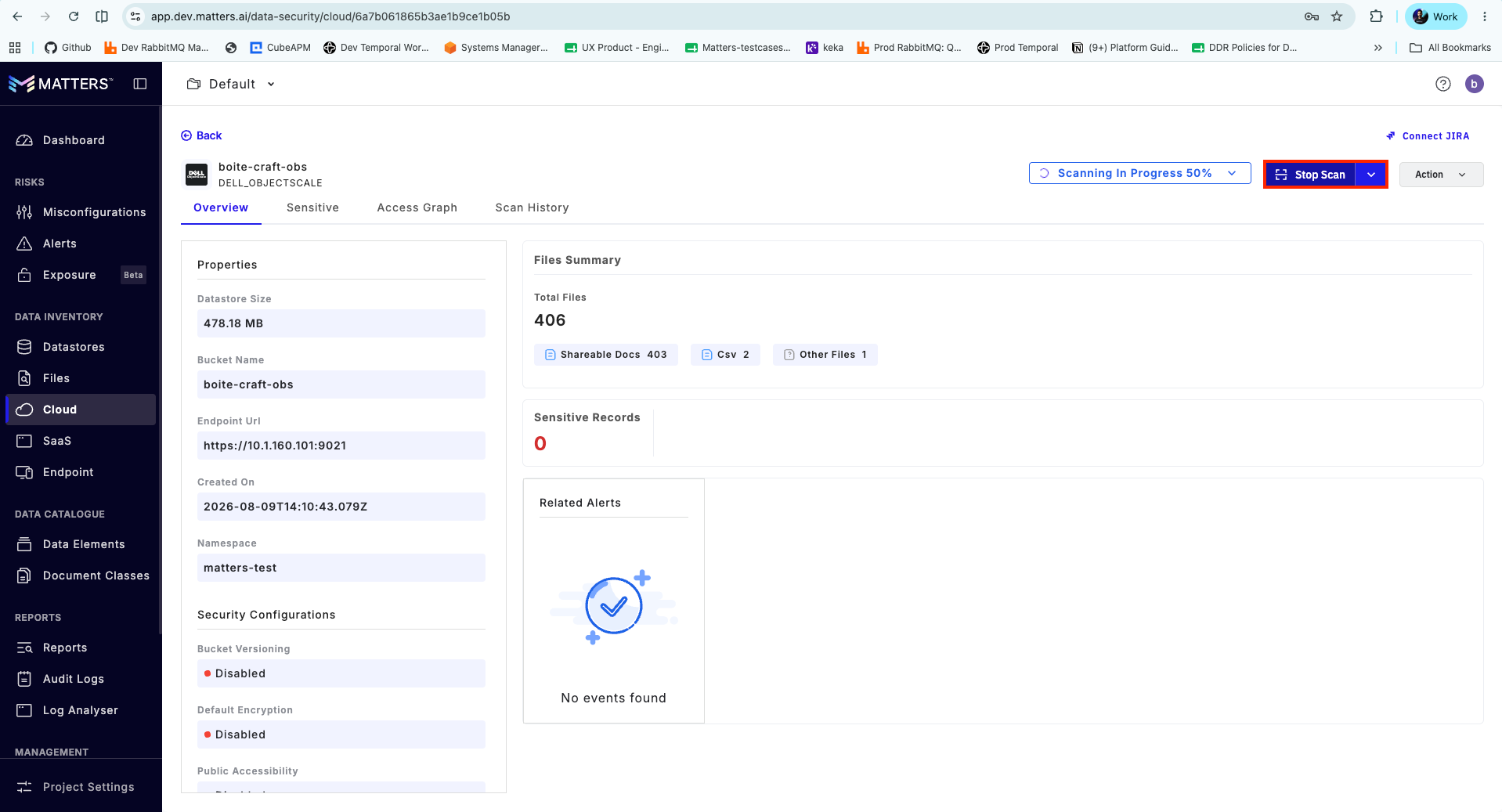
Stop Scan:
At any stage of the scan, you can trigger the Stop Scan option if you wish to halt the process prematurely. This option can be useful for managing resources or stopping an incomplete scan.
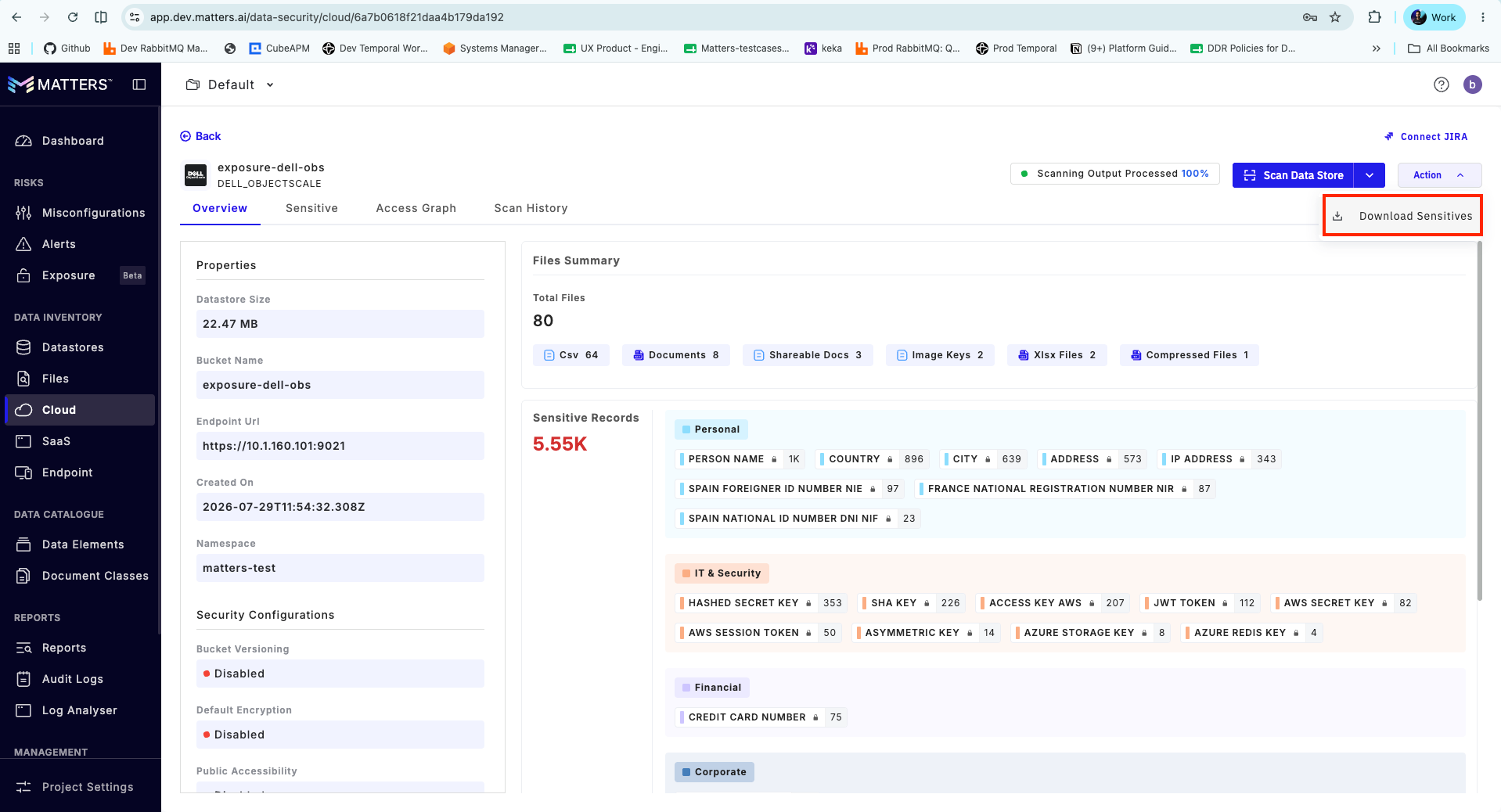
Export Sensitivity Data to CSV:
After the scan is completed, you can download the sensitivity details in CSV format under Actions button. This feature allows you to export valuable insights and share them for further analysis or auditing purposes.
By completing these steps, Dell ObjectScale is successfully integrated with Matters AI using read-only access. Matters AI can then discover buckets, scan data for sensitive entities, and provide results that can be reviewed, managed, and exported from the dashboard.