Google Workspace Integration
Last updated: June 23, 2026
The Integration with Google Workspace can only be performed by the Google Workspace Administrator, as it requires pan-organisational permissions to execute successfully.
Step 1:Create and Configure the Service Account in GCP
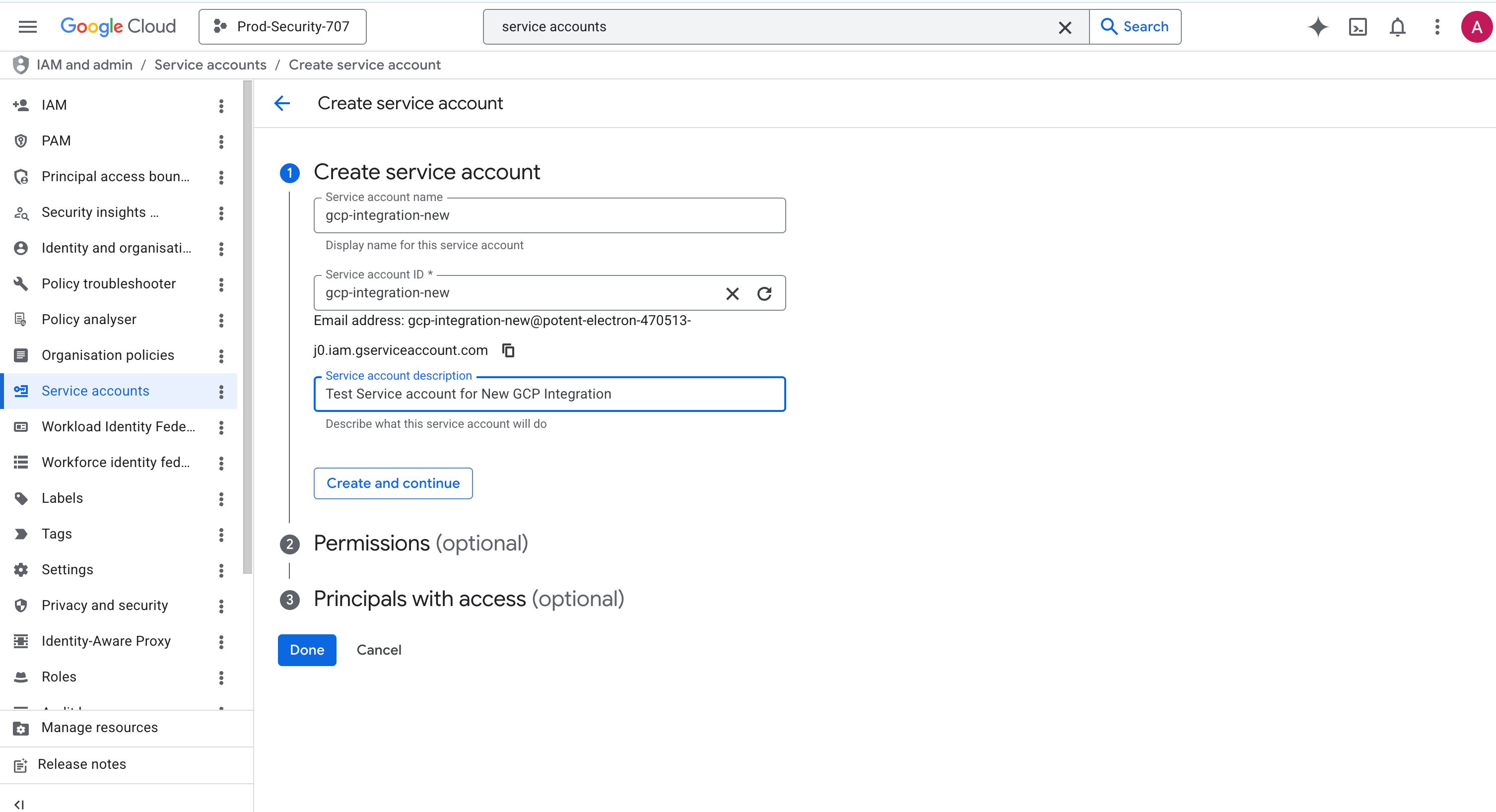
Create a service account in the IAM GCP Console, let’s call it gcp-integration-new.
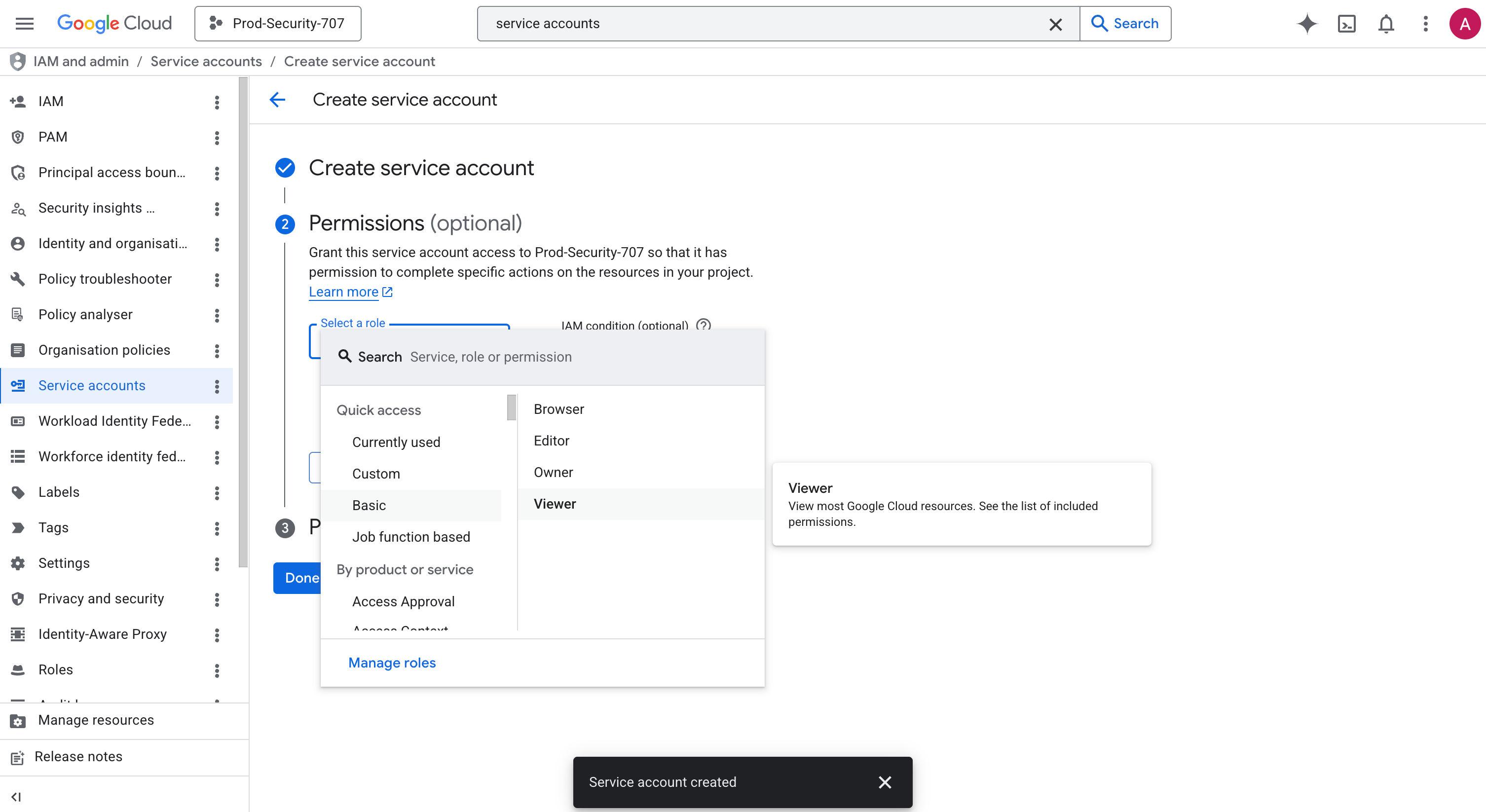
In the permissions, add viewer role:
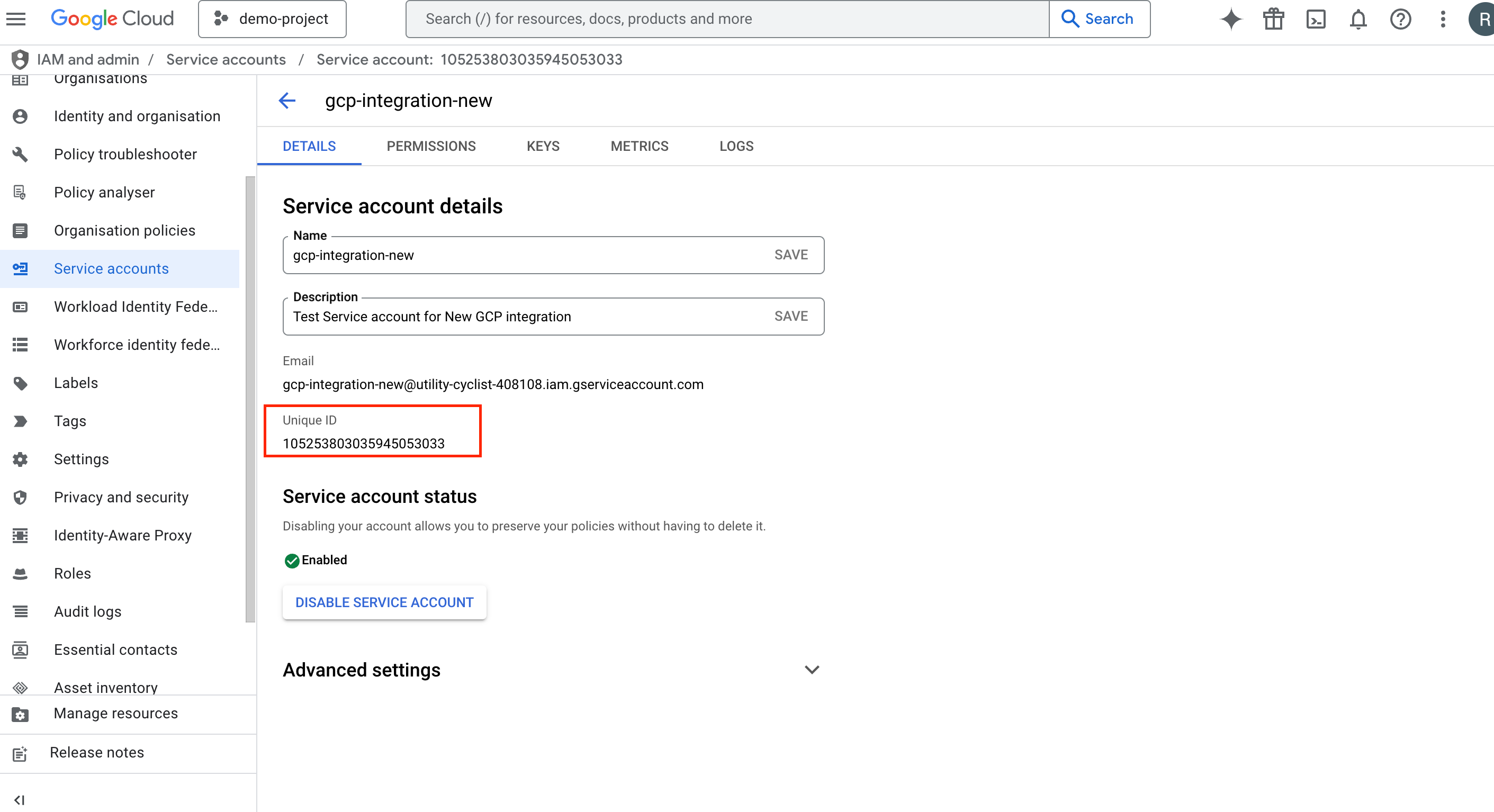
Post creation:
Fetch the
unique IDfor the service account
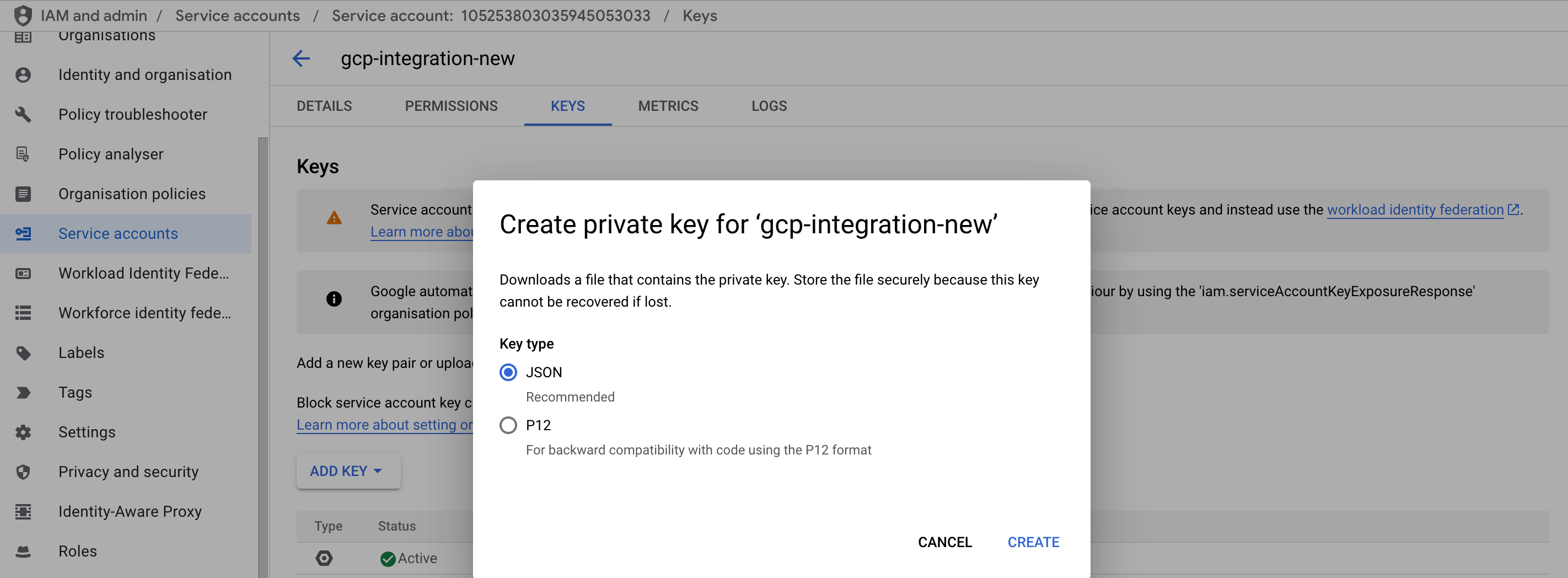
Click on Keys in the menu.

Choose Create New Key from the dropdown. Use this key when integrating GWS with the Matters.ai Dashboard.

Store the Service Account Secret Key File as a JSON in a secure environment
Step 2:Configure Domain-Wide Delegation in Google Workspace Admin Console
Login to your Google Workspace Admin Console, and move to:
⇒ Security>Access and Data Control > API Controls > Domain Wide Delegation

Once in Domain Wide Delegation, click on Add a new Client ID

Over here, add the following:
Client ID: Enter the Service Account Unique ID
Under OAuth Scopes, add the following scopes:
https://www.googleapis.com/auth/drive.readonly,
https://www.googleapis.com/auth/drive.activity.readonly,
https://www.googleapis.com/auth/admin.directory.user.readonly,
https://www.googleapis.com/auth/userinfo.email
https://www.googleapis.com/auth/admin.directory.domain.readonly
Scope | Permission Scope | Reason for Requirement |
Provides read-only access to Google Drive files and metadata, enabling retrieval of data without modification. | Fetching the GDrive Files for Data Classification | |
Grants read-only access to Drive activity logs, allowing tracking of file interactions and usage. | For real-time incremental scans, we require activity logs to gauge the user activity post the previous classification scan window | |
https://www.googleapis.com/auth/admin.directory.user.readonly | Allows read-only access to user information in Google Workspace, necessary for administrative purposes without modifying user data. | Post Integration, we populate all the users that are present in the organisation via this scope. Clients can select a smaller scope of users from the OptIQ dashboard incase they wish to limit the scope of data classification to a smaller subset of users. |
Provides access to the user's email address for authentication and identification purposes. | Required to fetch the user email from the Google native | |
https://www.googleapis.com/auth/admin.directory.domain.readonly | This OAuth scope allows the application/service account to view domain-related information in a Google Workspace tenant. Google lists this as a Directory API scope used to define what level of Admin SDK access an app receives. | Required to read Google Workspace domain information, including primary domain, secondary domains, and aliases, for tenant verification and domain-based configuration. |
https://www.googleapis.com/auth/admin.reports.usage.readonly | Allows read-only access to Google Workspace usage reports for the domain via the Admin SDK Reports API. It enables the application/service account to view user-level and service-level Workspace usage metrics without modifying any data. | Required to fetch Google Workspace usage data for the tenant, such as user/service usage metrics, to understand SaaS usage patterns, enrich inventory analytics, identify active/inactive users, and support usage-based reporting without making changes to Workspace data. |
Step 3:Enable Required Google Cloud APIs
Enable the following APIs:
Google Drive API
🔗 https://console.cloud.google.com/apis/library/drive.googleapis.com

Google Drive Activity API
🔗https://console.cloud.google.com/apis/library/driveactivity.googleapis.com

People API
🔗https://console.cloud.google.com/apis/library/people.googleapis.com

Google Resource Manager API
🔗https://console.cloud.google.com/marketplace/product/google/cloudresourcemanager.googleapis.com

Admin SDK API
🔗https://console.cloud.google.com/marketplace/product/google/admin.googleapis.com

Step 4: Open the SAAS Integrations Section
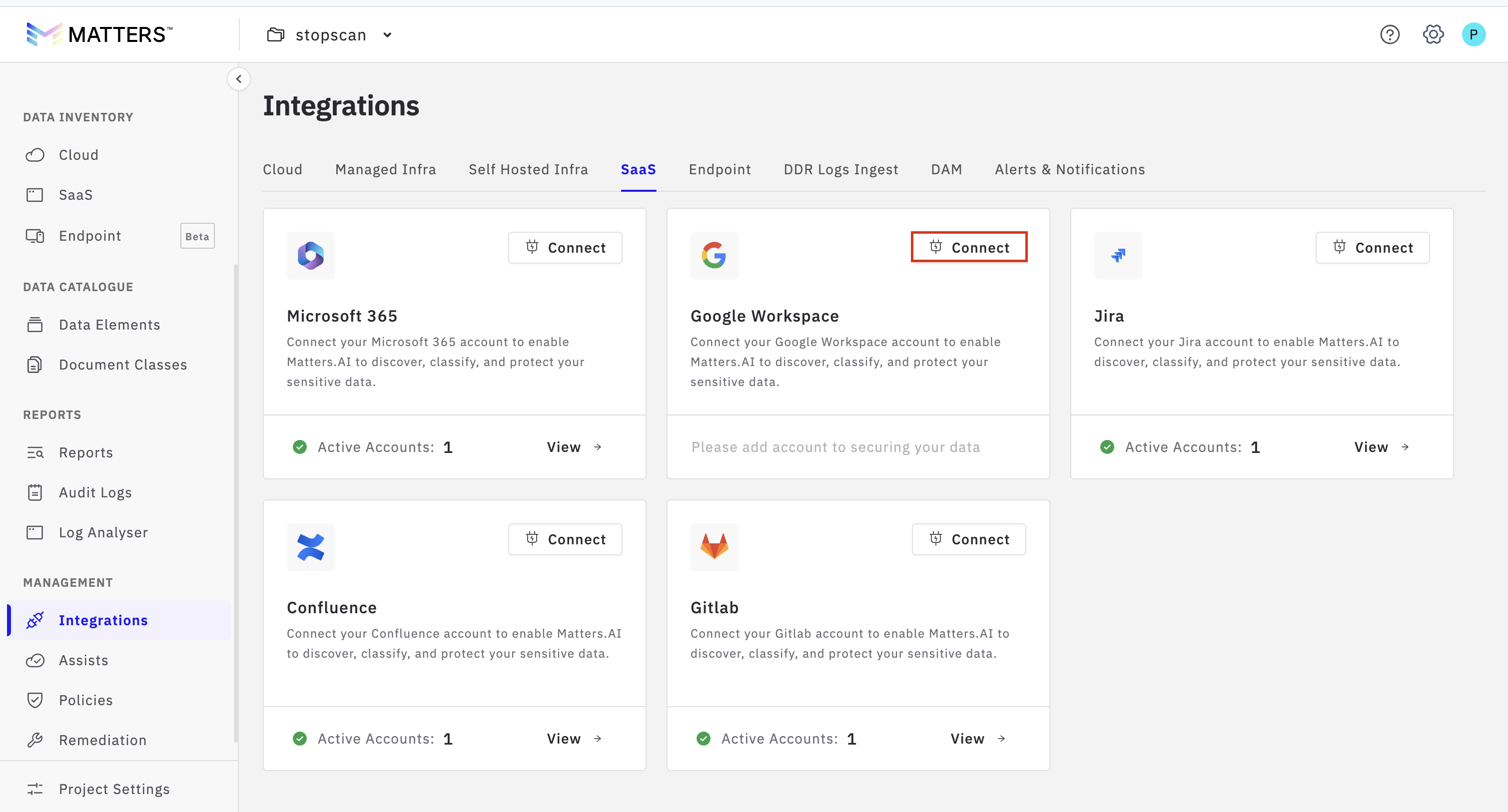
Login to the Matters Dashboard, navigate to Integrations, select the SaaS tab to view the available integration options, and under Google Workspace Integration, click Connect.
Provide the required integration details:
Integration Name: Enter a descriptive name for easy identification.
Admin Email ID: Specify the email address of your Google Workspace administrator.
Upload the JSON key file by clicking the browse button and selecting the appropriate file from your local device
Once all required information is entered, click Connect to proceed:
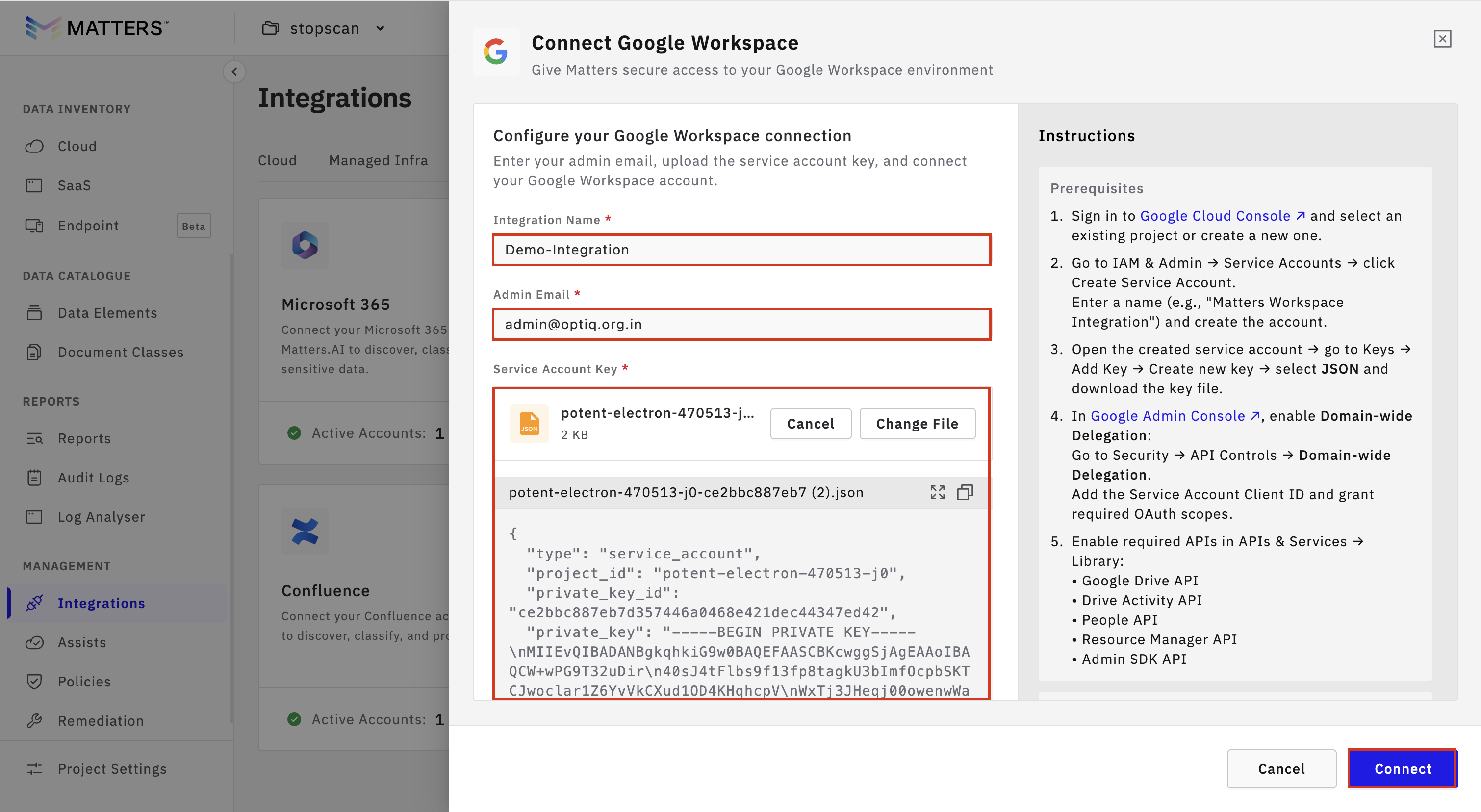
Upon successful integration, a confirmation message will appear:“GCP Integrated Successfully”
Step 5: Configure SAAS Scan Settings
Once Office 365 Integration is Complete:
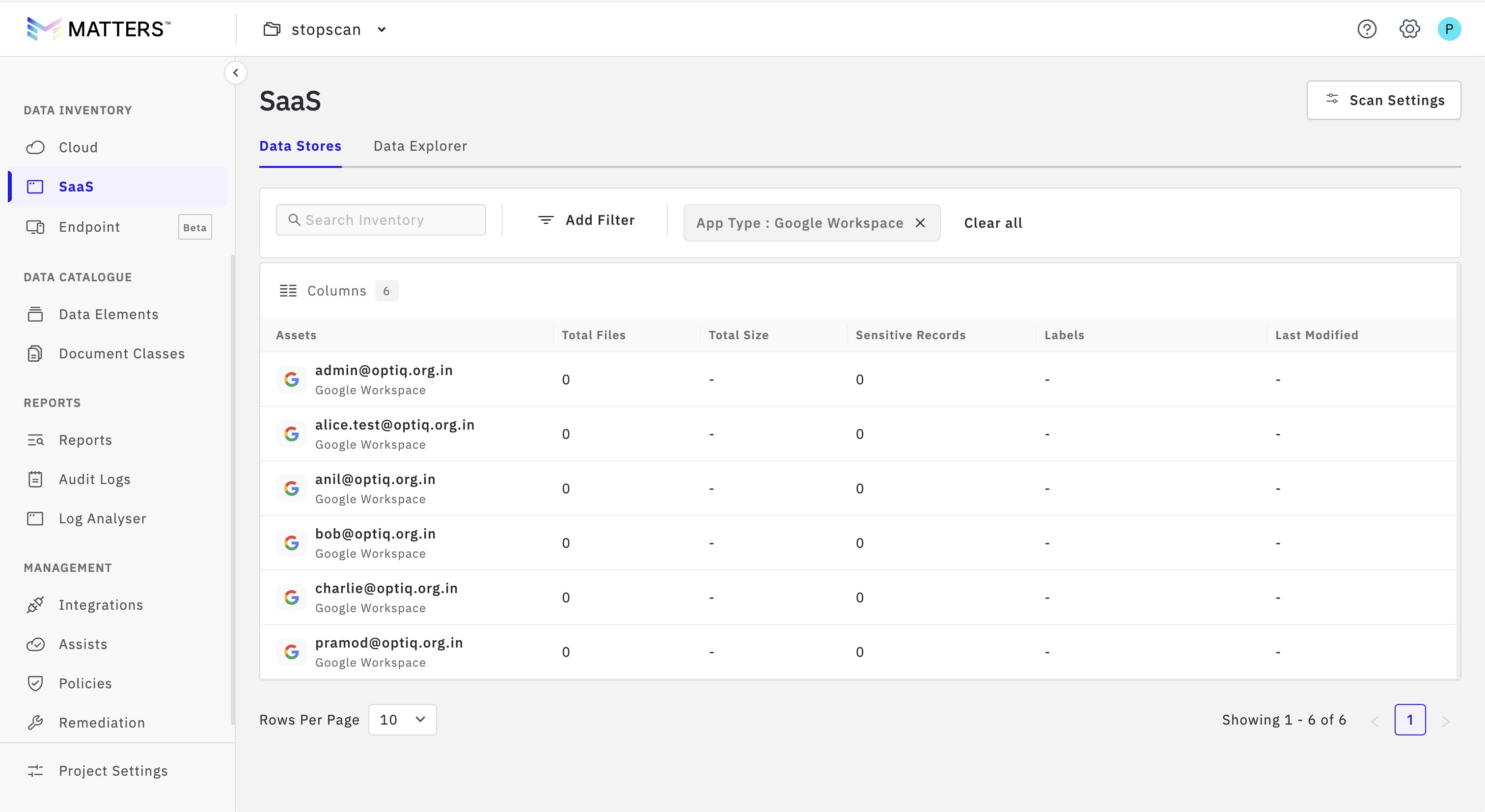
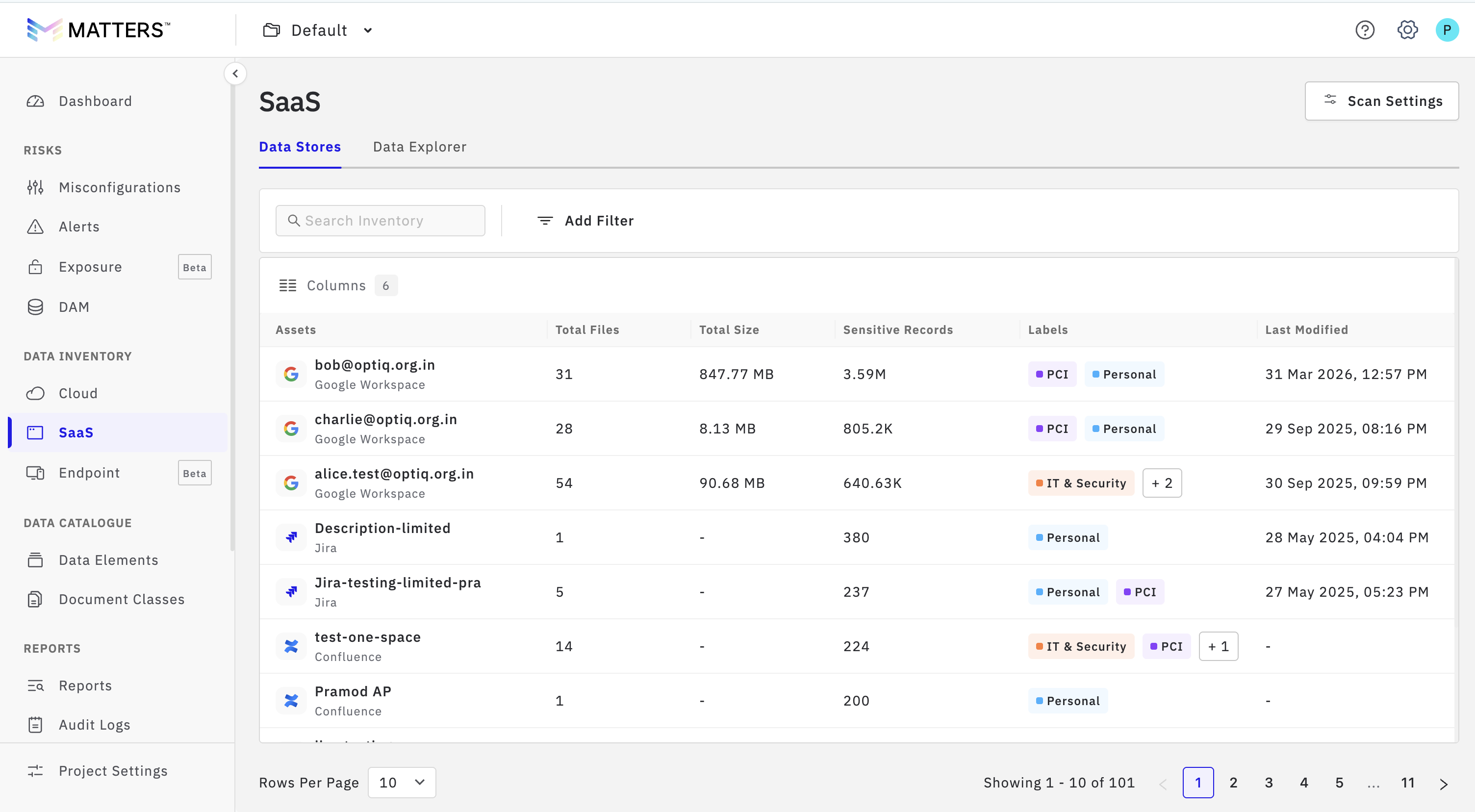
Navigate to SAAS.
The Automated Discovery will run automatically.
All the GWS users will Automatically listed inside the SAAS Inventory
Step 6 : Manually Configure SAAS Scans
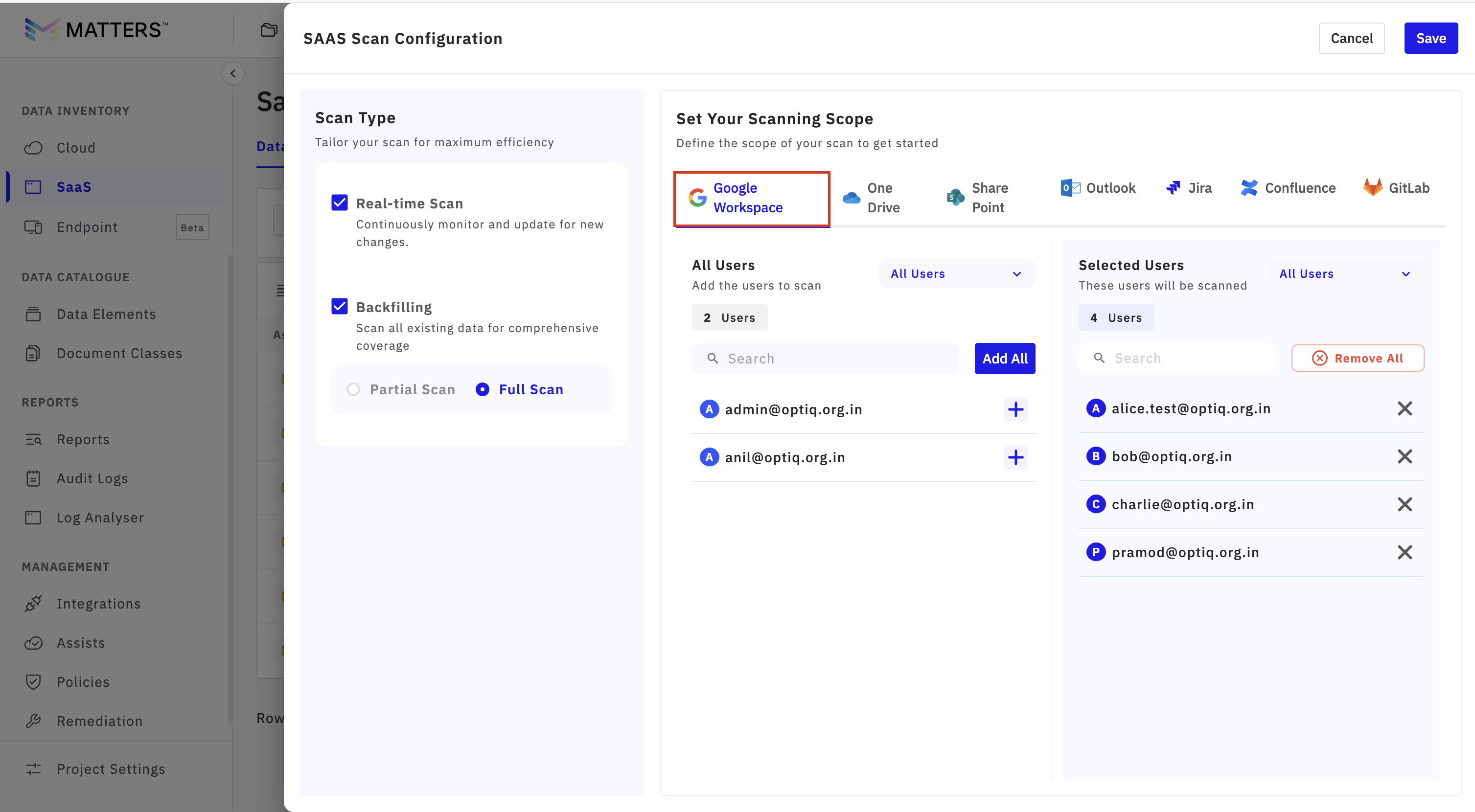
You have to configure scans manually. To do this, navigate to SAAS click on Scan Settings
Under the section, you will see a list of users associated with your organisation.
Add or remove users which you need to scan for entities.
This granular control allows you to focus scanning resources on relevant accounts only.
Choose your preferred scanning mode:
Real-time Scan: Enables continuous monitoring and automatic updates whenever new data changes are detected.
Backfilling Scan: Performs a comprehensive scan of all existing data to ensure complete coverage.
Click Save to apply and activate your scans.
Step 7: Monitor Scan Results
Scanning will commence automatically based on the configuration you have set.
To review scan results:
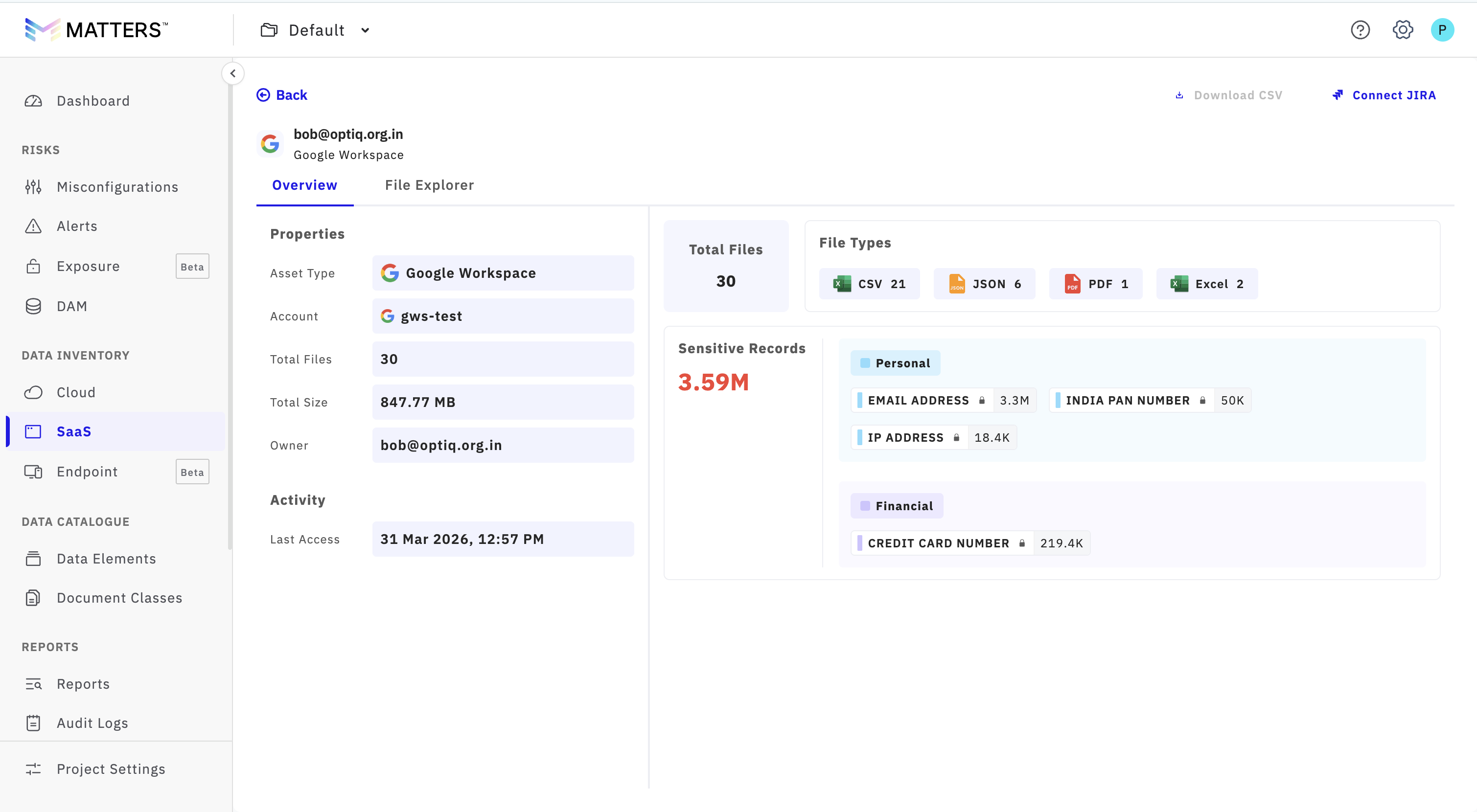
Select a specific user to view their scanned data.
Use the File Explorer to browse detected sensitive entities and corresponding files
By following this guide, you will successfully integrate your Google Workspace account with Matters, configure scanning settings tailored to your organisational requirements, and continuously monitor sensitive data across your users. This integration significantly strengthens your data security posture by enabling automated, real-time detection and management of sensitive entities.